Incremental processing
Full refresh is the simplest pipeline pattern: every run reads all source data, transforms it, and overwrites the output. It works well until the dataset gets large enough that it becomes slow, expensive, or both. Incremental processing solves this by only processing data that has changed since the last run. This guide is for data engineers and operations managers. It compares the two approaches and then describes four incremental patterns, how to handle late-arriving data, and performance options.
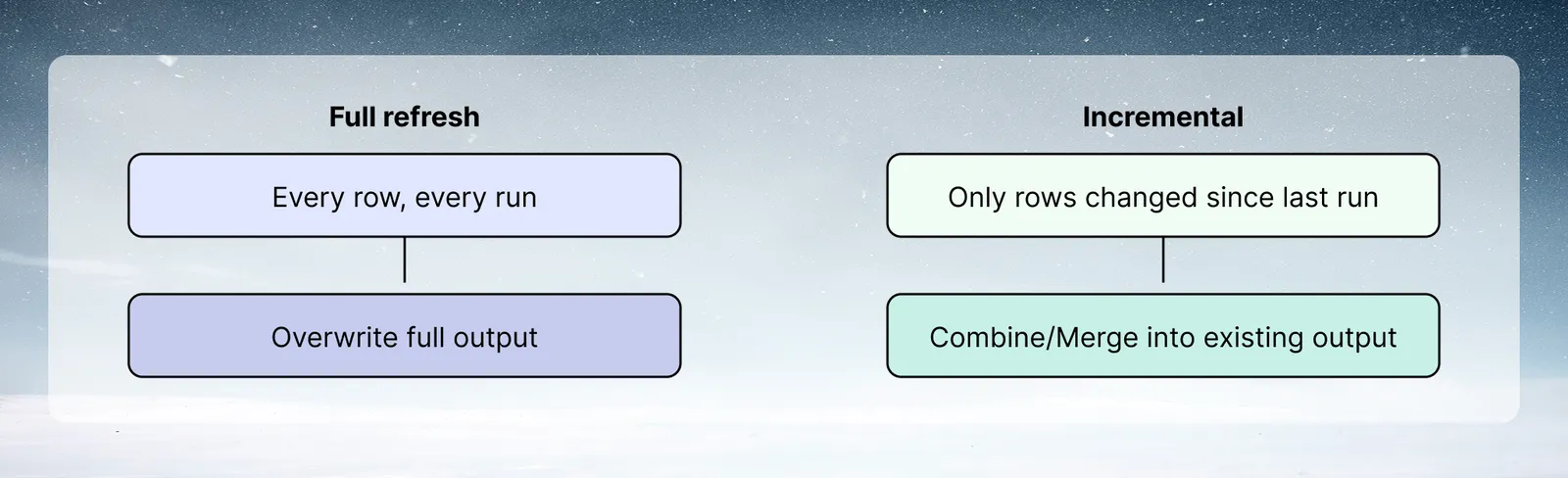
When to use incremental processing instead of full refresh
| Characteristic | Use full refresh | Use incremental |
|---|---|---|
| Dataset size | < 500K rows | > 500K rows |
| Source API rate limits | No concern | Tight limits |
| Pipeline runtime | < 5 minutes | > 5 minutes |
| Historical data changes | Yes (corrections are common) | No (append-only source) |
| Source has change tracking | Not required | Required (timestamp or CDC) |
Start with full refresh. Switch to incremental when full refresh becomes a problem, not before.
Pattern 1: Time-window extraction
The simplest incremental pattern: extract only records created or modified within a time window.
Setup
- Add a Conditional Filter task as the first transformation task after ingestion, comparing a date/timestamp column against a cutoff value:
CreatedAt >= <cutoff date>: for append-only data (orders, events, transactions)UpdatedAt >= <cutoff date>: for data that can be updated (customers, accounts, statuses)
- The Conditional Filter task compares against a fixed value you set when configuring it. It does not support relative-date macros like "yesterday" evaluated automatically at runtime. For a true rolling window without manually updating that cutoff on a schedule, use Pattern 2 or Pattern 3 below, which handle the incremental logic through a real Mammoth automation instead of a self-maintained date filter.
Output strategy
- For the main View: set write mode to Combine: new rows add to existing data
- For the destination (BigQuery): set write mode to Merge: new rows insert, changed rows update
Window size: Use a 2-day or 48-hour lookback window instead of exactly 24 hours. This buffer catches:
- Late-arriving records (source systems often have processing delays)
- Records that were updated after the previous run's cutoff time
- Timezone edge cases
The Merge write mode matches rows on the reference column you pick (typically the primary key), so the 2-day overlap does not create duplicates. It only ensures coverage.
Pattern 2: Append-only pipeline
For source data that only grows (transaction logs, events, audit records):
Setup
- Source ingestion: filter to the last N days (or use a file-arrival-triggered automation for batch files—see Pattern 3)
- All transformation tasks apply to only the new rows
- Output: Combine into the master View—never Replace, which would erase prior history
Append master View
The master View accumulates all historical data. Structure it as follows:
- One row per event or transaction, never aggregated at this layer
LoadedAtcolumn: timestamp of when this row was added to the master ViewSourceFilecolumn (for file-based sources): which file this row came from, which is useful for debugging
Deduplication for append pipelines
If the source can produce duplicate records (retries, reprocessing), add a deduplication task:
- After appending new rows, add a Group & Pivot task that deduplicates on primary key
- Select the "take most recent" row where duplicates exist:
MAX(LoadedAt)per primary key - This View becomes the deduplicated master, separate from the raw append View
Pattern 3: File-based incremental (intake folder)
For batch file sources that drop files on a schedule:
- Source files land in a Data Library folder:
Intake/Sales/ - A Data Consolidation automation watches the source folder and picks up files as they are added (no scheduled run needed), processing new files only
- Each file's rows are appended to the master dataset
- Processed files are moved to
Intake/Sales/Processed/(file management task)
Tracking which files have been processed:
- Add a
SourceFilenameconstant column when processing each file - The master dataset records which file each row came from. This is the reliable audit trail, since the automation itself only surfaces its most recent run status, not a full run history
Pattern 4: Change data capture (CDC)
For databases that track changes natively:
Using updated_at timestamps
If the source database has an updated_at or modified_date column:
- Query with:
WHERE updated_at > '<last run timestamp>' - Merge into destination on primary key
The challenge: deleted records. If a row is deleted from the source, it won't appear in the extract (and therefore won't be removed from the destination). Options:
- Accept soft-delete semantics: add a
DeletedAtcolumn that's populated when a record is deleted - Periodically run a full refresh to reconcile (daily incremental + weekly full refresh)
Using a sequence column or ID
For append-only tables with auto-incrementing IDs, configure the source's unique sequence column on the refresh automation. Mammoth tracks the last-seen ID internally between runs and only pulls rows past it. There is no separate "automation variable" to manage; it is a per-dataset setting on the automation. This is efficient and reliable for tables where IDs are monotonically increasing.
Handling late-arriving data
Late-arriving data (records that belong to a past period but arrive after it was processed) is the hardest problem in incremental processing.
Sources of late arrival:
- POS systems with offline mode: transactions recorded offline, synced later
- EDI/B2B: partners submit data days after the event
- Event processing queues: events can arrive out of order
Strategies:
-
Extended lookback window: Instead of 24-hour lookback, use 7-day lookback. Any record with
UpdatedAt >= 7 days agois reprocessed. The Merge write mode ensures no duplicates. Works if volume allows it. -
Late arrival flag and restatement: Accept that historical periods may need correction. Add a
NeedsRestatementflag to periods that received late data. Run a full restatement for flagged periods monthly. -
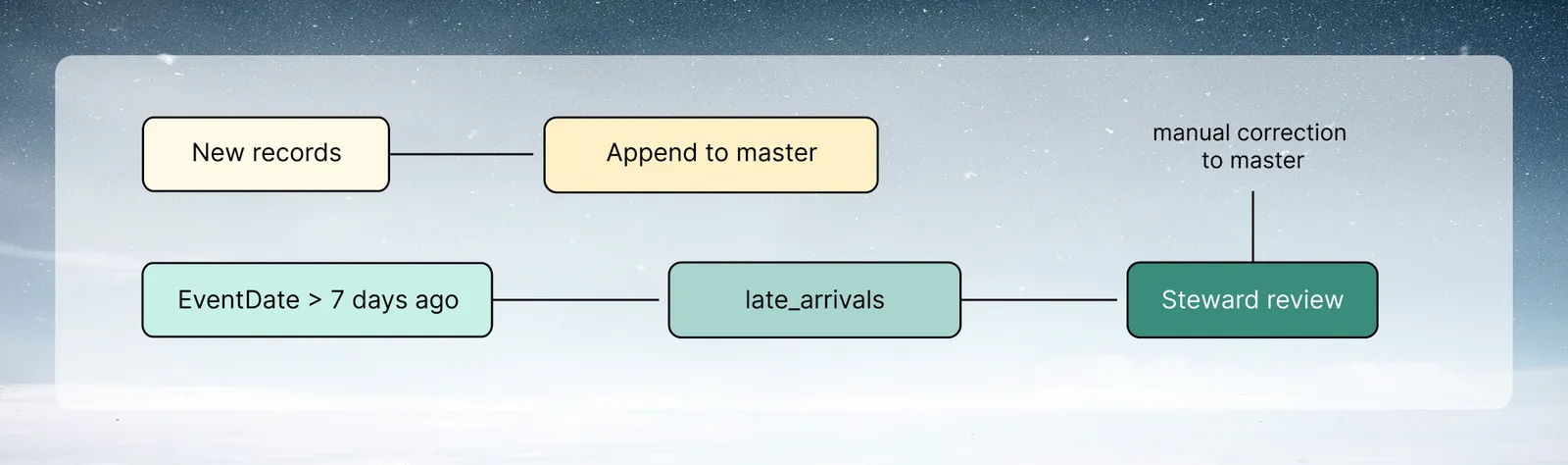
Frozen periods: Mark historical periods as "frozen" after a close date. Late-arriving data for frozen periods goes to a
late_arrivalsdataset for manual review rather than automatically modifying the frozen output.
Performance optimization options
| Optimization | When to apply |
|---|---|
| Reduce lookback window | When incremental runtime is still too long |
| Push aggregation to source SQL | Before data lands in Mammoth |
| Partition output by date | For large Views queried by date range |
| Remove unused columns early | Column select task immediately after ingestion |
| Schedule incremental during off-peak | Reduce load on source database |