Jira dashboard examples: free template
14-day Pro trial · No credit card · Viewers are always free

The template: paste this into Mammoth
Jira dashboard: issues created, issues resolved, story points completed, average cycle time in days, open bugs and open issues as KPIs, story points completed by sprint in sprint order, resolved issues by team, and issues created by type

In production at














What is a Jira dashboard template?
A Jira dashboard template is a ready-made dashboard for your Jira project, with the numbers and charts already chosen. This one reads a Jira issue export: upload it and it fills in with issues created and resolved, story points by sprint, cycle time and open bugs, by team and issue type.
What's on it
What's in the Jira dashboard template
Six numbers at the top and three charts below them.
Six numbers at the top
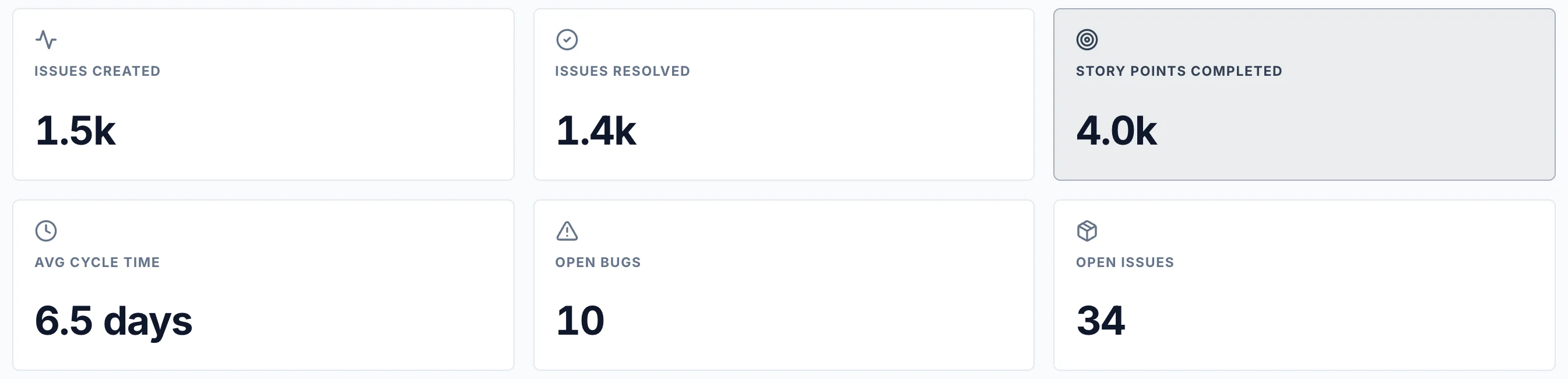
- Issues created
- New issues in the period.
- Issues resolved
- Issues moved to Done.
- Story points completed
- Points on the issues that are done.
- Average cycle time
- Days from created to done, on average.
- Open bugs
- Bugs not yet done.
- Open issues
- Every issue not yet done.
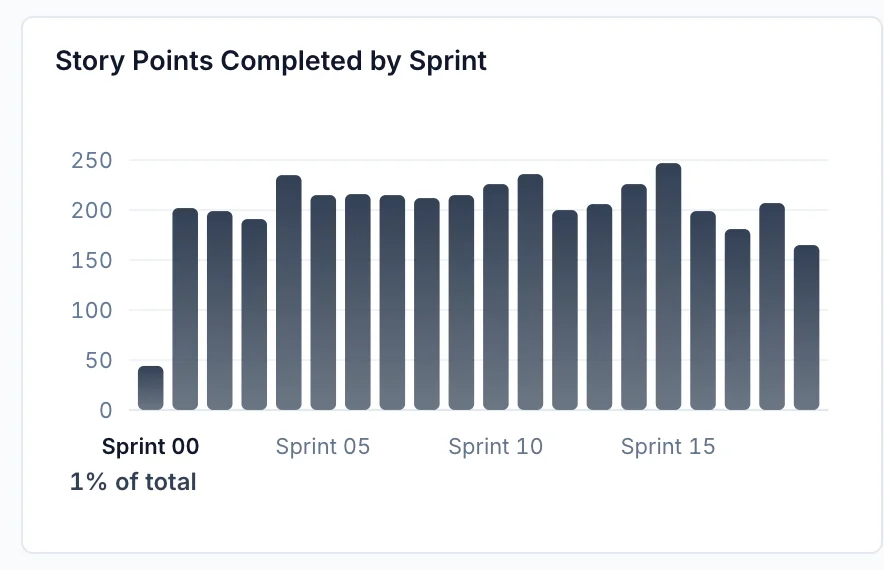
Story points completed by sprint
Points finished in each sprint, in sprint order.
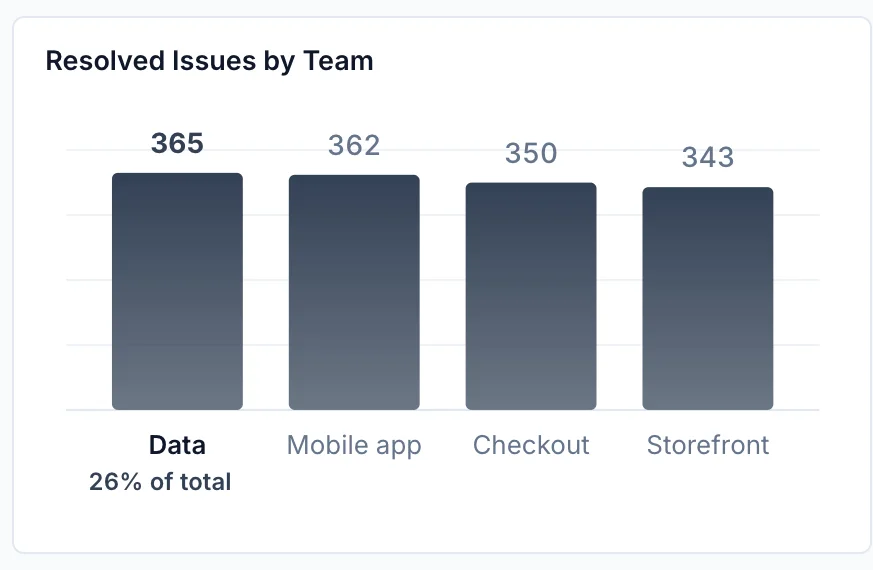
Resolved issues by team
Issues each team finished.
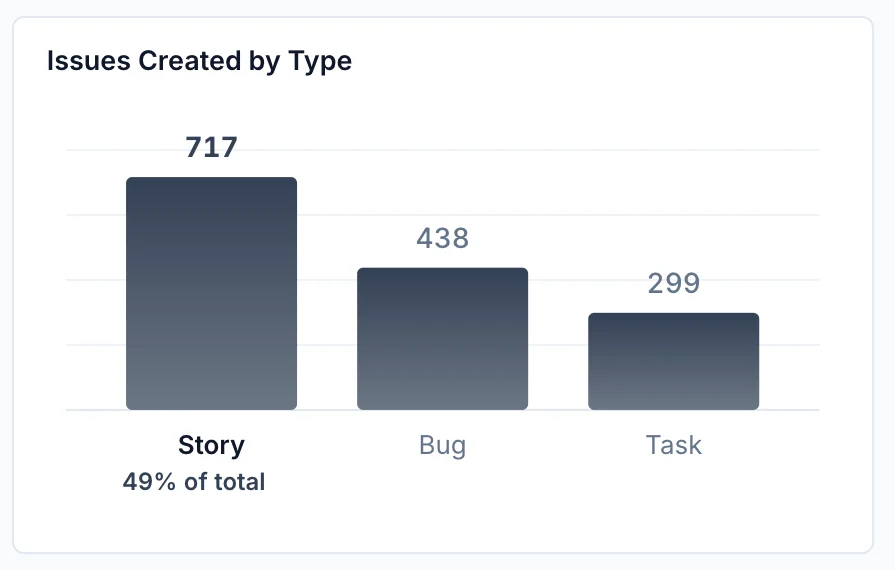
Issues created by type
New issues by type: stories, bugs and tasks.
How it works
How to use this Jira dashboard template
- Step 1
Export from Jira
Export your data from Jira as a CSV or Excel file and upload it to Mammoth.
- Step 2
Paste the template
Copy the sentence at the top of this page into Mammoth. It builds the same dashboard from your data.
- Step 3
Share or schedule it
Share a link, or have it emailed every week. Viewers are free.


Compare
Jira Dashboard templates compared
This template in Mammoth, Jira dashboards, and a report built by hand in a spreadsheet from an export.
Mammoth template
For a Jira dashboard next to your other data, sent to clients or your team.
- ✓Ready-made template
- ~FreeFree plan for uploaded files
- ✓Data from other tools in the same dashboard
- ~Updates itselfUpload a new export
Jira dashboards
For tracking work inside Jira, for people with Jira access.
- ~Ready-made templateGadgets, set up by hand
- ~FreeIncluded with Jira
- ✕Data from other tools in the same dashboard
- ✓Updates itself

Spreadsheet from an export
For a one-off look at the numbers.
- ✕Ready-made template
- ✓Free
- ~Data from other tools in the same dashboardPasted in by hand
- ✕Updates itself
Jira dashboard template questions
What should a Jira dashboard include?
How do I export issues from Jira?
How do I use this Jira dashboard template?
Is the template free?
Can I change the template?
Can Mammoth connect to Jira directly?
Can I combine Jira with other sources?
Can I share it with clients?
Is the data on this page real?





Use this Jira dashboard template
Upload your Jira issue export, paste the template, and share the dashboard with a link.
- ✓ 14-day Pro trial
- ✓ No credit card
- ✓ Viewers always free
More free dashboard templates
Real Mammoth dashboards like this one, each with the sentence that builds it.