Image to CSV. Free, with any email.
Turn a photo, screenshot or scan of a table into a CSV file. Free, with any email.
Got a PDF instead? Use the PDF to CSV converter.
 Excel
Excel Google Sheets
OFFICE SUPPLIES
Price list · photo from phone
price-list.jpg uploaded
We'll email you the file, plus the occasional note about wrangling files like these. Unsubscribe in one click, any time.
- Photos, screenshots and scans
- JPG, PNG and HEIC
- CSV or Excel
- Deleted within 24 hours
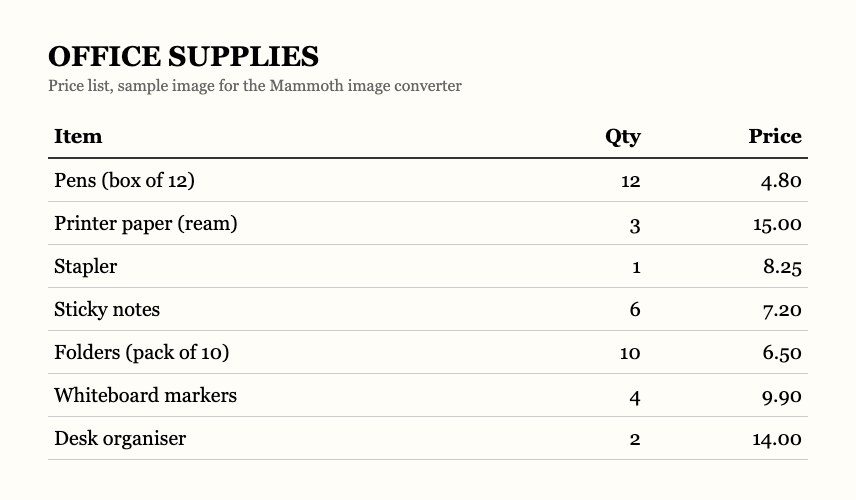
Illustration of how the tool works. No image to hand? Try our sample price list.














A clean table from any picture
Use it on its own, or have Mammoth do it for you every week.
Free, with any email
Enter your email at the end. We email you the file, CSV or Excel.
Reads tables, receipts and reports
It finds the table in the picture and skips the text around it.
A CSV that opens anywhere
Excel, Google Sheets and Numbers all open it. Or download Excel.
How to convert an image to CSV
The clearer the picture, the less there is to check.
price-list.jpg
Step 1
Upload the image
JPG, PNG or HEIC. A screenshot works better than a photo.
Step 2
Choose Only tables
It finds the table and skips the text around it.
- ItemPriceCoffee3.50Bagel2.75Juice4.20
Step 3
Check the columns
Look at the header row and any small digits.
Get your tables by email
name@email.comEmail me my tablesStep 4
Get your CSV
Pick CSV and enter your email. The file arrives in your inbox.
Prefer to watch? Here it is in four minutes.
Recorded in October 2026. The last step has changed: the tool now emails you the file, as CSV or Excel.
How to get a clean table from a picture
The picture decides most of the result. Four things help.
Screenshot if you can
A screenshot has no angle, shadow or blur.
Crop to the table
Cut out the text around it before you upload.
Shoot straight on
Hold the phone flat above the page, not at an angle.
Use good light
Even light with no shadow across the numbers.
Try it on your image
Upload a JPG, PNG or HEIC. Get back a CSV or Excel file.
Drop an image or PDF here
Convert an imageOther ways to do it
Sometimes you don't need a converter.
Data from Picture
Small tables, inside Excel
- FreePartly
- No codeYes
- Made for tablesYes
ChatGPT
A small, clear table
- FreePartly
- No codeYes
- Made for tablesNo
Python and OCR
Developers
- FreeYes
- No codeNo
- Made for tablesNo
- This page
This converter
Any picture of a table
- FreeYes
- No codeYes
- Made for tablesYes
Converting images every week?
Mammoth can do it for you. Put the images in a folder and their tables are added to one table automatically.
Receipts
 Drive
Drive DropboxOneDrive
 SFTP
SFTP| Office store | Sep 02 | Printer paper | 15.00 | |
| Cafe | Sep 02 | Team lunch | 64.20 | |
| Print shop | Sep 03 | Flyers | 120.00 | |
| Office store | Sep 04 | Pens (box) | 4.80 | |
| Cafe | Sep 05 | Coffee | 18.50 |
Illustration. Every new file in the folder is added to the same table.
Your image stays private
We read your image and email you the file. The image is deleted within 24 hours. The tables you pick are added to your Mammoth account, and stay yours.
- SOC 2 Type II
- ISO/IEC 27001:2022
- HIPAA
- GDPR
You upload
photo.jpg
We read the table
You check the rows
File emailed to you
CSV or Excel, as you picked
- < 24 hours
Image deleted
Within 24 hours
You'll also get the occasional email about working with files like these. Unsubscribe in one click. Prefer not to upload? Python with an OCR library runs on your own computer.
Questions people ask
I want to put image links into a CSV, not read a table from an image.
Can I do this in Python instead?
Could I just ask ChatGPT?
How accurate is it?
What happens to my image?
Do I need an account?
I need a spreadsheet, not a CSV.
What image formats can I use?
Will my table's formatting survive?
Does it read handwriting?
I do this every month.


Extract, clean and send it on, every week
Mammoth reads each new file, cleans the data and sends it to your database, SharePoint or a dashboard.
- ✓ Free trial
- ✓ No credit card
- ✓ Viewers always free