Bank statement converter
Turn a PDF bank statement into an Excel or CSV file. Free, with no account.
Not a bank statement? Use the PDF converter.
 Excel
Excel Google Sheets
No file yet
Drop a PDF here, or choose a file
We read the tables inside it and hand you a clean spreadsheet.
Choose filePDF · up to 200MB · up to 100 pages. Works with scanned files.
- Works on scanned PDFs
- Up to 100 pages
- Excel or CSV
- Deleted within an hour
A real run of the PDF converter on our two-page test statement. Download the test statement to try it yourself.














Every transaction, in a clean spreadsheet
Use it on its own, or have Mammoth do it for you every week.
One row per transaction
Date, description, amount and balance each get their own column.
Every page is read
You see each table it found, with its page and row count, so nothing goes missing.
Works with any bank's layout
It reads the table on the page, so it doesn't need a template for your bank.
How to convert a bank statement to Excel or CSV
If your bank lets you download a CSV, do that instead. It's cleaner.
- PDF
august-statement.pdf
Step 1
Upload your statement
Drop in the PDF. Scanned statements work too.
- Only tablesAll contentCustom
Step 2
Choose Only tables
This pulls out the tables, including the transactions, and skips the rest of the page.
- Page 137 rowsPage 211 rows
Step 3
Check the rows
Each table shows its row count. Compare a few rows with the PDF.
- Opening4,210.55+ Credits15,839.12− Debits5,780.32= Closing14,269.35
Step 4
Check the balance
Opening balance, plus credits, minus debits, should equal the closing balance.
- CSVXLSXyou@company.comReceive my file
Step 5
Get your file
Choose Excel or CSV and enter your business email. We send the file there.
We tried it on real bank statements
Two banks publish a sample statement on their websites. We ran both through the converter. Here is what came back.
Impact Bank
21 of 21 transactions on page 1 match the PDF
2 pages5 tablesUnder 15 secondsOn the statement · page 1 · a scan

The PDF is a scanned image, with no text to copy. Get the PDF from Impact Bank and try it yourself. What came back · Table 1
Date Description Debit Credit Balance 10/02 POS PURCHASE 4.23 65.73 10/03 PREAUTHORIZED CREDIT 763.01 828.74 10/04 POS PURCHASE 11.68 817.06 10/05 CHECK 1234 9.98 807.08 10/05 POS PURCHASE 25.50 781.58 +16 more rows Page 2 came back as four more tables: the full descriptions, the interest line and the list of checks.
Carson Bank
14 of 14 rows on page 1 match the PDF
6 pages7 tablesUnder 25 secondsOn the statement · page 1
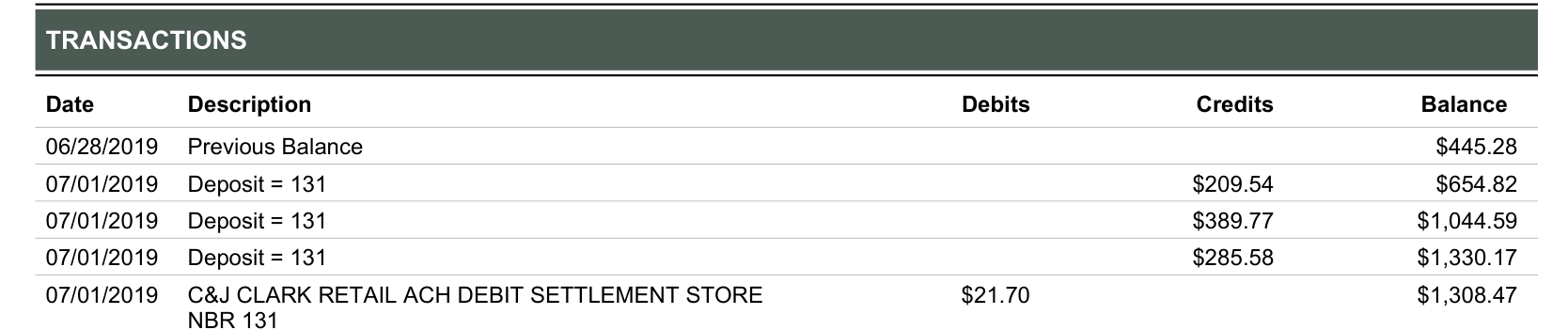
Get the PDF from Carson Bank and try it yourself. What came back · Table 1
Date Description Debits Credits Balance 06/28/2019 Previous Balance $445.28 07/01/2019 Deposit = 131 $209.54 $654.82 07/01/2019 Deposit = 131 $389.77 $1044.59 07/01/2019 Deposit = 131 $285.58 $1330.17 07/01/2019 C&J CLARK RETAIL ACH DEBIT SETTLEMENT STORE NBR 131 $21.70 $1308.47 +9 more rows The daily balances and the interest charges came back as tables of their own. Amounts lose their thousands comma: $1,044.59 comes back as $1044.59.
Both are sample statements with made-up customers. Two banks are not every bank, so check a few rows of your own.
Make sure nothing is missing
Add the credits and subtract the debits. You should land on the closing balance printed on your statement.
- It matches: every transaction is there
- It doesn't: the difference is often the missing amount
- Works in Excel or Google Sheets
| 1 | Opening balance | from the statement | 4,210.55 |
| 2 | + Credits | =SUM(D2:D49) | 15,839.12 |
| 3 | − Debits | =SUM(C2:C49) | 5,780.32 |
| 4 | = Calculated closing | =B1+B2-B3 | 14,269.35 |
| 5 | Closing balance | from the statement | 14,269.35✓ matches |
Numbers from our test statement.
Who uses a bank statement converter
Bookkeeping
Reconcile bank activity against your books.
Switching accounting software
Import months of old transactions.
Tax time
Add up a year of expenses by category.
Loans and audits
Hand over a clean list of transactions.
Other ways to do it
Sometimes you don't need a converter.
Your bank's CSV
Recent months
- FreeYes
- Scanned PDFsDoesn't apply
- Old or closed accountsPartly
- Many files at onceDoesn't apply
Excel Power Query
Simple digital PDFs
- FreeYes
- Scanned PDFsNo
- Old or closed accountsYes
- Many files at onceYes
- This page
This converter
Any PDF, including scans
- FreeYes
- Scanned PDFsYes
- Old or closed accountsYes
- Many files at onceNo
Paid converters
Lots of files
- FreeNo
- Scanned PDFsYes
- Old or closed accountsYes
- Many files at onceYes
Converting statements every month?
Mammoth can do it for you. Put your statements in a folder and they're added to one table automatically.
Statements
 Drive
Drive DropboxOneDrive
 SFTP
SFTP| Checking ··4821 | Sep 01 | Payroll | +3,250.00 | |
| Card ··5512 | Sep 02 | Office supplies | −84.19 | |
| Savings ··0937 | Sep 03 | Interest | +12.40 | |
| Checking ··4821 | Sep 03 | Rent | −1,900.00 | |
| Card ··5512 | Sep 04 | Software | −49.00 | |
| Checking ··4821 | Sep 05 | Client payment | +2,400.00 |
Illustration. Every new file in the folder is added to the same table.
Your statement stays private
We read your PDF, send you the file, and delete the PDF within an hour.
- SOC 2 Type II
- ISO/IEC 27001:2022
- HIPAA
- GDPR
You upload
august-statement.pdf
We read the tables
No account, no sign-up
File sent to you
To the business email you enter
- < 1 hour
PDF deleted
Within an hour
Prefer not to upload? Excel's Power Query can read simple PDFs on your computer.
Questions people ask
What is a bank statement converter?
What do I get back?
Does it work with my bank?
Excel or CSV: which should I pick?
Do I need an account?
Why is it free?
Does it work on scanned statements?
What happens to my statement after I upload it?
Can't I just download a CSV from my bank?
Should I use Excel's Power Query instead?
I have statements from several accounts every month.


Extract, clean and send it on, every week
Mammoth reads each new file, cleans the data and sends it to your database, SharePoint or a dashboard.
- ✓ Free trial
- ✓ No credit card
- ✓ Viewers always free