Excel Row Limit: 1,048,576 Rows and What to Do Past It
Excel holds 1,048,576 rows per sheet. What happens when a file has more, and four ways to work with every row: Power Query, splitting, Python and Mammoth.

· 8 min read
The short answer
The Excel row limit is 1,048,576 rows per sheet. Open a bigger file and Excel loads the first 1,048,576 rows and drops the rest if you save. Power Query can load every row into the Data Model, but you only see them through a PivotTable. Splitting across sheets fits the rows but breaks your sums. Python handles any size if someone writes the code. Mammoth holds every row, shows each one, runs your cleaning and sums on a schedule, and sends the result back to Excel.
AI data cleaning that re-runs automatically.


Excel can hold 1,048,576 rows and 16,384 columns on each sheet. That's the Excel row limit, and it's the same in Excel for Microsoft 365, Excel 2024, 2021, 2019 and 2016.
You usually find out the hard way. Someone sends the full-year export. Excel thinks about it for a while, opens it, and then tells you it couldn't fit two thirds of the rows.
There are four ways around it: Power Query with the Data Model, splitting the file across sheets, Python, and Mammoth. Mammoth holds every row, lets you clean it and do the sums without code, and sends Excel the summary. This guide covers how each one works and where each one stops.
How Many Rows Can Excel Handle?
Here are the limits from Microsoft's specifications page:
| Limit | Number |
|---|---|
| Rows per sheet | 1,048,576 |
| Columns per sheet | 16,384 (up to column XFD) |
| Characters in one cell | 32,767 |
| Rows in one Data Model table | 1,999,999,997 |
So the last cell on any sheet is XFD1048576:
| XFB | XFC | XFD | |
|---|---|---|---|
| 1,048,574 | |||
| 1,048,575 | |||
| 1,048,576 |
There's no setting that raises it, and no paid version of Excel with more rows. Each sheet has the same ceiling.
Before Excel 2007, the limit was 65,536 rows and 256 columns. If your sheet stops at 65,536, the file is in the old .xls format. Go to File > Save As, pick Excel Workbook (.xlsx), then close the file and open it again. Microsoft's compatibility guide explains the difference.
A million rows sounds like plenty, and for most sheets it is. The trouble starts when a file is bigger than that.
AI data cleaning that re-runs automatically.
What Happens When a File Has More Rows
Open a CSV with more than 1,048,576 rows and Excel loads what fits. Then it shows this warning:
This data set is too large for the Excel grid. If you save this workbook, you’ll lose data that wasn’t loaded.
The danger is the save. Microsoft says that if you save over the original file, you lose every row that wasn't loaded. If the export is sorted by date, that's every order after spring. Nothing on the sheet looks wrong, so the report goes out short.
So click OK, then close the file without saving. If you already saved over it, the missing rows are gone from that copy, and you need the original export again.
Excel also gets slow well before the limit. Microsoft says workbook size is "limited only by available memory and system resources," so a big file plus a few lookup formulas can bring a laptop to a crawl.
The fix is to put the rows somewhere other than a sheet. There are four places to put them, starting with one that's already inside Excel.
Way 1: Power Query and the Data Model
Power Query is built into Excel, and it can load every row of a big file. The trick is where it puts them. Instead of a sheet, the rows go into the Data Model, which holds up to 1,999,999,997 rows per table, according to Microsoft's Data Model limits.
How to set it up:
- Open a blank workbook and go to Data > Get Data > From File > From Text/CSV.
- Pick the file and click Import.
- In the preview, click the arrow next to Load and choose Load To.
- Pick PivotTable Report, or Only Create Connection and tick Add this data to the Data Model.
- Build a PivotTable on the data to get your totals.
Where it stops
The rows never appear on a sheet. You can count and total them in a PivotTable, but you can't scroll through them, spot a bad value, or fix one by hand.
Microsoft's steps are for Excel for PC. And the data only refreshes while someone has the file open.
| Region | Orders |
|---|---|
| North | 812,400 |
| South | 744,190 |
| East | 697,005 |
| West | 746,405 |
| Total | 3,000,000 |
PivotTable
Data Model
orders.csv
3,000,000 rows
Not on any sheet.
So Power Query gets every row into Excel, but you can't see them. If you need to see the rows, the next option is to split them up.
Way 2: Split the File Across Sheets
If the file is just over the limit, you can put a million rows on each sheet. Power Query can do the splitting, so you never have to open the full file.
How to set it up:
- Load the file with Data > Get Data > From Text/CSV, and click Transform Data.
- Go to Home > Keep Rows > Keep Range of Rows. Start at row 1 and keep 1,000,000 rows.
- Load that query to a sheet.
- Duplicate the query, start at row 1,000,001, and load it to a second sheet. Repeat until every row has a home.
Where it stops
Every row fits, but each sheet only knows about its own rows. Remove Duplicates, sorting and lookups all work one sheet at a time. A total has to add up every sheet by hand. And next month's file needs splitting all over again.
Orders 1
rows 1 to 1,000,000
- Ord-1041
- Ord-1042
- Ord-1043
Orders 2
1,000,001 to 2,000,000
- Ord-5530
- Ord-5531
- Ord-5532
Orders 3
2,000,001 to 3,000,000
- Ord-1042
- Ord-9907
- Ord-9908
Ord-1042 is on two sheets. Remove Duplicates keeps both.
That works for a one-off. For a file that arrives every month, most teams end up writing code.
Way 3: Python
Python doesn't have a row limit. The pandas library reads a CSV of any size your computer's memory can hold, and it can read a bigger one in chunks. Four lines turn a three-million-row file into a summary Excel can open:
import pandas as pd

orders = pd.read_csv("orders.csv")
orders = orders.drop_duplicates("order_id")
summary = orders.groupby(["region", "month"])["amount"].sum().reset_index()
summary.to_excel("summary.xlsx", index=False)
A scheduler can run it every month.
Where it stops
Someone has to write the script, and someone has to fix it. When next month's file has a renamed column, the script fails until a person who reads Python changes it. And you can't scroll through the rows the way you would in a sheet.
So Python handles any size, but only if someone on the team writes and maintains the code. If nobody does, Mammoth does the same job without it.
Way 4: Mammoth
Mammoth is where I work, so here's exactly how it handles big files. It holds every row, shows each one in a grid you can scroll, and runs your cleaning steps and sums on the full data. Then it sends Excel the result, which is usually a few dozen rows instead of a few million.
In
orders.csv
3,000,000 rows
Mammoth
- 1Remove duplicate orders
- 2Fix the dates
- 3Group by region and month
Runs again on next month’s file
Out: 48 rows
- Email, Excel attached
- Dashboard
Setting it up takes four steps:
- Bring in the data. Upload the CSV or Excel file, or connect the place it comes from: a database like SQL Server, Snowflake or BigQuery, or Google Sheets, OneDrive, SharePoint, Google Drive or Dropbox.
- Clean it. Remove duplicates, fix dates, filter rows and join other files on an ID. Mammoth saves each step.
- Do the sums. Add formulas, group by region or month, or build a pivot. They run on every row, not a sample.
- Send the result. Email it to your team as an Excel file, keep a dashboard up to date, or write the full data to a database. It can send daily, weekly or monthly.
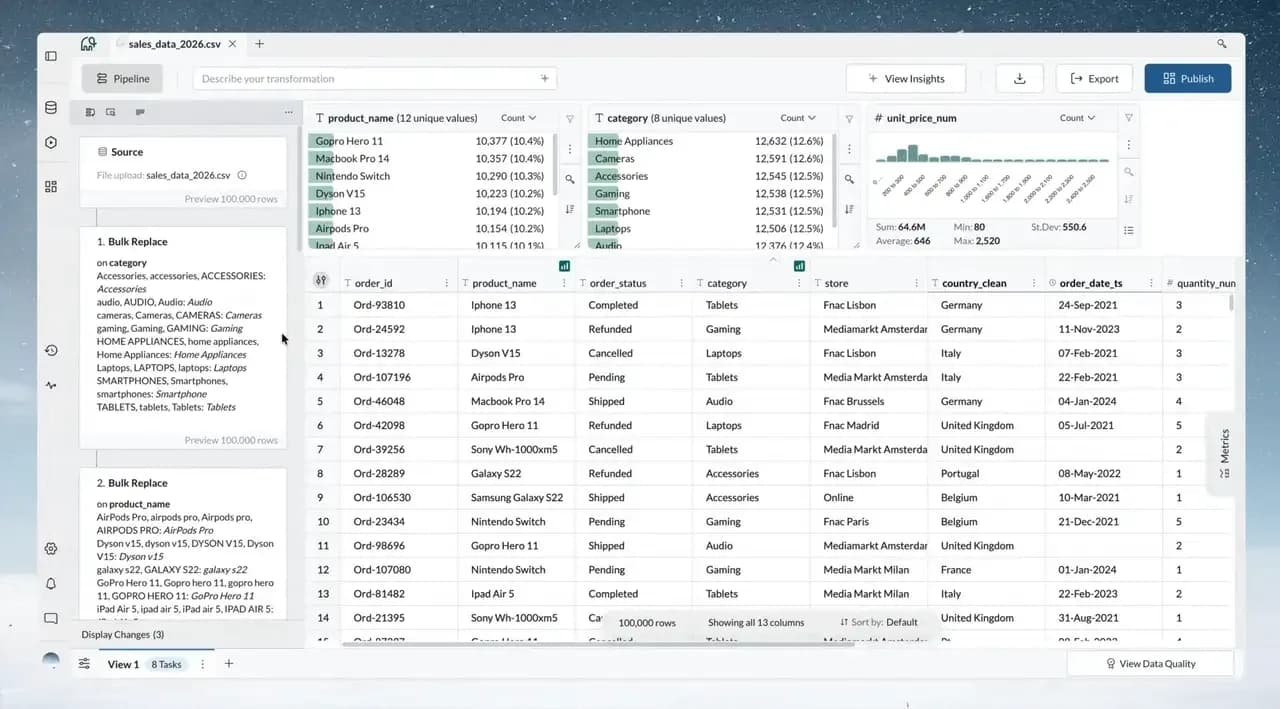
When next month's file arrives, Mammoth runs the same steps on it. If the new file has different columns, it stops, keeps the last good data and shows you what changed, so a renamed column never breaks the numbers quietly.
Good to know
Each uploaded file can be up to 50 MB. A bigger export can go up in parts that you send into one dataset, but connecting the database it came from is easier.
An Excel download or Excel email holds up to 50,000 rows, which is plenty for a summary. To get every row out, export to a database or download a CSV. How much data you can store depends on your plan, and the pricing page lists each one.
All Four Ways Side by Side
Here's how the four compare on what a big file needs:
Each Excel-side fix gives something up. Power Query hides the rows, splitting breaks the sums, and Python needs someone who writes code. Mammoth is the only one of the four that holds every row, shows them, and runs the same steps next month without code.
Which Way Should You Use?
The right choice depends on how often the file arrives and who has to work on it:
- If
You need totals from one big file, on your own PC, and don't need to see the rows.
Use Power Query and the Data Model
- If
The file is just over the limit, and it's a one-off.
Use a split across sheets
- If
Someone on the team writes Python and will keep the script running.
Use pandas
- If
A big file arrives every month, someone needs to check the rows, and the result goes back to Excel.
Use Mammoth
Bring the file that's too big for Excel to a short call, and we'll load every row of it in Mammoth with you.
Frequently Asked Questions
Can Excel have 2 million rows?
Not on one sheet. A sheet stops at 1,048,576 rows. You can load 2 million rows into the Data Model with Power Query and total them in a PivotTable, or split them across two sheets.
Why is Excel limited to 1,048,576 rows?
1,048,576 is 2 to the power of 20, the size of the grid Microsoft built for the .xlsx format in Excel 2007. The older .xls format stopped at 65,536 rows, which is 2 to the power of 16.
How many rows can Excel handle without crashing?
There's no fixed number. Microsoft says workbook size is limited only by memory and system resources. So it depends on your computer, and on how many formulas run across those rows. Plain values are far lighter than the same rows full of lookups.
How many columns does Excel have?
16,384 per sheet, from A to XFD.
Does Excel for Mac have the same limit?
Yes. Excel for Mac stops at the same 1,048,576 rows. But Microsoft's fix for files over the limit, loading them with Power Query into a PivotTable, is written for Excel for PC.
What is the row limit in Google Sheets?
Google Sheets limits a whole spreadsheet to 20 million cells, not a number of rows. Google's Drive help page lists the limit. A file with 20 columns hits it at one million rows.
How do I open a CSV with more than 1 million rows?
In Excel, load it with Data > Get Data > From Text/CSV and send it to the Data Model, not a sheet. Outside Excel, open it in Python with pandas, or upload it to Mammoth, where you can scroll every row, clean it and send a summary back to Excel.
More on working with Excel data: data cleaning in Excel, how to remove duplicates in Excel and how to automate Excel reports.


