How to
Describe the change, skip the formula
63 seconds, real app, made-up contacts. Follow along with the same two: October contacts (CSV) and November contacts (CSV). Download the video (MP4)
The steps
- 1
Open your file in Explore
In Data, choose New dataset and upload your file. Select it and choose Explore. Here, a contacts list with names in one column, Full name.
- 2
Say what you want
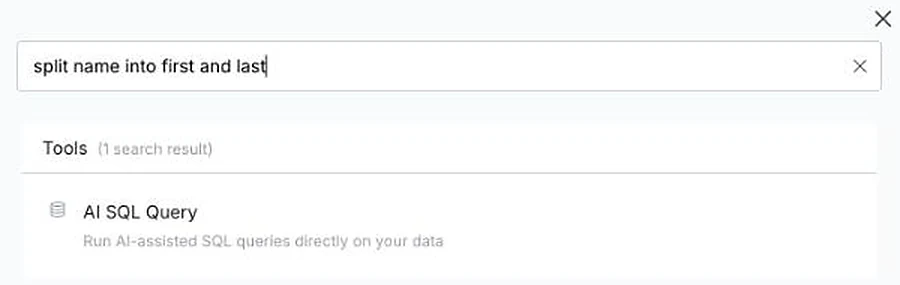
Choose the + button to open the Transform window, then type the change in plain words: split name into first and last. Mammoth suggests the tool for the job. Press Enter.
- 3
Generate it and check the preview
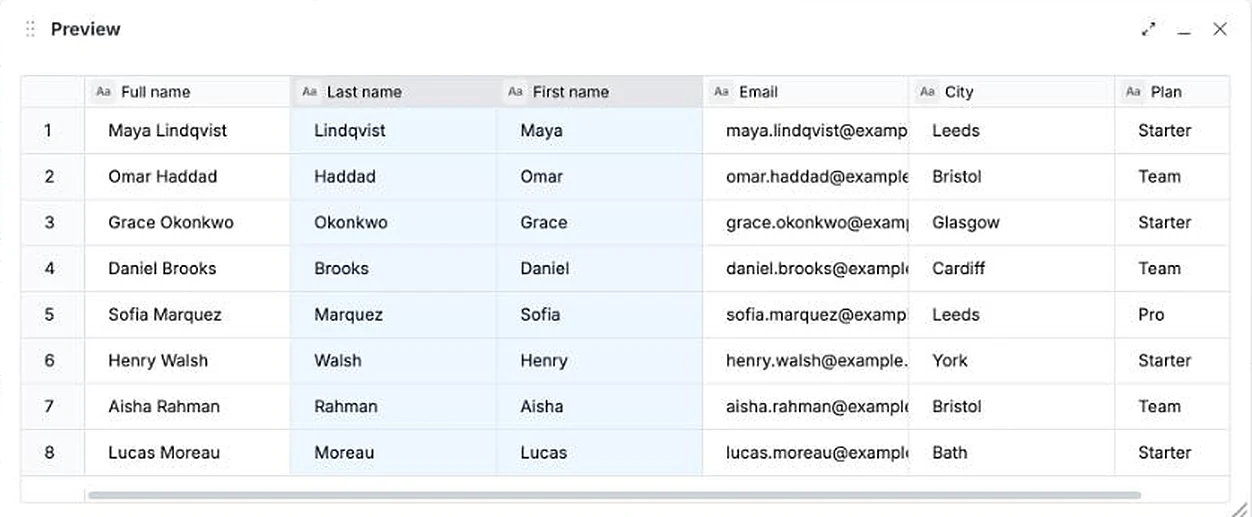
Your words carry over into the step. Choose Generate SQL. A preview shows the result before anything changes: First name and Last name, next to Full name.
- 4
Read what it understood
Under the query, Mammoth says in plain words what it will do. You don't have to read the SQL, but it's there to check or edit. If it's not what you meant, change your words and generate again.

- 5
Apply it
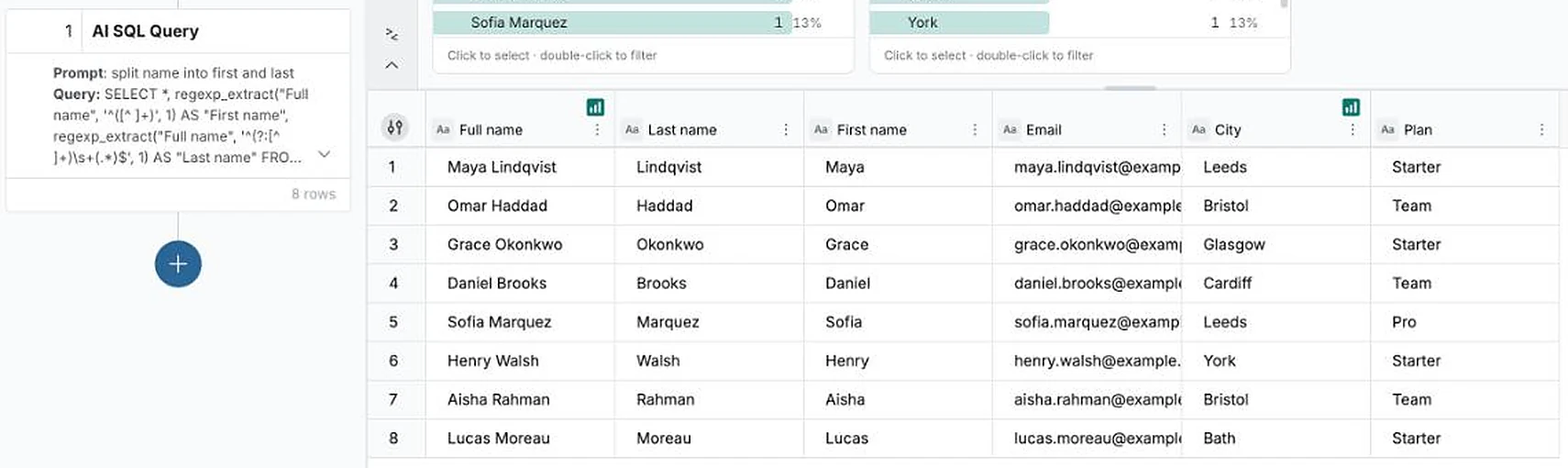
Choose Apply. The change is saved as a step in the pipeline, labelled with your words. You can edit or remove it later, and the original Full name column stays.
- 6
Add next month's file
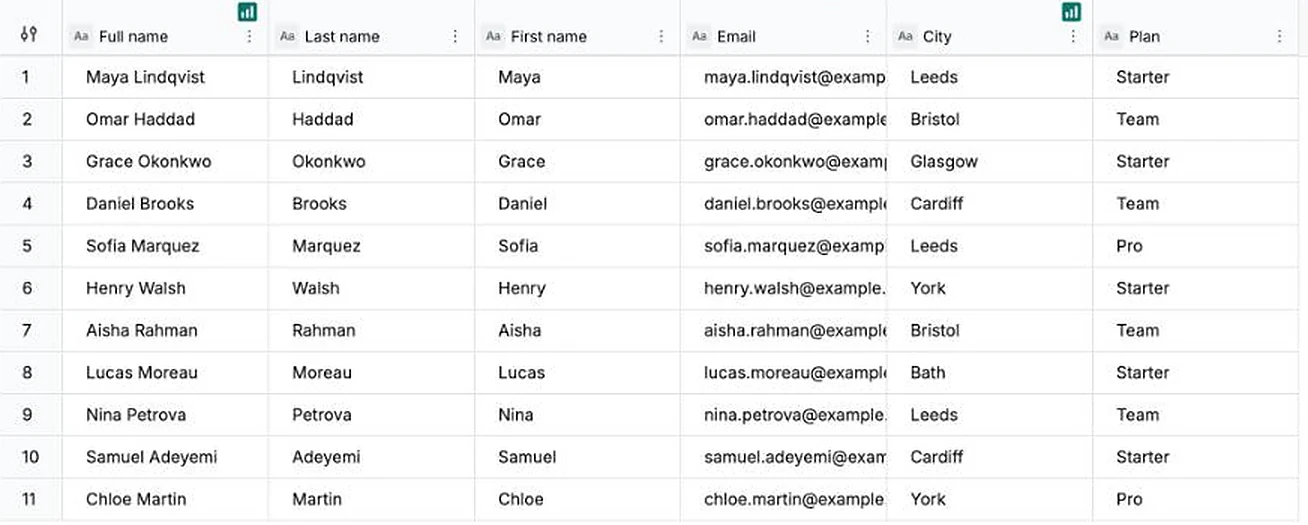
When the next file arrives, open the dataset and choose Add data. The same step runs on the new rows, so they come out split too.
Changes you can describe
Name the column and say what the result should look like.
- Split name into first and last
- Make every email lowercase and remove spaces
- Add a column with the order month from the order date
- Keep only rows where the plan is Team or Pro
One change per request is easiest to check. Add the next as its own step.
If it doesn’t look right
- The preview isn't what you meant
- Don't apply it. Reword the request, more specifically if you can, and generate again.
- Some names have three parts
- Say how to handle them, for example “first word is the first name, the rest is the last name”, and check those rows in the preview.
- You'd rather pick the tool yourself
- Every tool in the Transform window is also listed by category, such as Date, Numeric & Text, if you know which one you want.
Every file after
More how-tos
- Tell it what to pull, in plain wordsName the fields you want from an invoice PDF and get them as one row.
- Put two files on one dashboardJoin sales to targets on the store they share and chart them side by side.
- Next month's file, same stepsAdd next month's file and every cleaning step runs again; a changed layout stops to ask.
- Next month's statement, zero reworkRead a PDF statement once; next month's goes through the saved recipe into the same columns.
- Share it with the whole team, no seats to buyPublish a dashboard and send the link; viewers are free on every plan.
- Every table in your PDF, joined into oneTables that share columns come back as one dataset, even across pages.
- Describe a dashboard, get one built from your dataPick one of the dashboards Mammoth suggests from your columns, or describe your own.
- Drop in your messiest spreadsheetStacked headers, merged cells and subtotals, turned into a clean table you check first.
- Let viewers ask their own questionsThe Q&A page answers viewers' follow-ups from the data, with the source and a CSV.
- Scans and phone photos work tooMammoth reads documents with no text layer, such as scanned PDFs and photos of receipts.
- Add next month, and your dashboard followsUpload the new month to the same dataset and every chart picks it up. Works on Free.


Try it on your own file.
Open the Transform window, say what you want, check the preview, apply.
- ✓ 14-day Pro trial
- ✓ No credit card
- ✓ Viewers always free