How to
Next month's statement, zero rework
58 seconds, real app, made-up bank statements. Follow along with the same two: October statement (PDF) and November statement (PDF). Download the video (MP4)
The steps
- 1
Upload the first statement
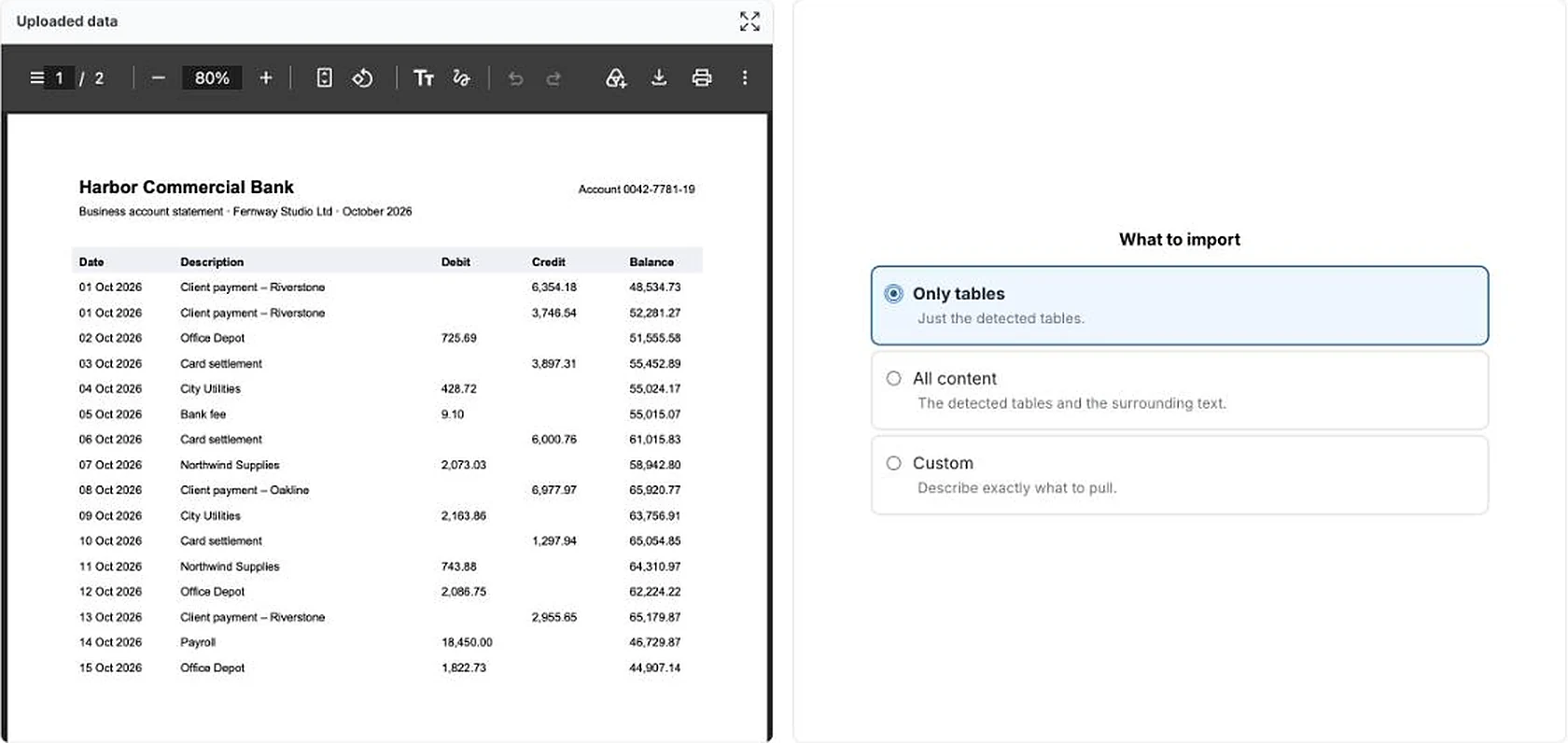
In Data, choose New dataset and upload the PDF. Here, a two-page business account statement for October.
- 2
Choose what to import
Mammoth shows the PDF next to the choices. For a statement, choose Only tables, then Extract.
- 3
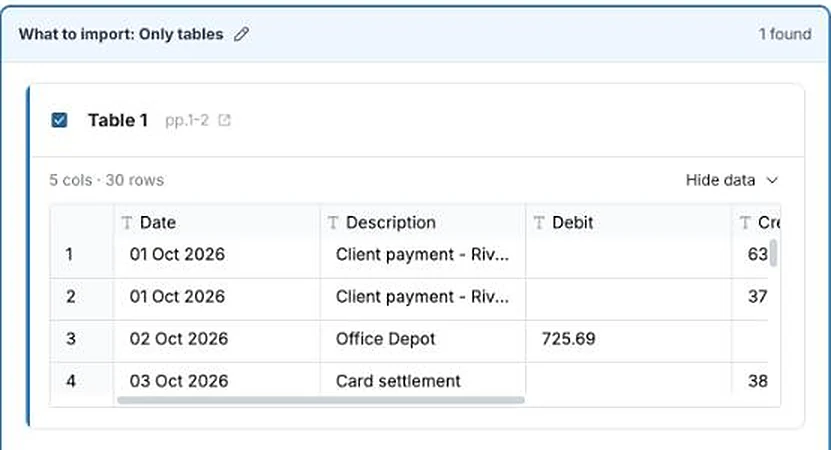
Check the table
The table runs across both pages, and Mammoth reads it as one: 30 rows with Date, Description, Debit, Credit and Balance. If it looks right, choose Looks right, then Make a new dataset and Create dataset.
- 4
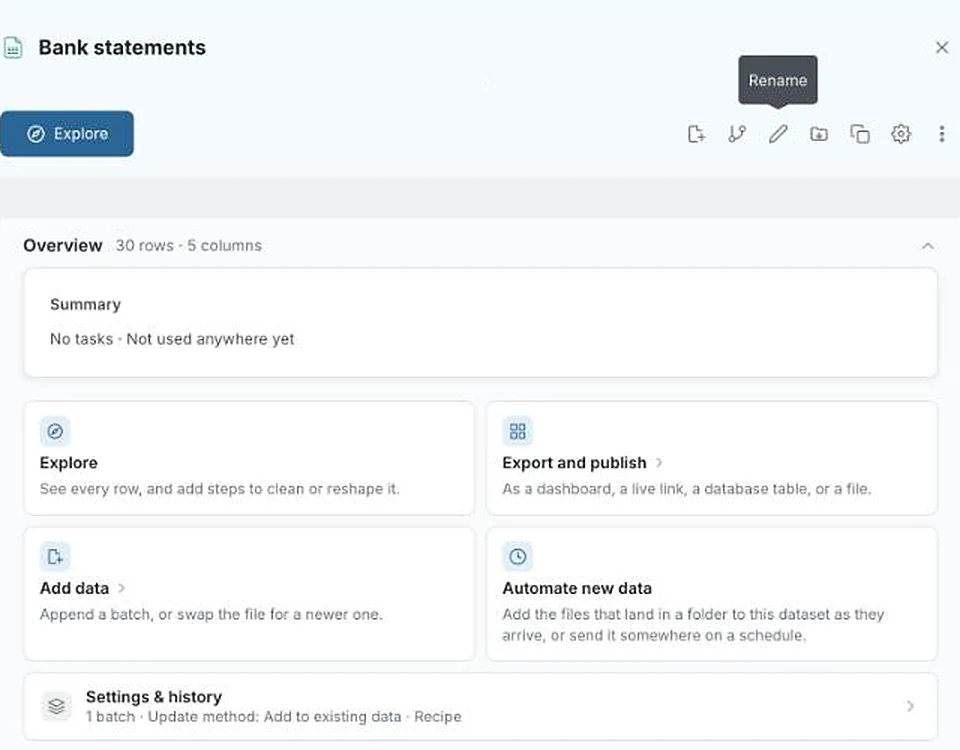
The recipe is saved
The dataset keeps how the PDF was read. Settings & history lists it as the Recipe. Rename the dataset if you like; here it's Bank statements.
- 5
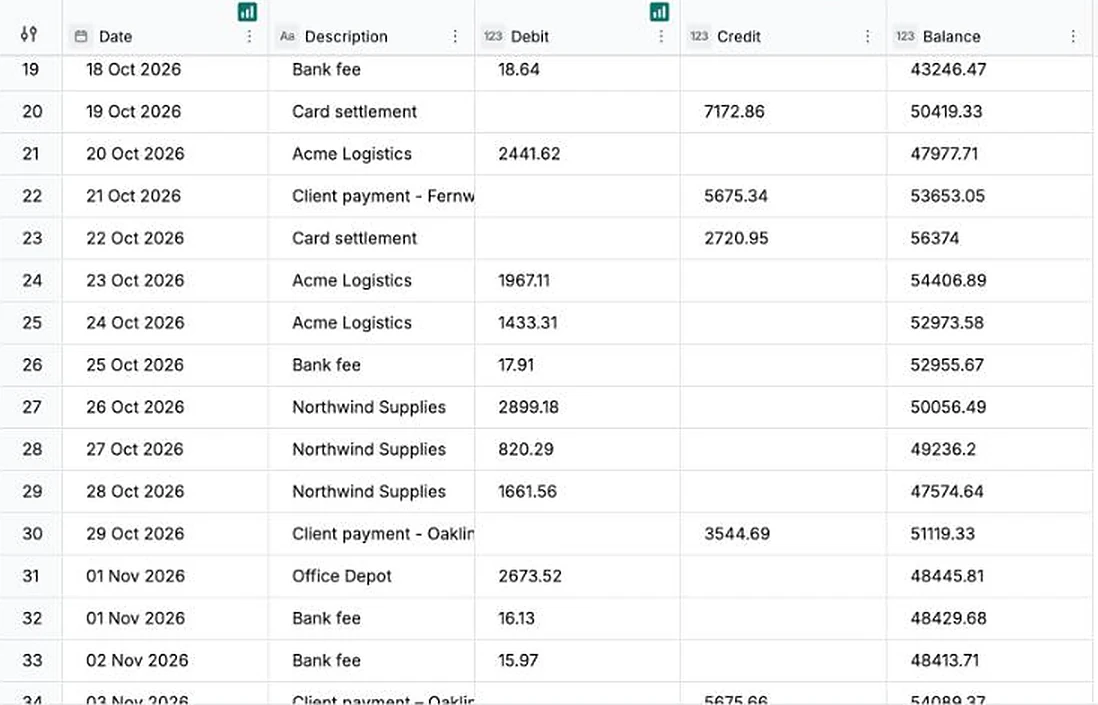
Add next month's statement
When November's statement arrives, select the dataset, choose Add data, upload the PDF and choose Submit. The recipe reads it with no review step, and its rows go in after October's: 60 in all.
Good PDFs for a recipe
A recipe suits a PDF that arrives in the same layout every month.
- Bank and card statements
- Supplier statements and remittance advice
- Monthly reports exported from another system
Start from a normal month. A statement with an unusual extra page or table makes a less reliable recipe.
If it doesn’t look right
- Check each month's row count
- Open Settings & history and expand Batches. Each statement is listed as a batch with its row count. Compare it with the number of lines on the PDF, especially when the statement looks different from last month's.
- The same payee shows up twice
- PDFs aren't always consistent. One month can write “Client payment - Oakline” and the next “Client payment – Oakline”. Add a Find & Replace step in Explore to make them match; it runs on every month.
- You want different columns
- Read the first statement again with Custom and describe the fields you want. That becomes the recipe for the months after.
Every month after
More how-tos
- Tell it what to pull, in plain wordsName the fields you want from an invoice PDF and get them as one row.
- Put two files on one dashboardJoin sales to targets on the store they share and chart them side by side.
- Describe the change, skip the formulaSplit a name column into first and last by saying so, then check the preview.
- Next month's file, same stepsAdd next month's file and every cleaning step runs again; a changed layout stops to ask.
- Share it with the whole team, no seats to buyPublish a dashboard and send the link; viewers are free on every plan.
- Every table in your PDF, joined into oneTables that share columns come back as one dataset, even across pages.
- Describe a dashboard, get one built from your dataPick one of the dashboards Mammoth suggests from your columns, or describe your own.
- Drop in your messiest spreadsheetStacked headers, merged cells and subtotals, turned into a clean table you check first.
- Let viewers ask their own questionsThe Q&A page answers viewers' follow-ups from the data, with the source and a CSV.
- Scans and phone photos work tooMammoth reads documents with no text layer, such as scanned PDFs and photos of receipts.
- Add next month, and your dashboard followsUpload the new month to the same dataset and every chart picks it up. Works on Free.


Try it with two months of your own statements.
Read the first once, add the second with Add data, and check the row count.
- ✓ 14-day Pro trial
- ✓ No credit card
- ✓ Viewers always free