How to
Tell it what to pull, in plain words
71 seconds, real app, made-up sample invoice. Your own invoices work the same way. Download the video (MP4)
The steps
- 1
Upload the PDF
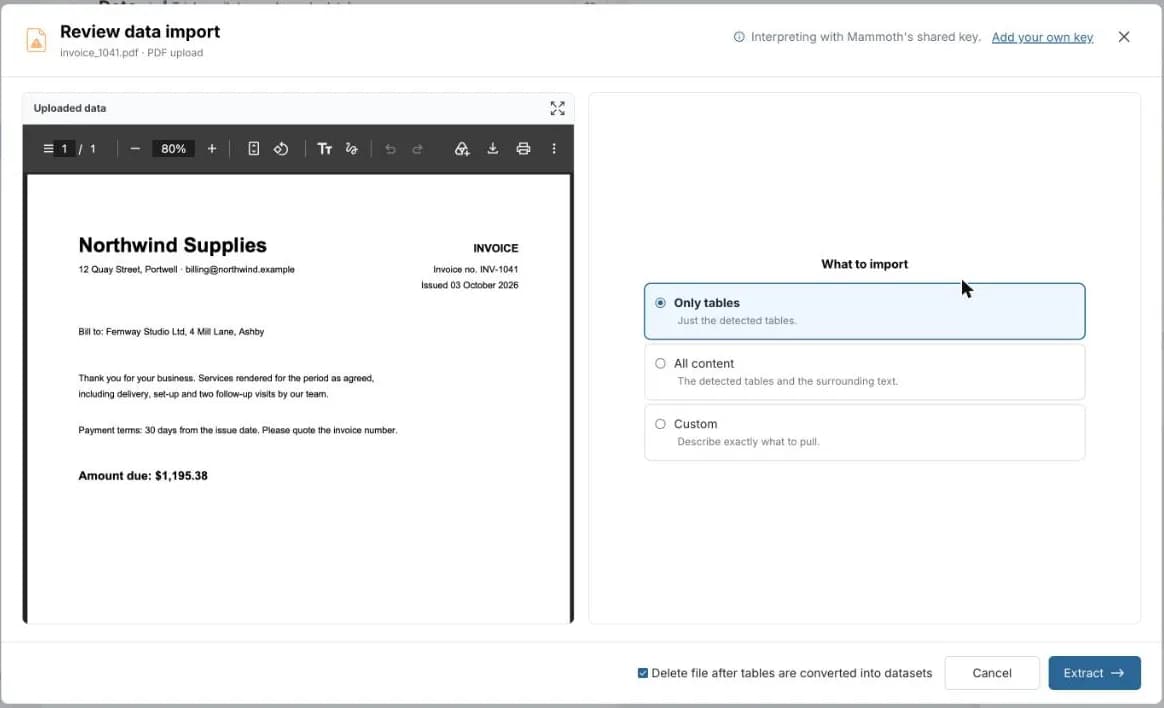
In Data, start a new dataset and upload your PDF. The Review data import window opens with the file on the left.
- 2
Choose Custom
Under What to import, Only tables would find nothing on an invoice like this one, which has no table. Choose Custom.
- 3
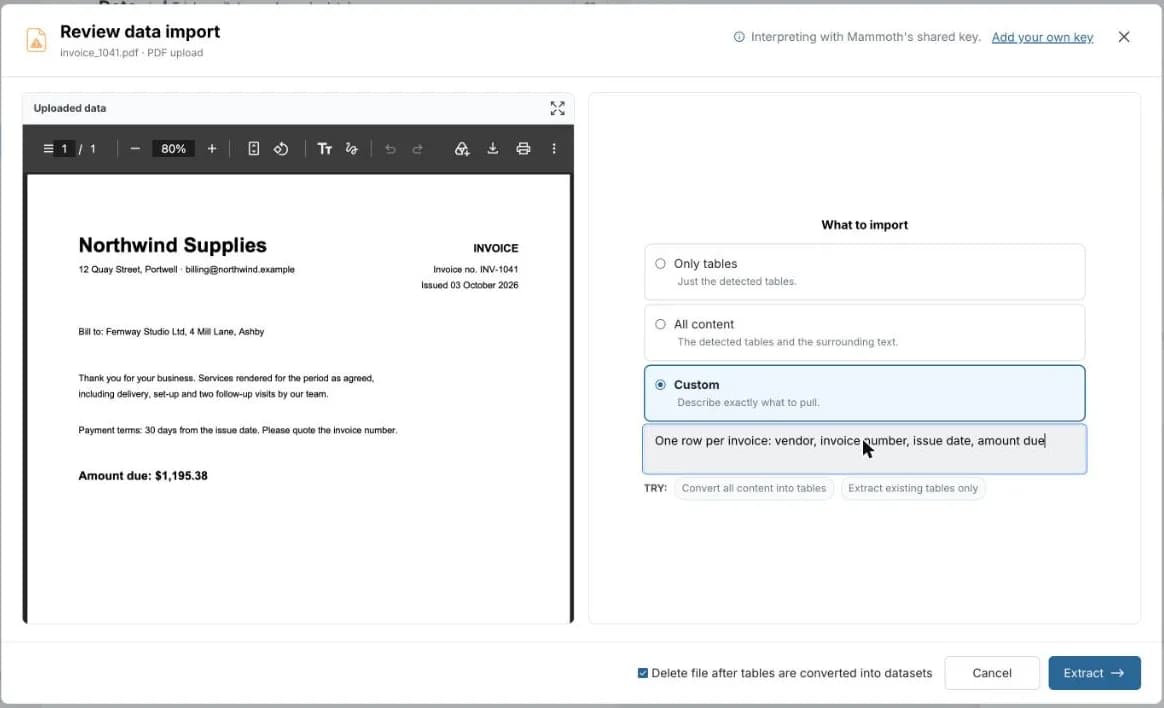
Say what you want, in plain words
Type the fields you want, named the way you want the columns called. The video uses: One row per invoice: vendor, invoice number, issue date, amount due. Then click Extract.
- 4
Check the row
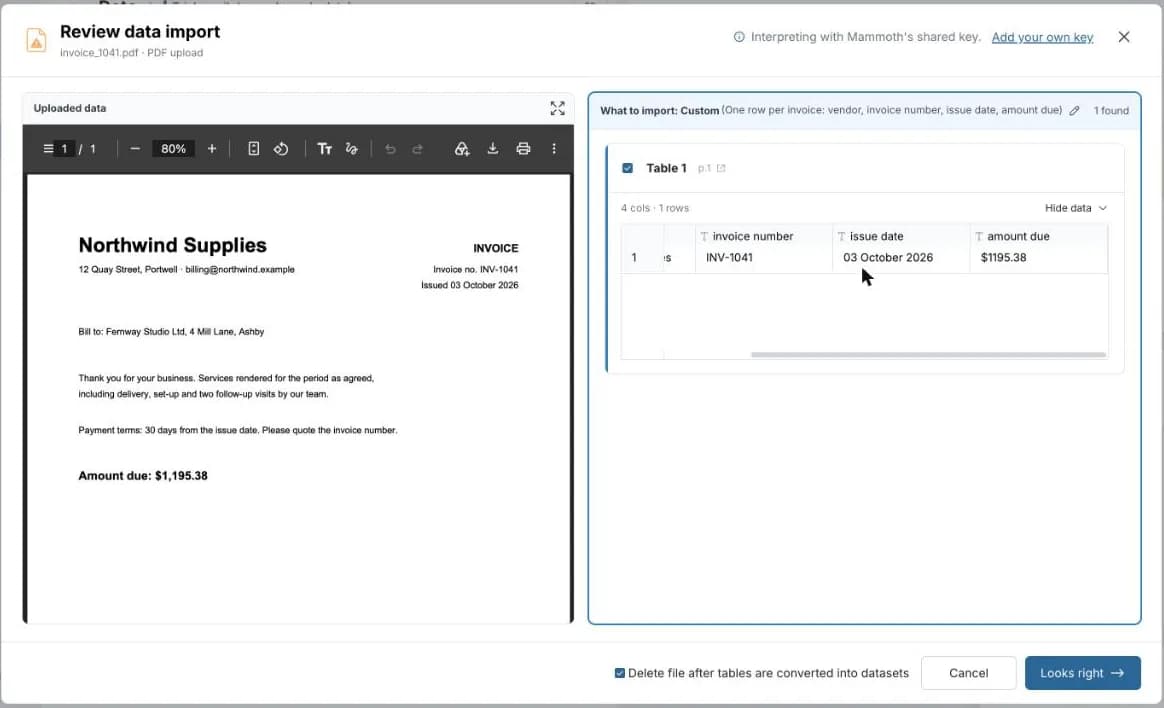
Mammoth reads the page using your instruction and shows the result next to the PDF. Check each value against the page.
- 5
Save it
Click Looks right, name the dataset, then click Create dataset. It works like any other dataset: clean it, join it to other data or build a dashboard on it.
Write instructions that work
Name each field the way you want the column called, and add the format when it matters.
- Invoice number, vendor name, invoice date (MM/DD/YYYY) and total amount (numeric)
- All line items: product name, quantity, unit price and line total
- Only the summary table on page 1
A vague instruction such as “get the data” leaves Mammoth guessing which fields matter.
If it doesn’t look right
- A field is empty or wrong
- Click the pencil next to your instruction, make it more specific, and extract again. You don't need to upload the file again.
- It's a scan or a phone photo
- Mammoth reads scans and images too, but text-based PDFs give the most reliable results. Use a clear, straight image.
- You get more than you asked for
- Narrow the instruction to a page or a section, as in the last example above.
Next month’s invoice
When you save the dataset you choose how it refreshes. With Manual, upload next month’s file and the same instruction runs over it. If the new file looks different, Mammoth pauses and asks you before changing your data. Refreshing when a new file arrives in a folder depends on your plan.
Every option in the PDF extraction docs





Try it on your own invoices.
Pull fields from invoices, statements and receipts the same way: name the fields, check the row, save it.
- ✓ 14-day Pro trial
- ✓ No credit card
- ✓ Viewers always free