How to
Next month's file, same steps
67 seconds, real app, made-up expenses. Follow along with the same three: October expenses (CSV), November expenses (CSV) and December, new layout (CSV). Download the video (MP4)
The steps
- 1
Clean the first file once
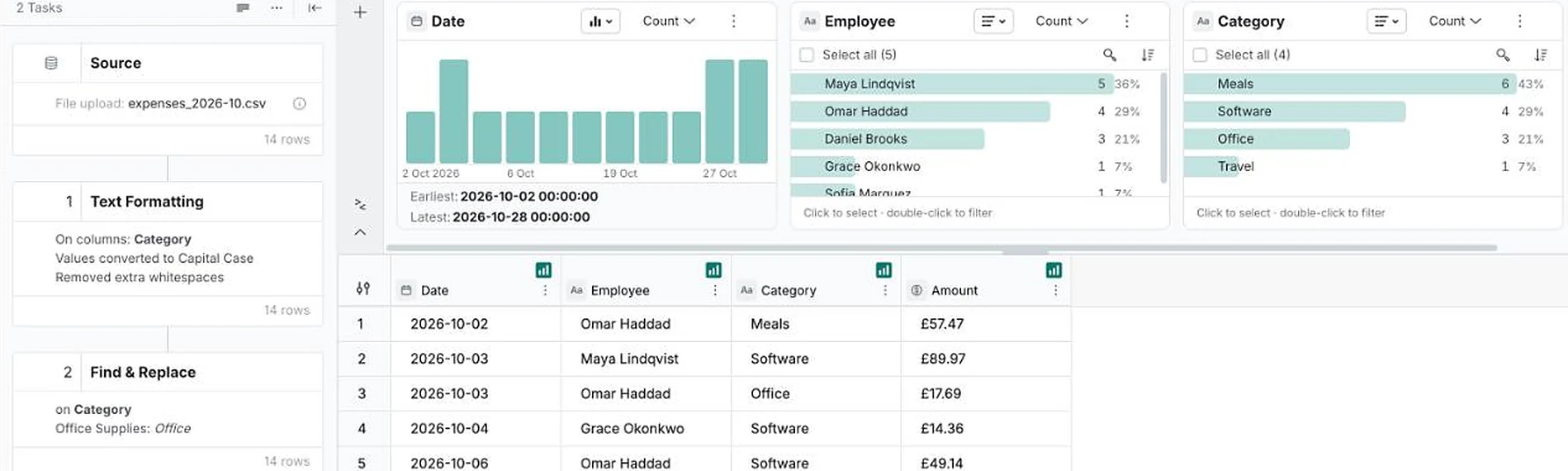
Upload October's file and open it in Explore. Add the steps it needs. Here, two: tidy the Category text into capital case, then rename Office Supplies to Office. Four clean categories are left.
- 2
Add next month's file
When November's file arrives, select the dataset in Data and choose Add data. Upload the file and choose Submit. The new rows go on after the old ones.
- 3
Check the new rows
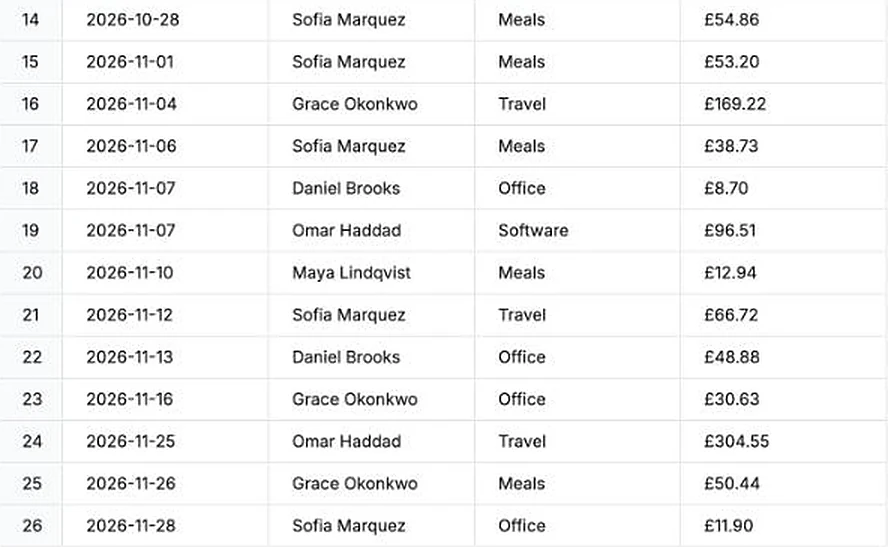
Open Explore. Both steps ran on the new rows without you touching them. November's file said TRAVEL, meals and office; it comes out as Travel, Meals and Office.
- 4
If the layout changes, Mammoth stops
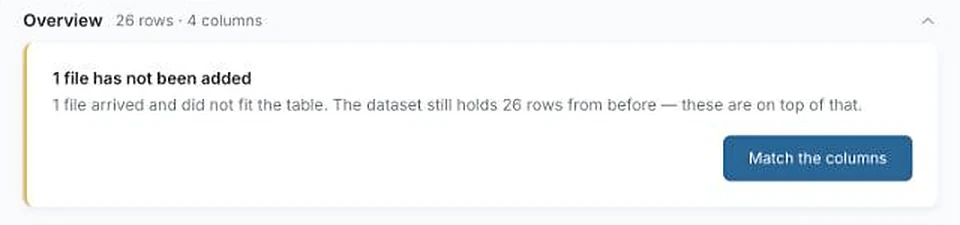
December's file has an extra Project column, and Amount is now called Amount (GBP). Mammoth doesn't guess. It holds the file back and says so, and the dataset keeps the 26 rows it already had.
- 5
Match the columns
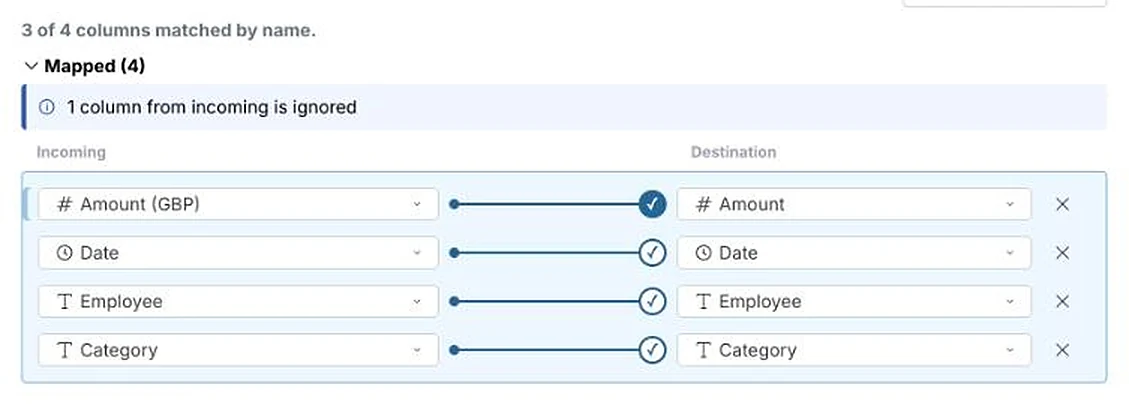
Choose Match the columns. Three of the four matched by name. Set Amount (GBP) against Amount. Project isn't in the table, so it's left out. Choose Apply changes.
- 6
December is in
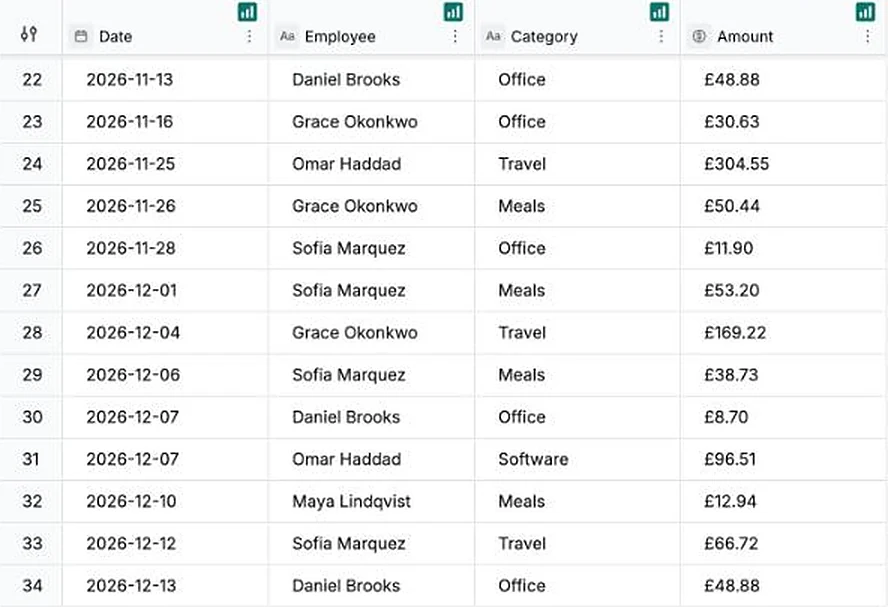
The file is added, 34 rows in all, and the same two steps cleaned it.
Steps that replay well
Any step you add in Explore runs again, in order, on every file you add.
- Tidying text: trim, capitals, fixing spellings
- Renaming or merging values, such as Office Supplies to Office
- Filtering out rows you never want, such as test entries
- Joins to a lookup file, and calculated columns
Build the steps on a typical month, not an unusual one, so they fit the files that follow.
If it doesn’t look right
- A new value slipped through
- If next month has a spelling the steps don't cover, add it to the Find & Replace step. The fix applies to every month, old and new.
- You uploaded the wrong file
- Open Settings & history on the dataset. Each file you added is listed as its own batch there.
- You'd rather replace the data than add to it
- Add data can also swap the old file for the new one. Choose the pencil next to Update method in the Add data window before you submit.
Stop uploading by hand
More how-tos
- Tell it what to pull, in plain wordsName the fields you want from an invoice PDF and get them as one row.
- Put two files on one dashboardJoin sales to targets on the store they share and chart them side by side.
- Describe the change, skip the formulaSplit a name column into first and last by saying so, then check the preview.
- Next month's statement, zero reworkRead a PDF statement once; next month's goes through the saved recipe into the same columns.
- Share it with the whole team, no seats to buyPublish a dashboard and send the link; viewers are free on every plan.
- Every table in your PDF, joined into oneTables that share columns come back as one dataset, even across pages.
- Describe a dashboard, get one built from your dataPick one of the dashboards Mammoth suggests from your columns, or describe your own.
- Drop in your messiest spreadsheetStacked headers, merged cells and subtotals, turned into a clean table you check first.
- Let viewers ask their own questionsThe Q&A page answers viewers' follow-ups from the data, with the source and a CSV.
- Scans and phone photos work tooMammoth reads documents with no text layer, such as scanned PDFs and photos of receipts.
- Add next month, and your dashboard followsUpload the new month to the same dataset and every chart picks it up. Works on Free.


Try it with two months of your own file.
Clean the first, add the second, and check the steps ran.
- ✓ 14-day Pro trial
- ✓ No credit card
- ✓ Viewers always free