How to
Scans and phone photos work too
53 seconds, real app, made-up invoice and receipt. Follow along with the same two: Scanned invoice (PDF, no text layer) and Receipt photo (JPG). Download the video (MP4)
The steps
- 1
Upload the scan
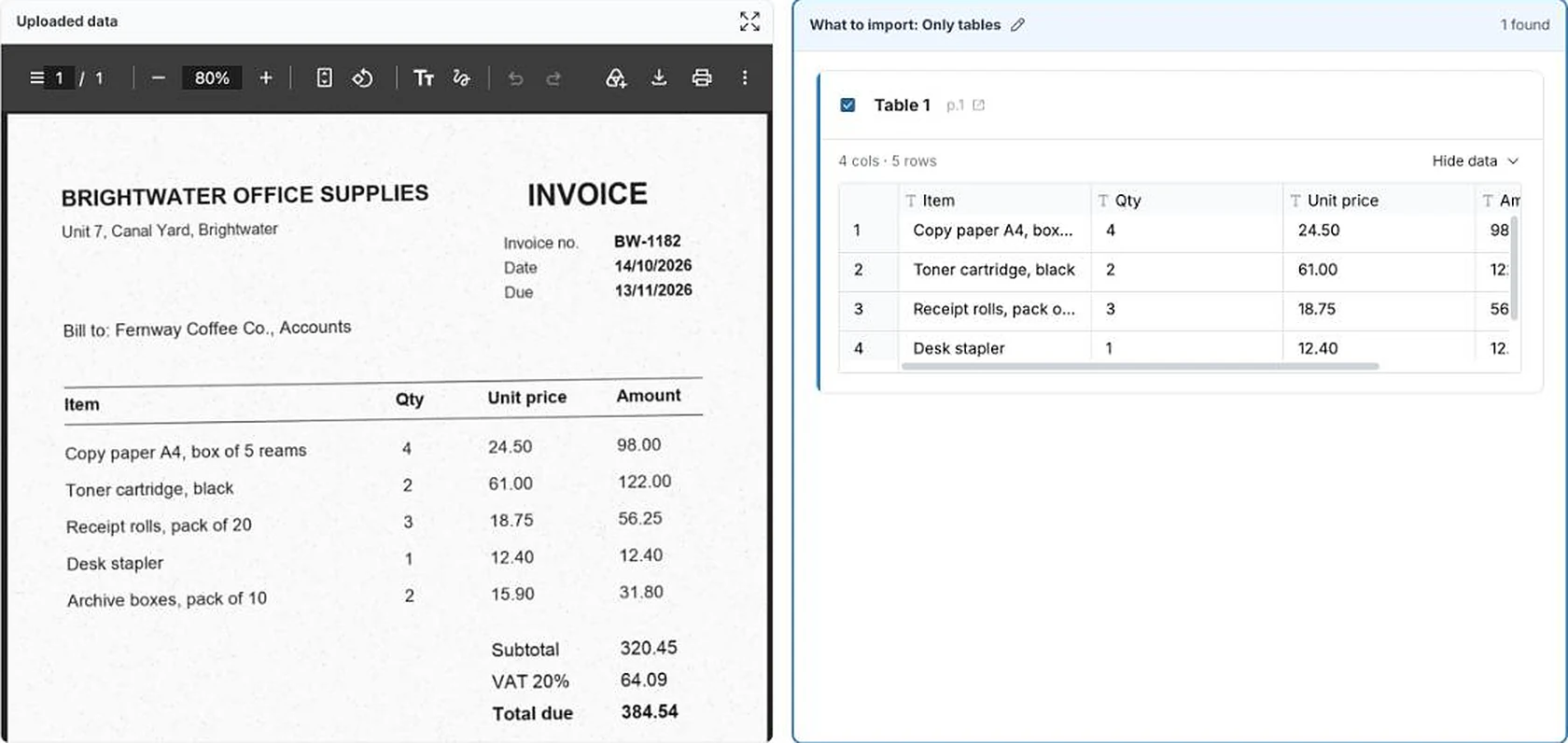
In Data, choose New dataset and upload the scanned PDF, then choose Extract Data. You can't select any text in this PDF: it's an image of the page.
- 2
Read the table
Choose Only tables, then Extract. Mammoth finds the invoice lines: item, quantity, unit price and amount, 5 rows. Compare them with the scan on the left, then choose Looks right and Create dataset.
- 3
Upload a photo
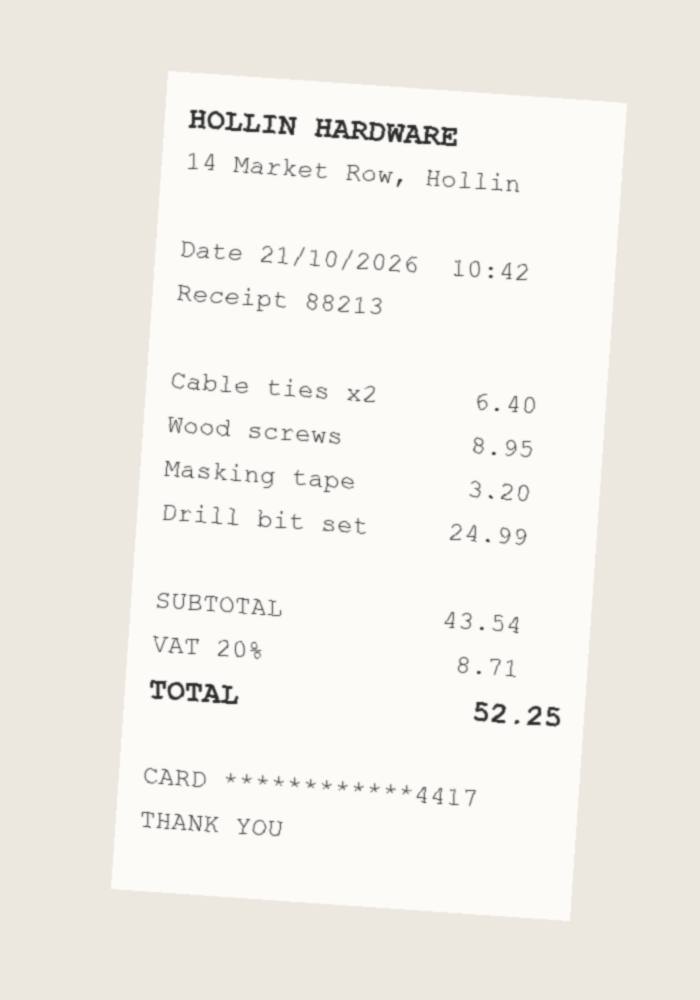
Phone photos go in the same way: JPG and PNG files upload like any other. This receipt was photographed at an angle and has no table lines.
- 4
Say what you want from it
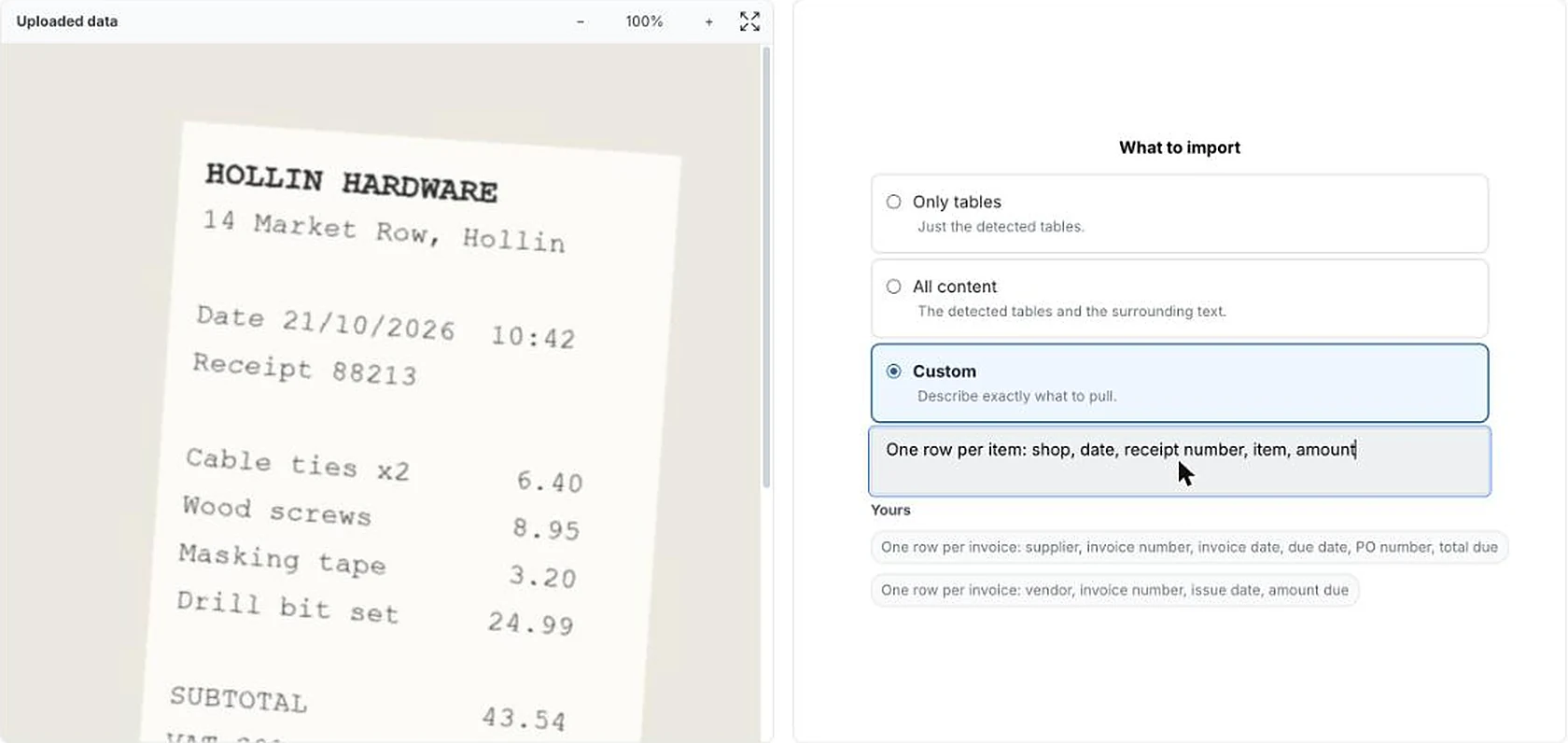
With no table to find, choose Custom and describe the rows: one row per item, with shop, date, receipt number, item and amount.
- 5
Check the rows
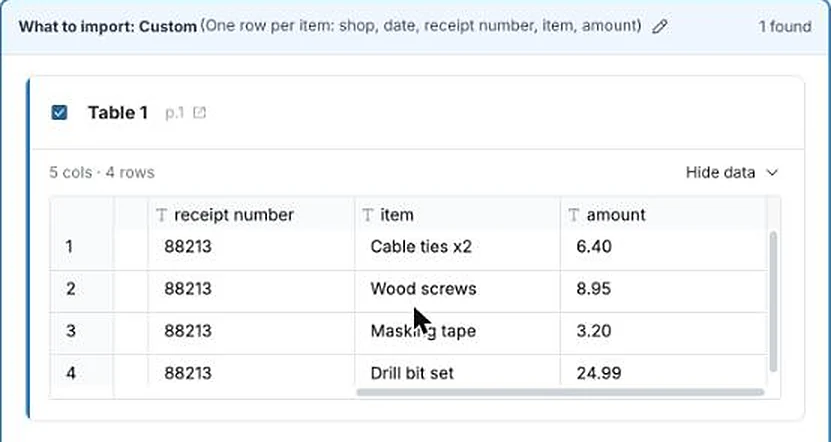
4 rows, one per item, with the shop, date and receipt number on each. Check the amounts against the photo before you save.
For the best read
Mammoth reads what it can see, so a clearer image gives a better result.
- Photograph the page flat, in good light, with all four edges in the frame
- Scan at a readable resolution; a blurry or low-resolution scan reads poorly
- For receipts and forms, use Custom and list the fields you want
Whatever you upload, compare a total or a few values with the page before you save.
If it doesn’t look right
- A value was misread
- Check the image is sharp where that value is. Rescan or retake the photo if it isn't, and upload it again.
- The header details are missing
- Only tables keeps the table rows. To get the invoice number or date on each row too, choose Custom and list them with the line items.
- It takes a while
- Scanned documents take longest, multi-page ones especially. If it runs long, reopen the file in a few minutes to see the result.
Every PDF after
More how-tos
- Tell it what to pull, in plain wordsName the fields you want from an invoice PDF and get them as one row.
- Put two files on one dashboardJoin sales to targets on the store they share and chart them side by side.
- Describe the change, skip the formulaSplit a name column into first and last by saying so, then check the preview.
- Next month's file, same stepsAdd next month's file and every cleaning step runs again; a changed layout stops to ask.
- Next month's statement, zero reworkRead a PDF statement once; next month's goes through the saved recipe into the same columns.
- Share it with the whole team, no seats to buyPublish a dashboard and send the link; viewers are free on every plan.
- Every table in your PDF, joined into oneTables that share columns come back as one dataset, even across pages.
- Describe a dashboard, get one built from your dataPick one of the dashboards Mammoth suggests from your columns, or describe your own.
- Drop in your messiest spreadsheetStacked headers, merged cells and subtotals, turned into a clean table you check first.
- Let viewers ask their own questionsThe Q&A page answers viewers' follow-ups from the data, with the source and a CSV.
- Add next month, and your dashboard followsUpload the new month to the same dataset and every chart picks it up. Works on Free.


Try it with a scan or a photo.
Upload it, choose Only tables or Custom, and check the numbers against the page.
- ✓ 14-day Pro trial
- ✓ No credit card
- ✓ Viewers always free