Extract tables from PDFs and images into Mammoth
PDF extraction uses AI to turn the tables and text in a PDF or image into datasets. Upload the file to the Data Library, open it, click Extract Data, choose what to import, and save the tables you want. PDF extraction can depend on your plan; if Extract Data is restricted, Mammoth prompts you to upgrade.
Before you start
- Upload the PDF or image to your Data Library first (see Upload files).
- Mammoth reads the document with AI. By default it uses Mammoth's own key, and the pages count toward your plan's monthly allowance of extracted pages. You can pick your workspace's own OpenAI key instead (see Choose which AI key reads the file).
- Scanned PDFs need clear image quality. Low-resolution scans give poor results.
- Password-protected PDFs are supported. After upload, Mammoth shows "Access to this file is protected by a password". Enter the File password and submit. Once it is accepted, the normal extraction flow continues.
Supported PDF and image file types
| Type | Notes |
|---|---|
PDF (.pdf) | Works best with text-based PDFs; scanned PDFs need clear image quality |
PNG (.png) | |
JPEG (.jpg, .jpeg) | |
TIFF (.tif, .tiff) | Mammoth converts the TIFF to a PDF |
HEIC (.heic, .heif) | Mammoth converts the file to a JPEG |
WebP (.webp) |
Open the uploaded file for extraction
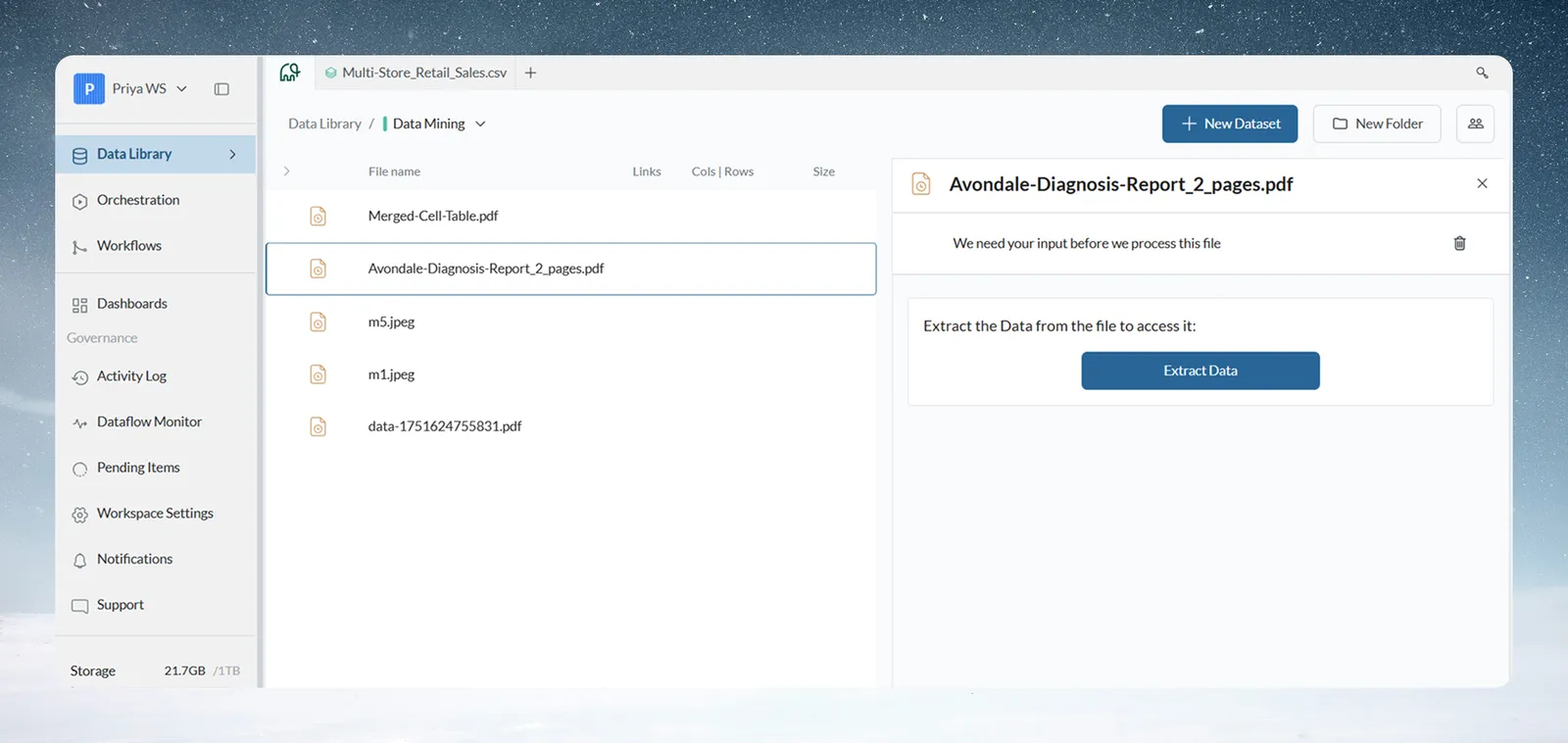
Once the upload completes, the file appears in the Data Library. Click its row to open the preview panel on the right. You see "We need your input before we process this file" and a card that says "Extract the Data from the file to access it:" with an Extract Data button.
Choose which AI key reads the file
The top of the Review data import window says which key reads the document:
- With no key of your own, it says "Reading with Mammoth's own AI key." with an Add your own key link. The link opens Add External API Key, where you paste an OpenAI key.
- With one or more OpenAI keys in the workspace, it shows Reading with and a menu. Pick Mammoth's own key or one of your keys. Each key shows its model, such as Model: gpt-4o. Add new key adds another.
Only OpenAI keys can read PDFs and images. When you change the key after an extraction, Mammoth says "Key changed. Run the extraction again to see the results."
| Key | What counts against it |
|---|---|
| Mammoth's own key | Your plan's monthly allowance of extracted pages. Over the allowance, Mammoth says "Monthly AI usage limit reached. Contact support to extend." On a plan without it: "This feature is not included in your current plan." |
| Your own OpenAI key | Your OpenAI account's credit and rate limits. Mammoth's page allowance isn't used. |
Choose what to import from the PDF
- Click Extract Data. The Review data import window opens, with your file name and type under the title and the file on the left.
- Under What to import, choose an option from the table below.
- Click Extract.
| Option | What it does |
|---|---|
| Only tables | Imports only the detected tables |
| All content | Imports the detected tables and the surrounding text |
| Custom | Imports exactly what you describe |
Custom shows a text box with the placeholder "Describe what to import from this PDF…". Under TRY: you can click a suggestion to fill the box: Convert all content into tables or Extract existing tables only. Extract stays disabled until you write an instruction, and Mammoth shows "Describe what to import first".
Extraction never starts on its own, because reading the document takes time and uses AI pages or your own key's quota.
Write a good extraction instruction
| Example | Why | |
|---|---|---|
| Good | "Extract the invoice number, vendor name, invoice date (MM/DD/YYYY), and total amount (numeric) from this invoice" | Field names, data types and a clear scope |
| Good | "Get all line items: product name, quantity, unit price, and line total" | Matches the table structure in the document |
| Good | "Extract only the summary table on page 1" | Narrows the scope to avoid noise |
| Vague | "Get the data" | No field names, so the AI guesses what matters |
| Vague | "Extract the table" | Unclear when there are several tables |
| Vague | "Get the numbers" | No column names or context |
Tips:
- State expected data types:
"total amount (numeric)","date (MM/DD/YYYY format)". - Use the exact field names you want as column names.
- Mention the page number if the data is on one page.
- If the result isn't right, change what to import and extract again. You don't need to re-upload the file.
More example instructions:
- Invoices: "Extract invoice number, vendor name, invoice date, due date, and total amount from this supplier invoice"
- Reports: "Extract the department name, report period, and all KPI values from this monthly performance report"
- Forms: "Extract applicant name, years of experience, current employer, and desired salary"
- Bank statements: "Extract statement date, beginning balance, ending balance, total deposits, and total withdrawals"
- Contracts: "Extract party names, effective date, contract value, and termination clause from this agreement"
- Research tables: "Extract all data from the results table on page 3, include the variable name, N, mean, and standard deviation columns"
Review the extracted tables
While Mammoth reads the document, it shows progress such as "Processing PDF - Page 3 of 10". When it finishes, the right pane lists the detected tables under What to import: and the option you chose, such as What to import: Only tables. For Custom, your prompt appears next to it.
Each detected table has:
- a checkbox to include or exclude it;
- the label Table 1 (and so on), with the page it came from and its column and row counts;
- a preview of its data when you click it.
The pane header shows how many tables Mammoth found, or "2 of 5 selected" when there are several.
Not what you wanted? Click the pencil icon (Change what to import) to go back to the options, then extract again.
Save the tables as datasets
- Select the tables you want to keep.
- Click Looks right. Mammoth opens the Save dataset step (Save 3 datasets if you selected three tables).
- Name the dataset and choose how it refreshes (see below).
- Click Create dataset, or Create dataset + automation when you set up automatic refresh. Click Back to return to the tables.
With one table selected, the name comes from the file name. Click the pencil icon to rename it. You can choose how it refreshes:
| Option | What it does |
|---|---|
| Manual | Re-upload a new file when there is one, and the same instructions replay over it |
| When a new file arrives | Watch a Mammoth folder for new files and add them to the dataset using the same instructions. This option depends on your plan. |
With several tables selected, Mammoth lists the tables to import, and one set of instructions produces all the datasets.
If a new file looks different from the one you saved, Mammoth pauses the update and asks you, so your data is never changed silently.
Add tables to datasets from an earlier PDF
When the tables have the same columns as tables you read from an earlier PDF in this project, the save step says so (for example, "These look like the 3 tables you read from invoice_2026-09.pdf.") and offers:
| Option | What it does |
|---|---|
| Add to your existing datasets | Adds each table to the dataset it matches. The list shows each table, its dataset and columns match, or columns changed for a table that becomes a new dataset |
| Make 3 new datasets | Creates new datasets, as for a first PDF |
When Mammoth can recognise later files by their name, the save step also offers, for example, Do this automatically for new invoice_… files: "Watches Invoices for new PDFs with names like this. A file that doesn't fit waits for you."
Delete the PDF once its tables are saved
In the footer of the review window, the Delete file after tables are converted into datasets checkbox removes the source file from your Data Library once the datasets exist. Use it to keep your library tidy when you process many files.
Each selected table becomes a separate dataset. It works like any other Mammoth dataset: you can transform, view, share and connect it to pipelines.
Read the next PDF the same way
When you upload a PDF that looks like one you already read in this project (Mammoth recognises it by its name), its panel leads with that earlier read instead of Extract Data:
- Looks like invoice_2026-09.pdf, with "You read that one on Oct 2 with:" and your earlier instruction;
- "Read this one the same way and add its rows to:" and the target datasets, with their rows and columns;
- "Uses about 4 AI pages."
| Option | What it does |
|---|---|
| Read it the same way | Reads the new file with your saved instructions and adds its tables to the same datasets. Mammoth shows "Reading with your invoice_2026-09.pdf instructions…" ("Usually under a minute. You can close this panel.") |
| Read it differently | Opens Review data import, so you choose what to import yourself |
The result is one of these:
| Message | What happened |
|---|---|
| "Added invoice_2026-10.pdf to 3 datasets" | Every table went in |
| 2 of 3 added | Some tables fit. Each dataset shows Added, Not added, Columns changed or No recipe. "The ones that didn't fit are left on the file. Nothing was added to them." Click Review the file |
| Nothing matched | "None of its tables had the columns of the datasets made from invoice_2026-09.pdf. Pick its tables yourself." |
| Couldn't read it this time | "Nothing was added. Try again, or pick its tables yourself." Click Try again |
Automate extraction for new PDFs
After a PDF is read the same way, Mammoth may ask Next time, do this without asking?, for example "When a new PDF named like invoice_… lands in Invoices, read it the same way and add it to these 3 datasets." "If a file doesn't fit, it waits for you and you're told."
| Option | What it does |
|---|---|
| Yes, do it automatically | Sets up a folder automation that watches the file's folder (or the project's top level) for PDFs whose names start the same way. Mammoth confirms "Done. New files like this will be read the same way." |
| Not now | Closes the offer. After two Not nows for the same kind of file, Mammoth stops asking |
The offer needs the Dataset Refresh feature on your plan. Mammoth doesn't offer it when files like this are already automated.
Download tables from the free PDF-to-CSV tool
When you claim tables from Mammoth's free PDF-to-CSV tool, you land in a Data Library folder named after the PDF. The tables arrive one by one. A banner shows progress, for example "Getting your 12 tables ready" and "4 of 12 ready. Each one opens here when it is done." After more than 10 minutes, it says "This is taking longer than usual. The tables appear here when they are ready."
When the tables are ready ("Your 12 tables are ready"), the banner's main button depends on whether the tables share their columns. More ways to download lists the other shapes.
| Tables | Main button | More ways to download |
|---|---|---|
| All have the same columns ("They have the same columns, so they look like one table split across pages.") | Download as one table (CSV) | As one table (Excel), in PDF order; As 12 separate CSV files (.zip) |
| Some have the same columns ("8 of them have the same columns. We'll put those in one file and keep the other 4 separate.") | Download all (5 CSV files, .zip) | All 12 in one Excel workbook (one sheet per table); As 12 separate CSV files (.zip) |
| Each table is different | Download all (CSV, .zip) | All 12 in one Excel workbook (one sheet per table) |
To download or share a single table, choose One table at a time. The tables are ordinary datasets, so you can keep working on them in Mammoth.
If a table couldn't be made, the banner says "1 table could not be added." The banner stays for the browser tab you landed in, and goes away after a day.
Limits
| Limit | Value |
|---|---|
| Pages per document | Mammoth extracts up to the first 2,000 pages |
| Monthly extracted pages with Mammoth's own key | 50 on Free, 200 on Starter, 500 on Team and 1,000 on Pro. A run is charged only when it delivers tables |
| Long documents | If an extraction takes longer than Mammoth can wait, it says the extraction may still finish and to reopen the file in a few minutes |
See Limits and quotas.
Troubleshooting PDF extraction
| Symptom | Cause | Fix |
|---|---|---|
| Extract Data is restricted | PDF extraction depends on your plan | Follow the upgrade prompt, or ask your workspace admin |
| Incomplete or incorrect data | The instruction is too broad, or the scan is poor | Make the instruction more specific (page number, table header text, exact column names). Try Only tables for clearly formatted tables. Use higher image quality for scans. |
| A no-tables-found message | Nothing matched your choice | Switch from Only tables to All content, broaden your Custom instruction (for example, remove page limits), and check the file preview on the left shows the content |
| Some pages were not extracted | Some pages had more data than your plan can extract | Use the Upgrade your plan link in the message to extract larger pages |
| "AI extraction is temporarily unavailable, so no tables could be extracted. Please try again shortly." | A temporary problem with Mammoth's own key | Try again in a few minutes. If some tables came back first, the message says so. |
| "Monthly AI usage limit reached. Contact support to extend." | Your plan's monthly page allowance is used up | Wait for the next month, contact support, or extract with your own OpenAI key |
| "Your key has insufficient quota, no tables could be extracted. Please update your key or check your usage limits." | Your own AI key ran out of quota. If some tables were extracted first, the message says so. | Update the key or check your usage limits with your AI provider, then extract again |
| Extraction takes a long time | Large, complex or multi-page scanned documents take longest | Reopen the file in a few minutes to see the result |
| "We couldn't find the extraction that was in progress. Please try again." | Mammoth lost track of the running extraction | Start the extraction again |
| TIFF, HEIC or WebP files don't extract | The file is damaged or unusually compressed | Check the file. If it keeps failing, convert it to PDF or PNG first. |
| Extraction fails with an error | Non-standard fonts, or a heavily image-based document | Re-scan at a higher resolution, or convert to a text-based PDF |
Related
- Upload files: upload the PDF or image first.
- Review how Mammoth reads a file: the same review window for messy files and recipes.
- Add or replace data in a dataset: add a new PDF to a dataset, replaying its recipe.
- Combine incoming data: folder automations for new files.
- Limits and quotas: page limits and plan allowances.
Something wrong? support@mammoth.io