Remove duplicate rows and add data quality checks
Remove Duplicate Rows deletes repeated rows, and a Data Check tests the pipeline's output against rules you set, such as "at least 1 row" or "no empty IDs". Find Remove Duplicate Rows in the Transform menu under Filter, Label & Replace, and Data Check under Controls. When a check fails, the pipeline either pauses or carries on with a flag, and Mammoth can email the people you choose.
Remove duplicate rows
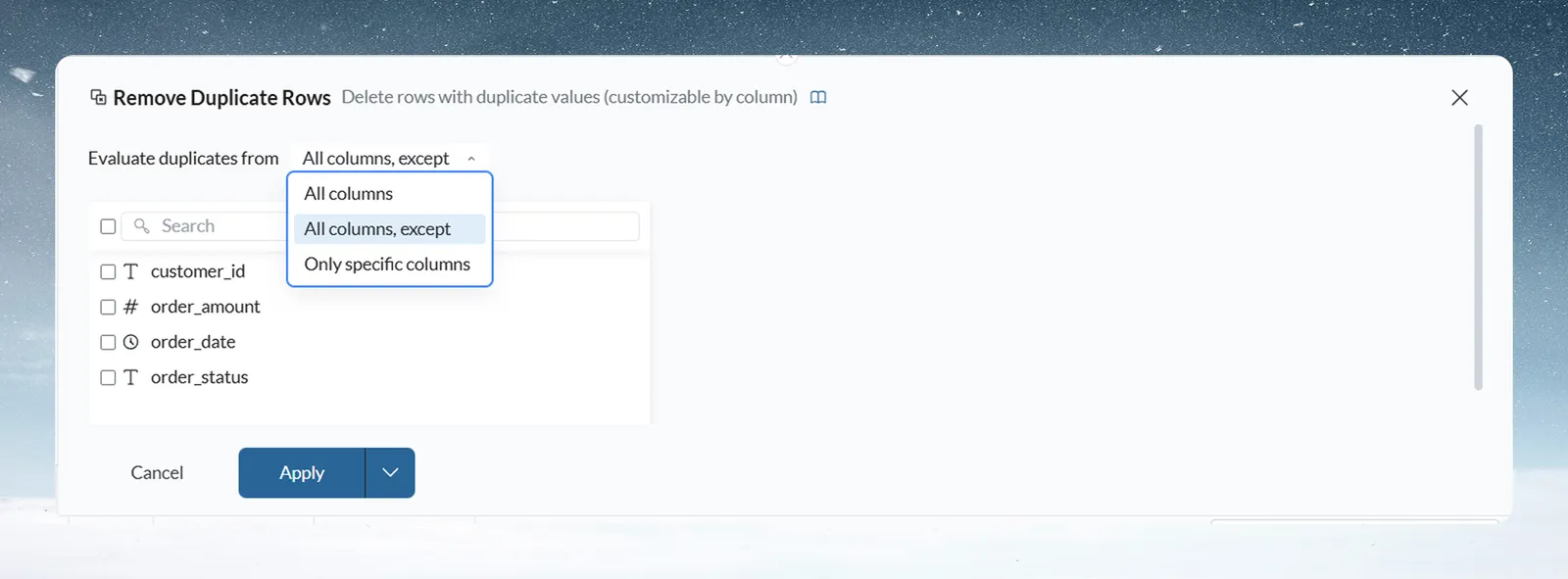
- Open the Transform menu and select Filter, Label & Replace > Remove Duplicate Rows.
- In Evaluate duplicates from, choose which columns must match for two rows to count as duplicates (see the table).
- Tick the columns to leave out or to compare, if your choice asks for them.
- Click Apply.
| Evaluate duplicates from | A row is a duplicate when |
|---|---|
| All columns | Every column value matches exactly |
| All columns, except | Every column matches apart from the ones you tick. Use it when timestamps or auto-generated IDs differ between otherwise identical records. |
| Only specific columns | The columns you tick match |
From each set of duplicates, Mammoth keeps the last row and removes the others.
Example: to keep one row per order when an export repeats orders with different load times, choose Only specific columns and tick order_id.
Choose between a Data Check and a Checkpoint
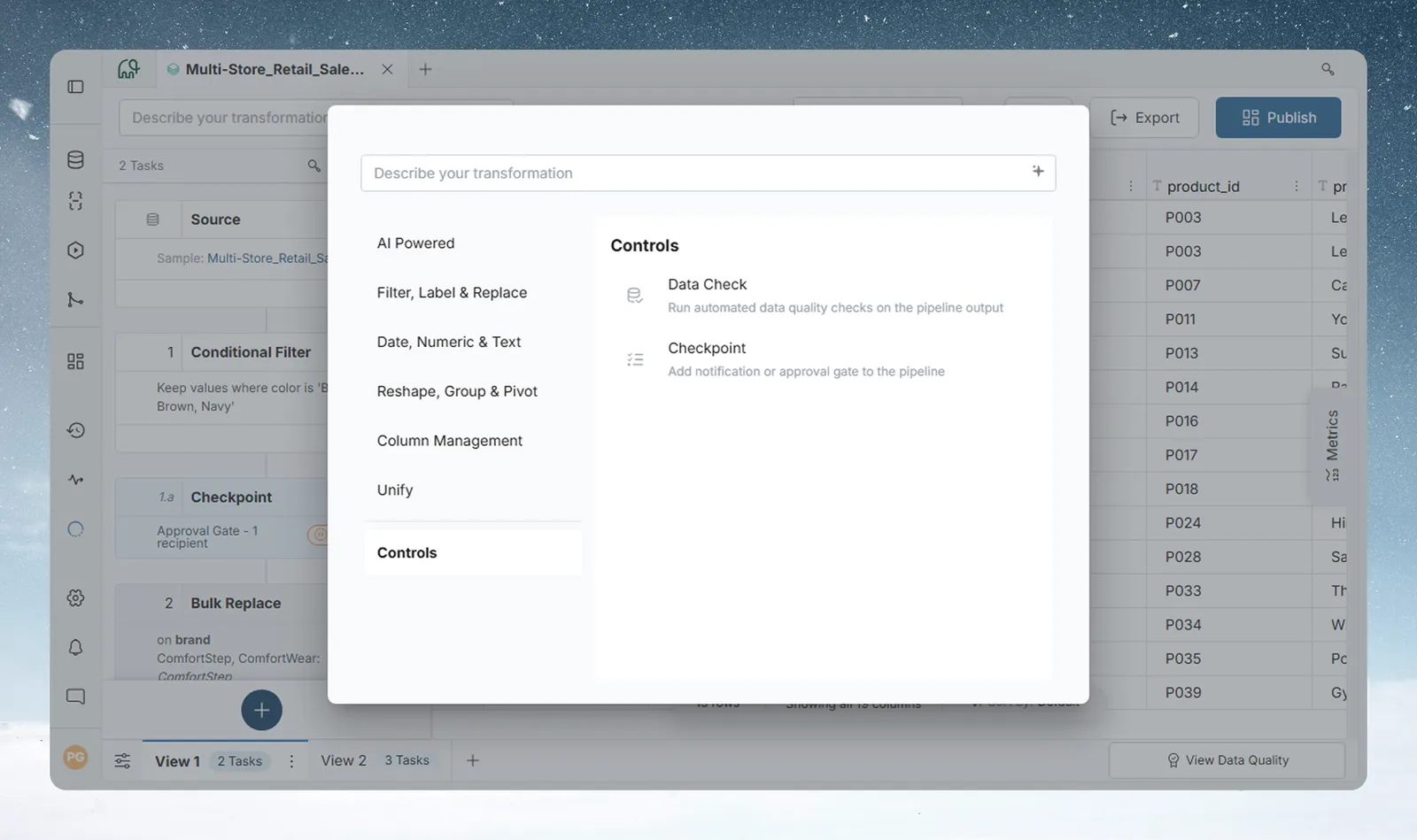
The Controls category has two tasks. A Data Check tests data automatically. A Checkpoint tells people, or waits for a person to approve, before the pipeline goes on.
| Data Check | Checkpoint | |
|---|---|---|
| What it does | Tests your data against rules you define | Sends notifications and can pause the pipeline for human review |
| When to use it | To catch bad data before it reaches later tasks | When a person must review or approve before the pipeline continues |
| On failure or trigger | Pause the pipeline, or flag and continue | Notify only, or pause for approval |
| What else happens | Optional email on failure. Later tasks don't run while the pipeline is paused. | Email (and an optional webhook). An approval gate holds the pipeline until approved. |
| Partial rerun | Marked Bypassed if it sits before the task you rerun from | Marked Bypassed if it sits before the task you rerun from, unless it is already waiting for approval or approved |
Use a Data Check when no person needs to look, for example to catch empty columns, unexpected row counts or values out of range. Use a Checkpoint when someone should review the data, when your team wants a message as a key task finishes, or when you need a record that a person approved the output. See Pause a pipeline for approval with a Checkpoint.
For high-stakes pipelines, use both. Add a Data Check after the data comes in, then a Checkpoint before the final output so a team lead can review it before the report goes out.
Add a Data Check to a pipeline
A Data Check runs after the task before it and tests that task's output.
- Open the Transform menu and choose the Controls category.
- Select Data Check.
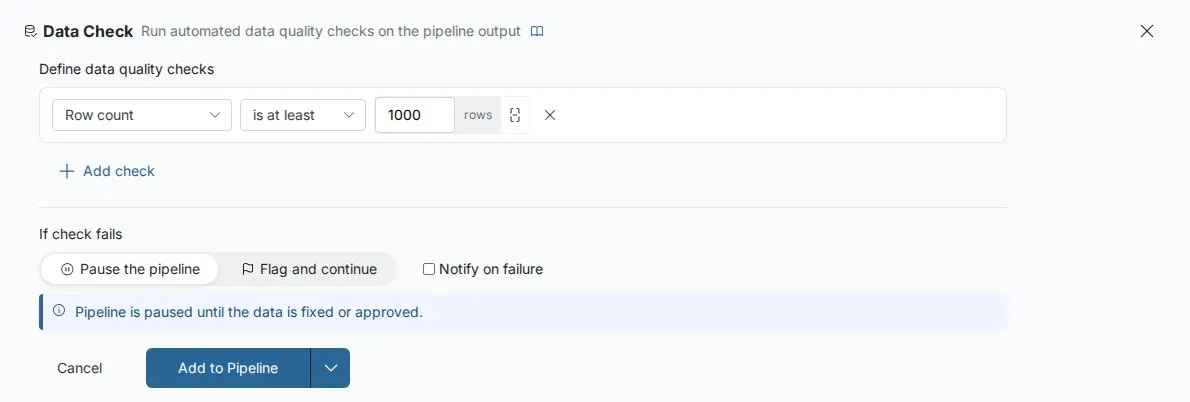
- Choose a check type from the tiles and set it up. See Data Check types.
- To test more rules, click Add check.
- Choose what happens if the check fails.
- Optional: tick Notify on failure and choose recipients.
- Click Apply.
The Data Check appears in the Pipeline panel.
You can have one Data Check per task position. To test several rules at the same point, add them as separate checks with Add check inside one Data Check, not as a second Data Check.
Three checks to start with
These three cover common problems. Add them after your first ingestion task:
- Row count at least 1: catches empty output from an upstream failure.
- Null percentage less than 5% on your key ID column: catches broken joins or missing source data.
- Value range on your main number column: catches sign errors, unit mix-ups or corrupt values.
Use the suggested checks for your columns
When columns in the View are marked as an ID, a percentage or a currency, the top of the form shows Suggested for your columns, with one check per column. Click Add to add one. It is prefilled, you can still edit it, and it replaces an empty check row.
| Column type | Suggested check | Check it adds |
|---|---|---|
| ID (Text or Number) | "order_id is unique" | Unique values, 100% unique (no duplicates) |
| Percentage, values between 0 and 1 | "margin is between 0 and 1" | Value range, between 0 and 1 |
| Percentage, values above 1 | "margin is between 0 and 100" | Value range, between 0 and 100 |
| Currency | "revenue is not negative" | Value range, is at least 0 |
The value range suggestions use the strictest tolerance, Fail if any row violates. A suggestion goes away once the form has the same check for that column. Columns without one of these types get no suggestions. To mark a column, see Column types, IDs, currency and percentages.
Data Check types: row count, nulls, unique values and ranges
Choose a type from the tiles when you open the form, or from the type dropdown on each check.
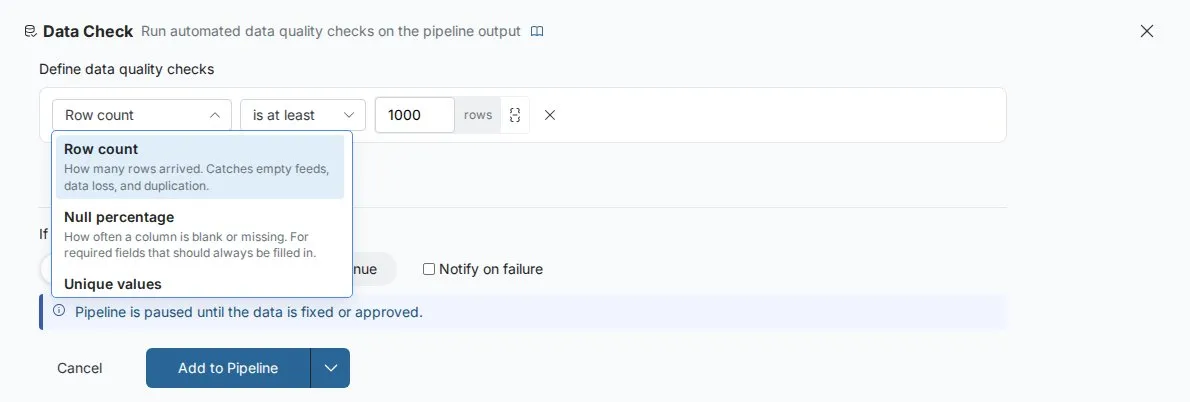
Check the percentage of empty values (Null percentage)
Tests the share of null or empty values in a column. You set the column and a percentage threshold.
| Condition | Passes when |
|---|---|
| is less than | Null % is below the threshold |
| is greater than | Null % is above the threshold |
| is exactly | Null % equals the threshold |
Example: make sure customer_email has fewer than 1% nulls after a join, to catch a broken join before it drops records.
Check the number of rows (Row count)
Tests the total number of rows in the output. You set one value, or a min and max for "is between".
| Condition | Passes when |
|---|---|
| is at least | Row count ≥ value |
| is at most | Row count ≤ value |
| is exactly | Row count equals value |
| is between | Row count is within the min–max range |
Example: make sure a daily sales feed has at least 1,000 rows, to catch a source failure before it produces empty reports.
Check that values are unique (Unique values)
Tests whether a column's values are unique. Empty values are not counted. You set the column, plus a percentage for the second condition.
| Condition | Passes when |
|---|---|
| 100% unique (no duplicates) | Every value is distinct |
| Uniqueness at least... | At least the percentage you enter is unique |
Example: make sure order_id has no duplicates after a join, to catch fan-out that would inflate totals.
Check that numbers fall within a range (Value range)
Tests whether a number column stays within bounds. You set the column, a value or min and max, and a tolerance.
| Condition | Passes when |
|---|---|
| between | Values are within the min–max range |
| is at least | Values are ≥ value |
| is at most | Values are ≤ value |
| is positive | Values are > 0 |
| is negative | Values are < 0 |
The tolerance options are Fail if any row violates, Fail if > 1% violate, Fail if > 5% violate and Fail if > 10% violate. A 1% tolerance means the check passes if at most 1% of rows break the rule. Use it for real-world data where a few edge cases are fine.
Example: require transaction_amount to be positive with a 1% tolerance, so rare refunds don't fail the whole pipeline.
Write your own rule in plain words (Custom prompt)
Describe a rule and Mammoth writes the SQL for it.
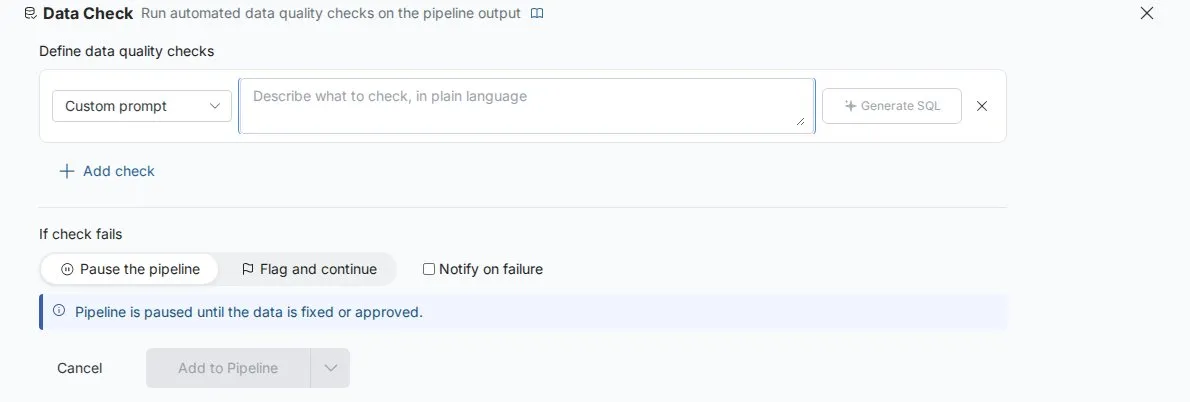
- Select Custom prompt as the check type. The tile reads Write your own rule.
- Type the rule, for example "all prices must be positive" or "revenue should not exceed 10 million".
- Click Generate SQL. Mammoth sends the description to an AI model, which writes a SQL condition.
- Review the Generated SQL under the text box.
- Click Apply.
The SQL runs as a condition against the whole pipeline output. For example, "the discount percentage should never exceed 100" becomes discount_pct <= 100.
Combine several checks with Any or All
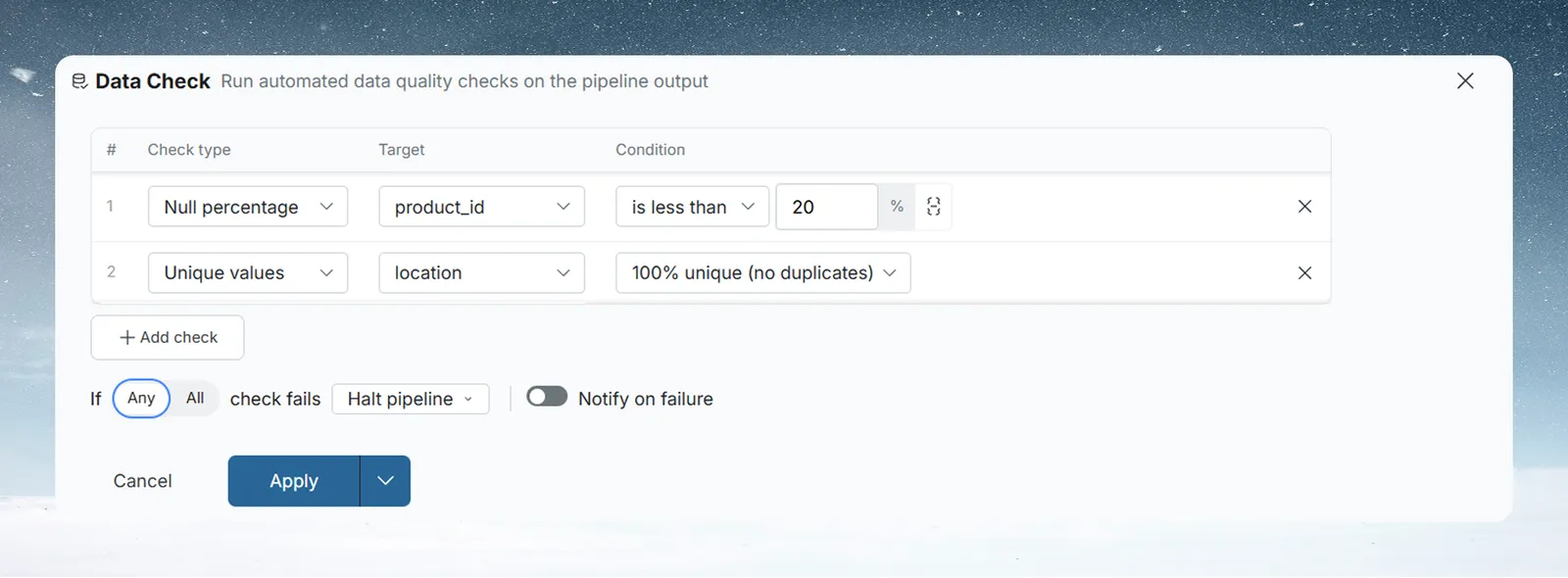
With two or more checks, the failure sentence reads If [Any | All] check fails. The toggle sets how results combine:
| Setting | The Data Check fails when |
|---|---|
| Any (default) | Any one check fails. Every check must pass. |
| All | Every check fails. One passing check keeps the pipeline going. |
All is more lenient than it sounds: it means all checks must fail to count as a failure. Use Any if one failed check should stop or flag the pipeline. Use All only when the checks are alternatives and passing one is enough.
Decide what happens when a check fails

| Setting | What happens |
|---|---|
| Pause the pipeline | The pipeline stops. Later tasks wait until the data is fixed or approved, or you change the threshold, and the pipeline runs again. Use it for financial reports, regulated outputs, or anywhere bad data must not reach the final output. |
| Flag and continue | The failure is flagged and the pipeline runs to the end. Use it for operational data that analysts can still use, or to track data quality without blocking. |
If Notify on failure is on, the email goes out whichever setting you choose.
Email people when a check fails
Tick Notify on failure and choose at least one recipient from the project's members. The email includes:
- the View name, the project name and a link to the View;
- where the Data Check sits in the pipeline, for example task 3 of 8;
- the status and details of each check, including the measured value;
- whether the pipeline was paused.
Use a parameter as a check threshold
You can bind a check's number to a parameter instead of typing a fixed value. The same pipeline then works with different thresholds in different runs.
Example: a pipeline runs on small test data in development and full data in production.
- Create a Number parameter
min_rows. - In the Data Check, click the parameter icon next to the row count value.
- Select
min_rows. - Set
min_rows = 10for development runs andmin_rows = 50000for production runs.
See Parameters and snippets to create a parameter.
Read Data Check results and statuses
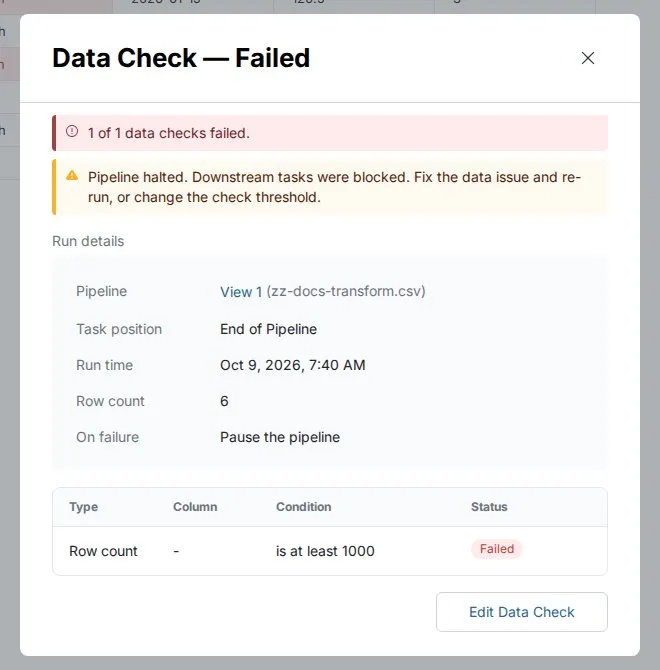
After a run, each Data Check shows one of four statuses:
| Status | Meaning |
|---|---|
| Passed | The checks met the Any or All rule |
| Failed | The checks did not meet the Any or All rule |
| Not run | The Data Check has not run yet |
| Bypassed | It was skipped in a partial rerun because it sits before the task you reran from |
Open the status to see the Data Check results: each check with its column, condition, result and status. If a check uses a column that is no longer there, the dialog asks you to edit the Data Check to fix it.
Find failed Data Checks in Monitor
A failed Data Check appears in Monitor, on the Needs Attention tab, in the Governance section. It reads Data check failed with a summary such as 1 of 2 checks failed. Click Review to open the View.
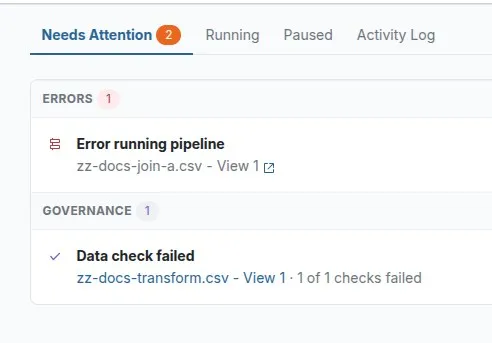
The item clears once you fix the data and the pipeline runs successfully.
Troubleshooting
| Symptom | Cause | Fix |
|---|---|---|
| The pipeline stopped and later tasks didn't run | A Data Check set to Pause the pipeline failed | Open the status, fix the data or change the threshold, then run the pipeline again |
| A check fails even though only one rule broke | Any is selected, so one failed check fails the whole Data Check | Expected. Switch to All only if the checks are alternatives. |
| A check never fails although rules break | All is selected, so every check must fail | Switch to Any |
| The results dialog asks you to edit the Data Check | A check uses a column that no longer exists | Edit the Data Check and pick an existing column |
| The Data Check shows Bypassed | You reran from a task after it | Run the full pipeline to test it again |
Related
- Pause a pipeline for approval with a Checkpoint: notify people or wait for sign-off.
- Fix a failing step: find and fix the task that broke.
- Filter rows: keep only the rows you need, or the top and bottom rows.
- Data quality report: spot nulls and duplicates before you add checks.
- Activity log and Monitor: where pipeline problems surface.
Something wrong? support@mammoth.io