Use the dataset panel to see and act on a dataset
The dataset panel shows what a dataset holds and lets you act on it without leaving the Data Library. Click any dataset row under Data in the left sidebar, and the panel opens beside the list. Anyone with access to the project can open it; with view-only access the header shows View only and actions that change data are greyed out.
Settings, batches, automations and history sit behind the Settings & history door: see Dataset settings and history.

Open, resize and close the dataset panel
- In the Data Library, click a dataset row. The panel opens on the right, next to the list.
- To change its width, drag the panel's left edge, or focus the edge and use the arrow keys. Double-click the edge to reset it to half the page.
- To close it, click the × in the panel header or press Esc.
On a phone the panel replaces the list, and a back arrow takes you back to your datasets.
Read the panel header
The header shows the dataset's icon, its name, and a line with when it was last updated. If the dataset has more than one View, a View switcher sits on the title line so you can move between its Views (All 4 views lists them).
The header's main button changes with the dataset's state:
| Button | When you see it | What it does |
|---|---|---|
| Explore | The dataset has one View and nothing is failing | Opens the data in the editor |
| Open and the View's name, such as Open Monthly totals | The dataset has several Views | Opens the View you were last in, or the first View that needs attention |
| Fix failing task | A task failed on a View's last run | Opens that View with its pipeline showing, so you can fix the step |
Rename a dataset
- Click the dataset name in the header. It turns into a text field.
- Type the new name.
- Press Enter, or click outside the field, to save. Press Esc to cancel.
You can also choose Rename from the panel's icon strip or the row's ⋯ menu. With view-only access to the project, the header shows View only and the name can't be edited.
Understand the notices at the top of the panel
Some datasets show a card above the Overview. Each one says what happened and offers the fix.
Views that need attention
When a View on the dataset is failing, out of date, or not syncing, a banner explains it:
| Message | What it means |
|---|---|
| "A task failed on the last run." | A step in the View's pipeline failed. Click Fix failing task to open it. See Fix a failing step. |
| "New data has landed since this view last ran." (or "3 batches have landed since this view last ran.") | The dataset has newer data than the View has processed. On a dataset with one View, this shows on the Settings & history door rather than as a banner. |
| "Auto-sync is off, so this view stays frozen when the dataset refreshes." | The View's Auto-sync is off. See How Auto-sync works. |
On a dataset with several Views, the banner reads, for example, 2 of 4 views need attention, with counts such as 1 failing and 1 sync off. When more than one View needs you, Show me lists them. In the list, the same states show as chips on each View: Failing, Out of date, Sync off or Updating.
Files that did not fit the table
When files you add can't go in as they are, a card says so, for example "2 files arrived and did not fit the table." It also tells you how many rows the dataset still holds from before. The card's button names the fix:
| Button | What it fixes |
|---|---|
| Match the columns | The file's columns don't match the dataset's |
| Pick the tab | The workbook has several tabs, and Mammoth needs to know which one to read |
| Enter the password | The file is password-protected |
| Review the file | The file needs a check before it can be added |
Added the same way as last time
A new workbook can go in automatically using the saved tab and reading (see Choose how new files are added). A card then reports Added the same way as last time, with the number of rows and the tab they came from.
- See how opens Settings & history.
- Undo asks, for example, "Take out 120 rows?". Click Take them out to remove that workbook's rows from the dataset. This can't be reversed.
- Undo is not offered when the dataset replaces all data.
Share it through datasets
This card can appear if you manage the workspace's AI Agent settings and people outside the project ask about its folders. It lists each shared folder with Has it or Not yet.
- Add it for 3 folders hands the job to the AI Agent, which makes a filtered copy of the dataset for each folder that lacks it.
- Not now hides the card.
The AI Agent is available on Enterprise plans.
See what a dataset holds in the Overview
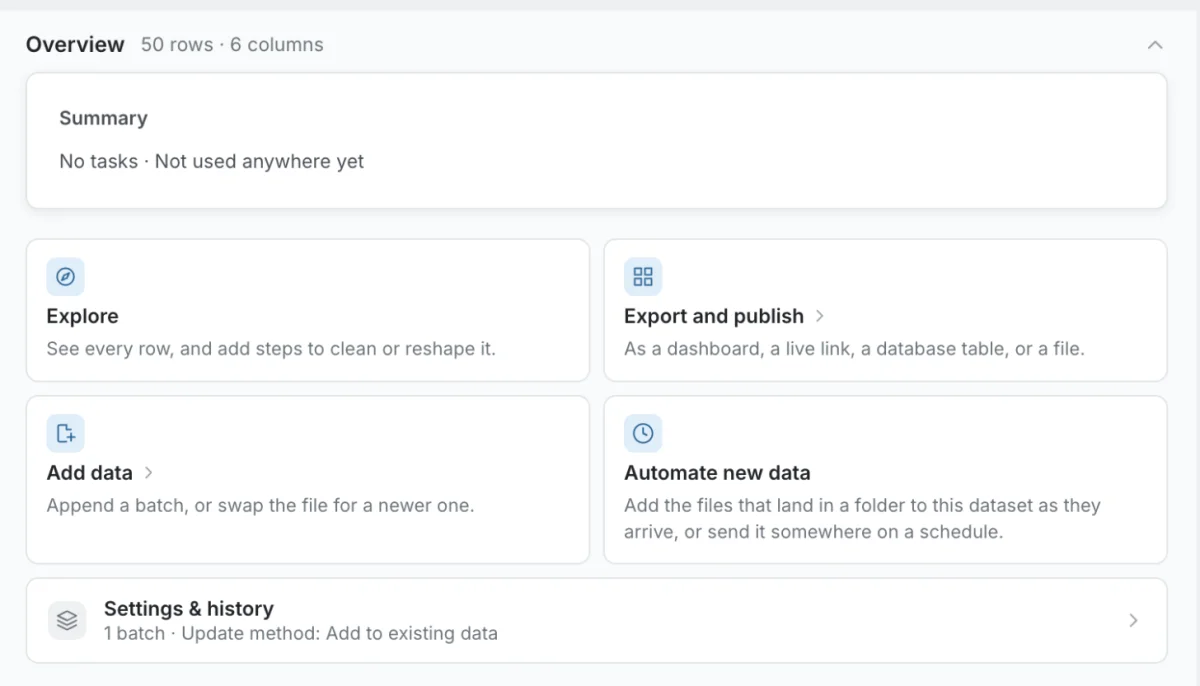
The Overview section opens first. It shows the dataset's shape (for example, 1,200 rows · 8 columns) and these cards:
- Summary (or AI summary): what the dataset is, what its pipeline tasks did, and where its data goes, such as dashboards or exports that it feeds.
- In the workflow: a small map of where this dataset sits, with the sources that feed it and the Views, exports and dashboards it feeds.
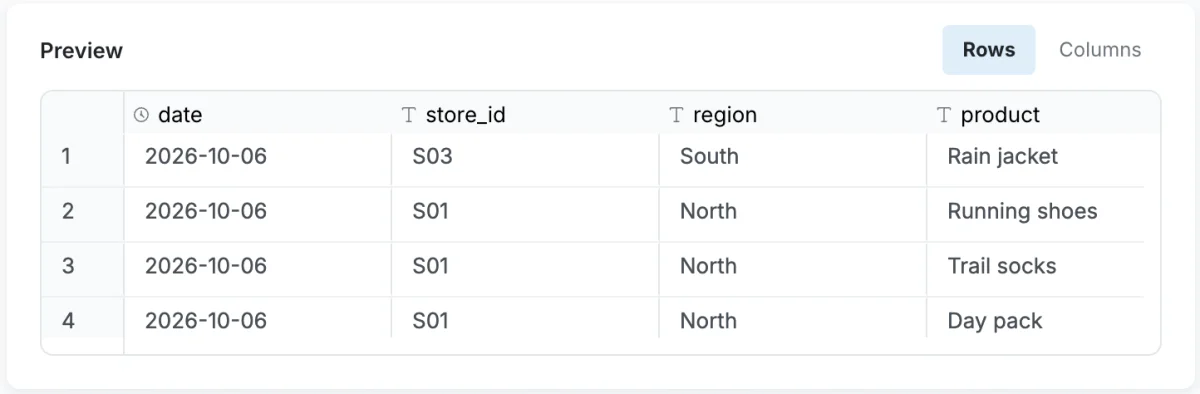
- Preview: the dataset's rows. Switch between Rows and Columns to see either the data or its column list. If the preview can't load, it says "That did not load. The dataset is not necessarily empty."
If a View returns unexpected results, check the Preview first. If the source data looks wrong here, the issue is upstream of the pipeline.
Check the recipe for data read out of a PDF or document
If a recipe read the dataset's rows out of a PDF or another document, the preview says the rows were "read out of" that file "by a recipe", and offers View recipe. The Recipe dialog (with the source file name underneath) shows:
| Row | What it shows |
|---|---|
| Recipe | The instruction used to read the file |
| Source URL | The link the file was fetched from, when it came from a URL |
| Runs when | What adds new data: a watched folder (for an automation), "You refresh it from the URL, or batches are added manually", or "Batches are added manually" |
| Last run | When the recipe last ran and what it produced |
| Outputs | Each dataset the recipe fills, with its columns, rows and update method (adds to existing data or replaces all data). This dataset marks the one you opened; This dataset needs your review marks one waiting on you. |
When one file produces several datasets, the dialog adds, for example: "These 3 datasets come from one file, so they always update together." If a new file changes in a way Mammoth can't match, all of them keep their last good data until you look.
Use the doors: Explore, Export and publish, Add data, Automate
Below the Overview, a row of large buttons (doors) holds the main things you can do. Each one says what it does underneath.
| Door | What it does |
|---|---|
| Explore | Opens the data: "See every row, and add steps to clean or reshape it." On a dataset with several Views, it opens the View you were last in. |
| Export and publish | Shares the data "as a dashboard, a live link, a database table, or a file". See Publish and share a dashboard and Download data. |
| Add data | For datasets you upload files into: "Append a batch, or swap the file for a newer one." See Add or replace data. |
| Retrieve | Replaces Add data for datasets fed by a connection: "Pull the latest from the source now." |
| Get the latest | Replaces Add data for datasets that follow a file link: "Fetch the file at its link again." |
| Automate the refresh / Automate new data / Automations / Refresh schedule | Sets up or lists the automations that run on this dataset. Automate new data is for a dataset you upload files into, Automate the refresh for a connected or linked dataset, and Automations or Refresh schedule shows once one exists. |
Pull the latest data with Retrieve or Get the latest
When you click Retrieve or Get the latest (or Refresh on a webhook dataset), the door shows the progress in place: Getting the latest…, then Putting the new rows in… with a count, and finally Up to date. If it takes a while, it says "This is taking longer than usual. You can leave", and a message tells you when it finishes.
The finish message gives the outcome in rows:
| Outcome | Example |
|---|---|
| Rows were added | "Added 120 rows. Now 5,320." |
| The count changed | "Now 5,200 rows (was 5,100)." |
| Same rows as before | "Same 5,200 rows as before." |
| Nothing new | "Nothing new came in." |
If the pull fails, the door reads Couldn't get the latest with the reason and "Your data is as it was.", plus a Try again button. If refreshing is switched off for the dataset, you see "Refreshing is switched off for this dataset, so there is nothing to pull."
Find other actions in the icon strip and More options
Next to the main buttons is an icon strip with the dataset's other actions, and a More options (⋮) menu with whatever doesn't fit. Hover an icon to see its name. Depending on the dataset, these include:
| Action | What it does |
|---|---|
| New view | Creates another View on this dataset. See Views: create, rename and delete. |
| Rename | Renames the dataset |
| Settings | Opens Settings & history on the Settings section. Shown for datasets that are not fed by a connection. |
| Edit settings | For datasets fed by a connection: opens the Settings section, where the Query row lets you edit the query |
| Clone dataset | Duplicates the dataset. See Copy, move and delete datasets. |
| Move to | Moves the dataset to another folder |
| Download | Downloads the dataset's rows (see below) |
| Refresh | Appears for webhook datasets when new rows are waiting |
| Stop following the link / Follow its link | For datasets imported from a URL: stop fetching the file at its link (the dataset becomes a copy), or start again |
| Move to trash | Moves the dataset to Trash (see below) |
The same actions are available from the ⋯ menu on the dataset's row in the list, and by right-clicking the row.
Download a dataset as CSV or Excel
Download opens a short dialog before the file is made. Choose a format:
| Option | One dataset | Several datasets |
|---|---|---|
| CSV file / CSV files (.zip) | One .csv file | One file per dataset, in a .zip |
| Excel workbook | One sheet | One sheet per dataset |
- On a dataset with several Views, the dialog says which View it downloads: the one you were last in.
- When some of the selected datasets have the same columns, Stack the ones with the same columns into one file appears, with how many files you'll get.
- To download several at once, tick them in the list and click Download in the selection bar. A folder's Download folder gets every dataset inside it.
- Raw files that have not become datasets are left out ("Raw files have no rows to download yet").
While the file is prepared, the dialog shows, for example, "3 of 5 ready. The file saves on its own when it's done." If you leave the page, a notification brings you the file when it's ready.
For other ways to get data out, see Download data.
Move a dataset to Trash from the panel
Move to trash opens Move to trash?. The dataset leaves the library at once, and you can restore it from Trash for 30 days, which the dialog states. Its Views go with it. See Get things back from Trash.
Some items can't go to Trash. A raw file that never became a dataset shows Delete permanently instead, and its dialog is titled Delete for good?. If you select several items and some can't go to Trash, the selection bar warns, for example, "1 item cannot go to Trash and would be deleted for good."
Resolve a file that needs your input
A file that is waiting on you (a password, a tab to pick, or a reading to choose) opens a smaller panel: "This file needs your input before it can be processed." Its actions are:
- Resolve: opens the fix;
- Explore: look at the raw rows;
- Replace the file and Rename: once it is already a dataset;
- Move to;
- Move to trash or Delete permanently.
See Upload files.
Act on a View from the panel
Views appear under their dataset in the list. Click a View row and the panel shows that View, labelled, for example, View of Daily Sales. A View has a shorter set of actions, because batches, update settings and files belong to the dataset:
| Door or action | What it does |
|---|---|
| Explore | Opens this View in the editor |
| Export and publish | Shares this View as a dashboard, live link, database table or file |
| Retrieve | Only for a View of a connected dataset: "Pull the latest into its dataset now." |
| Automate this view / Automations | Schedules sending the View somewhere, combining new data into it, or (for a connected dataset) refreshing it |
| Rename, Download, Move to trash | As for a dataset |
A View can't be moved on its own, because it lives with its dataset. Move the dataset instead.
How datasets, batches and Views fit together
Every dataset in Mammoth follows this structure:
Dataset
  └── Batch(es)       ← individual data loads (each file upload = one batch)
  └── View(s)         ← transformation pipeline outputs built on the batches
       └── Pipeline tasks  ← filters, formulas, joins applied to produce the View
- Batches are the raw inputs: the individual data loads you can suspend, delete, or retire with a retention policy. See Manage batches.
- Views are the processed outputs, shaped by the pipeline tasks you've built. Each View has its own pipeline, and a dataset can have several.
- The Preview in the Overview shows the dataset's rows. When you open a View with Explore, you see the pipeline's output.
Limits
| Limit | Value |
|---|---|
| Datasets in one download | 200 ("One download holds at most 200 datasets.") |
| Size of one download | 1 GB ("This download is over 1 GB. Pick fewer datasets.") |
| Trash retention | 30 days |
Troubleshooting
| Symptom | Cause | Fix |
|---|---|---|
| "That did not load. The dataset is not necessarily empty." | The preview failed to load. | Reopen the panel, or click Explore to see the rows. |
| Couldn't get the latest with "Your data is as it was." | The pull from the source failed. | Read the reason, then click Try again. |
| "Refreshing is switched off for this dataset, so there is nothing to pull." | Refreshing is off for this dataset. | Turn refreshing back on before you retrieve. |
| "2 files arrived and did not fit the table." | The files' columns, tabs or passwords need a decision. | Click the card's button, such as Match the columns. |
Related
- Dataset settings and history: update method, column rules, batches and history.
- Find your way around the Data Library: the list the panel opens from.
- Views: create, rename and delete: work with a dataset's Views.
- Copy, move and delete datasets: clone and move a dataset.
- Add or replace data: append or replace data in a dataset.
- Get things back from Trash: restore a dataset you deleted.
Something wrong? support@mammoth.io