Join two datasets on a shared column
Join adds columns from another View (the foreign View) to the View you're in, matching rows on one or more key columns. You get one wider dataset. Open it from Describe your transformation (or a + in the Pipeline panel), then Unify › Join.
Need only one value per row, like a VLOOKUP? Lookup is simpler and never adds rows.
Join two Views step by step
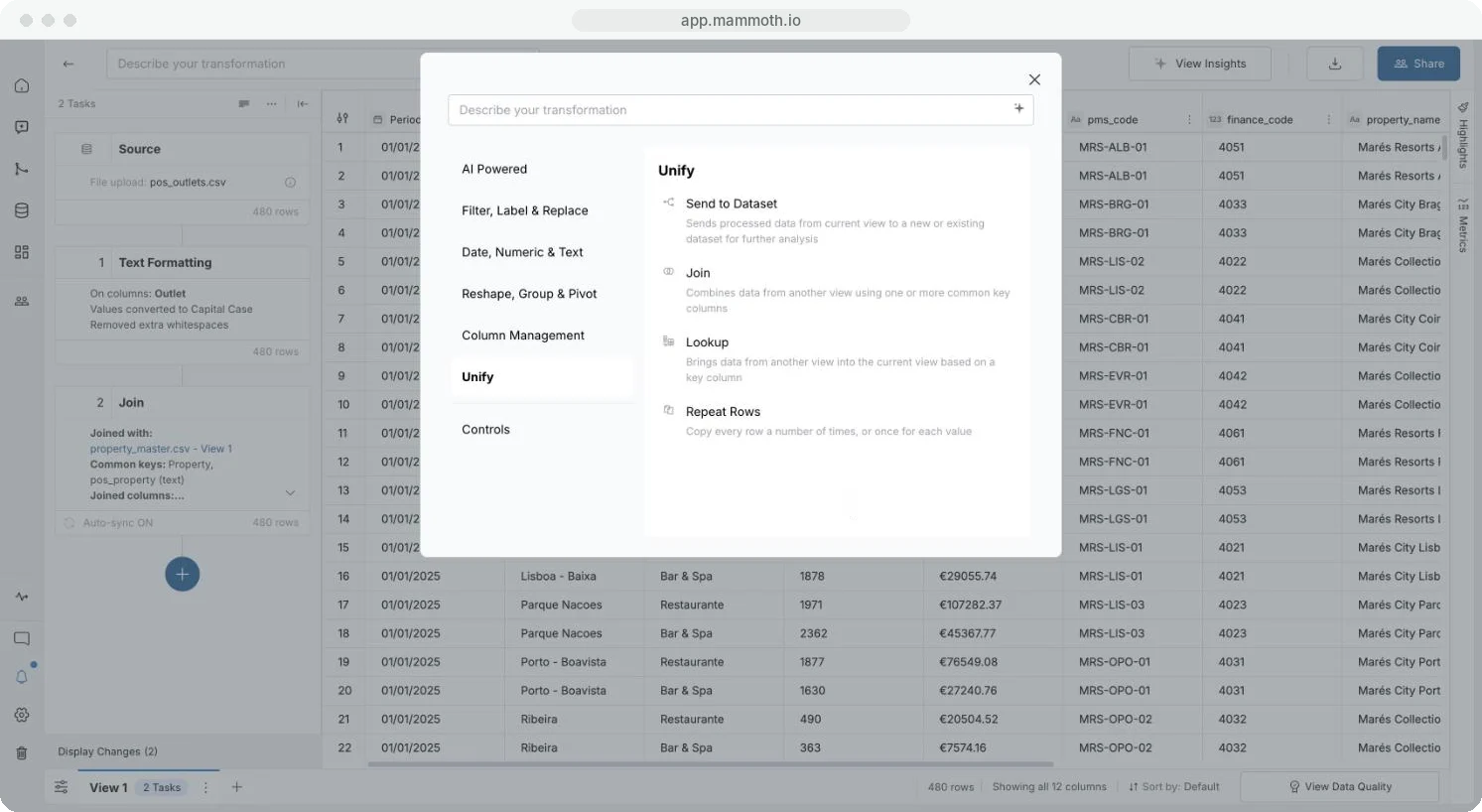
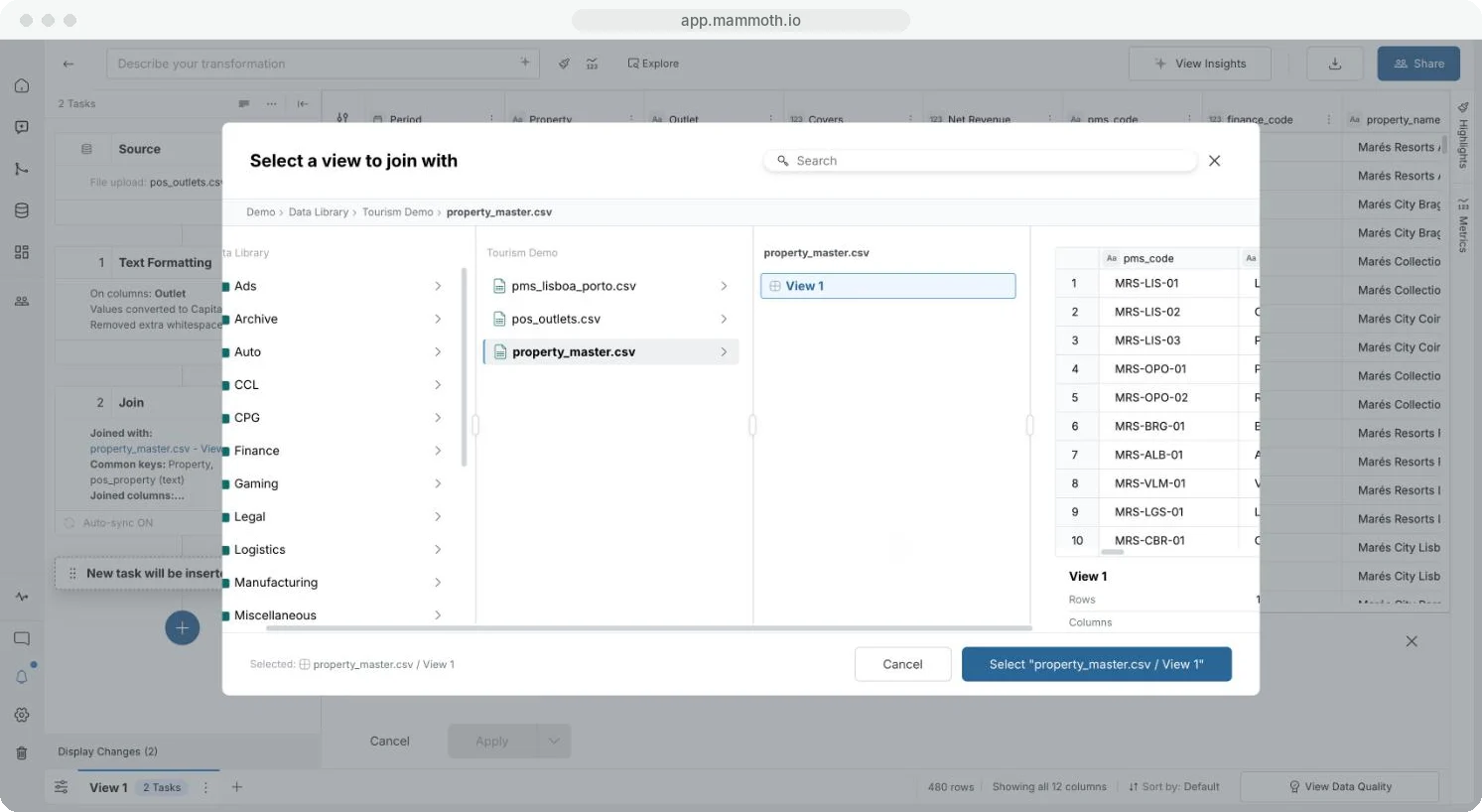
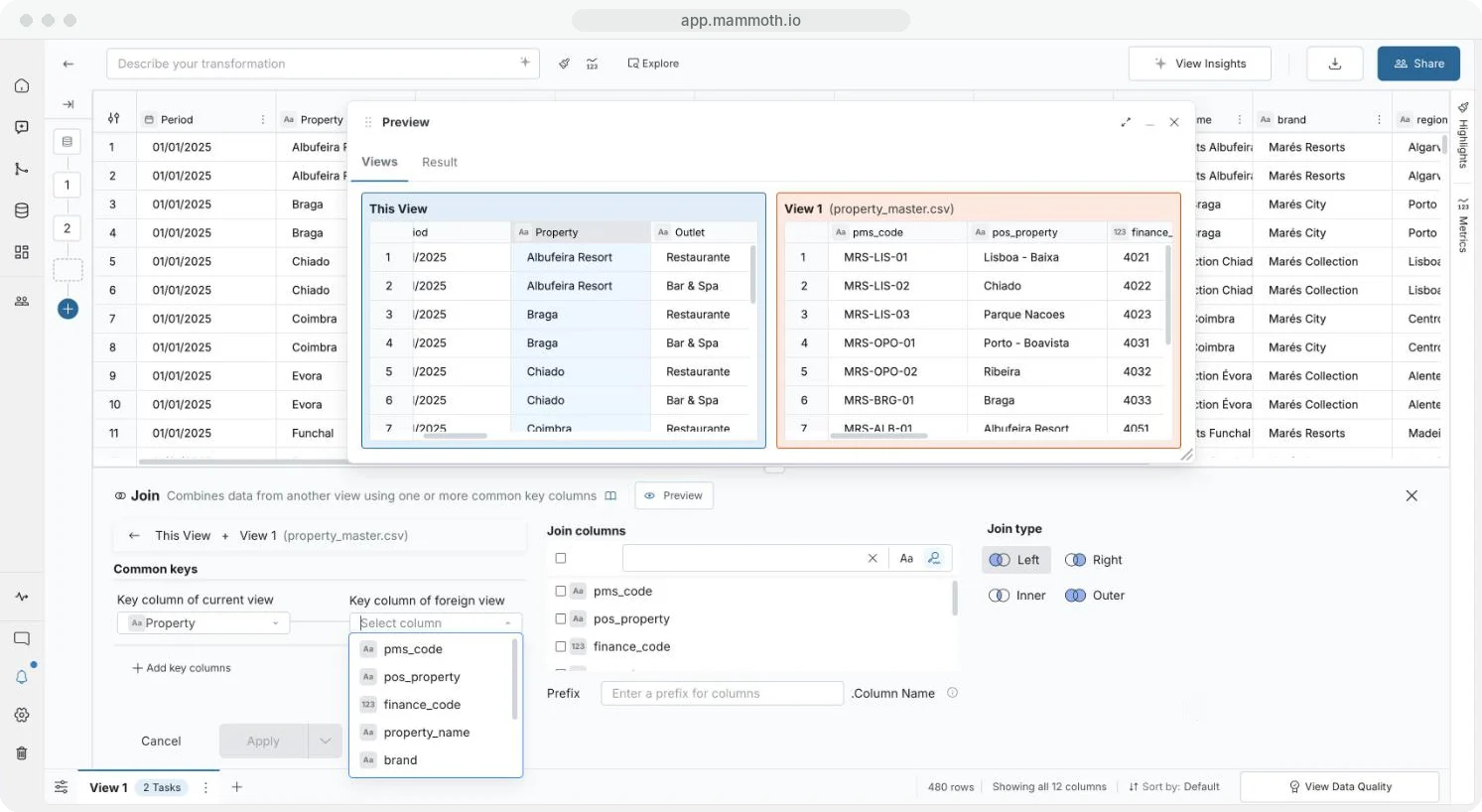
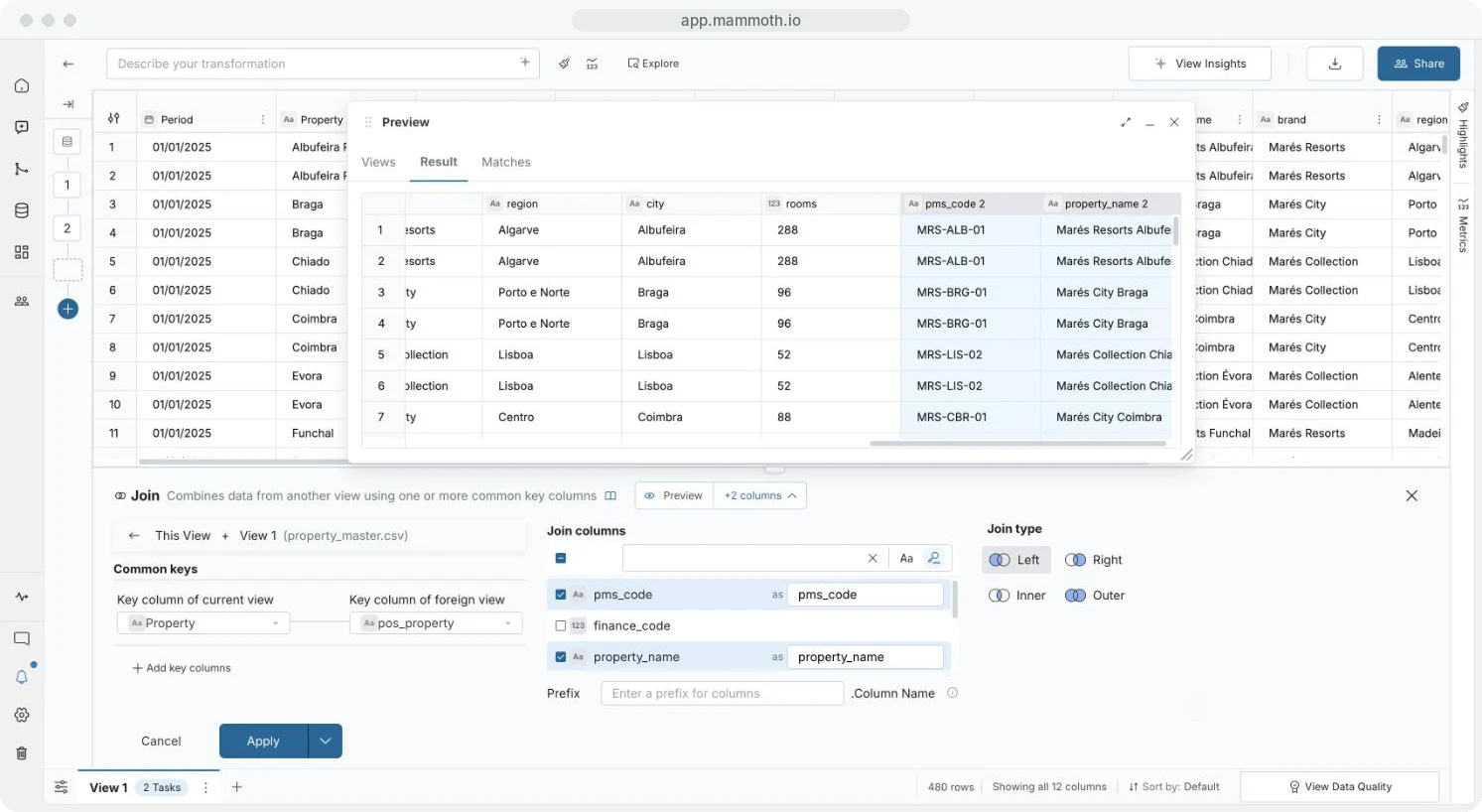
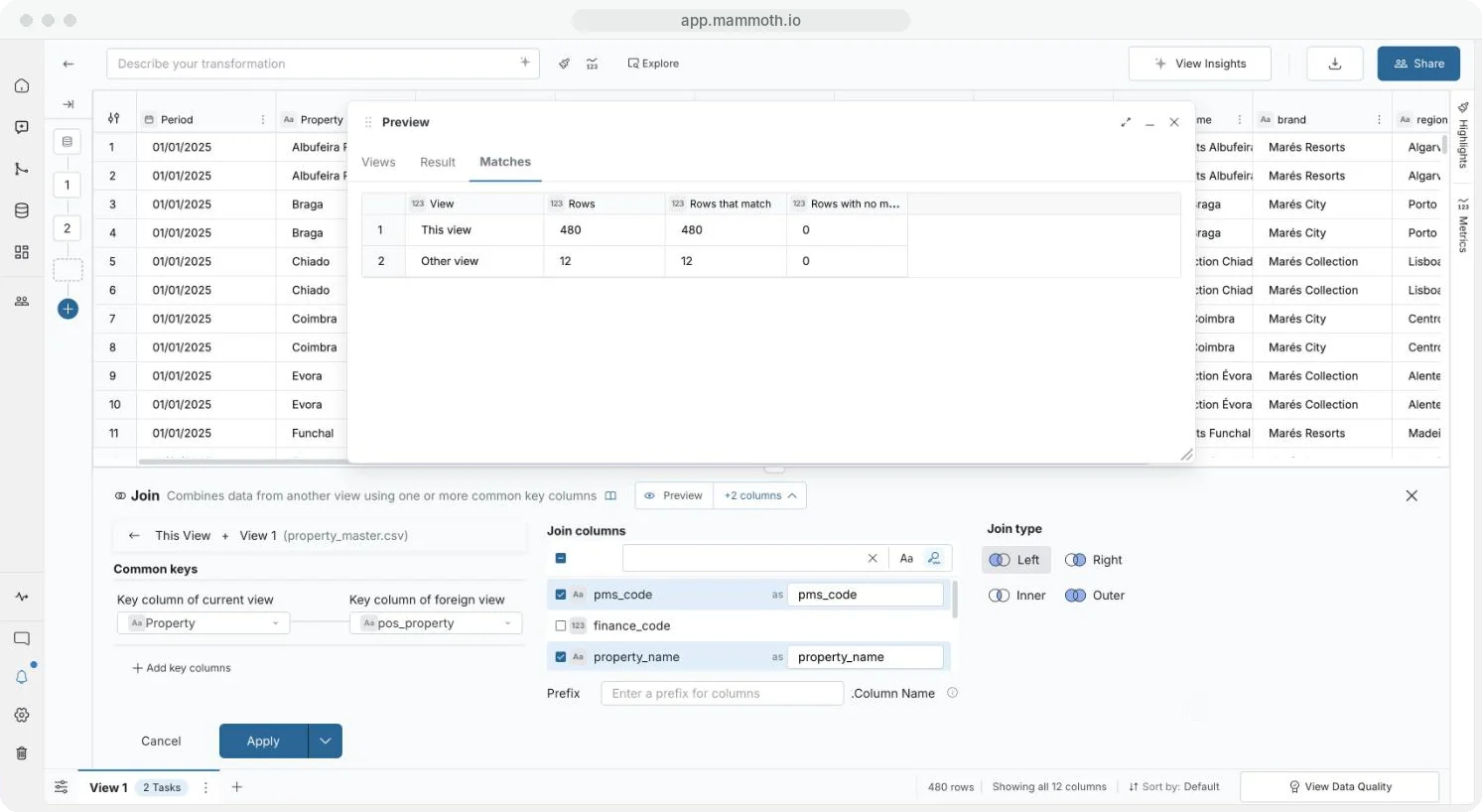
Step 1 of 6: Open Join
What the walkthrough shows
- Outlet sales by property. Each row needs details that live in another dataset.
- Open Describe your transformation, then Unify › Join.
- Pick the dataset, then the View to join with.
- Both Views appear side by side: yours in blue, the other in orange.
- Match the keys: Property here, pos_property there. Then tick the columns to bring in.
- Result previews the joined rows before you apply. A name already in use gets a number.
- Matches counts the rows that found a partner on each side: all 480 here.
- Choose Left, Right, Inner or Outer, then Apply.
- The Join becomes a task in the pipeline and re-runs with every refresh.
Check the result before you apply
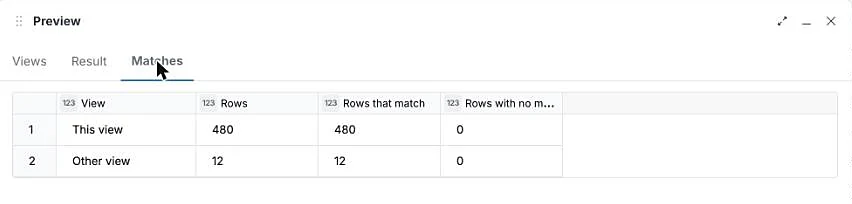
Click Preview in the Join panel to see three tabs. Views shows both Views side by side. Result shows the joined rows. Matches counts, for each View, its rows, the rows that match and the rows with no match. It also says when rows match more than one row of the other View, which adds rows. You see a key problem before it reaches your data.
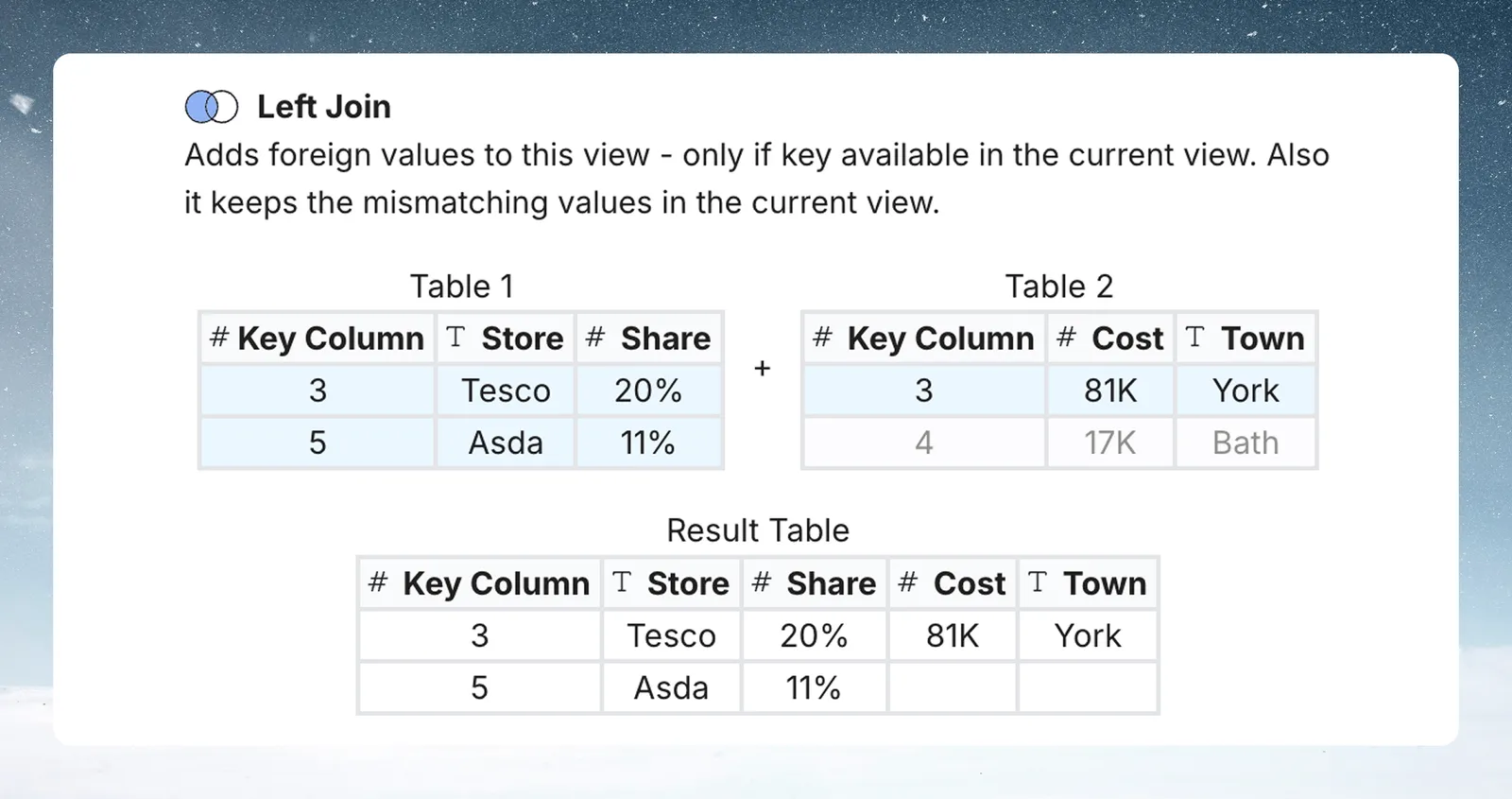
Choose Left, Right, Inner or Outer
The join type decides what happens to rows whose key has no match.
| Join type | Keeps | Use it to |
|---|---|---|
| Left | Every row in your View. Rows with no match get blank joined columns. | Add details where they exist and keep all your records |
| Right | Every row in the foreign View. Your rows with no match are removed. | See every reference record and which ones match |
| Inner | Only rows whose key is in both Views | Keep fully matched records only |
| Outer | Every row from both Views, with blanks where there's no match | See everything and find the gaps |
Example: add customer names to orders
Orders has ID, Customer ID and Total. Customers has ID and Name. Join Customer ID to ID, tick Name, set the prefix to Customer and choose Left:
| ID | Customer ID | Total | Customer.Name |
|---|---|---|---|
| 1 | 2 | 167 | Katie |
| 2 | 1 | 98 | John |
| 3 | 4 | 98 | Raj |
Customer 3 (Priya) has no orders, so Left leaves her out. Choose Right to see her, with blank order columns.
Match numbers or dates within a range
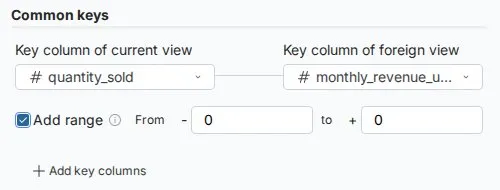
When your key is a number or a date, tick Add range under the key pair to match within a range, for example times within ±10 minutes. Enter how far below in From - and how far above in to +. For dates, pick the unit: milliseconds, seconds, minutes, hours, days, weeks, months or years.
Name the joined columns with a prefix
Prefix ("Enter a prefix for columns") goes in front of every joined column, followed by a dot: Name becomes Customer.Name. The box starts empty. If you switch View while it's empty, Mammoth fills in that View's dataset name. Without a prefix, joined columns keep their names, and a name already in use gets a number, such as Name 2.
Fix duplicate keys and extra rows
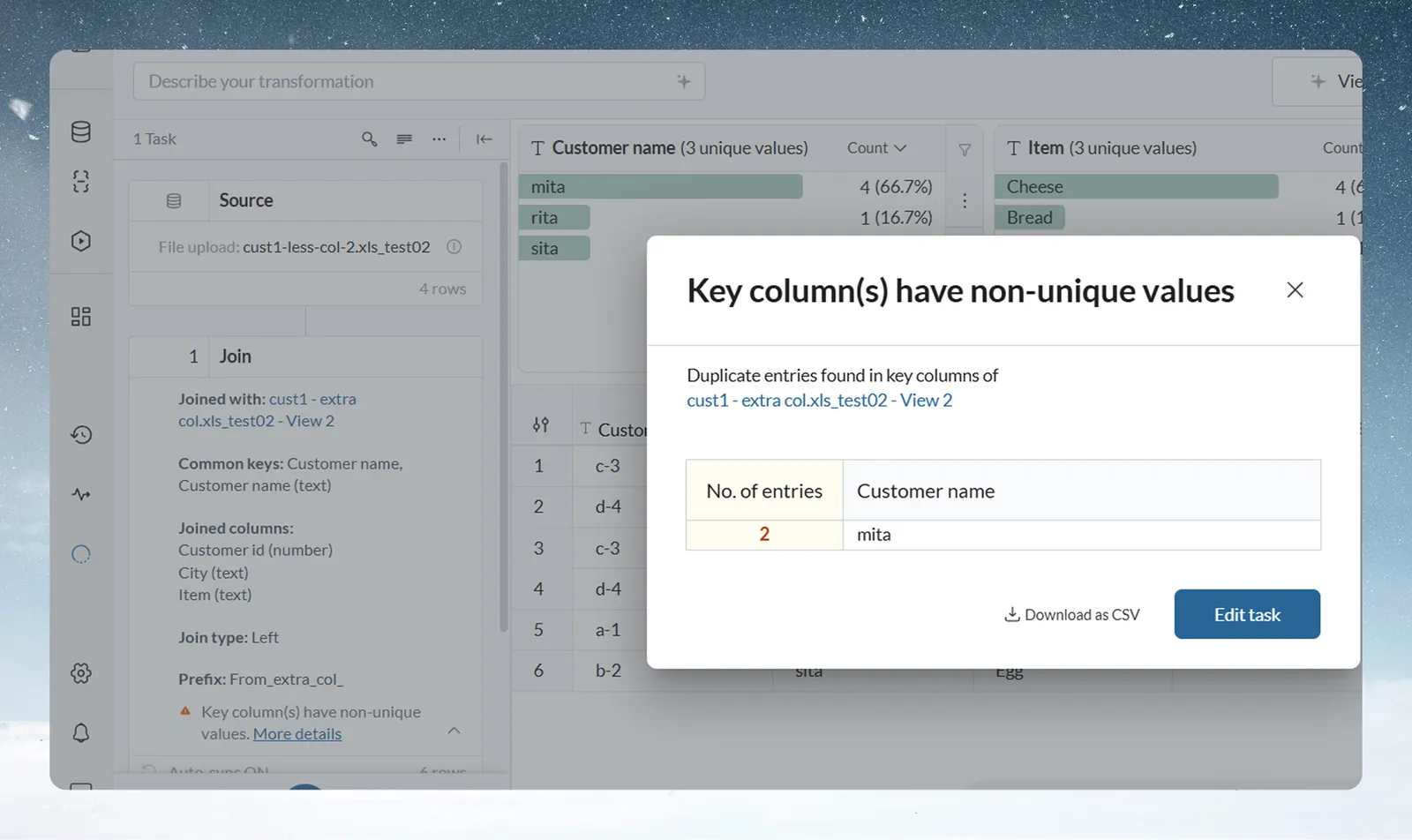
When key values repeat, the Join task card shows a warning. More details lists the repeated values, with Download as CSV and Edit task.
If keys repeat on both sides, each row matches several rows and the row count multiplies. Mammoth blocks a join whose result would pass 100,000 rows and be more than 5 times the larger View. The task then fails. To avoid it, remove duplicate keys first with Remove Duplicate Rows, use Lookup, or summarise the foreign View with Group & Pivot.
Key column warnings
Mammoth warns when two keys look alike but may not match. The warnings never block Apply.
| Warning starts with | When |
|---|---|
| "order_ref is text and order_id is a number, so matching values may not join." | One key is Text, the other a Number. 000417 as text never equals 417. |
| "The keys are stored as different types: a date never equals text or a number…" | One key is a Date and the other isn't |
| "One key is an ID and the other is not…" | Only one key is marked as an ID |
| "The keys are in different currencies…" | Both keys are Currency columns with different symbols |
Fix a type mismatch with Convert Column Type on either View first. See Convert text to dates and numbers.
Troubleshooting
| Symptom | Cause | Fix |
|---|---|---|
| No matches | Values differ: US and United States, spaces, case or type | Tidy both sides with Text Formatting, Find & Replace or Convert Column Type |
| Far more rows than expected | Repeated keys on both sides | Remove duplicates, use Lookup, or group the foreign View first |
| Runtime error. Contact support for help. | Result over 100,000 rows and 5 times the larger View | Remove duplicate keys first |
More help: Fix a failing step.
Related
- Look up one value from another View: one column, never extra rows.
- Remove duplicates and check data: clean keys before you join.
- Work with text and JSON: make key values match.
- Combine datasets: stack files from the Data Library.
Something wrong? support@mammoth.io