Create, rename, duplicate and delete Views
A View is your transformation workspace on a dataset. It starts with the combined data from all batches and runs a pipeline of tasks (filters, calculations, joins, reshaping) to produce an output for analysis, reporting or export. Open a dataset in the data editor and use the View tab bar at the bottom. In a View-only workspace, Duplicate, Reset, Apply template and Auto-sync are disabled.
Every dataset can have several Views. Each has its own pipeline, settings and output destinations, while all of them share the same underlying data. Your team can work on the same dataset at the same time without changing each other's pipelines.
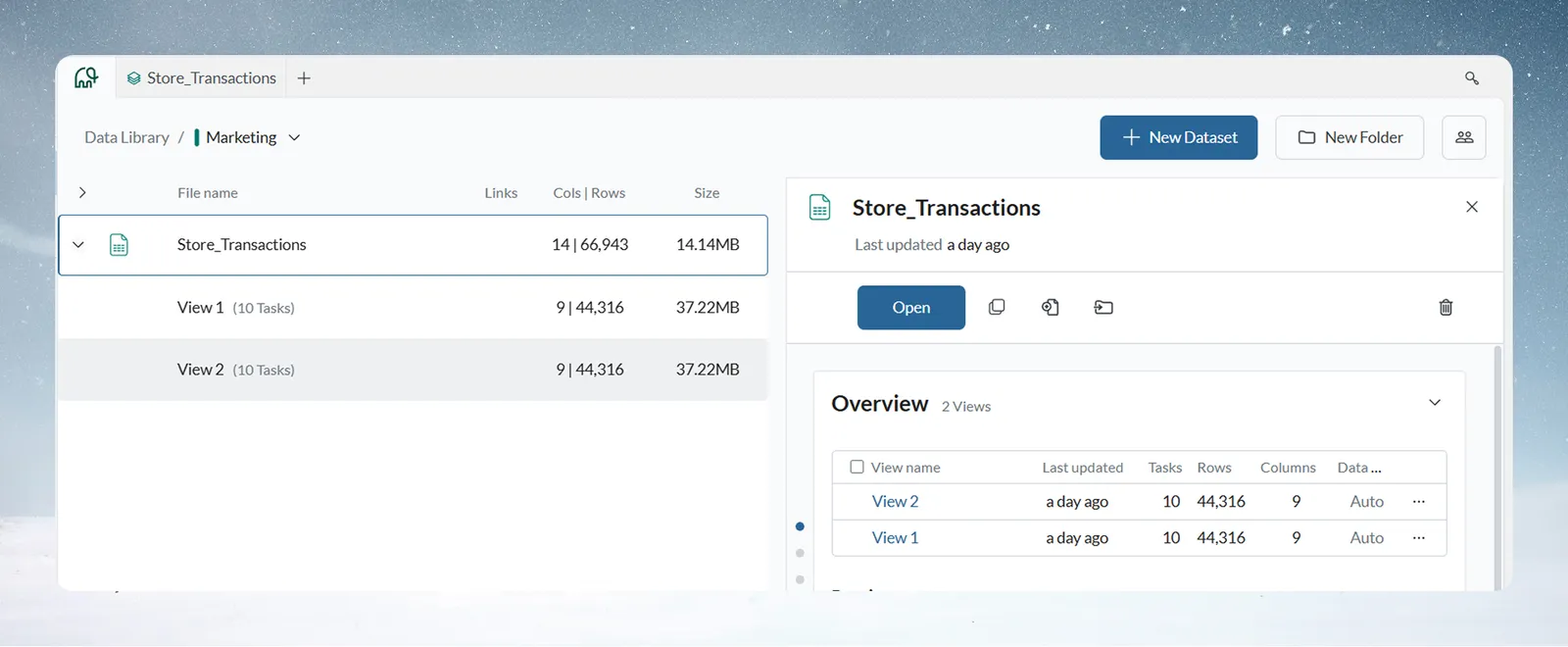
When to use several Views on one dataset
The same dataset rarely serves one audience. A sales dataset might need a detailed analyst pipeline, a KPI summary for operations, a feed for a dashboard and a compliance export for finance. Without several Views, teams either copy data into separate files (version drift) or share one pipeline (conflicts).
Several Views give you:
- Parallel team work: two analysts build different pipelines on the same dataset at once. Changes in one View never affect another.
- Audience-specific outputs: each group gets data shaped for its needs, without restructuring or copying the dataset.
- Safe iteration: duplicate a working View to try new logic. If the experiment fails, delete it. The original is untouched.
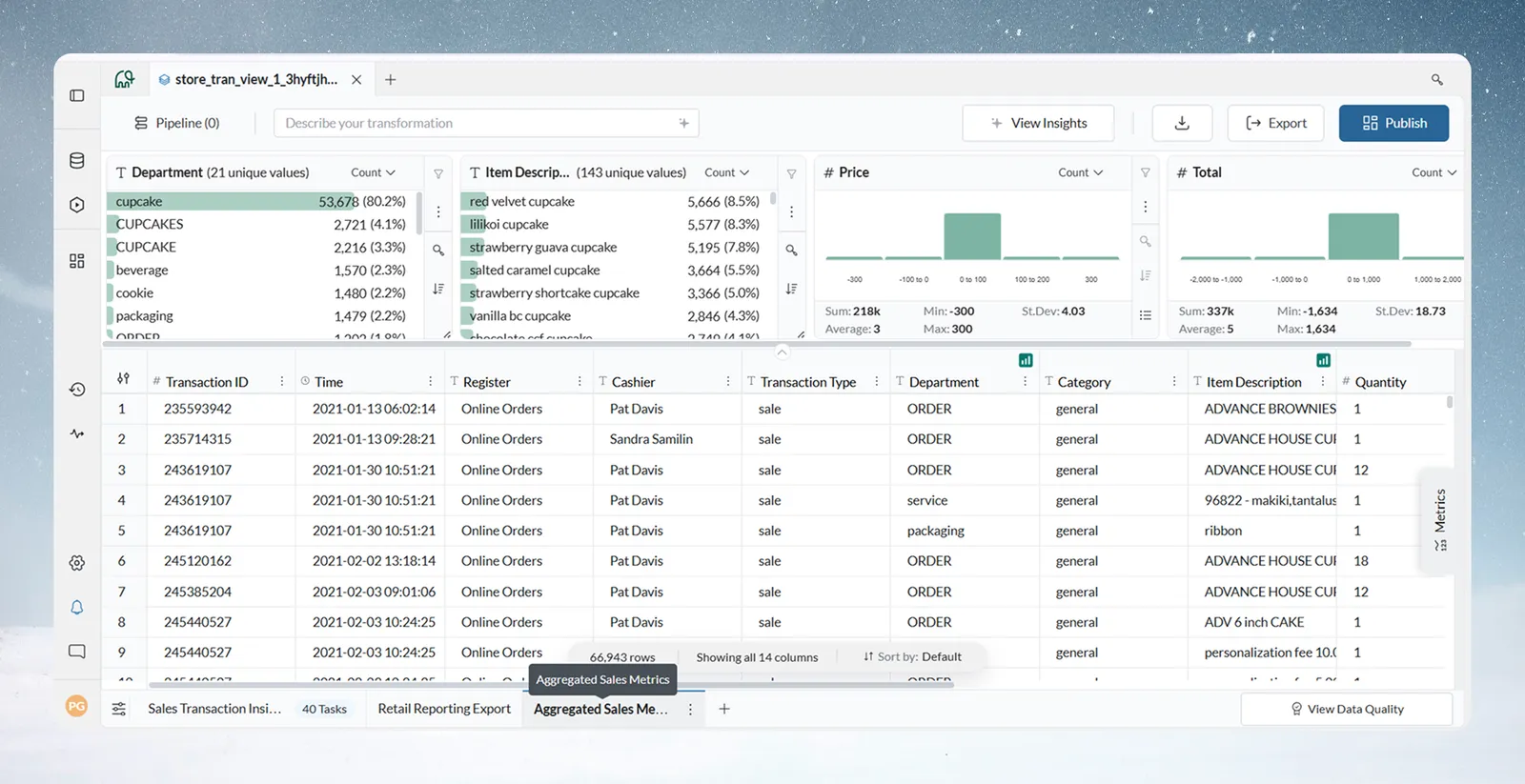
Common View patterns
| Pattern | What it holds |
|---|---|
| Analyst View | The full dataset and complete pipeline, at full detail. Logic is built, tested and checked here. It has the most tasks and the least filtering. |
| Manager or summary View | Group & Aggregate tasks reduce rows to summary level: KPIs, period-over-period comparisons and fewer columns. |
| Dashboard View | Shaped for charts: display-ready column names, date ranges filtered early, and a lean pipeline so the dashboard loads fast. |
| Export View | Matched to a destination system's columns and types, and usually connected to automated delivery. |
Name Views after their purpose, not their number, so your team knows what each one does.
Create a new View on a dataset
- Open a dataset from the Data Library.
- Click the + icon in the View tab bar at the bottom of the data editor.
- The new View opens, starting with the full combined dataset and an empty pipeline.
- Name it before you build the pipeline (see below).
You can also click New view in the dataset panel's icon strip. See The dataset panel.
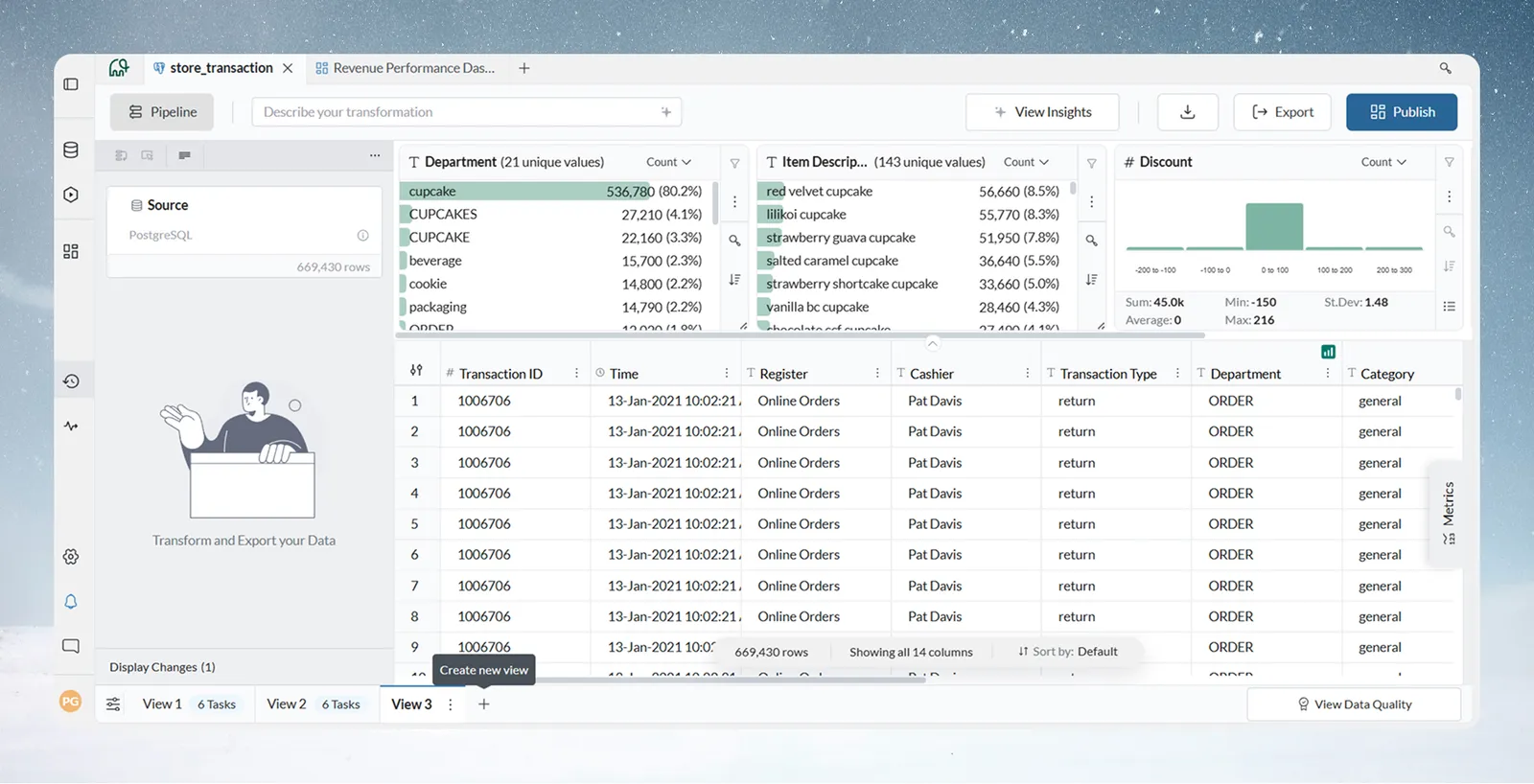
Switch between Views in the data editor
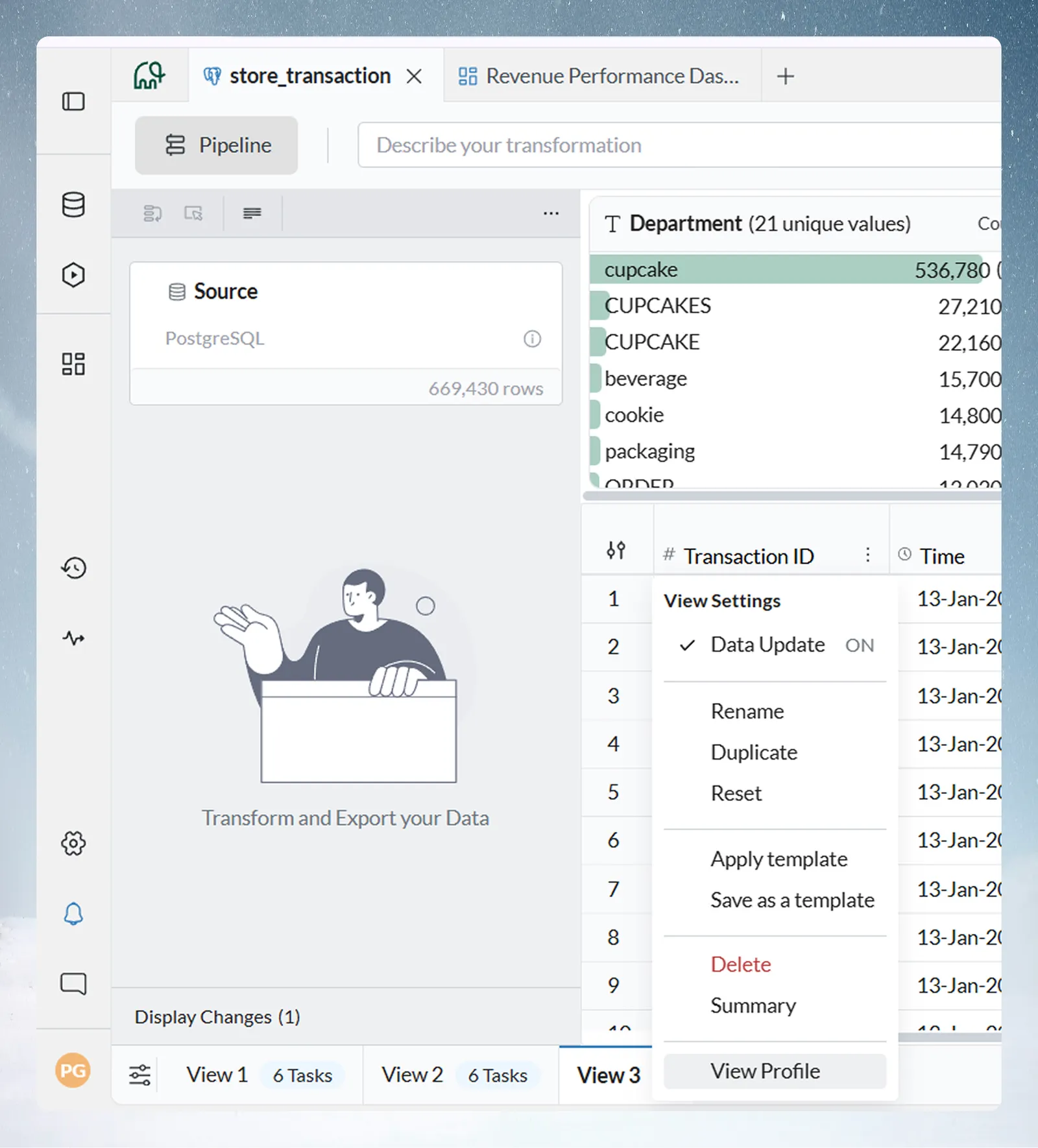
The View tab bar runs along the bottom of the data editor. Each tab shows the View's name and, once the View has tasks, a pill with its task count (for example "3 Tasks"). Click a tab to open that View.
- Dataset settings: the icon at the start of the tab bar (tooltip "Manage dataset settings") opens the dataset's settings. See Dataset settings and history.
- All views (5): when the dataset has more than three Views, a list icon appears. It lists every View, with a check mark on the one that is open. Pick a View to jump to it.
- Reorder tabs: drag a tab left or right. The order is saved for you on this dataset. Other people keep their own order.
- View Settings: the More options (three-dot) button on a tab opens the View's menu. See Every option in the View Settings menu.
Name Views so your team can find them
View names are your team's main way to find a View. Use the pattern Audience or Purpose, then Destination or Frequency.
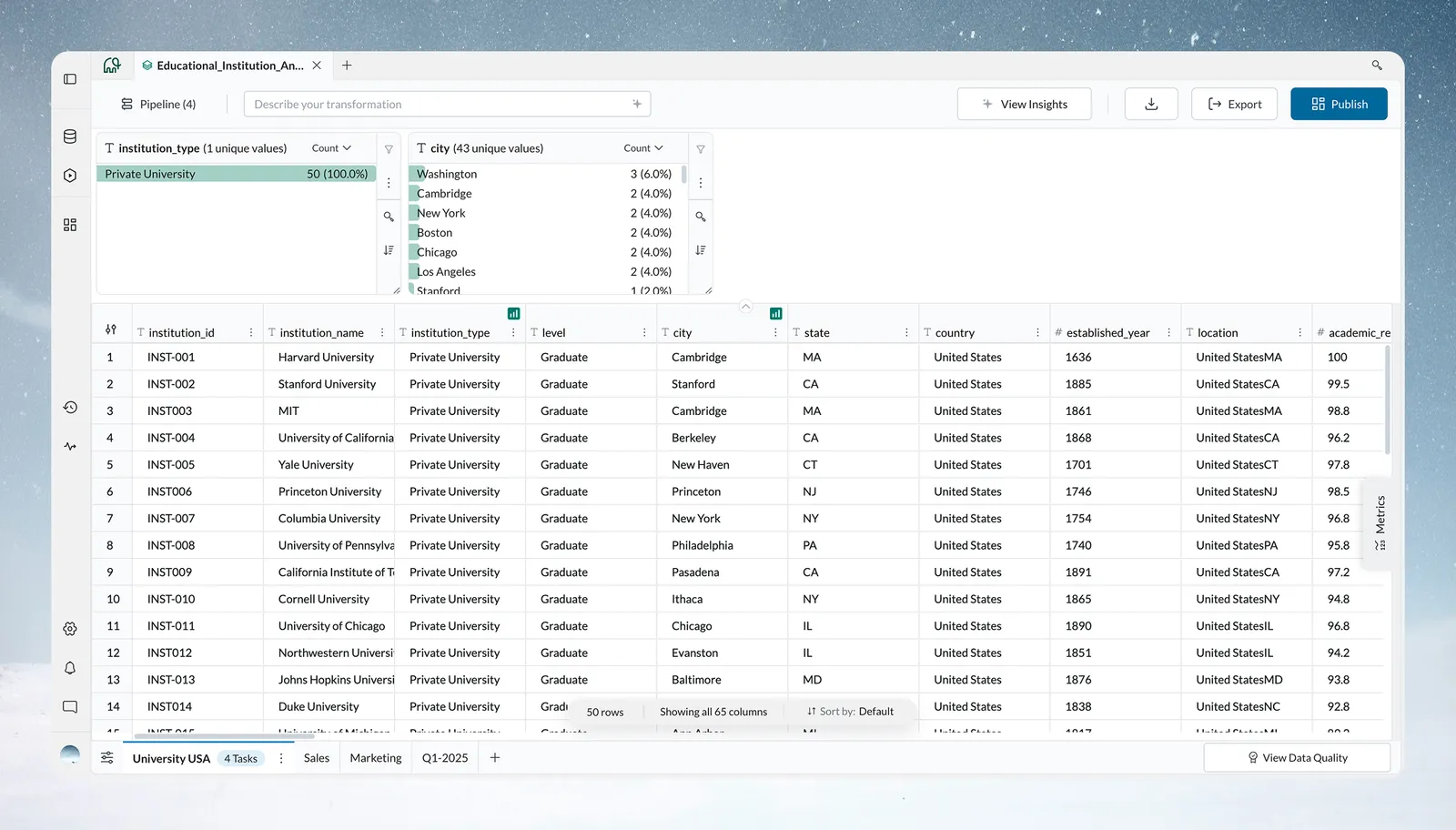
| Good name | Why |
|---|---|
| Finance Team, Monthly Close | Clear owner, clear cadence |
| Executive Dashboard, Daily | Clear audience, clear delivery |
| Salesforce Export, Automated | Clear destination, clear mode |
| TEST, New Attribution Logic | Clearly not production |
| Name to avoid | Why |
|---|---|
| View 2 | No context |
| Analysis | Too generic |
| Copy of View 1 | Suggests unfinished work |
| temp | Temporary Views rarely get deleted |
Prefix test and staging Views the same way every time, with TEST or STAGING, so people know not to rely on them for production outputs. Agree on the convention early: once a dataset has ten Views with mixed names, working out what each does means reading every pipeline.
Rename a View
Open the View's three-dot menu and choose Rename. The Rename view dialog opens. Rename is disabled while the pipeline has an error.
Duplicate a View to test changes safely
Duplicating creates an exact copy of a View: same pipeline tasks, configuration and settings. The copy is independent, so changes to it never affect the original.
Duplicate a View to:
- test new pipeline logic without touching a production View;
- build a manager summary starting from an analyst View;
- build a variant formatted for a different destination;
- isolate a time period by duplicating and changing the date filters.
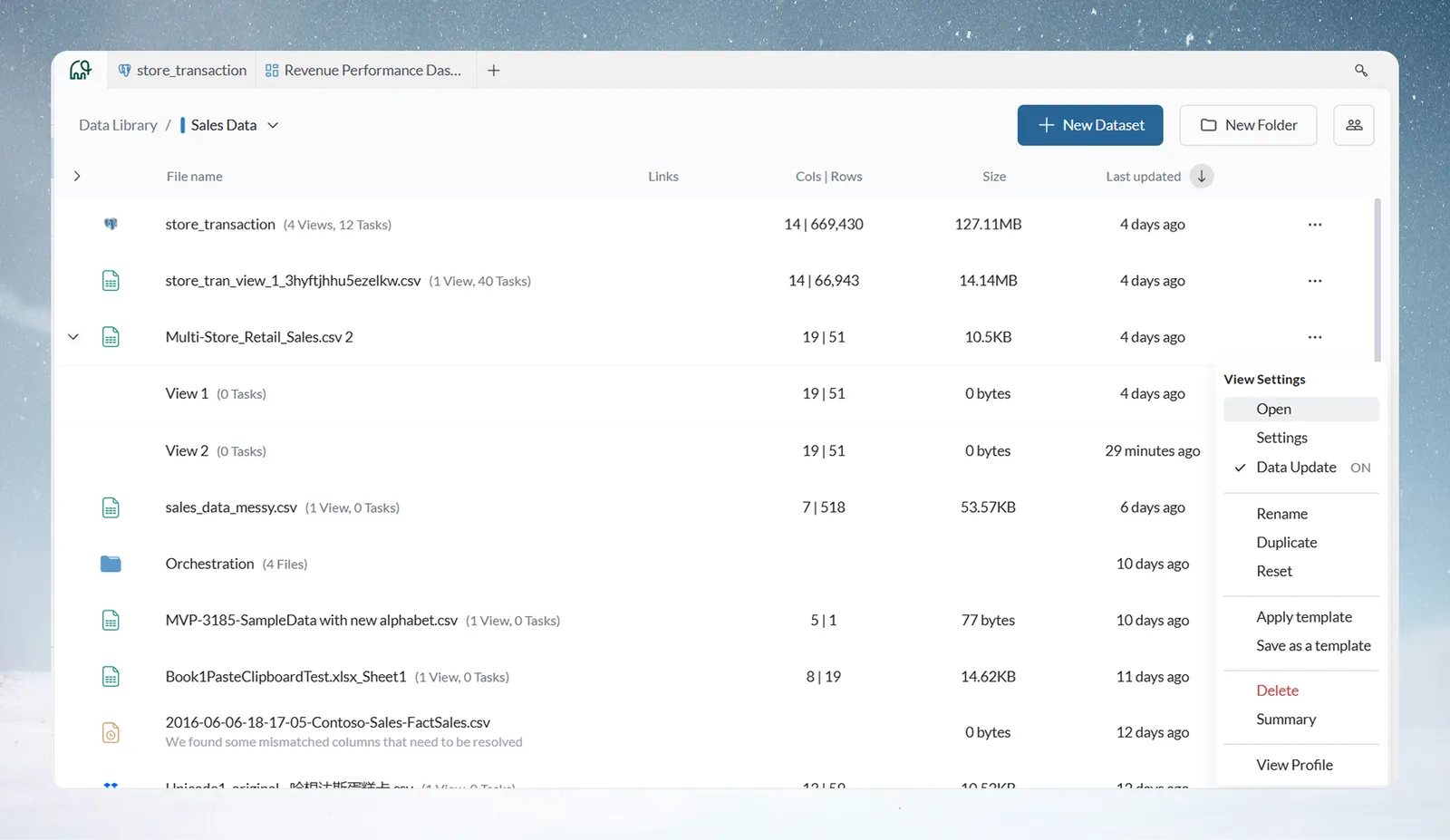
- Open the More options button on the View tab, or the three-dot menu on the View row in the dataset overview.
- Choose Duplicate.
The copy appears next to the original, and a "View duplicated" message confirms it. Duplicate is disabled while the View's pipeline has an error, and in a View-only workspace. Fix the failing task first, then duplicate.
Never change a production View to test new logic. Duplicate it, prefix the copy with TEST, experiment, then promote the result or discard it.
Delete a View
- Open the View's three-dot menu.
- Choose Delete.
- Confirm. The View moves to Trash, where it is deleted for good after 30 days unless you restore it.
Delete is disabled when the View is the dataset's only View: a dataset must always have at least one View. Before deleting, check that no team member or downstream destination relies on the View. For a View that is finished but may be needed later, rename it with an ARCHIVE prefix instead.
For what the delete dialog lists and what can block a delete, see Get things back from Trash.
Reset a View to start again
Reset removes everything applied to the View and returns it to a clean state. That includes all pipeline tasks, explore card filters, sorting in the data grid, column formats, display changes and anything else configured on the View.
- Open the three-dot menu on the View row in the dataset overview (or on the View tab).
- Choose Reset.
- The Reset View dialog says "Resetting the View will remove all Transformations, Elements and Filters". Confirm.
This can't be undone. Use it when the pipeline no longer fits after a source schema change, or when you repurpose a View. To remove only display changes, such as column renames and formatting, and keep the pipeline, use the Display Changes panel at the bottom of the data editor instead. See How the pipeline works.
Save a View's pipeline as a template and reuse it
A template captures a View's pipeline as a set of rules, without the data. You can apply it to any View to repeat the same pipeline, on the same columns or different ones.
Save as a template: open the View's three-dot menu and choose Save as a template. The template downloads to your computer as a .mammoth file. It holds the full pipeline and can be shared, stored and reused across datasets and projects.
Apply template: open the View's three-dot menu and choose Apply template, then pick a template. The saved rules load into the current View. Apply template is active only when the View's pipeline is empty.
If the target dataset's columns differ, the template still applies, but tasks that reference missing columns show errors, for example "This column is missing: Department." Each errored task offers Fix or Delete. Work through them to fix mismatches or remove tasks that don't apply.
Use templates to:
- apply the same logic to datasets from similar source systems;
- set up a new dataset that has the same structure as an existing one;
- share a proven pipeline with other team members or projects as a file.
Save templates from proven Views, not works in progress. A template carries any errors in its pipeline to every View you apply it to.
Every option in the View Settings menu
Open the menu with the three-dot button on a View tab, or on a View row in the dataset overview. The menu is headed View Settings. Its items, top to bottom:
| Option | What it does | When it is disabled or hidden |
|---|---|---|
| Open | Opens the View in the data editor. | Hidden when you are already in that View. |
| Settings | Opens the View's settings in the Data Library preview panel. | Shown only in the Data Library and Home, while the preview panel is closed. |
| View activity | Shows the View's activity log. | |
| Auto-sync | Turns the View's incoming Auto-sync on or off. The item shows the current state, ON or OFF. | Disabled in a View-only workspace. |
| Rename | Opens Rename view to change the View's name. | Disabled while the pipeline has an error. |
| Duplicate | Creates an independent copy of the View and its pipeline. | Disabled while the pipeline has an error, and in a View-only workspace. |
| Reset | Opens Reset View: "Resetting the View will remove all Transformations, Elements and Filters". | Disabled in a View-only workspace. |
| Apply template | Loads a saved .mammoth template into this View. | Disabled once the View has any task, and in a View-only workspace. |
| Save as a template | Downloads this View's pipeline as a .mammoth file. | Disabled while the pipeline has an error, or while Draft mode has changes that are not applied yet. |
| Automations › Send this view by email on a schedule | Opens the new email automation dialog with this View already chosen. | When your plan's limit on scheduled email automations is reached, it shows the plan limit instead. |
| Delete | Moves the View to Trash after a confirmation. | Disabled when it is the dataset's only View. |
For what a scheduled email sends and how to set its timing, see Send messages. For the Auto-sync item, see Control when Views update with Auto-sync.
See who else is working in a View
When other people have the same View open, the bottom bar of the data editor shows their avatars. Hover the avatars to see their names, in a tooltip that ends "are working in this View". When there are too many names to list, it ends "and others are working in this View".
The avatars appear only when at least one other person has the View open. The list refreshes about once a minute. Agree with them before you change a pipeline someone else is working on, or use Draft mode so your changes stay pending until you apply them.
Keep each View to one purpose
A View that serves three audiences with a 40-task pipeline is harder to maintain, explain and change safely than three focused Views. When you can't describe a View in one sentence, split it.
Troubleshooting
| Symptom | Cause | Fix |
|---|---|---|
| View doesn't show the latest batch | The pipeline has not rerun: the Last Updated time in the dataset overview predates the batch. | Open the View and click Update Data on the relevant pipeline step. If the time is current but rows are missing, check for Conditional Filter tasks that exclude the new batch's rows. See Batches: see and fix what arrived. |
| Failing chip after a batch was added or changed | The last pipeline run failed, often from column name mismatches or type conflicts between the new batch and the pipeline. | Open the View: the failing task is highlighted in the pipeline panel with the error. See Fix a failing step. |
| View is slow | The pipeline processes more data than it needs. | Put a Conditional Filter first to cut rows. Turn on Draft mode before adding several tasks, to avoid full runs after each one. See Speed up pipelines and connectors. |
| A team member can't find a View | Views are visible to all project members (Project Admins and Project Editors). Views can't be made private within a project. | Check the person has the right project access. See Members, roles and custom roles. |
| Apply template is greyed out | The View's pipeline has tasks. | Apply the template to a fresh View, or Reset this View first. Templates aren't tied to a project or organisation: any .mammoth file you have can be applied. |
| Delete is greyed out | It is the dataset's only View. | Delete the dataset instead, or add another View first. |
| Rename, Duplicate or Save as a template is greyed out | The pipeline has an error. | Fix the failing task first. |
Related
- The dataset panel: open a View and see its banners.
- How the pipeline works: the tasks inside a View, Draft mode and Display Changes.
- Pause sends while you edit: hold every destination at once.
- Get things back from Trash: restore a deleted View.
- Control when Views update with Auto-sync: Auto-sync, status chips and pending data.
- Dataset settings and history: the update method, separate from Auto-sync.
Something wrong? support@mammoth.io