Pause a pipeline for approval with a Checkpoint
A Checkpoint is a pipeline task that tells people when the data reaches a point, and can hold the pipeline until someone approves it. Add one from the Transform menu under Controls > Checkpoint Alert. A Project Admin, or a member whose custom role includes Approve/reject Checkpoint gates, can approve a paused pipeline.
Got an approval email? Go to Approve a Checkpoint that is waiting for you.
To test data automatically instead of asking a person, use a Data Check. See Remove duplicate rows and add data quality checks.
Choose an Alert or an Approval Gate
| Alert | Approval Gate | |
|---|---|---|
| What it does | Sends notifications and the pipeline carries on | Sends notifications and pauses the pipeline until someone approves |
| Needs action | No | Yes: someone must click Approve and Continue |
| Use it when | You want people to know, with no manual step | A person must review before data moves on |
| Status after it triggers | Sent | Pending (the status window shows Pending Approval) |
Add a Checkpoint to a pipeline
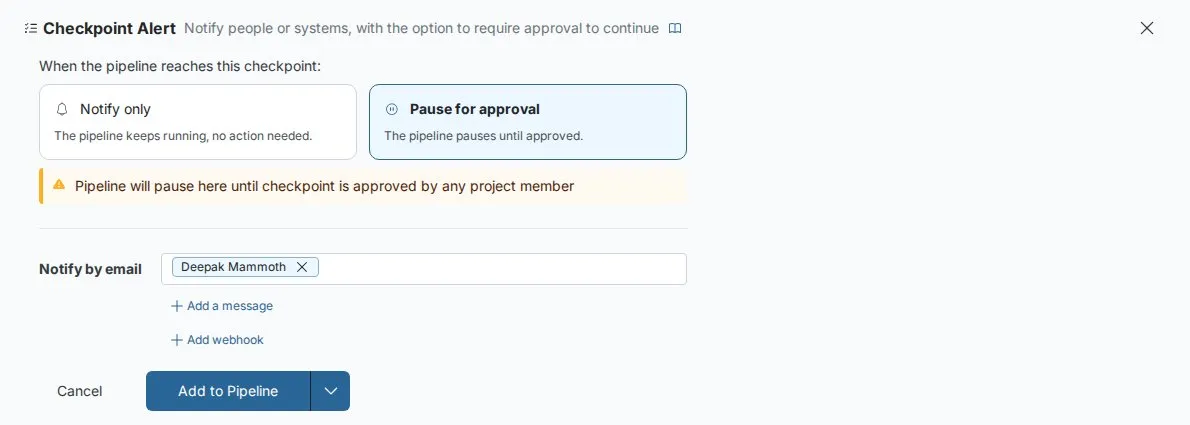
- Open the Transform menu and choose the Controls category.
- Select Checkpoint Alert.
- Under When the pipeline reaches this checkpoint, choose Notify only (an Alert) or Pause for approval (an Approval Gate).
- Choose email recipients from the project's members. Optional: click Add webhook and enter a URL.
- Optional: click Add a message to add context to the email. For an Approval Gate, the approver also sees it in the status window.
- Click Apply.
The Checkpoint appears in the Pipeline panel with its type and number of recipients, for example Approval Gate - 2 recipients.
A Checkpoint needs email, a webhook or both. If you turn on email, choose at least one recipient.
What the Checkpoint email contains
Recipients get an email as soon as an Alert triggers, or when an Approval Gate needs approval. It includes:
- the View name, the project name and a link to the View;
- where the Checkpoint sits, for example task 4 of 8, and when it triggered;
- whether it is an Alert (Checkpoint reached) or an Approval Gate (Approval required);
- your message, if you added one.
Send a Checkpoint to Slack, Teams or another system by webhook
Click Add webhook and enter a URL that starts with https://. Mammoth calls it when the Checkpoint triggers, for example to post to Slack, Teams, PagerDuty or your own endpoint. The request times out after 10 seconds.
The payload is fixed: you can't change it. Every Checkpoint webhook sends this JSON body in a POST request:
{
  "checkpoint_id": 123,
  "checkpoint_name": "Finance team approval before final report",
  "checkpoint_type": "approval",
  "task_sequence": 4,
  "dataview_id": 654,
  "dataview_name": "View 1",
  "workspace_id": 22
}
checkpoint_type is "alert" or "approval".
Test that the webhook URL is reachable
- Click Payload under the webhook URL to open the payload editor.
- Write a test payload. Test turns on once the payload has content.
- Click Test. Your browser sends the draft to the URL.
- Read the result: Delivered · 200 or Endpoint returned an error.
The editor accepts these tokens: {{pipeline_name}}, {{pipeline_id}}, {{checkpoint_type}}, {{step_number}}, {{step_name}}, {{timestamp}}, {{status}}, {{project_name}} and {{triggered_by}}. Unknown tokens are sent as they are. The payload can be up to 10KB with up to 5 levels of nesting.
The test payload is never saved and doesn't change what is sent. A real trigger always sends the fixed payload above.
What happens when a pipeline reaches an Approval Gate
- The pipeline pauses. It stops at the Checkpoint. Later tasks don't run.
- Notifications go out. Email recipients get the message and any webhook fires.
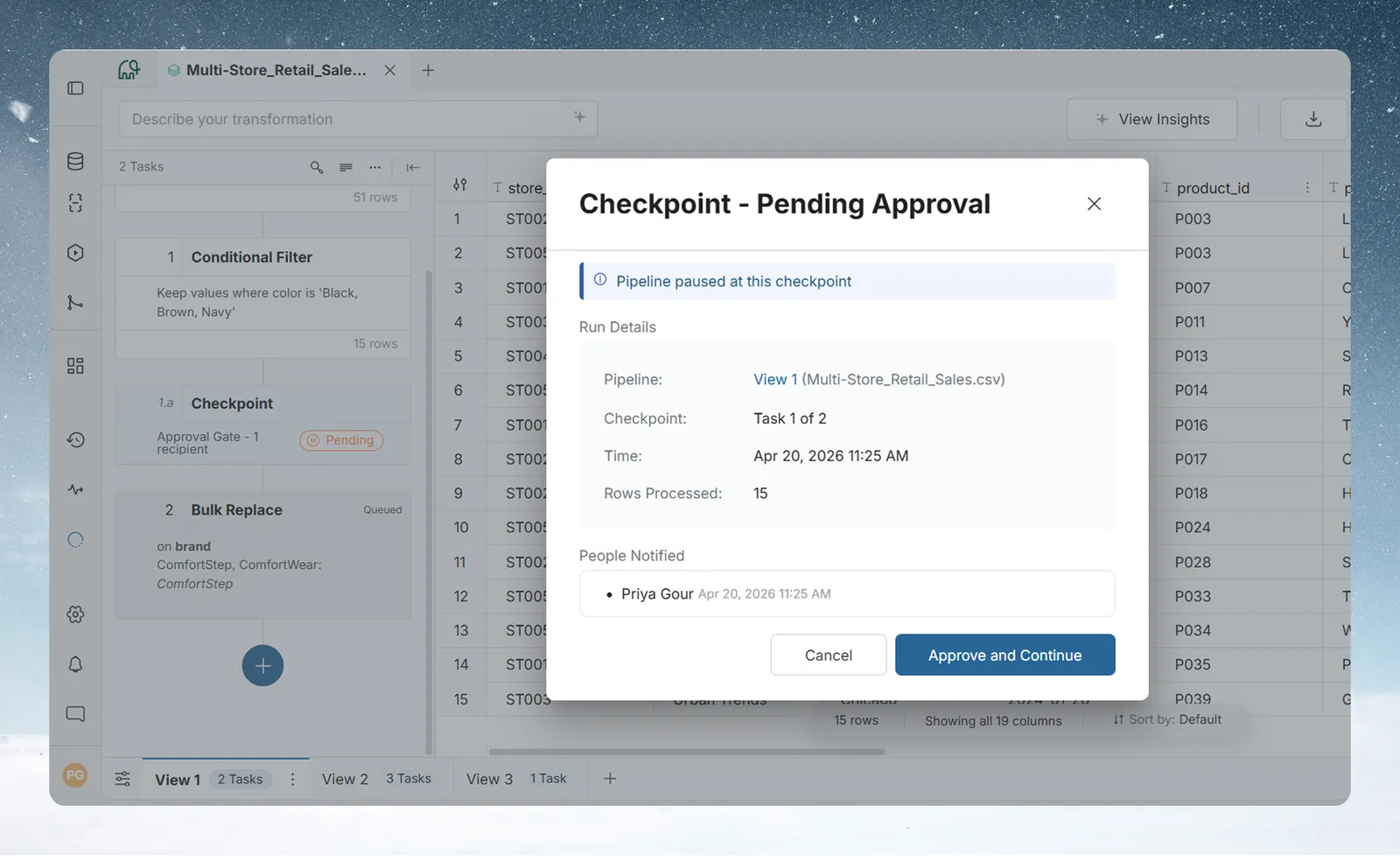
- The status changes to pending. The Checkpoint shows a Pending chip, and its status window is titled Checkpoint Alert - Pending Approval.
- A reviewer opens it. They sign in, open the View and open the Checkpoint status window.
- The reviewer checks the data. The output up to this point is available while the pipeline is paused.
- The reviewer approves. They click Approve and Continue, then Yes, Approve in the Approve this checkpoint? confirmation.
- The pipeline resumes from the task after the Checkpoint.
- The status changes to Approved.
Approve a Checkpoint that is waiting for you
You got an email because a pipeline paused at an Approval Gate and is waiting for review.
- Click the link in the email. It opens the View in Mammoth.
- Sign in if asked. You need a Mammoth account with access to the project.
- In the Pipeline panel, click the Pending chip on the Checkpoint task.
- Read the Message from pipeline owner and check the data if you need to.
- Click Approve and Continue.
- In Approve this checkpoint?, click Yes, Approve.
The Checkpoint shows Approved and the pipeline continues on its own.
Who can approve
Approving needs the project permission Approve/reject Checkpoint gates. Of the standard roles, only Project Admin has it. A custom role can include it. For anyone else, Approve and Continue is turned off and its tooltip reads "Your role doesn't have permission to perform this action". See Projects and Members, roles and custom roles.
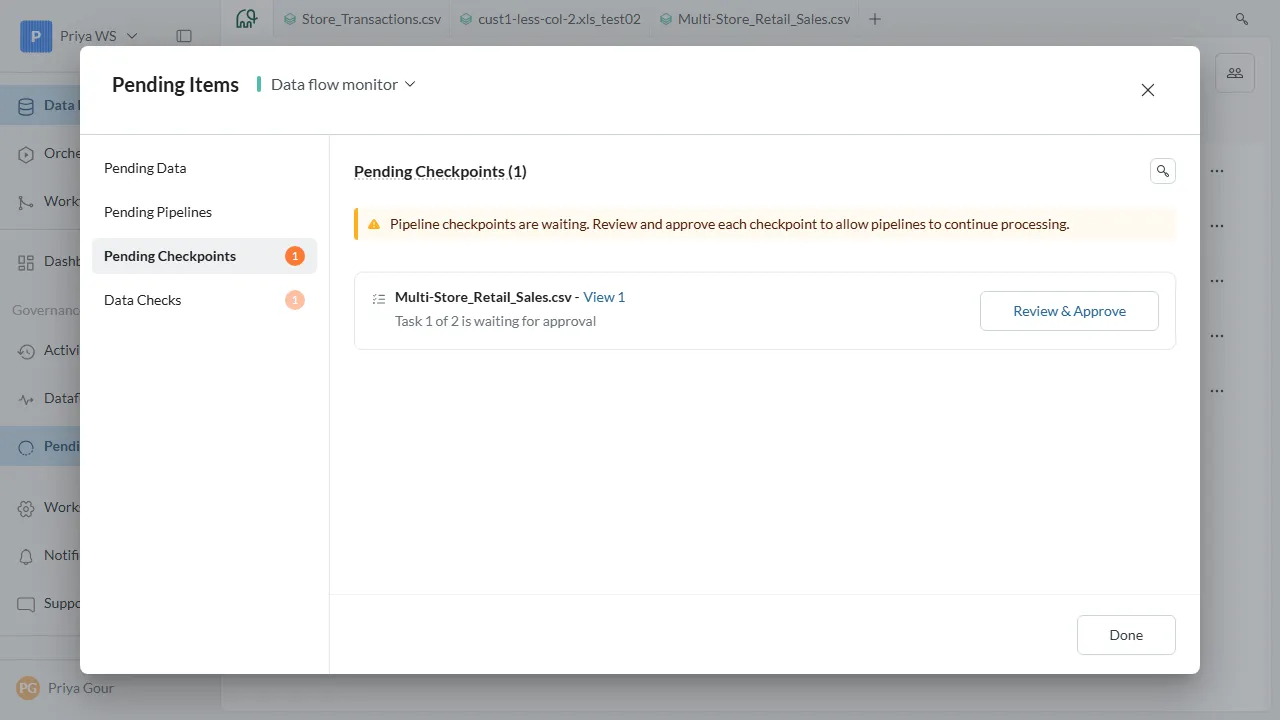
Find Checkpoints waiting for approval in Monitor
A waiting Approval Gate appears in Monitor, on the Needs Attention tab, in the Governance section. It reads Checkpoint: approval required, with the View and a line such as Task 4 of 8 is waiting for approval. Click Approve on the row to open the View, check the data and approve.
Checkpoint statuses
| Status | Meaning |
|---|---|
| Sent | An Alert triggered. Notifications went out and the pipeline carried on. |
| Pending (Pending Approval in the status window) | An Approval Gate triggered. The pipeline is paused until someone approves. |
| Approved | A reviewer approved. The pipeline has resumed or finished. |
| Bypassed | The Checkpoint was skipped in a partial rerun |
Why a Checkpoint shows Bypassed after a partial rerun
When you rerun a pipeline from a task partway down, Checkpoints before that task are marked Bypassed. A Checkpoint that is already waiting for approval, or already approved, keeps that status.
A Bypassed Checkpoint doesn't trigger again in that rerun, so no notification goes out and no approval is asked for. The pipeline moves past it. To test the Checkpoint again from scratch, run the full pipeline from the start.
Troubleshooting
| Symptom | Cause | Fix |
|---|---|---|
| The Checkpoint won't save | It has no notification method, or email is on with no recipient | Add a webhook, or choose at least one email recipient |
| Approve and Continue is greyed out with "Your role doesn't have permission to perform this action" | Your role lacks Approve/reject Checkpoint gates | Ask a Project Admin to approve, or to change your role |
| The webhook test shows Endpoint returned an error | The URL refused or failed the request | Check the URL and your endpoint, then test again |
| No email arrived after a rerun | The rerun started after the Checkpoint, so it was Bypassed | Run the full pipeline |
| The pipeline is still paused | The Approval Gate is waiting for approval | Approve it from the Pending chip or from Monitor |
Related
- Remove duplicate rows and add data quality checks: automated checks with a pause or a flag.
- How the pipeline works: reruns, task order and previews.
- Fix a failing step: when a task errors instead of pausing.
- Activity log and Monitor: the Needs Attention tab.
- Notifications: other ways Mammoth tells you what happened.
Something wrong? support@mammoth.io