Extract text, change case and parse JSON
Mammoth has three text functions: Extract Text pulls a piece out of a value, Text Formatting fixes case and spacing, and Extract JSON turns JSON into columns or rows. Open them from the Describe your transformation bar (or a + button in the Pipeline panel) and select Date, Numeric & Text. Each one is a pipeline task that runs again every time the pipeline refreshes.
Extract part of a text value
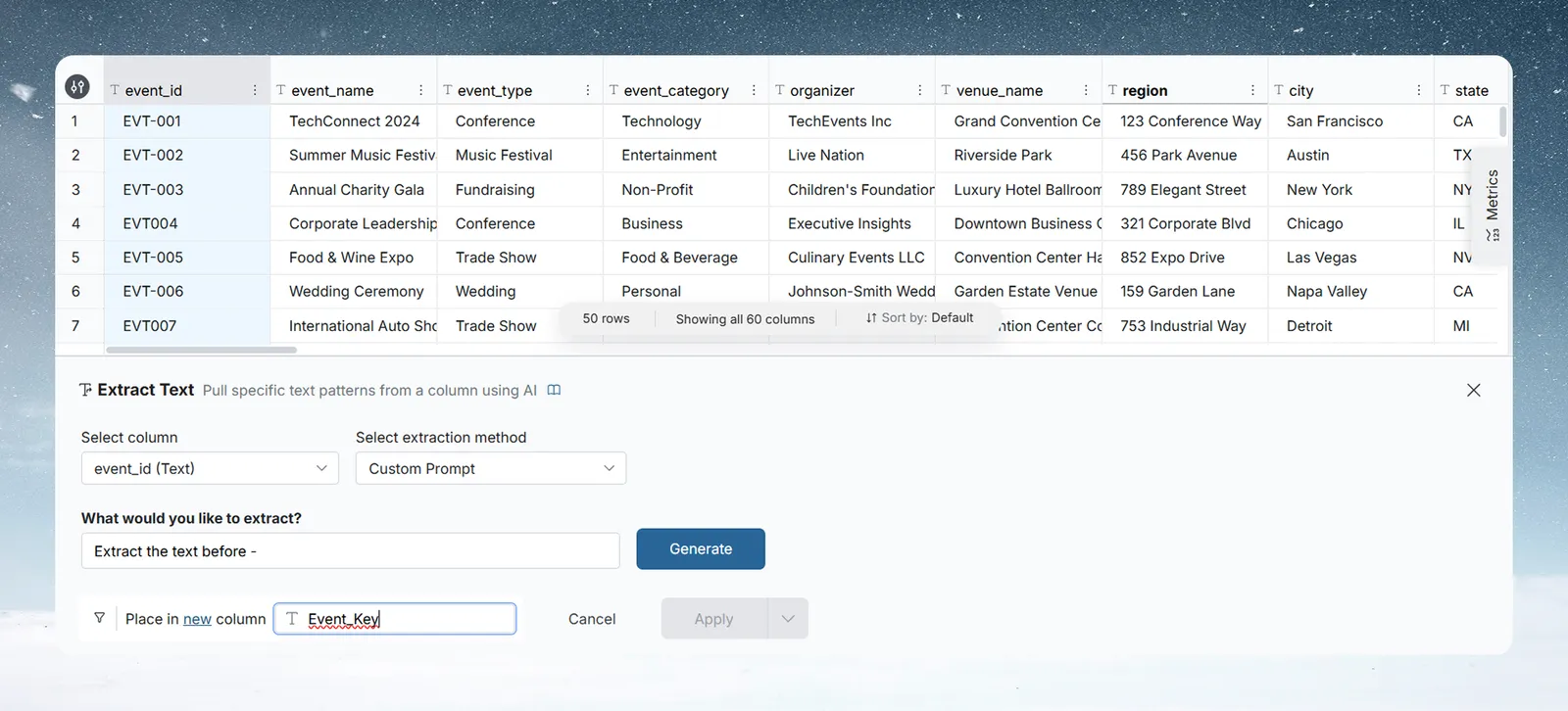
Extract Text pulls a pattern out of a text column. Describe what you want in plain words and Mammoth builds the pattern, or pick a method and set it up yourself.
- In Select column, choose the text column.
- In Select extraction method, choose how to define the pattern. The default is Custom Prompt. The methods are described below.
- Optional: click Add Condition to extract only from rows that meet a condition.
- In Place in, choose New Column and type a name, or choose Existing Column.
- Click Apply.
Describe what to extract with Custom Prompt
Type what you want to pull out and click Generate. Mammoth writes a regular expression (regex, a text pattern) and shows a live example from your own data, for example "Cotton T-Shirt will result in Shirt."
To change the pattern, click the edit icon next to the regex. The Edit Regex modal opens. Change the Regex Formula field and click Save changes.
Pick a pattern-based method
These methods show a few inputs for that method, such as a direction, a character count or a value to match. An example from your column updates as you type.
The pattern-based methods are:
- Characters around a letter / word
- Characters from beginning or to end
- Characters in a certain position
- Contains a number
- Does not contain a number
- Does not end with
- Does not end with a number
- Does not start with
- Does not start with a number
- Ends with
- Ends with a number
- Starts with
- Starts with a number
Write your own regular expression
Choose Regular expression or All except regular expression and type a regex in the text field. An example updates as you type.
| Method | What it extracts |
|---|---|
| Regular expression | The text that matches the pattern |
| All except regular expression | Everything that does not match the pattern |
Example: a product_code column holds values like "REF-2045 Blue Widget". Use Custom Prompt with "extract the code before the first space" to get "REF-2045" in a new column. To take the first 3 characters of every value, use Characters from beginning or to end, set the direction to Beginning and enter 3.
Change text to upper, lower or capital case and trim spaces
Text Formatting makes the case or spacing of one or more text columns consistent. You can format several columns at once and limit it to some rows with a condition.
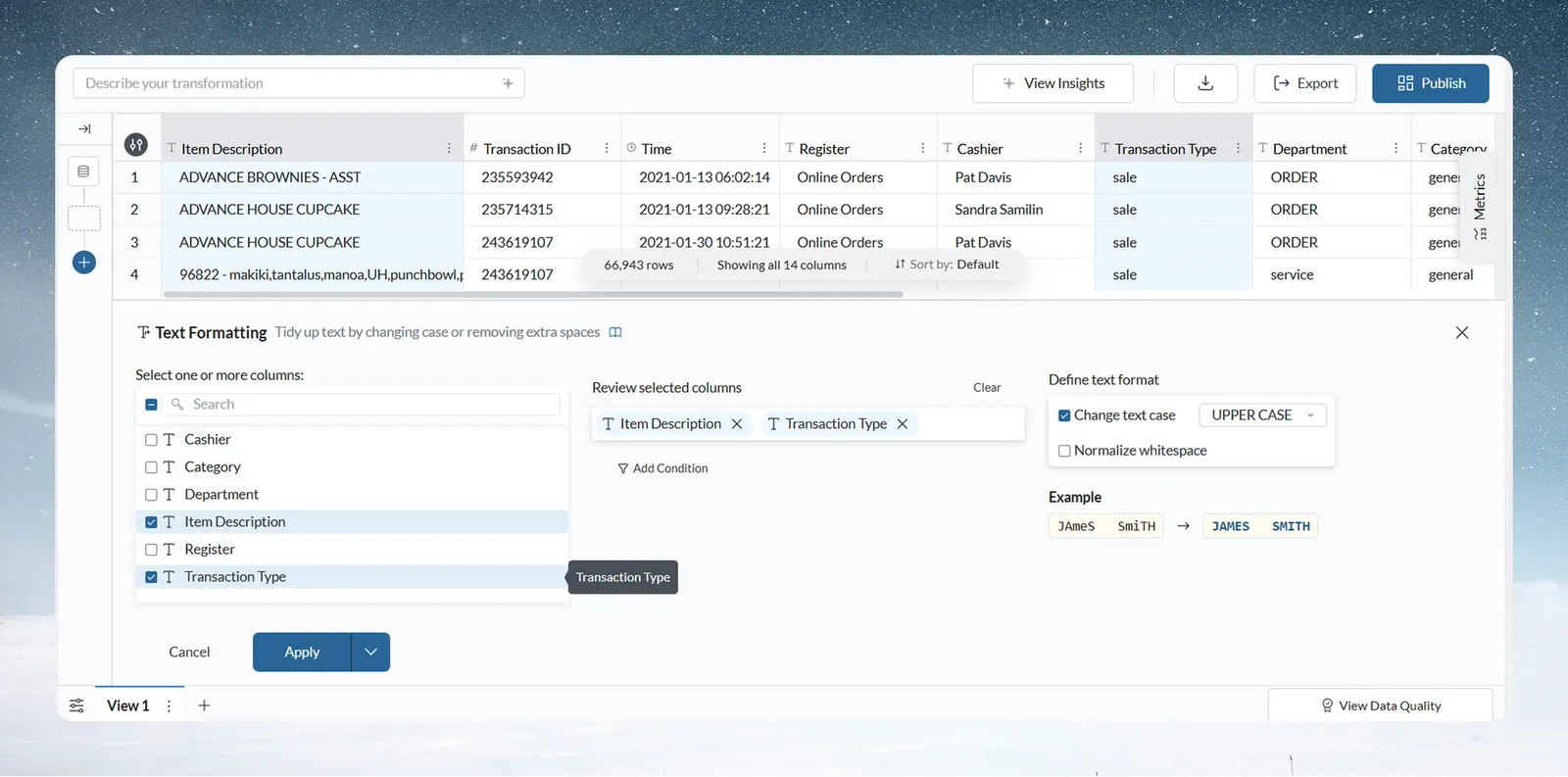
- In Select columns, tick one or more text columns. They appear as chips under Review selected columns. Click the X on a chip to remove it, or click Clear to remove them all.
- Optional: click Add Condition to format only the rows that meet a condition.
- To change case, tick Change text case and choose UPPER CASE, lower case or Capital Case.
- To tidy spacing, tick Normalize whitespace. It removes spaces at the start and end, and extra spaces between words.
- Check the preview on the right, then click Apply.
Example: a category column from another system holds "shirts", "Shirts" and "SHIRTS" for the same thing. UPPER CASE turns them all into "SHIRTS", so they match when you join this data to another source.
Parse a JSON column into columns or rows
Extract JSON expands JSON stored in a column into separate columns or rows. The panel changes with the shape of your JSON and how you want it laid out.
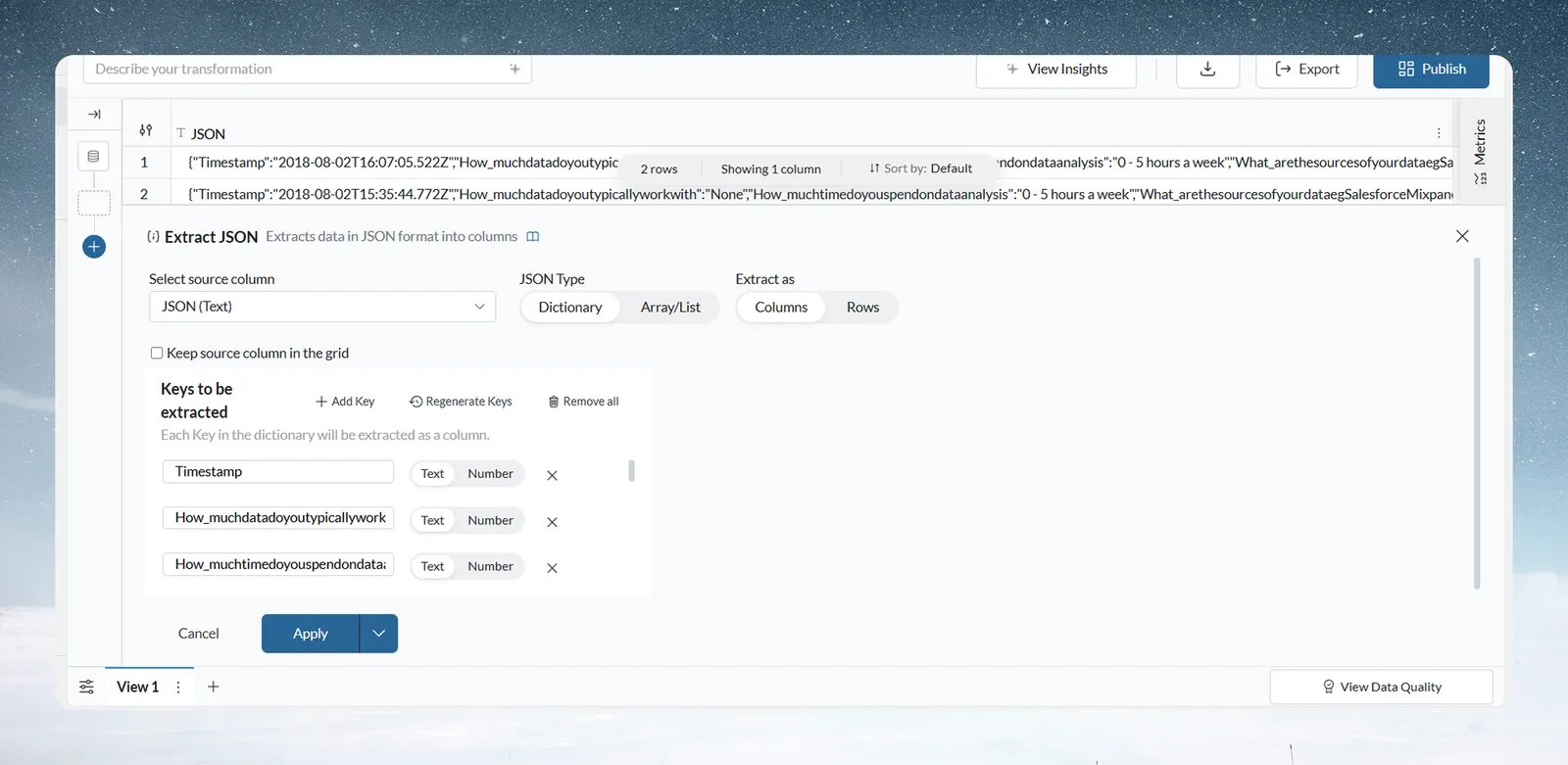
- In Select source column, choose the column that holds the JSON.
- In JSON Type, choose the structure:
- Dictionary: named key-value pairs, for example
{"city": "London", "country": "UK"}. - Array/List: an ordered list, for example
["London", "UK", "Europe"].
- Dictionary: named key-value pairs, for example
- In Extract as, choose Columns (one column per value) or Rows (one row per value).
- Optional: tick Keep source column in the grid to keep the original JSON column.
- Fill in Keys to be extracted, which depends on your choices:
- Dictionary with Columns: click Add Key, type the key name and set its type to Text or Number. Repeat for each key. Regenerate Keys finds the keys in your data. Remove all clears the list.
- Array/List with Columns: enter how many columns to create (up to 20) and one type, Text or Number, for all of them.
- Rows: choose the output type, Text or Number. You set no keys.
- Click Apply.
What each JSON layout produces
| JSON Type | Extract as | Result |
|---|---|---|
| Dictionary | Columns | One column per key you list |
| Dictionary | Rows | Each key-value pair becomes a row, in two new columns: Key (text) and Value (the type you choose). Other columns repeat on each new row. |
| Array/List | Columns | Columns named after the source column, such as tags Item 0, tags Item 1 and so on, one per position |
| Array/List | Rows | One row per list item, in two new columns: Item (the type you choose) and Index (its position, a number) |
Extract a nested JSON key
With Dictionary and Columns, type a path in the key field to reach a value inside another object or a list.
| Path | Reaches |
|---|---|
city | The top-level key city |
company.location.country | country inside location inside company |
company.employees[0].name | name of the first item in the employees list (counting starts at 0) |
"order.id" | A key whose own name contains a dot. Put a key that contains ., [, ] or " in double quotes. |
How the new JSON columns are named
- A new column is named after the last key in the path, so
company.location.countrygivescountry. - If two paths end in the same key, both columns are named by their full path.
- If a column with that name already exists, the source column's name goes in front, then a number if needed.
Example: a shipping_address column holds {"city": "London", "postcode": "EC1A", "country": "UK"}. Choose Dictionary and Columns, add the keys city, postcode and country as Text, and click Apply. Each key becomes its own column that you can filter and group by.
Troubleshooting
| Symptom | Cause | Fix |
|---|---|---|
| "Invalid key path. Separate keys with a dot and write an array index as [0]. Put a key that contains a dot or a bracket in double quotes." | The key path can't be read | Write the path as shown in the nested key table above |
| "Key already exists. Please enter a different key name." | Two keys in the list have the same name | Give each key a unique name |
| A join misses rows that look the same | Case or spacing differs between the two key columns | Run Text Formatting on both sides before the join. See Join two datasets on a shared column. |
| The Custom Prompt pattern picks up the wrong text | The description was too vague | Rephrase it, or open Edit Regex and correct the Regex Formula |
Related
- Work with dates and financial years: shift dates, extract parts and measure differences.
- Find and replace values: standardise values that differ in more than case.
- Add, split, copy and delete columns: split or combine text columns.
- Use AI on your columns: classify or rewrite text with a prompt.
- Filter rows: the condition builder behind Add Condition.
Something wrong? support@mammoth.io