Highlight cells and rows with colour
Conditional Highlights colours cells or whole rows in a View by rules you set, like conditional formatting in a spreadsheet. Open it with the brush icon (tooltip Conditional Highlights) in the View's action bar. Highlights don't change your data or add a pipeline task, and they are saved to the View, so everyone who opens it sees them.
Use them to flag outliers, track KPIs against a target or make a pattern visible at a glance.
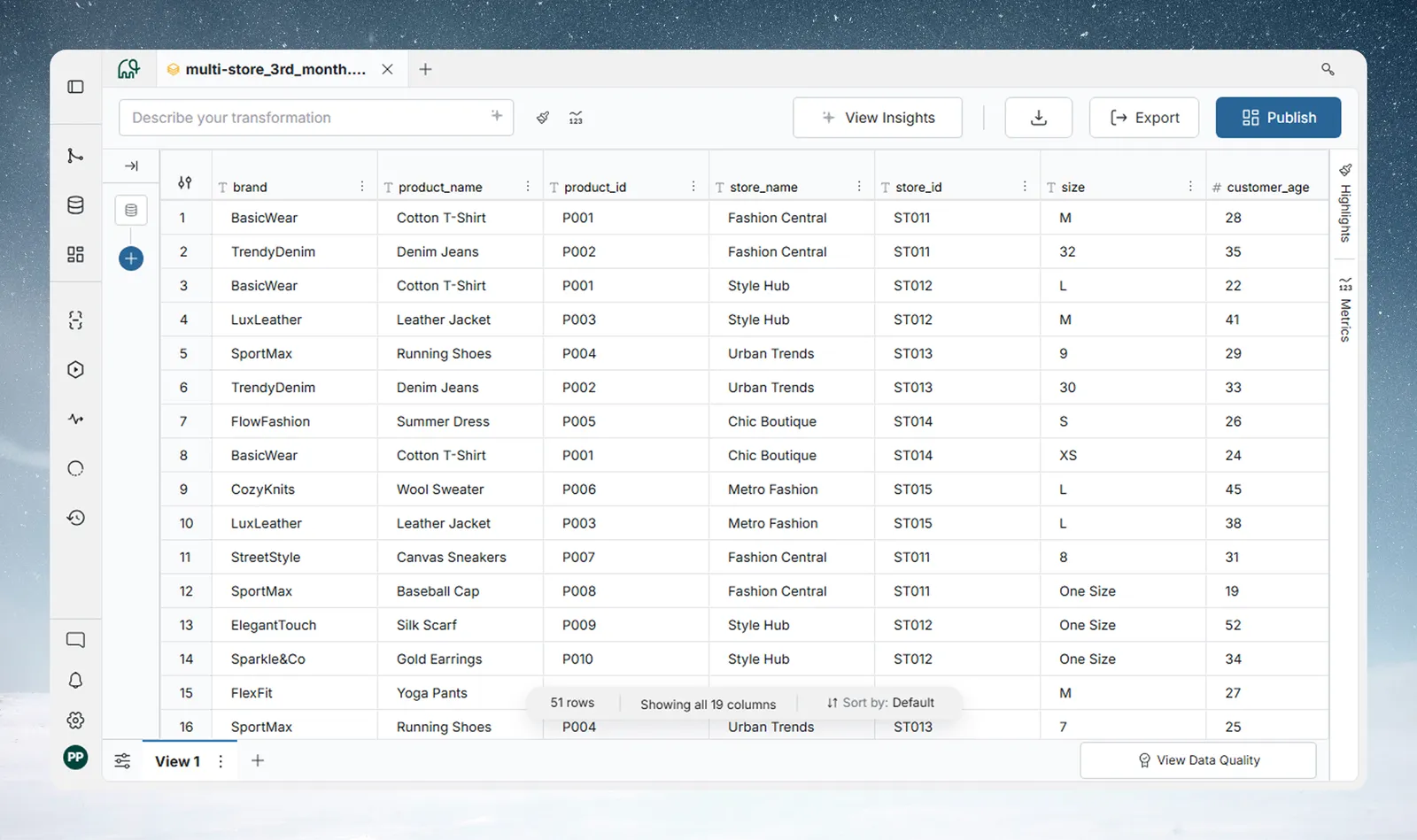
Choose a Condition Rule or a Color Scale
| Rule type | What it does | Best for |
|---|---|---|
| Condition Rule (the Rules tab) | One solid colour on rows or cells that match a condition | Flagging values, thresholds or categories |
| Color Scale (the Color Scale tab) | A gradient across a number or date column, based on its range | Showing distributions and rankings |
Open the Conditional Highlights panel
The panel opens beside the grid. Open it in any of these ways:
- Click the brush icon (tooltip Conditional Highlights) in the action bar at the top of the View.
- Click the Highlights tab on the right edge of the View.
- Open a column's 3-dot menu and select Conditional Highlights. This also picks that column in the rule builder.
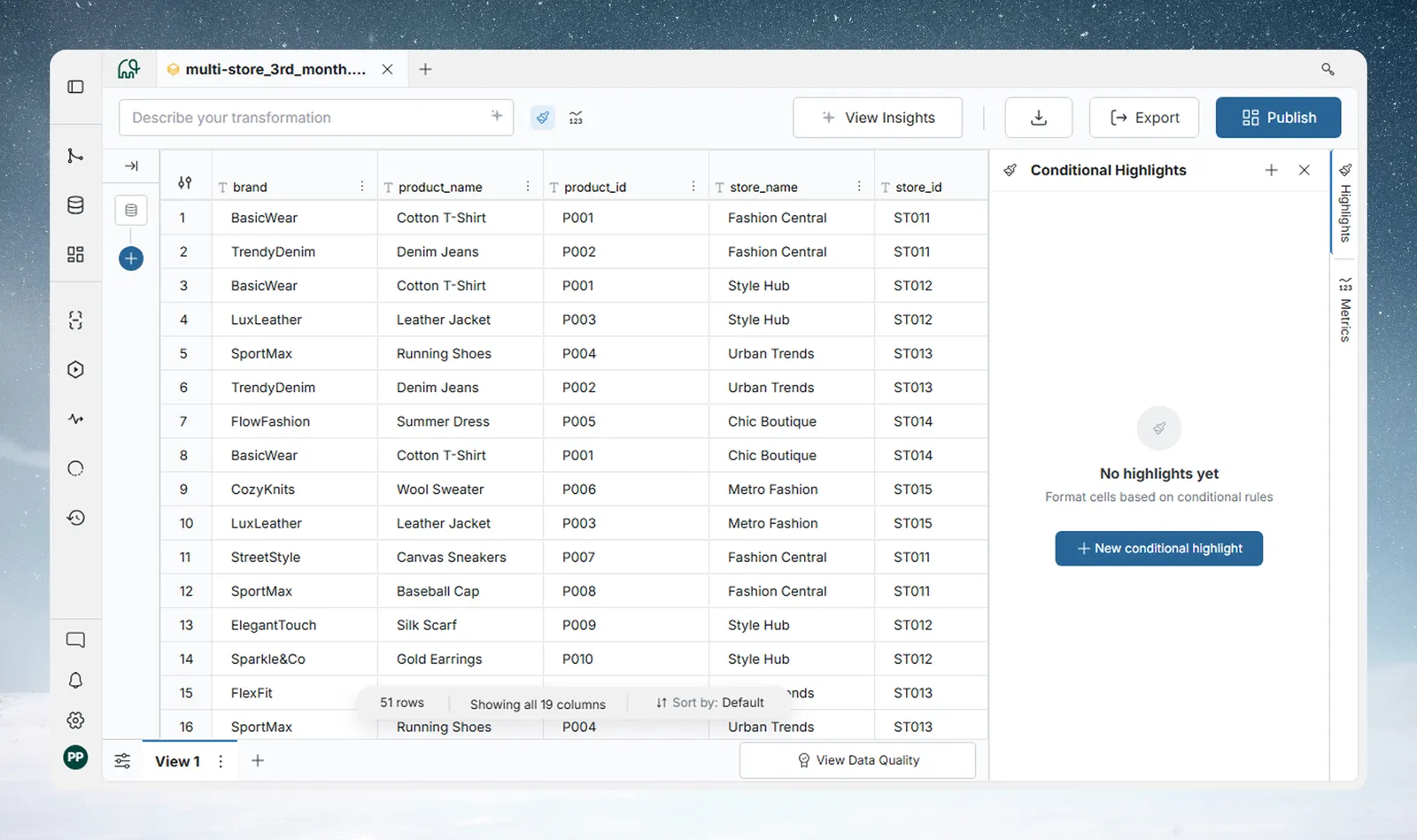
Highlight rows or cells that meet a condition
- Click New conditional highlight. The builder opens on the Rules tab.
- Build the condition: pick a column, an operator and a value.
- In Apply to, choose Cells or Entire row.
- Pick a colour swatch.
- Click Save highlight.
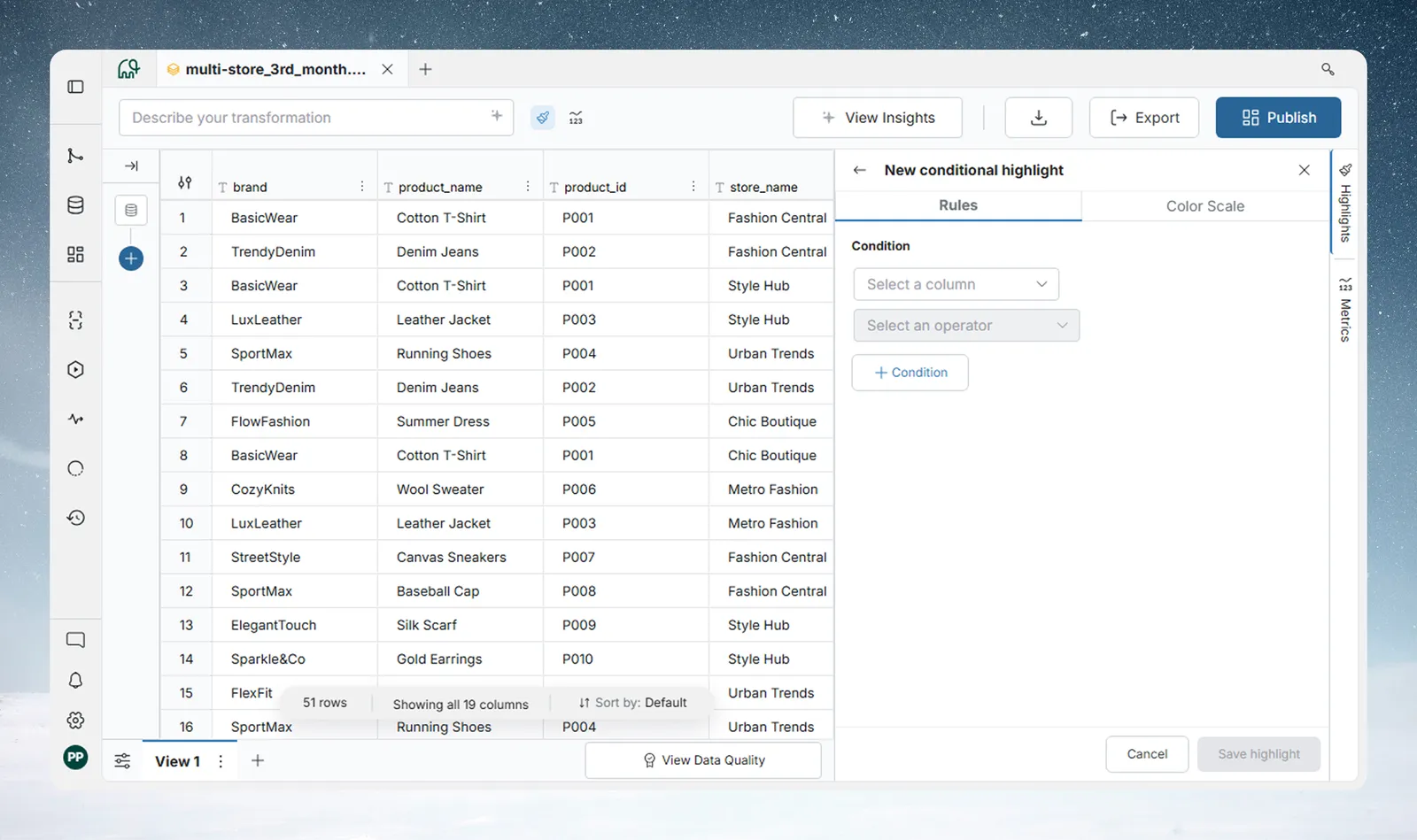
Build the condition
Each condition has at least one row with a column, an operator and a value.
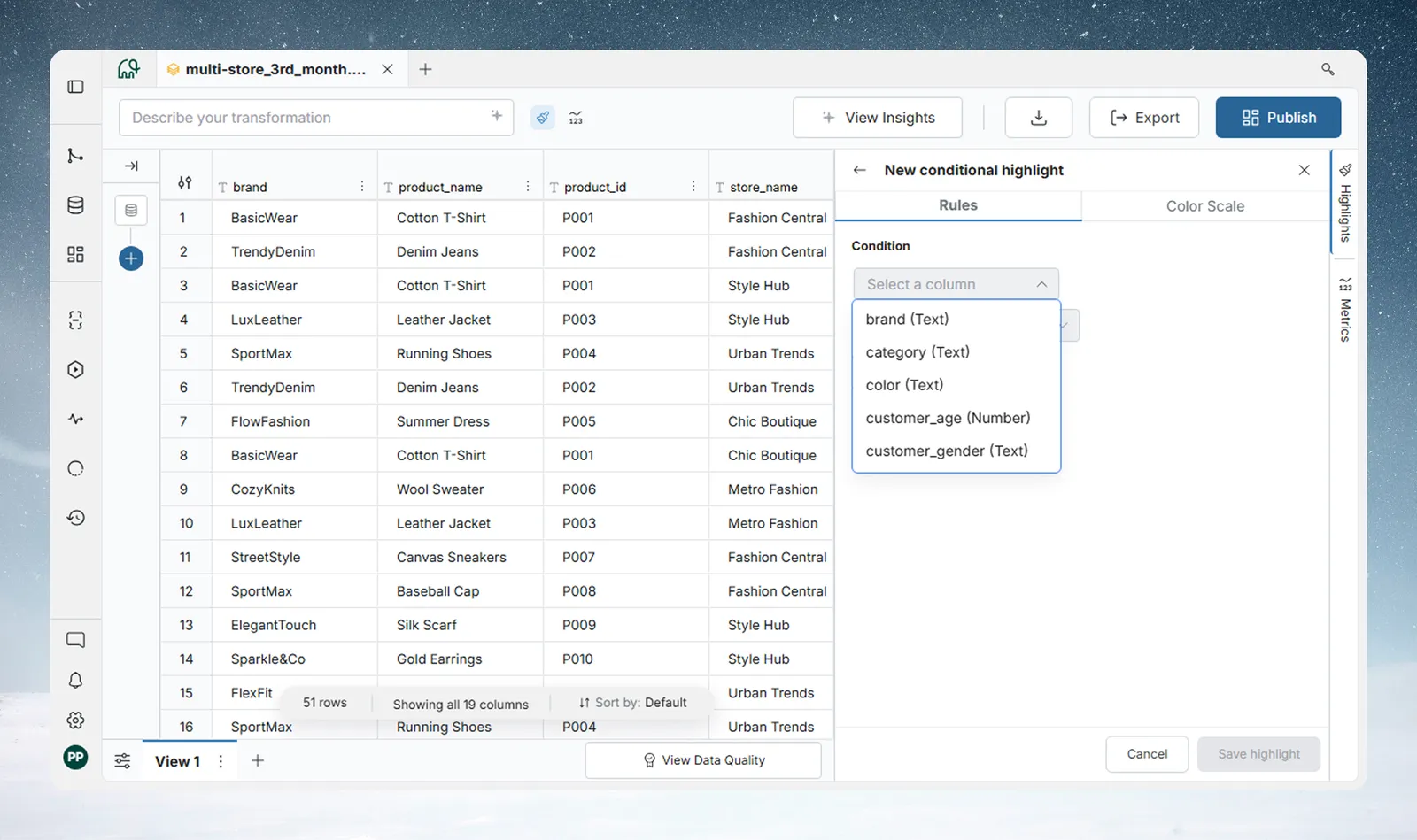
- Combine conditions with And (all must match) or Or (any can match).
- Click Condition to add another condition.
- Click Group to nest conditions, for example
(Region = "West" OR Region = "East") AND Sales > 5,000.
The builder is the same one Conditional Filter uses, with the same operators for Text, Number and Date columns. See Filter rows for the full operator tables. The AI bar is not available in the highlight builder.
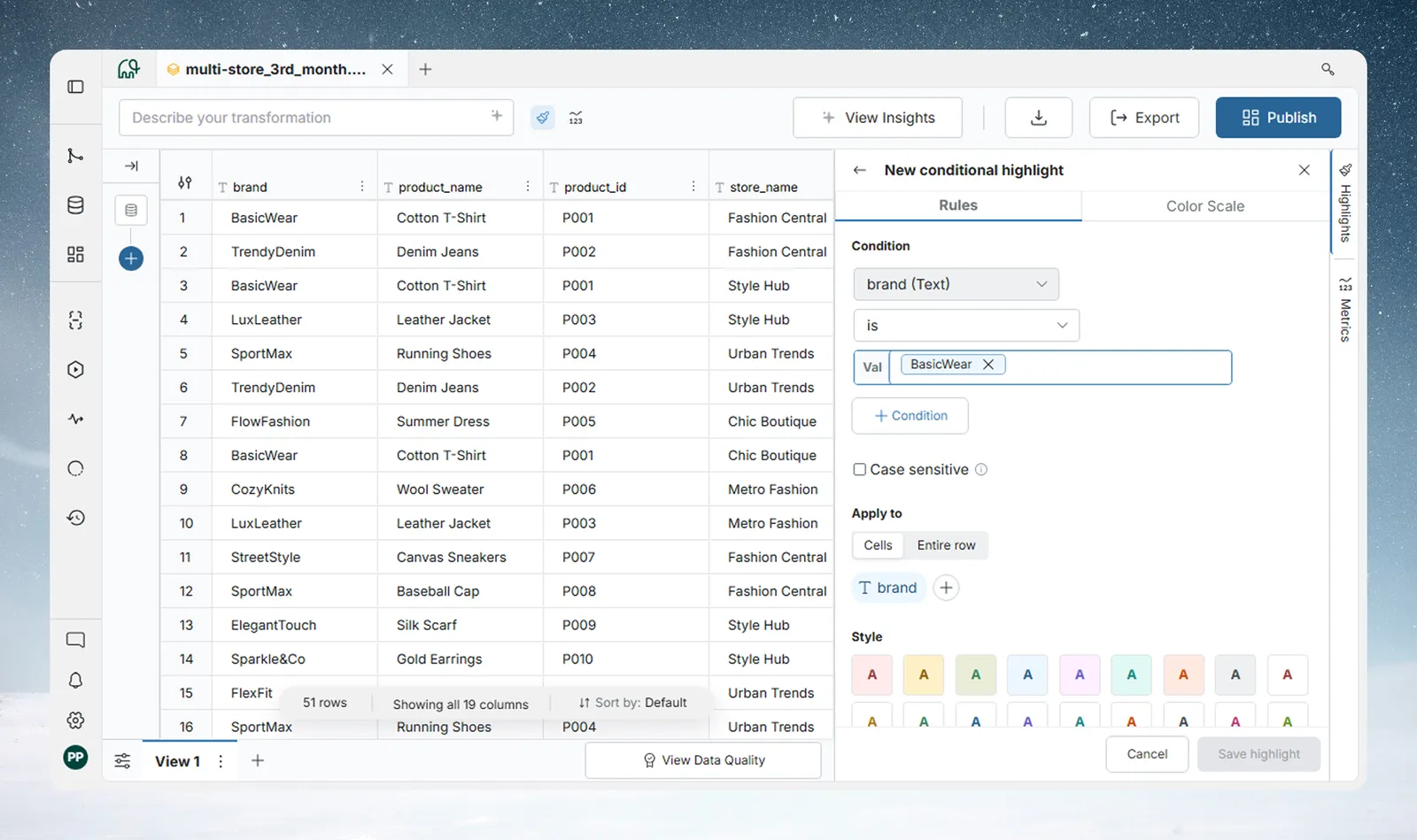
While the builder is open, the grid shows your rule live, but only once the condition is valid and a colour is picked. An incomplete rule doesn't show.
Colour only some cells or the entire row
| Apply to | What gets coloured |
|---|---|
| Cells (default) | Only the cells in the columns you pick |
| Entire row | Every cell in the matching row |
With Cells, the builder picks the first column in your condition. Use the column picker below Apply to to add or remove columns. These can differ from the columns the condition tests.
Pick a colour
There are 18 preset swatches in two groups:
- Background colours (8): fill the cell background.
- Text-only colours (10): change only the font colour, with no fill.
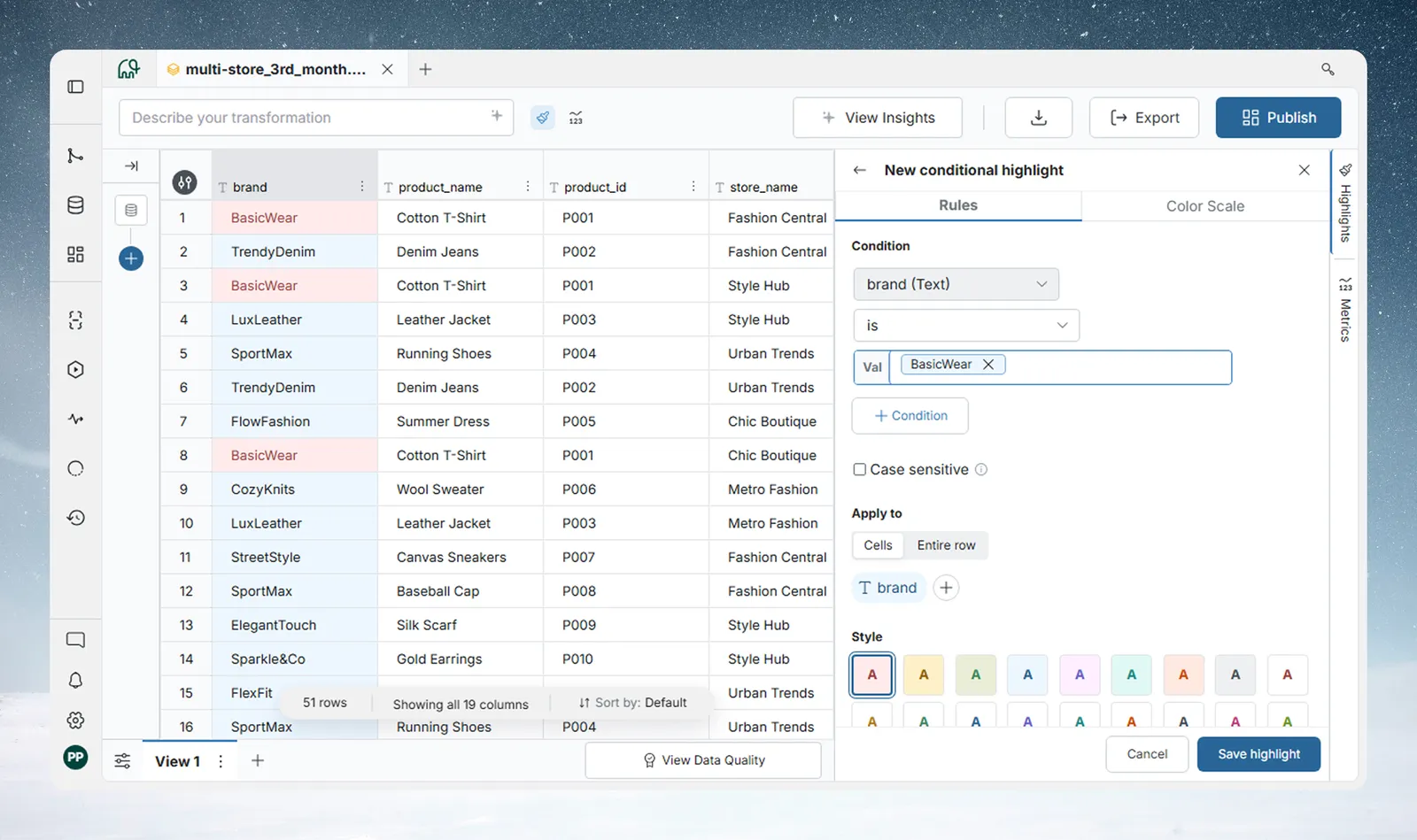
Rules have no names. Each card shows a summary of the condition, for example brand is 'BasicWear'.
If you close the builder without saving, the rule is discarded. A confirmation appears if you made changes.
Add a colour scale to a number or date column
- Click New conditional highlight.
- Click the Color Scale tab.
- Pick a column. Only visible Numeric and Date columns are listed.
- Pick a scale preset.
- For a 3-colour scale, optionally set Colors change at to move the midpoint.
- Optionally enter Min and Max to replace the detected range.
- Click Save highlight.
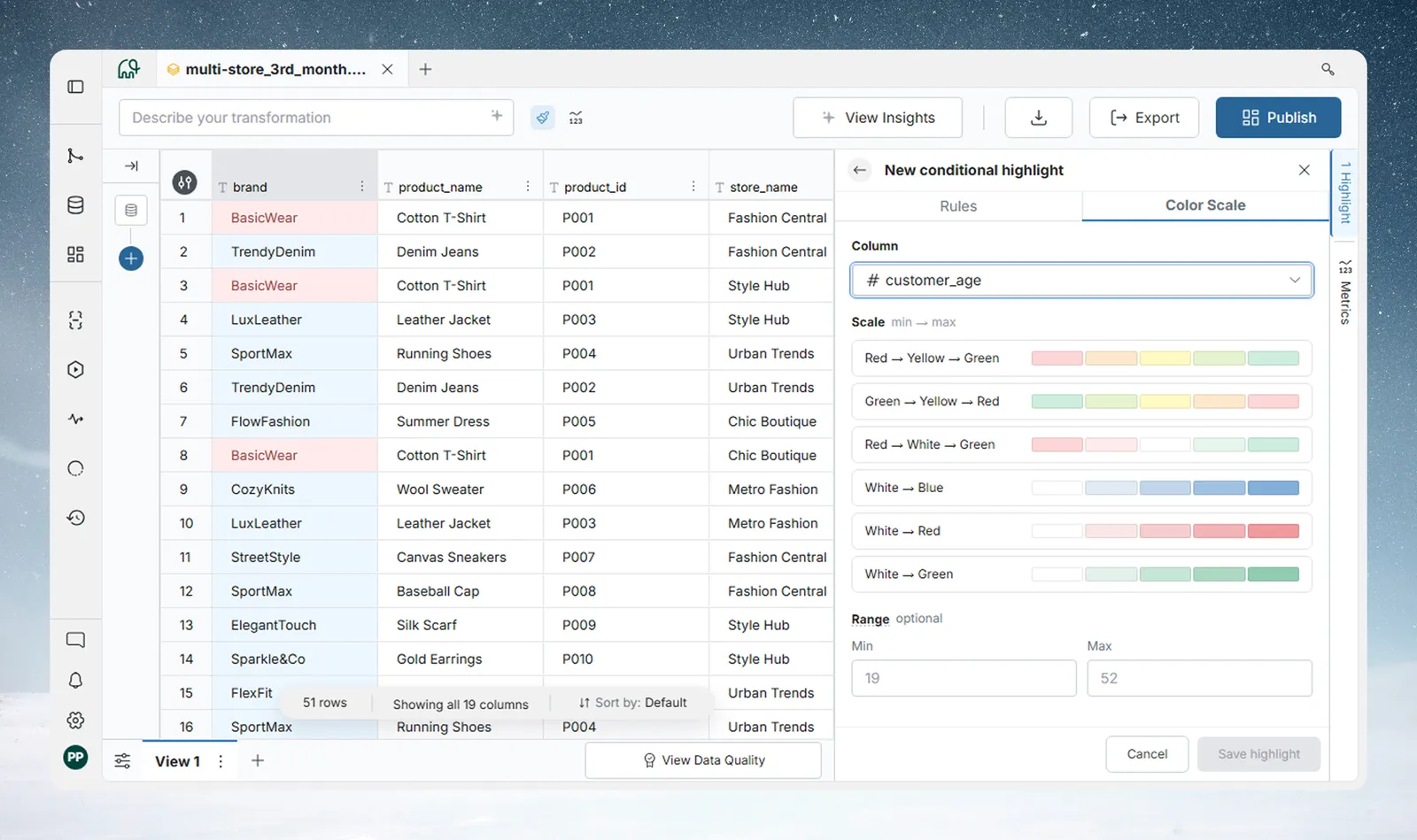
| Preset | Low value | Mid value | High value | Colors change at |
|---|---|---|---|---|
| Red → Yellow → Green | Red | Yellow | Green | Yes |
| Green → Yellow → Red | Green | Yellow | Red | Yes |
| Red → White → Green | Red | White | Green | Yes |
| White → Blue | White | None | Blue | No |
| White → Red | White | None | Red | No |
| White → Green | White | None | Green | No |
Colors change at sets where the middle colour sits. It takes a number for Numeric columns and shows a date picker for Date columns. Leave it blank to split the gradient evenly.
By default, the scale uses the column's own minimum and maximum. The Min and Max placeholders show those values. Enter your own to fix the range, so colours stay the same across Views or over time.
Manage highlight rules: turn off, reorder, edit and delete
Each rule is a card in the panel.
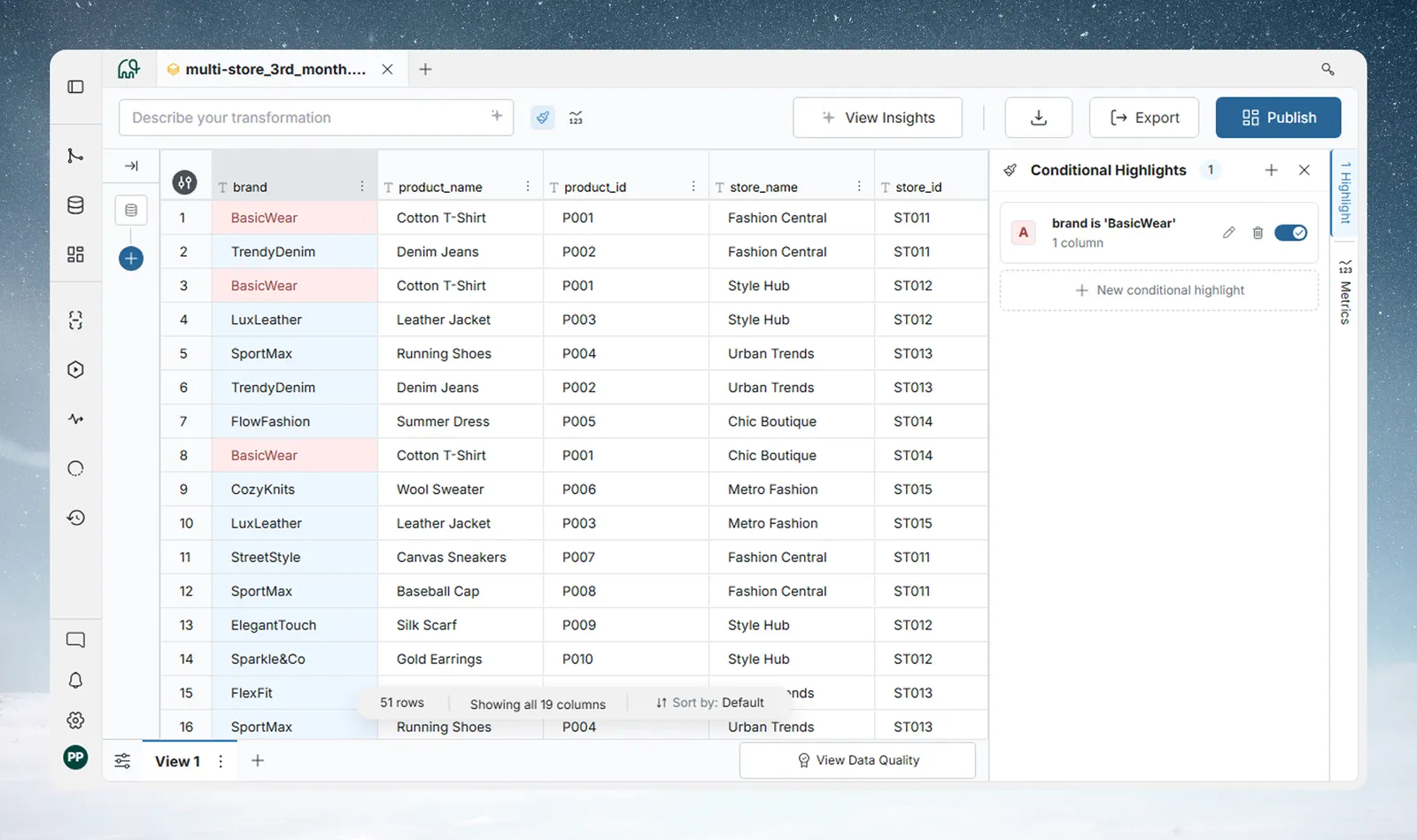
| Part of the card | What it does |
|---|---|
| Colour swatch | A solid square for a Condition Rule, a gradient bar for a Color Scale |
| Title | The rule's name, or the condition summary |
| Subtitle | The number of highlighted columns (2 columns), Entire row, or the scale preset (Red → Yellow → Green) |
| Drag handle | Reorders the rule. Hidden when there is only one rule. |
| Warning icon | A column the rule uses is missing or changed type. See Troubleshooting. |
| Toggle | Turns the rule on or off without deleting it. Off rules look dimmed and colour nothing. |
| Edit | Opens the builder with the rule's settings. Changes apply when you click Save highlight. Close the builder to drop them (you're asked to confirm if you changed something). |
| Delete | Asks you to confirm, then removes the rule for good. There is no undo. |
Drag cards to reorder them. The new order saves straight away.
Which highlight rule wins when several match
Rules are checked from the top of the panel down. The top rule has the highest priority.
- For each cell, rules are checked from top to bottom.
- The first rule that matches the row and applies to that cell colours it. No further rules are checked for that cell.
- If no rule matches, the cell has no highlight.
A rule in Cells mode colours only its chosen columns, so lower rules can still colour other cells in the same row.
Rules (top to bottom):
  1. Sales > 10,000  →  Red background
  2. Sales > 5,000   →  Yellow background
  3. Region = "West" →  Blue background
| Row | Result |
|---|---|
| Sales = 12,000, Region = "West" | Rule 1 matches: red. Rules 2 and 3 are skipped. |
| Sales = 7,500, Region = "North" | Rule 1 doesn't match. Rule 2 matches: yellow. Rule 3 is skipped. |
| Sales = 2,000, Region = "West" | Rules 1 and 2 don't match. Rule 3 matches: blue. |
Put your most specific or most important rules at the top.
Color Scales take part in the same order. A Color Scale above a Condition Rule colours every value in its column, so lower Condition Rules can't colour cells there. To let Condition Rules win, put them above the Color Scale.
Example: colour sales reps against a target
The Monthly Sales target is $10,000. You want to see at a glance who hit it, who is close and who missed.
| Rule | Condition | Colour | Position |
|---|---|---|---|
| 1 | Monthly Sales >= 10,000 | Green background | Top |
| 2 | Monthly Sales >= 9,000 | Yellow background | Second |
| 3 | Monthly Sales < 9,000 | Red background | Third |
Reps at or above target turn green. Reps from $9,000 to $9,999, within 10% of target, turn yellow. Everyone else turns red. A rep at $15,000 matches rule 1 first, so rules 2 and 3 are never checked. For a new target, edit rules 1 and 2. Rule 3 catches everything the first two miss.
Rows with an empty Monthly Sales match none of these rules, because an empty cell doesn't equal a number. Add a fourth rule with is Empty to flag missing data.
See which rows match a rule in focus mode
Click a rule card to turn on focus mode for it.
- Matching rows show the rule's highlight. Other rows are dimmed.
- A banner above the grid shows the count, for example "Highlighting 14 of 200 rows for brand is 'BasicWear'". For a Color Scale it reads Color scale on and the column name.
To leave focus mode, click the same card again, or click the X at the right of the banner.
Filter to the matching rows
For a Condition Rule (not a Color Scale), the banner has a filter button (tooltip Filter to matching rows). Click it to show only the matching rows. The banner then reads Showing 14 of 200 rows · Filtered by and the rule, with a 3-dot menu and a close button that removes the filter. This filter is temporary and doesn't add a pipeline task.
The 3-dot menu offers:
| Action | What it does |
|---|---|
| Convert this filter into a Pipeline Task | Opens Conditional Filter prefilled with the rule's condition. The task is added only when you apply it. |
| Create new view with this filter applied | Creates a new View with a Conditional Filter task using the rule's condition |
| Copy values to clipboard | Copies the visible columns of the matching rows, tab-separated with a header row |
| Export list as CSV | Downloads the matching rows as a CSV file |
The first two actions are hidden in preview mode.
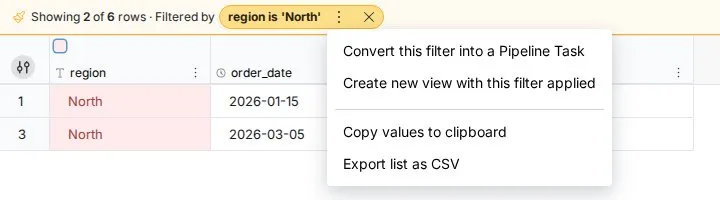
Use focus mode to check exactly which rows a rule affects before you share a View.
Troubleshooting
A warning icon on a rule card means a column the rule uses can't be found in the View, or its type changed. This happens when a column was removed, or converted (for example from Text to Numeric) after the rule was made.
- Click Edit on the rule card. A banner at the top of the builder names the affected columns.
- Remove the column from the condition or replace it with a valid one.
- Click Save highlight.
Save highlight stays off while any column in the builder has this error, so you can't save any change to the rule, even to valid conditions, until you fix it. Until then, the saved rule is skipped and colours nothing.
| Symptom | Cause | Fix |
|---|---|---|
| A rule colours nothing | It is toggled off, a higher rule wins, or it has a warning icon | Turn it on, move it up, or fix the column |
| Empty cells aren't highlighted | An empty cell doesn't match a number condition | Add a rule with is Empty |
| The rule doesn't show while you build it | The condition is incomplete or no colour is picked | Finish the condition and pick a colour |
| A column is missing from the Color Scale list | Only visible Numeric and Date columns are listed | Show the column, or convert it to a number or date |
Related
- Filter rows: the condition builder and its operators.
- Work in the data grid: the column menu and action bar.
- Explore cards: explore a column's values before you colour them.
- Rename, format and sort columns: other display changes that don't touch the data.
- Views: create, rename and delete: highlights are saved per View.
Something wrong? support@mammoth.io