Change Mammoth project settings: name, colour, dates, access
Project Settings holds a project's name, colour, date handling and who in the workspace can access it. Open it from the project selector: More options (three dots) next to the project → Project Settings. Only Project Admins on that project can open and save it.
Open Project Settings
- Click the down arrow next to the current project name in the Data Library breadcrumb to open the project selector.
- Find the project you want.
- Click More options (three dots) next to it.
- Click Project Settings.
It's the same form you fill in when you create a project. See Create, leave and delete projects.
Rename a project
The project name is required, up to 63 characters. It appears in the project selector everywhere in Mammoth. Use a name that tells your team what the project is for.
Change a project's colour
Click the Project colour button next to the name field to open the colour picker. Choose one of 8 preset colours:
#6C757C, #9CA1AB, #02786D, #50BBAF, #337FBD, #FDB020, #EB661E, #D57C7C
The colour shows as a dot beside the project name in the selector and in the Share Project header. Custom hex colours aren't supported.
Set how a project reads and shows dates
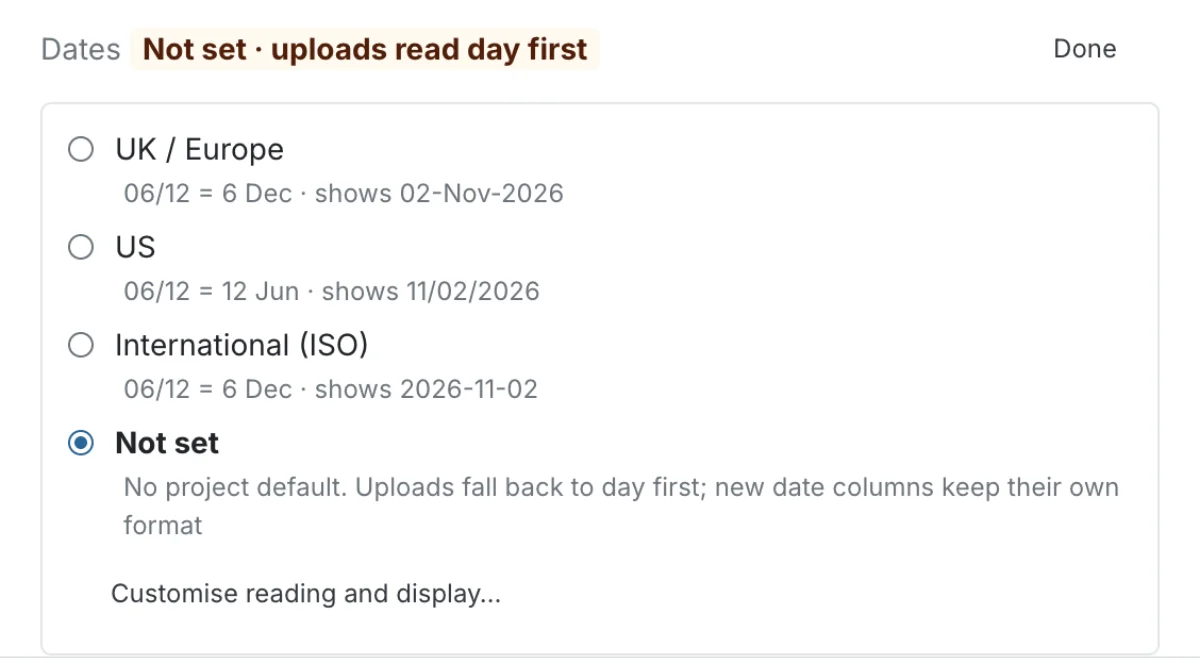
The Dates row sums up the project's date convention in one line, for example "06/12 = 6 Dec · shown as 29-Oct-2026".
- Click Set (or Change if dates are already set) on the Dates row.
- Pick a preset from the table below.
- To mix your own combination, click Customise reading and display… and choose the two settings separately.
- Click Done.
| Preset | Reads 06/12 as | New date columns show as |
|---|---|---|
| UK / Europe | 6 Dec (day first) | DD-Mon-YYYY |
| US | 12 Jun (month first) | MM/DD/YYYY |
| International (ISO) | 6 Dec (day first) | YYYY-MM-DD |
| Not set | Day first | Each new date column keeps its own format |
Customise reading and display… shows two settings:
| Setting | What it does |
|---|---|
| Reading dates in uploaded files | Day first (06/12/2025 is 6 December) or Month first (06/12/2025 is 12 June). Applies to CSV, Excel and PDF files uploaded to this project. Columns from database and API connectors are already typed, so it doesn't affect them. It doesn't change how dates look |
| Showing dates | The starting display format for new date columns in this project. Existing columns keep their format, and any column can override it from the column menu. It doesn't change how files are read |
These settings apply only to this project. For changing one column's format, see Work with dates and financial years.
Change who can access a project
The Who can access dropdown controls which workspace members can see and work in the project.
| Option | Who has access |
|---|---|
| Everyone in this workspace | All current workspace members, and all members added to the workspace later |
| Some people in this workspace | Only the users you select, shown in the list below the dropdown |
| Only me | Only you. Switching an existing project to Only me removes every other user from it |
Everyone includes current and future members with no list to keep up. Some people gives you exact control, but you add each person yourself, including new workspace members when they join.
Pick people with Some people in this workspace
When you choose Some people in this workspace, a searchable user list appears. For each user:
- Search by name or email.
- Give a role: Project Admin, Project Editor or Project Viewer (or a custom project role).
- Use the select-all checkbox at the top to select or clear everyone at once, or tick users one at a time.
People you add here are saved when you click Save changes, in the same step as the other settings.
If your role can't view the workspace's users, Some people in this workspace is greyed out with the tooltip "Your role can't view this workspace's users, so you can't choose specific people."
To remove several people without changing the access level, use Manage Users in the project menu: tick them and click Remove Users. See Share a project and set project roles.
Save project settings
Click Save changes. Mammoth shows "Project successfully edited."
Changes take effect at once: the new name and colour appear in the project selector, and people added or removed by an access change are updated in the same save.
Who can change project settings
Only Project Admins on the project can open and save Project Settings. Workspace Owners can see all project names and delete any project, whatever the access level. They can manage project membership from Workspace Settings → User Management, but must join a project as an admin to edit its settings.
Troubleshooting
| Symptom | Cause | Fix |
|---|---|---|
| Project Settings is missing from the menu | You're a Project Editor or Project Viewer | Ask a Project Admin to change your role, or have a Workspace Owner join as an admin and update it |
| Existing date columns didn't change | Date settings only set the start format for new columns | Change an existing column from its column menu |
| A database column ignores Day first | Connector columns are already typed | Nothing to fix: the setting applies to uploaded files only |
Related
- Create, leave and delete projects: set these options when you create a project.
- Share a project and set project roles: add or remove individual users.
- Workspace and project roles, permissions and custom roles: what each role can do.
- Upload files: the files the date reading applies to.
Something wrong? support@mammoth.io