Delete old batches automatically with a retention policy
A retention policy deletes or suspends a dataset's batches for you, so the dataset doesn't keep growing. Open the dataset's panel in the Data Library, go to Settings & history, then Batches, and select Set up retention policy below the batch list. Each dataset can have one policy, and whether you can set one up depends on your plan.
Before you start
- A batch is one load of data into a dataset. See Batches: see and fix what arrived.
- Deleted batches can't be recovered. Their details stay in the Activity Log.
Create a retention policy
- Open the dataset's panel, then Settings & history, then Batches.
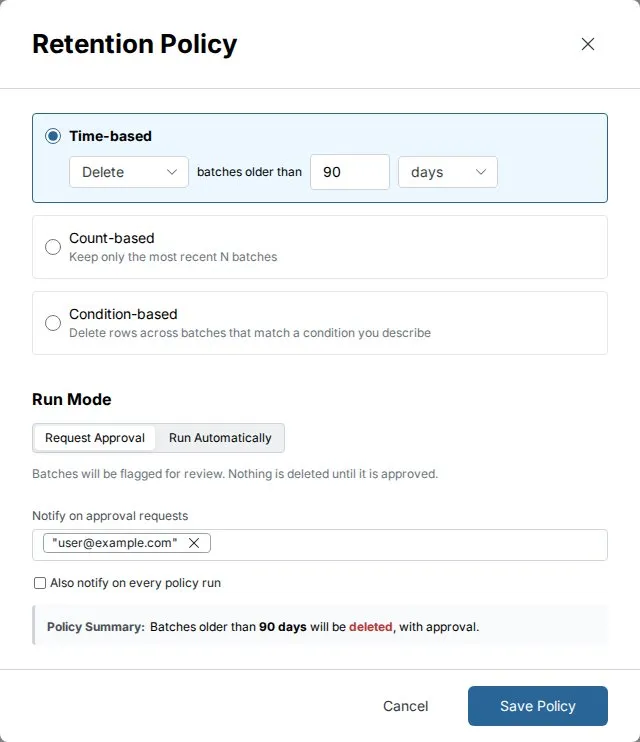
- Select Set up retention policy. The Retention policy window opens. At the top, What this rule does restates the rule in one sentence as you change it.
- Under What to remove, pick a rule type (see the table below) and set its values.
- Under When it runs, choose Ask for approval first or Run on its own.
- Add at least one project member to notify.
- Click Save Policy.
| Rule type | What it removes | Default |
|---|---|---|
| By age | Deletes or suspends batches older than a number of minutes, hours, days, weeks or months | Delete batches older than 90 days |
| By count | Keeps the latest batches and deletes or suspends the rest | Keep the latest 10 |
| By condition | Rows, across batches, that match something you describe | None |
Remove rows that match a condition
- Choose By condition and describe the rows to remove in plain language, for example "Delete rows where date < 2024-01-01".
- Select Generate. Mammoth writes the condition and shows it as SQL.
- Select Test to see how many rows across how many batches match, for example "1,250 rows across 3 batches".
This rule permanently deletes matching rows and can't suspend. If your description doesn't say what to delete, Mammoth answers "Tell us what to delete."
Choose when the policy runs
| Option | What it does |
|---|---|
| Ask for approval first (default) | The policy flags batches for review. Nothing is deleted or suspended until someone approves. |
| Run on its own | The policy deletes or suspends matching batches on schedule without approval |
When the action is delete and you choose Run on its own, Mammoth asks Delete batches without approval? ("Deleted batches can't be recovered"). Confirm with Save and run automatically, or click Go back.
Choose who is notified
Recipients get an email for approval requests ("Notify on approval requests"), or each time the policy runs ("Notify when the policy runs"). In approval mode you can also select Also notify on every policy run. At least one recipient is required.
The policy runs daily.
Review and approve flagged batches
Once a policy exists, a banner at the top of the Batches section shows its status (Active, Suspended, or the number of batches pending), the rule summary, the last run and the next run.
| Control | What it does |
|---|---|
| Run Policy | Runs the policy now. With approval required, it requests approval; with Run on its own, it runs immediately. |
| Approve All, or Delete 3 batches / Suspend 3 batches | Approves the pending batches. Pending rows show a Delete or Suspend button and the state Pending Delete. |
| Configure (the gear icon) | Opens the policy to edit it, turn it off with This rule is on, or select Delete Policy |
Deleting the policy leaves the dataset and its existing batches unchanged.
In Monitor, Pending Retentions lists policies waiting for a decision, with Review and Approve. Active Retentions shows policies that are currently deleting or suspending. The Activity Log records each Data Retention run. See Activity log.
Worked example: keep a 24-month rolling window
A finance team adds one month of transactions each cycle in Combine mode and wants two years of history. They set a By count policy that keeps the latest 24 batches and deletes the rest, with Ask for approval first. Each month, the oldest batch is flagged, and an approver clicks Approve All.
Troubleshooting retention policies
| Symptom | Cause | Fix |
|---|---|---|
| Set up retention policy is disabled or asks you to upgrade | Retention depends on your plan, or you can't edit the dataset | Check your plan and your access to the dataset |
| Batches show Pending Delete and stay | The policy is set to Ask for approval first | Approve them with Approve All or the Delete button on each row |
| Historical batches are gone | A policy deleted them | Check the policy's rule and the Activity Log. Deleted batches can't be recovered. |
| Saving fails with "At least one recipient is required." | No one is set to be notified | Add a project member |
Related
- Batches: see and fix what arrived: the batch list, suspend and delete.
- Add or replace data in a dataset: Replace removes old batches on each load.
- Activity log: Data Retention runs and pending approvals.
- Dataset settings and history: other dataset settings.
Something wrong? support@mammoth.io