Get data into Mammoth: choose how to bring data in
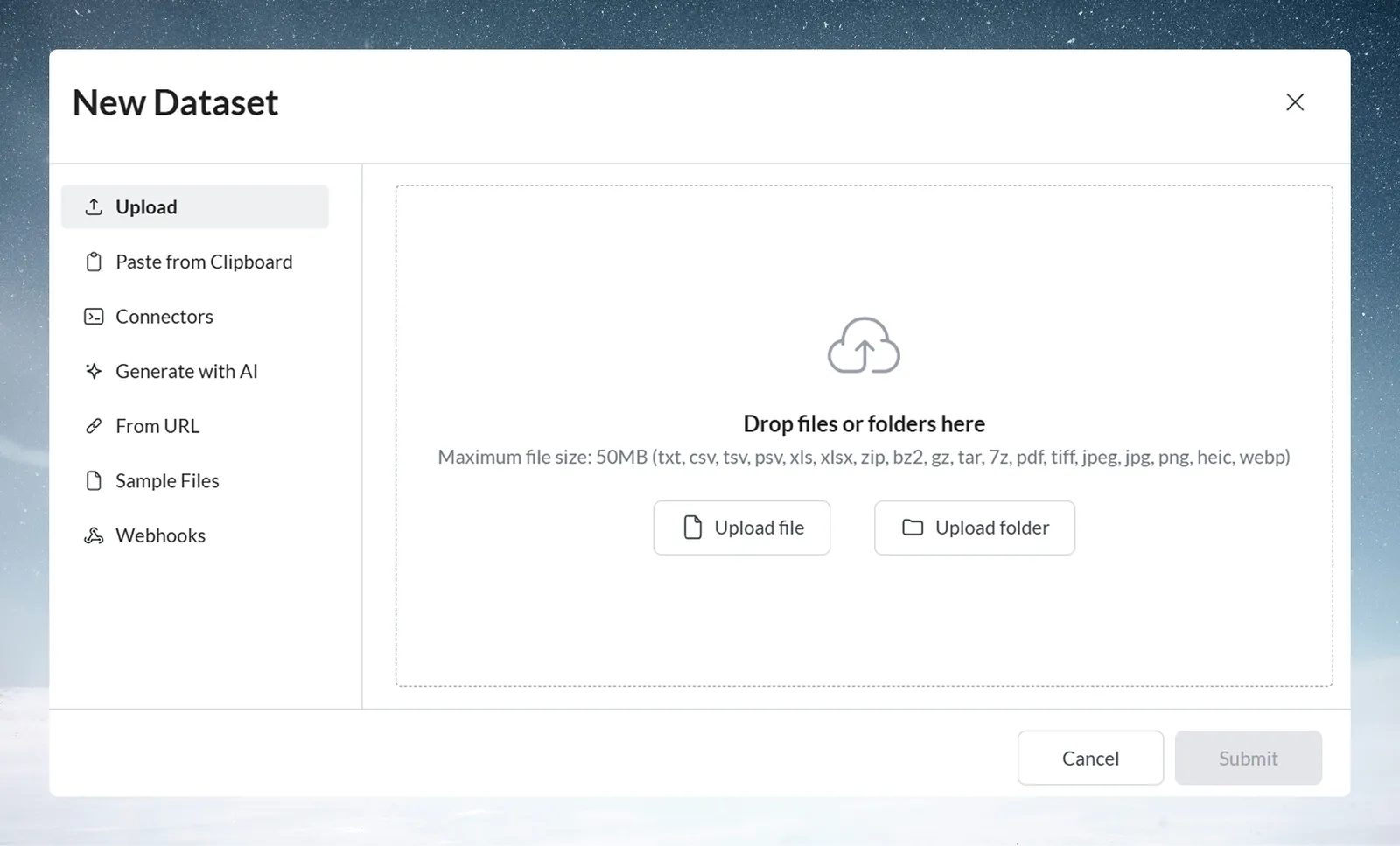
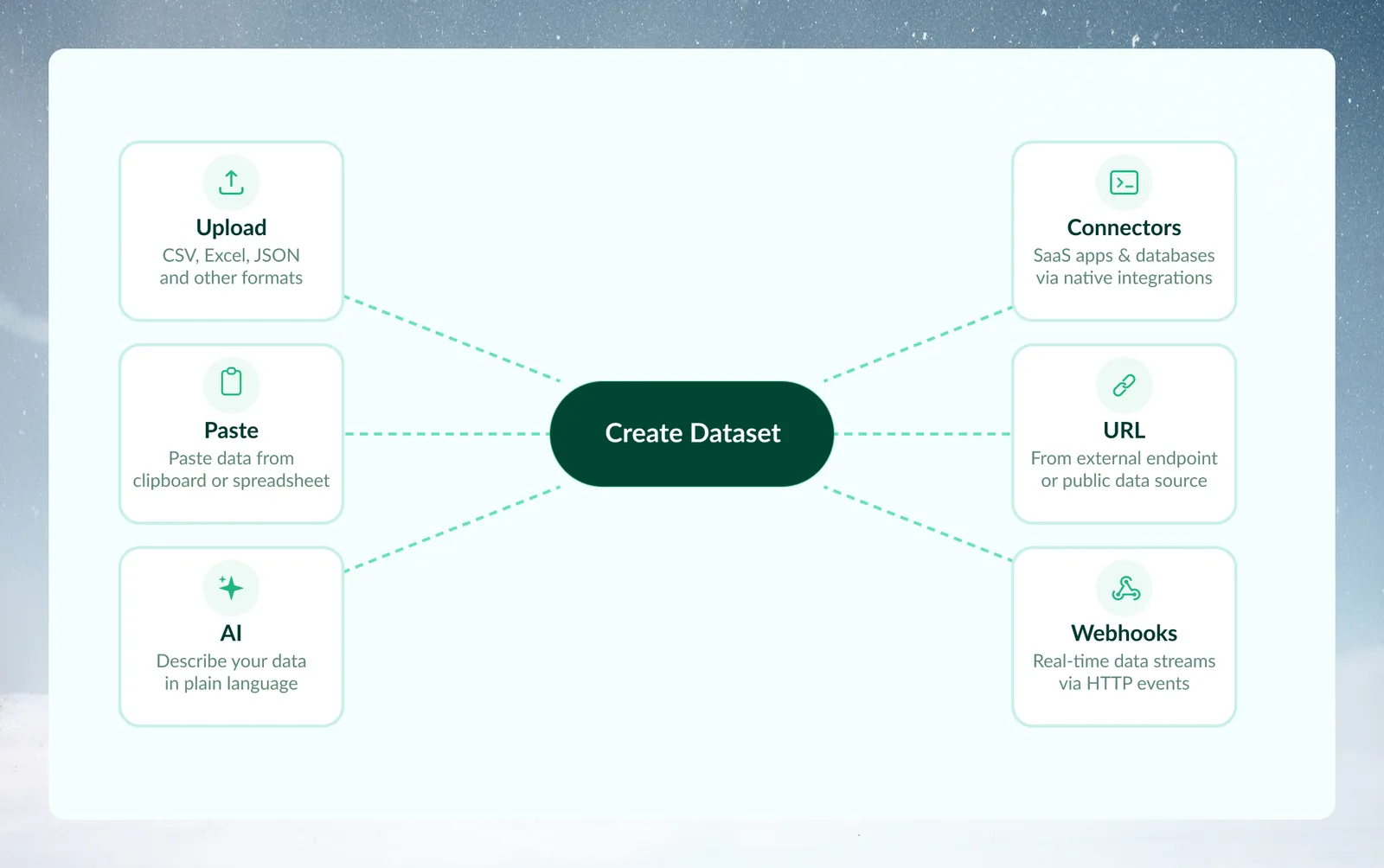
Mammoth has seven ways to create a dataset: upload a file, paste from a spreadsheet, import from a URL, connect a database or app, receive data by webhook, generate data with AI, or load a built-in sample. Every method starts in the Data Library: click New dataset and pick a method in Where do you want to add data from?. Each method gives you a dataset you can explore, transform and visualize.
Which page do I need?
| I want to... | Go to |
|---|---|
| Load a CSV, Excel, JSON, XML or archive file from my computer | Upload files |
| Fix how Mammoth read a messy file, a nested JSON file or a workbook with several sheets | Review how Mammoth reads a file |
| Copy cells from Excel or Google Sheets into a new dataset | Paste data |
| Create a dataset from a file at a web or cloud storage link | Import from a URL |
| Pull tables out of a PDF or an image | Extract tables from PDFs |
| Get test data without a real source | Create data with AI or a sample file |
| Let another system push rows into Mammoth | Receive data by webhook |
| Connect a database, warehouse, app or drive | Connect a database or app |
| Write SQL against a database and pick what each refresh does | Query a database and choose how it refreshes |
| See, edit or delete a saved connection | Manage saved connections |
| Let Mammoth through my firewall | Allow Mammoth through your firewall |
| Add rows to a dataset, or swap its data for a newer file | Add or replace data in a dataset |
| See which files arrived, suspend or delete one, or fix a pending one | Batches: see and fix what arrived |
| Delete or suspend old batches on a rule | Keep fewer batches with a retention policy |
Compare the ways to create a dataset
| Method | Best for | Size limit | Recurring updates | Authentication |
|---|---|---|---|---|
| Upload | Files from your computer | 50 MB per upload | Manual, or a Data Consolidation automation | None |
| Paste from Clipboard | Quick tests, small datasets | Browser memory, and 50 MB once sent | Manual only | None |
| Connectors | Recurring, large or live data | Depends on the source | Dataset Refresh for databases, apps and APIs. Files from drives are saved once; use File Collection for new files | Saved connection |
| Generate with AI | Testing and prototyping | User-defined (max 500 rows) | Manual only | None |
| From URL | File links | None stated; larger files take longer to fetch | Get the latest, or a Dataset Refresh automation | None (signed URLs supported) |
| Sample Files | Exploring Mammoth, training, demos | Fixed sample datasets | No | None |
| Webhook | Event-driven pushes from other systems | Rows wait until they are added | The source pushes; rows are added every 5 min, hourly, daily or by hand | Optional X-SECRET header |
Each method also handles versions differently. Upload and connectors keep a history of batches (each load is one batch). Paste, AI data and From URL start as a single snapshot. A webhook dataset can combine or replace its rows. See Batches: see and fix what arrived.
The best method can change as your needs grow. If you start with file uploads and later need automation, move to a connector or a webhook.
Upload a file from your computer
Drag and drop or browse for files. Use it for one-time analysis and files you already have.
- Handles: CSV, Excel (.xlsx, .xls, .xlsm), TSV, JSON, XML, archives, PDF and images.
- Size limit: 50 MB per upload. A folder counts as one upload.
- Several files: each file becomes its own dataset, whether you pick files one by one or upload a folder. A folder upload recreates the folder in the Data Library.
See Upload files.
Paste cells from a spreadsheet
Copy cells from Excel, Google Sheets or any spreadsheet, then paste them into Mammoth. It handles tab-separated or comma-separated text. The practical limit is your browser's memory. See Paste data.
Connect a database, app or drive
Connectors (also called Live Connections) reach databases, APIs, business applications and cloud drives. You add one from the Connectors launcher and pick your data in the connector workspace. Sources include SQL Server, PostgreSQL, MySQL, Snowflake, BigQuery, Salesforce and more.
Datasets from databases, apps and APIs can refresh on a schedule with a Dataset Refresh automation. Files from drives and file servers (Dropbox, Google Drive, Google Cloud Storage, SFTP, SharePoint, OneDrive, Email) are saved once. To bring in new files from them, use a File Collection automation. If your analysis must update on its own from a database or application, use a connector rather than file uploads.
See Connect a database or app. If a connection fails, see Troubleshooting.
Generate test data with AI
Describe the dataset you need in plain language, and AI creates realistic sample data. No source data is needed. You set the size (1 to 500 rows) or let the AI decide. Use it to test pipelines, prototype dashboards and train people. See Create data with AI or a sample file.
Import a file from a URL
Paste a file URL (a public link or a signed URL) and click Read file to preview it. For a CSV, TSV or TXT file you choose Keep it linked or Copy it once. A linked dataset fetches the file again when you click Get the latest, or on a Dataset Refresh automation. It takes the same file types as Upload. Only a CSV, TSV or TXT file can keep following its link; other files are added once, and a dataset made from a JSON file can't take new rows from its link.
Use it for public datasets, open data portals, API exports and shared cloud storage links. See Import from a URL.
Load a built-in sample
Pick one of the sample datasets that come with Mammoth, grouped into Business, Technology, Finance & Real Estate, and Healthcare & Entertainment. Use them to explore Mammoth, train people and run demos. See Create data with AI or a sample file.
Receive data from another system by webhook
Other systems push data to a unique webhook URL. Choose Webhook in the New Dataset dialog, or find it in the Connectors launcher under Push.
- Handles: JSON or form data sent in a POST request, or query parameters in a GET request, from apps, automation tools or custom event triggers.
- Timing: rows that arrive wait until they are added, on the schedule you pick under Add new rows (5 min, Hourly, Daily or By hand), or straight away when you click Add now.
- Data shape: with Turn JSON keys into columns on, each JSON key becomes a column. Otherwise each payload is stored as raw JSON.
Choose a method: four questions
Is this one-time or recurring?
- One-time analysis: Upload or Paste.
- Recurring analysis: Connectors.
- Automated, event-driven loads: Webhooks.
How big is the data?
- Small tables: Paste from Clipboard.
- Files up to 50 MB: Upload.
- Larger data: Connectors.
Where is the data now?
- An Excel file you have open: Paste from Clipboard.
- A file on disk: Upload.
- A database or API: Connectors.
- A file URL: From URL.
- You don't have data yet: Generate with AI or Sample Files.
- An outside system that sends events: Webhooks.
Do you need real data?
- Testing or prototyping: Generate with AI.
- Real analysis: the method that fits your source.
Common situations and the method to use
| Situation | Use |
|---|---|
| "I got an Excel file from my colleague" | Upload (drag the file into Mammoth) |
| "I need to analyze data from our SQL database every week" | Connectors (create a connection, then a Dataset Refresh automation) |
| "I want to test my pipeline before the real data arrives" | Generate with AI (describe the expected structure) |
| "I'm looking at data in Excel and want to try one transformation" | Paste from Clipboard (copy the range, paste it into Mammoth) |
| "I found a public dataset on GitHub" | From URL (paste the raw file URL) |
| "I need to combine 50 CSV files from different regional offices" | Upload them, then combine them with Add data on one dataset or a Data Consolidation automation. Upload folder makes one dataset per file. |
| "Our CRM sends a record every time a lead is submitted" | Webhook (point your CRM at the webhook's URL and pick how often rows are added under Add new rows) |
What to do after you create a dataset
- Explore it. Use Explore Cards, the Metrics Panel, Filter Pills and the Data Quality Report. See Explore cards.
- Transform it. Build a pipeline to clean, combine and prepare your data with transformation functions or AI Prompt. See How the pipeline works.
- Share or export it. Export to Excel or CSV, create Live Links, send to destinations, or publish a dashboard. See Download data.
- Automate the refresh. For datasets from connectors or From URL, set up a scheduled refresh with email notifications and activity logging. See Refresh a dataset.
- Manage Views. Create, name, duplicate, reset and template Views, and control Auto-sync. See Views: create, rename and delete.
Something wrong? support@mammoth.io