Convert text to dates and numbers
The Convert Column Type task changes a column's type: to Text, Number or Date, or to a meaning such as ID, Currency or Percentage. Open it from Column Management in the Transform menu, or from Convert Column Type in a column's 3-dot menu. It is a pipeline task, so it re-runs on every refresh, and a value that can't be converted becomes empty.
Convert one or more columns with Convert Column Type
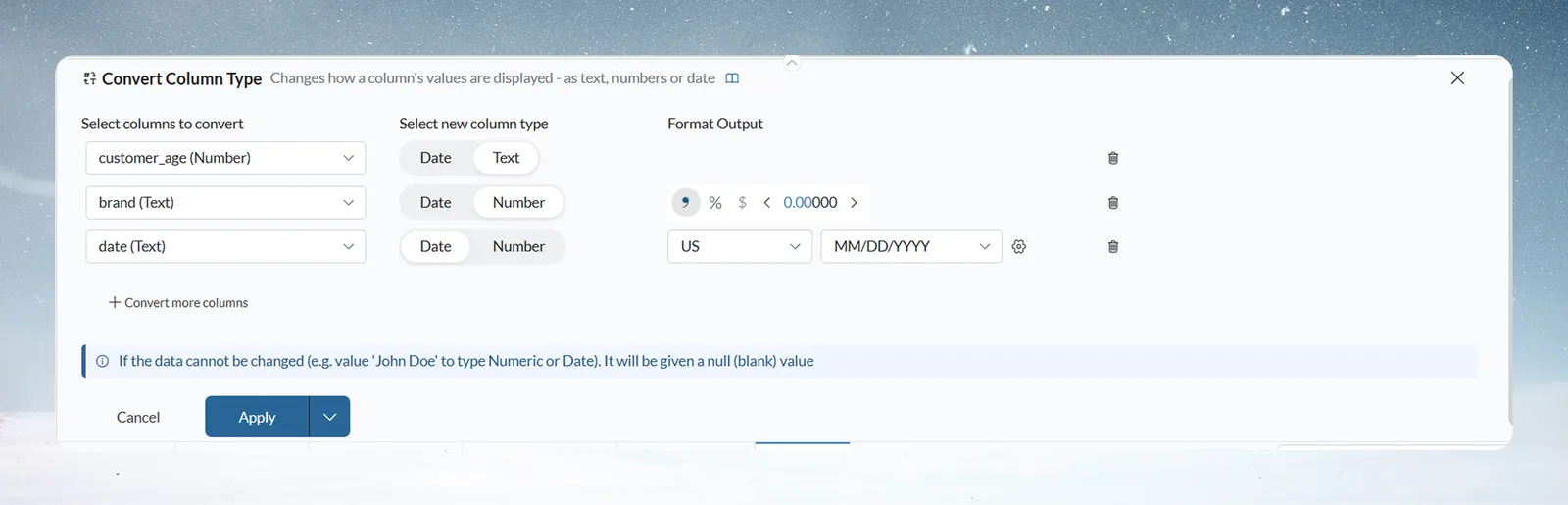
- Click Describe your transformation (or a + in the Pipeline panel), choose Column Management, then Convert Column Type.
- In Select columns to convert, choose the source column. Each row handles one column.
- In Select new column type, choose the target. Number offers Number, ID, Percentage and Currency; Text offers Text and ID; Date is a single option. The column's current type is greyed out.
- Set the output format if the panel asks for one (see the table below).
- To convert another column in the same task, click + Convert more columns. Click the trash icon on a row to remove it.
- Click Apply.
| Setting | When it appears | What it does |
|---|---|---|
| Values are on a 0–100 scale (the label goes on to say "divide by 100") | Converting a Number column whose largest value is above 1 to Percentage | Ticked by default. Divides every value by 100, so 45 becomes 0.45 (45%). Untick it to keep the values. Not shown for Text columns or for columns already between 0 and 1. |
| Format Output | Converting to Date, or from Date to Text | Convention: Universal, UK, US or Custom. Format string: a format from the list (for example YYYY/MM/DD, YYYY/MM/DD HH24:MI:SS, YYYY/MM/DD HH:MI:SS am, YYYY-MM-DD) or Custom to type your own. |
| Number format controls | Converting to Number | Set the number format of the result. |
| Define Source Format (gear icon next to the format string) | Converting Text to Date | Tells Mammoth what format the text is in now. See Tell Mammoth the order of day and month. |
If a value can't be converted to the target type (for example "John Doe" to Number or Date), it becomes empty (null).
For example, an order_date column imported as Text holds values like "2025/01/15". Select it, choose Date, set the source format to Source - Auto, and set Format Output to YYYY/MM/DD. The column is now a real Date you can use in date filters and calculations.
Convert a column to ID, Currency or Percentage
Picking another entry under the column's own type (for example Currency for a Number column) changes only what the column means. It doesn't cast the values, except with the divide-by-100 option above. The number format in the panel follows the target:
| Target | Format the panel sets for you |
|---|---|
| Currency | Never a percentage. The currency symbol stays yours to pick. |
| Percentage | Never a currency symbol. The % starts on and can be switched off. |
| ID (Number) | No currency symbol, no %, no thousands separator. Decimals start at 0 unless the column already had its own. |
Converting a code such as 000417 to ID under Text keeps the leading zeros. Converting it to a Number drops them. For what each type means, see Column types, IDs, currency and percentages.
Convert text to a date
You can let Mammoth detect the date format or give it format codes.
With Source - Auto, Mammoth samples the column's values and detects the formats present. This works for most real-world data. For uncommon or mixed formats, use format codes.
Tell Mammoth the order of day and month
A date made only of numbers, such as 01/02/2025, could be 2 January (US) or 1 February (UK). Choose the source format to settle it:
| Option | Reads 01/02/2025 as | Use when |
|---|---|---|
| Source - Auto | Detected from your data; may guess wrong | Your dates are mostly unambiguous (month names or clear patterns) |
| Source - DD/MM/YYYY (Day First) | 1 February 2025 | Dates are always day first |
| Source - MM/DD/YYYY (Month First) | 2 January 2025 | Dates are always month first |
| Source - Custom (multiple formats) | Your format codes | Mixed formats or non-standard patterns |
If your dates are ambiguous, always choose Day First or Month First rather than Auto. This prevents silent parsing errors.
Date format codes
Mammoth reads text using PostgreSQL-style format codes:
| Code | Meaning | Example | Notes |
|---|---|---|---|
| YYYY | 4-digit year | 2025 | Use YY for 2-digit years (25) |
| MM | Month (01-12) | 01 | |
| DD | Day of month (01-31) | 15 | |
| HH24 | Hour (24-hour, 00-23) | 14 | Use HH12 or HH for 12-hour format (01-12) |
| MI | Minute (00-59) | 30 | |
| SS | Second (00-59) | 45 | |
| MON / MONTH | Month name | Jan / January | MON is abbreviated, MONTH is full. Write the code in upper, title or lower case: MON, Mon, mon, MONTH, Month, month |
| DAY / DY | Weekday name | Wednesday / Wed | DAY is the full name, DY a 3-letter abbreviation. Upper, title or lower case |
| AM / PM | AM/PM indicator | AM | Write it AM, am, PM, pm, A.M., a.m., P.M. or p.m. |
| TZ | Time zone name | UTC | A time zone abbreviation, such as PST, EST or UTC |
| OF | Time zone offset | +00:00 | ±HH:MM or ±HHMM |
| Literal "T" | The letter T | T | Matches the T in ISO format (2025-01-15T14:30:00) |
| Literal "Z" | The letter Z | Z | Matches the ISO Zulu indicator (2025-01-15T14:30:00Z) |
Common date formats and their codes
| Format | Format code | Input | Result |
|---|---|---|---|
| ISO | YYYY-MM-DD | 2025-01-15 | January 15, 2025 |
| ISO 8601 with time | YYYY-MM-DD"T"HH24:MI:SS"Z" | 2025-01-15T14:30:45Z | January 15, 2025 2:30:45 PM (UTC) |
| US (month/day/year) | MM/DD/YYYY | 01/15/2025 | January 15, 2025 |
| UK (day/month/year) | DD/MM/YYYY | 15/01/2025 | January 15, 2025 |
| Long, with month name | DD MONTH YYYY | 15 January 2025 | January 15, 2025 |
| European (day.month.year) | DD.MM.YYYY | 15.01.2025 | January 15, 2025 |
Convert a column that mixes date formats
Choose Source - Custom (multiple formats) and enter several format codes separated by semicolons:
Format: YYYY-MM-DD; MM/DD/YYYY; DD.MM.YYYY
Mammoth tries each format in order until one works. This helps with data imported from several sources, history where the format changed over time, and inconsistent data entry.
Convert text to a number
Mammoth pulls the number out of formatted text. It strips a currency symbol in front of the number, comma thousand separators and a percent sign.
| Input type | Example | Result |
|---|---|---|
| Plain number | 1234 | 1234 |
| With decimals | 1234.56 | 1234.56 |
| Currency prefix | $1,234.56 | 1234.56 |
| Negative with currency | -$1,234.56 | -1234.56 |
| Negative (leading) | -1,234.56 | -1234.56 |
| Negative (after the symbol) | $-1,234.56 | -1234.56 |
| Percentage | 45% | 45 |
| Leading or trailing spaces | " $1,234.56 " | 1234.56 |
Currency symbols Mammoth recognises
These 5 symbols are recognised and stripped when they come before the number:
| Symbol | Currency | Example input | Result |
|---|---|---|---|
| $ | US Dollar | $1,234.56 | 1234.56 |
| € | Euro | €1,234.56 | 1234.56 |
| £ | British Pound | £1,234.56 | 1234.56 |
| ¥ | Japanese Yen / Chinese Yuan | ¥1234 | 1234 |
| ₹ | Indian Rupee | ₹1,234.56 | 1234.56 |
Thousand separators and European number formats
Mammoth removes comma thousand separators before converting. Standard grouping (1,234,567) and Indian-style grouping (12,34,567) both work. 1,234,567.89 and 1234567.89 both become 1234567.89.
European format isn't supported. Numbers that use a period as the thousand separator and a comma as the decimal (for example 1.234.567,89 or €1.234,56) aren't recognised and convert to empty. Use Find & Replace to change them to comma thousands and a period decimal first (1.234.567,89 → 1,234,567.89), then convert to Number.
Limits on converted numbers and timestamps
| Limit | Value |
|---|---|
| Decimal places stored after a text-to-number conversion | Up to 8 (NUMERIC(38,8)). 1234.56789012345 is stored as 1234.56789012. Numbers are rounded to 8 decimal places. |
| Currency symbols recognised | 5: $, €, £, ¥, ₹, in front of the number only |
| Valid Unix timestamp range (seconds) | -62,135,596,800 to 253,402,300,799 |
Convert a Unix timestamp to a date
When you convert a Number column to Date, Mammoth detects the time unit from the size of each value. You don't need to say which unit you have, because systems differ: JavaScript's Date.now() and Java's System.currentTimeMillis() return milliseconds (1735689600000), while Python's time.time() returns seconds (1735689600).
| Value range | Detected unit | How it's read | Example input | Result |
|---|---|---|---|---|
| -62,135,596,800 to 253,402,300,799 | Seconds | Unix timestamp (standard) | 1735689600 | 2025-01-01 00:00:00 |
| -62,135,596,800,000 to 253,402,300,799,000 | Milliseconds | Divided by 1,000 | 1735689600000 | 2025-01-01 00:00:00 |
| -62,135,596,800,000,000 to 253,402,300,799,000,000 | Microseconds | Divided by 1,000,000 | 1735689600000000 | 2025-01-01 00:00:00 |
| -62,135,596,800,000,000,000 to 253,402,300,799,000,000,000 | Nanoseconds | Divided by 1,000,000,000 | 1735689600000000000 | 2025-01-01 00:00:00 |
| Outside all ranges | NULL (invalid) | 99999999999999999999999 | (empty cell) |
Two edge cases: 0 is read as seconds and gives 1970-01-01 00:00:00 (the Unix epoch start). -86400 gives 1969-12-31 00:00:00, one day before the epoch.
Check a conversion before you rely on it
- Test your format code on a few rows before you convert the whole column.
- Copy the column first with Copy Columns, so you can compare original and converted values.
- Try Source - Auto first for standard date formats (ISO, US, UK). Use format codes only if Auto fails.
- Don't use Auto for dates that could be day first or month first. Choose one.
- After converting, spot-check the first rows, the last rows and any empty cells.
- Remember text-to-number assumes a comma thousand separator and a period decimal point. Clean other conventions first.
Troubleshooting empty or wrong conversions
When a conversion fails, the cell becomes empty (NULL).
Text to date problems
| Problem | Cause | Fix |
|---|---|---|
| All cells become empty | The format code doesn't match your data | Check the real date format in the source. Try Source - Auto first. |
| Some cells are empty | Some values don't match the format | Look for typos, extra spaces or inconsistent formats in those rows. |
| "01/02/2025" reads wrong | Ambiguous US or UK date | Choose Day First or Month First instead of Auto. |
| Extra text after the date ("2025-01-15 extra text") | The format covers only the date | That's fine: the format only needs to match the date part. Extra characters are ignored. |
| "2025-01-15 14:30:00" doesn't convert | The format has no time part | Use YYYY-MM-DD HH24:MI:SS. |
If Auto fails on a copy of the column, the data itself may have typos, mixed formats or invalid dates.
Text to number problems
| Problem | Cause | Fix |
|---|---|---|
| All cells become empty | No numbers found in the text | Check that the text contains numbers, not only words. |
| Some cells are empty | Unsupported currency symbol or format | Only €, $, ¥, £ and ₹ are recognised. |
| "1,234.56€" fails | Currency symbol after the number | Put the symbol in front: "€1,234.56". |
| "1.234,56" fails | European format | Use Find & Replace to make it "1,234.56", then convert. |
| "25%" gives 25 | The % sign is stripped | You get the number. Convert to Percentage or format the result as a percentage if needed. |
Number to date problems
| Problem | Cause | Fix |
|---|---|---|
| All cells become empty | Values outside the valid timestamp range | Check the numbers. Valid range: -62,135,596,800 to 253,402,300,799 seconds. |
| Date is in 1970 when it should be 2025 | The unit was detected wrongly | Check the source system's convention (seconds or milliseconds). |
| Very old or future dates | Read as a different unit | Check the input really is a Unix timestamp. Other numbers convert wrongly. |
Related
- Column types, IDs, currency and percentages: what each type means and where it shows.
- Rename, format and sort columns: change how a date or number looks without converting it.
- Work with dates and financial years: calculate with dates once they are real dates.
- Find and replace values: fix separators before converting.
- Add, split, copy and delete columns: copy a column before you convert it.
Something wrong? support@mammoth.io