Reuse values and SQL with Parameters and snippets
A Parameter is a named value, and a Snippet is a reusable block of SQL. You define each once and reference it in every pipeline that needs it; when you change it, every pipeline that uses it is flagged stale so you can rerun them. Open them under Data in the left sidebar, on the Parameters tab; Project Admins and Project Editors can create and change them, and Parameters are included on every plan.
What a Parameter is
A Parameter is a named value (a number, a text string or a date) that you plug into pipeline conditions, filters, calculations and step values. Instead of typing 100 into ten filters, you define a Max_Units parameter with value 100 and reference {Max_Units} everywhere. To change the threshold, you update the parameter once.
| Type | Use for | Example value |
|---|---|---|
| Number | Thresholds, counts, amounts | 100, 0.75 |
| Text | Status values, category names, flags | "Active", "Yes" |
| Date | Cut-off dates, reporting periods | 2026-04-01 |
To reference a parameter, put curly braces around its name:
{Max_Units}
For example, a SQL rule like WHERE Discount < {Max_Discount} substitutes the parameter's current value at runtime. In most steps you don't type the braces: you pick the parameter from a picker, and Mammoth shows it as a {Max_Units} token.
What a Snippet is
A Snippet is a reusable block of SQL code. Where parameters hold one value, snippets hold logic, such as a SQL fragment, a subquery or a WHERE clause. You embed a snippet with double braces:
SELECT {{column_list}} FROM orders WHERE {{standard_date_filter}}
Snippets can reference parameters, so you can parameterise complex logic. A snippet's language is always SQL.
These Snippets live in the Data Library. The Snippets entry in Ask's navigation is unrelated: there, a snippet is a canvas of charts, numbers and notes saved from your chats.
Find Parameters and snippets in the library
Click Data in the left sidebar, then the Parameters tab in the Data Library tab bar (after Datasets, Connections and Automations). It shows every parameter and snippet for the current project.
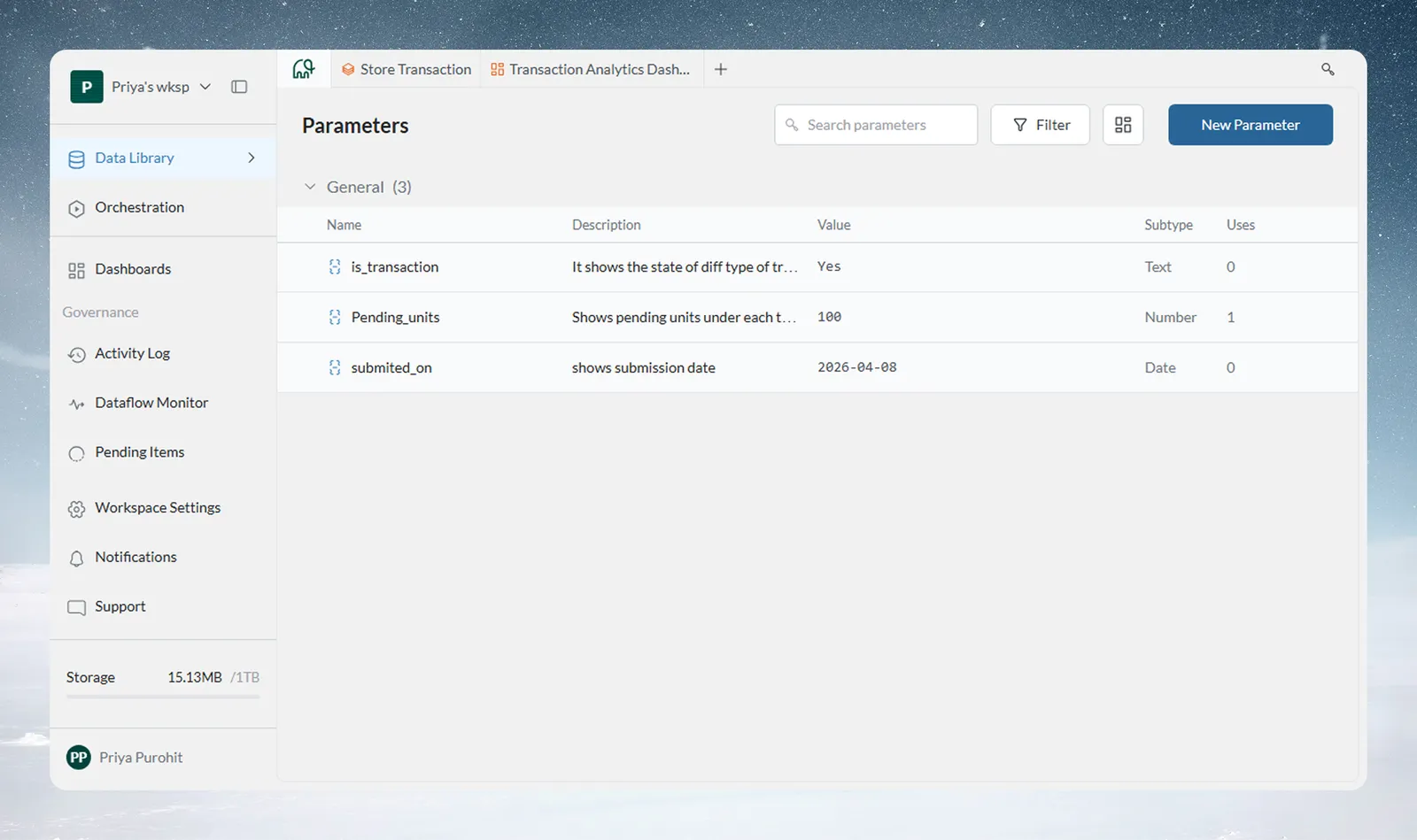
The library groups items by category. Each row shows:
| Column | What it shows |
|---|---|
| Name | The identifier used in {name} references |
| Description | What this parameter represents |
| Value | The current value |
| Subtype | Number, Text or Date (for parameters); SQL (for snippets) |
| Uses | How many pipelines reference this parameter or snippet |
Stale rows are highlighted. A banner at the top, for example "2 parameters were updated. Rerun affected pipelines to apply changes.", offers Rerun stale pipelines.
Search and filter the library
- Use the Search parameters box to find by name.
- Click Filter to narrow by type (parameters or snippets), subtype (Date, Number, Text, SQL) or category.
- Group by switches the table between None, Category and Type. Category is the default.
- The Learn more icon links to help.
Who can manage Parameters and snippets
Creating, editing, duplicating and deleting parameters and snippets needs the Manage Parameters and Snippets permission, which Project Admin and Project Editor have. A Project Viewer can open the library and read every item, but New Parameter is disabled, with the tooltip "Your role doesn't have permission to perform this action". See Members, roles and custom roles.
Create a Parameter
- On the Parameters tab, click New Parameter in the toolbar.
- In the New Parameter dialog, choose the Parameter card.
- Fill in the form (see the table below).
- Click Create Parameter.
The parameter appears in the library under its category.
| Field | Required | Notes |
|---|---|---|
| Name | Yes | Must start with a letter or underscore. Can contain letters, numbers and underscores. No spaces. Up to 100 characters. |
| Type | Yes | Number, Text or Date. Can't be changed after creation. |
| Value | Yes | Must match the type. Dates use a date picker and are stored as YYYY-MM-DD. |
| Category | No | Assign to an existing category, or leave in General. Under "More options". |
| Description | No | Shown in the library and in the parameter picker. Under "More options". |
Every parameter created from this dialog is Project-scoped, so there's no Scope field. Names must be unique within their scope: you can't have two project-scoped parameters with the same name. See Project and workspace scope.
Create a Snippet
- On the Parameters tab, click New Parameter and choose the Snippet card.
- Set the Name. The rules are the same as for parameters.
- Set the Value: the reusable SQL code. There's no language selector; snippets are always SQL. Type
/paramin the field to reference a parameter. - Optionally set Category and Description (under "More options").
- Click Create Snippet.
The snippet appears in the library and can be referenced with {{name}}.
Snippet code can't reference other snippets. Saving fails with "Snippets cannot reference other snippets" if the code contains another snippet reference in double braces. Snippets can reference parameters, for example {Max_Units}.
Edit a Parameter or Snippet
Click any item in the library to open its detail panel, then click Edit. You can also click the edit icon that appears when you hover over a row.
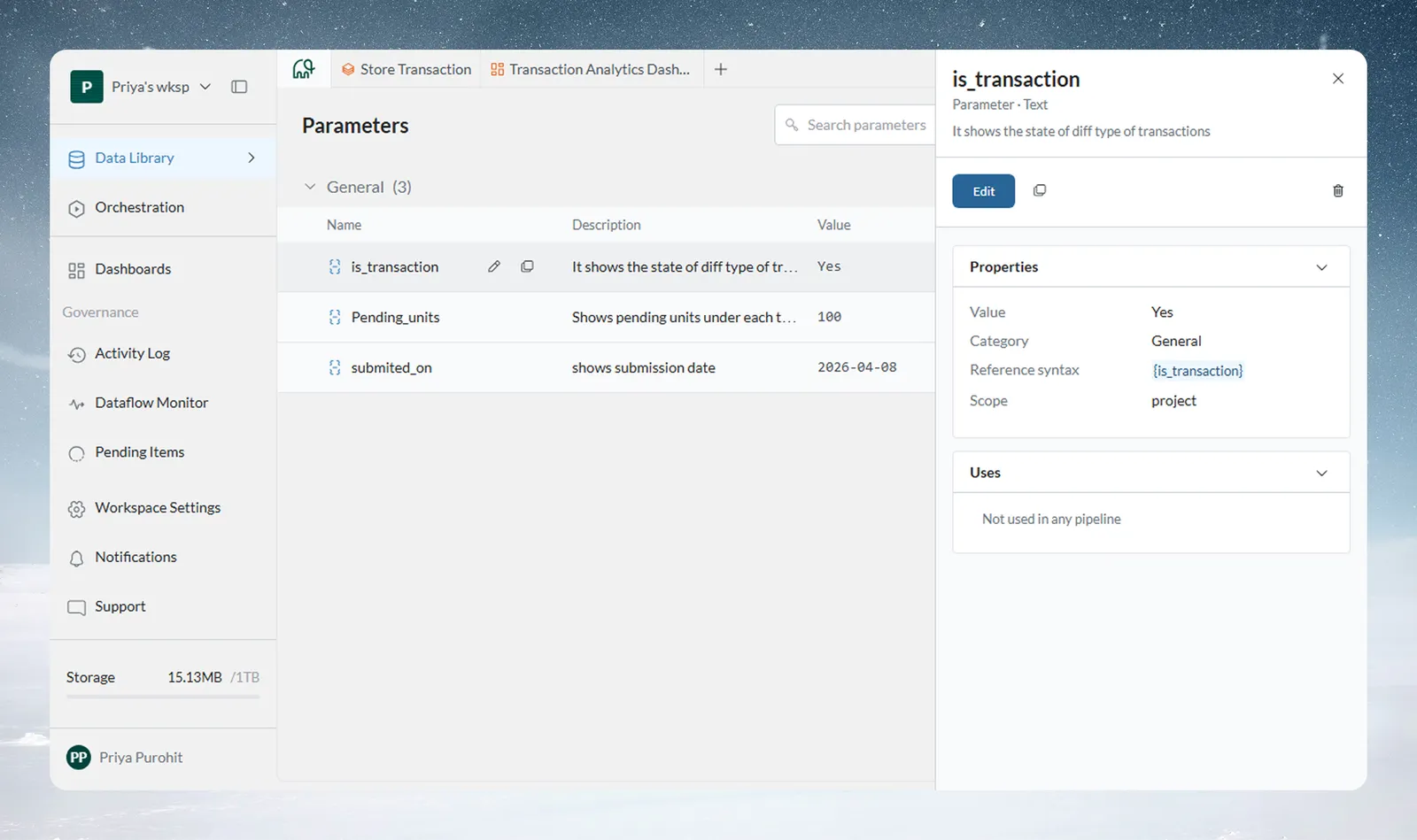
You can update the value, description and category. The Name is read-only once the item exists ("Name can't be edited"), and the Type and Scope can't be changed.
When you save an edit:
- All pipelines that reference the item are flagged stale. The detail panel shows, for example, Stale in 3 pipelines with a Rerun button.
- Stale banners with a Rerun button also appear in the SQL rule, Apply Filter and Data check panels that use the changed value.
- The change is recorded in the item's history in the detail panel.
See which pipelines use a Parameter
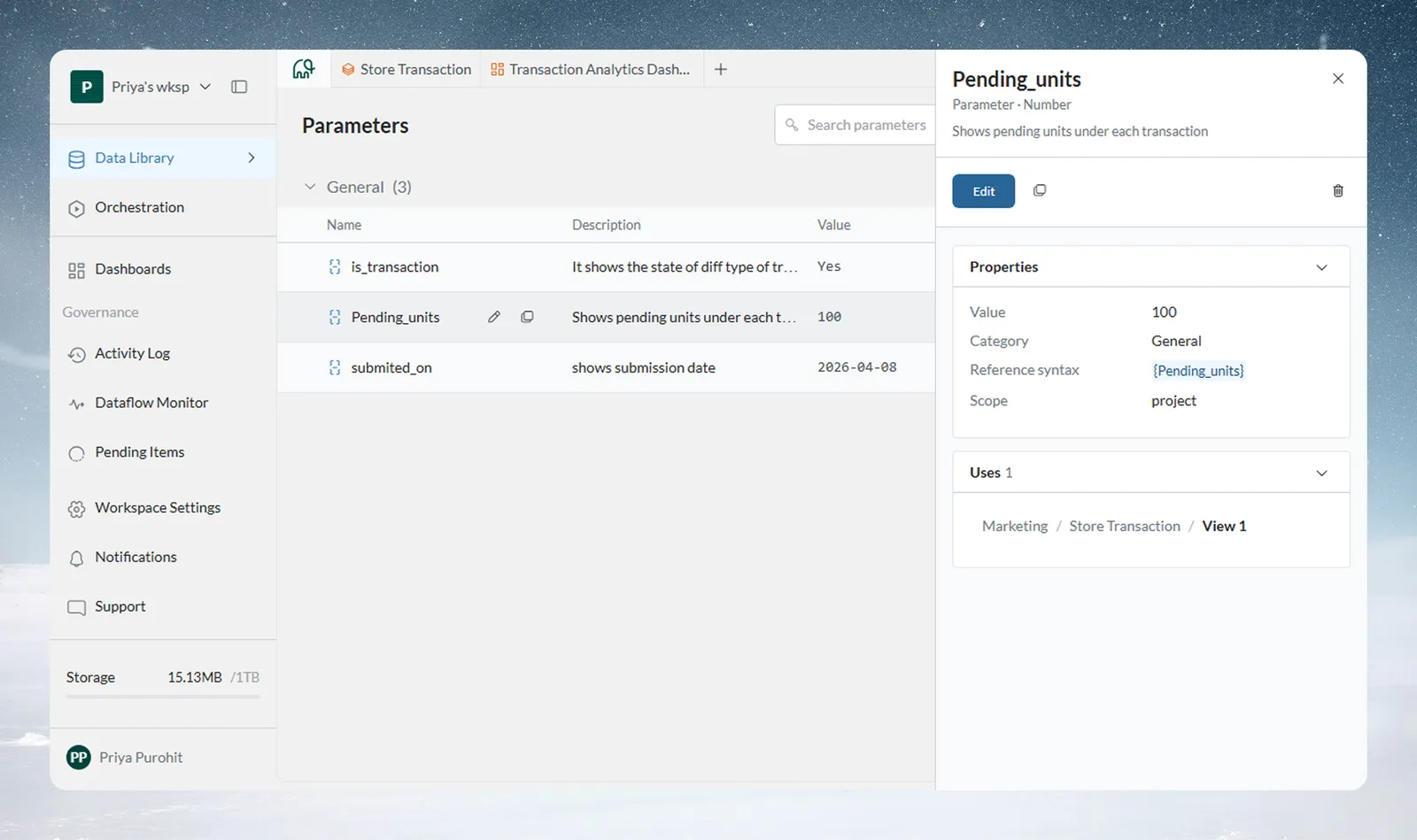
Every parameter's detail panel has a Uses section listing each pipeline that references it, as a path of project, dataset and View. It shows exactly what a change will affect. Snippets show the same.
Use a Parameter in a filter condition
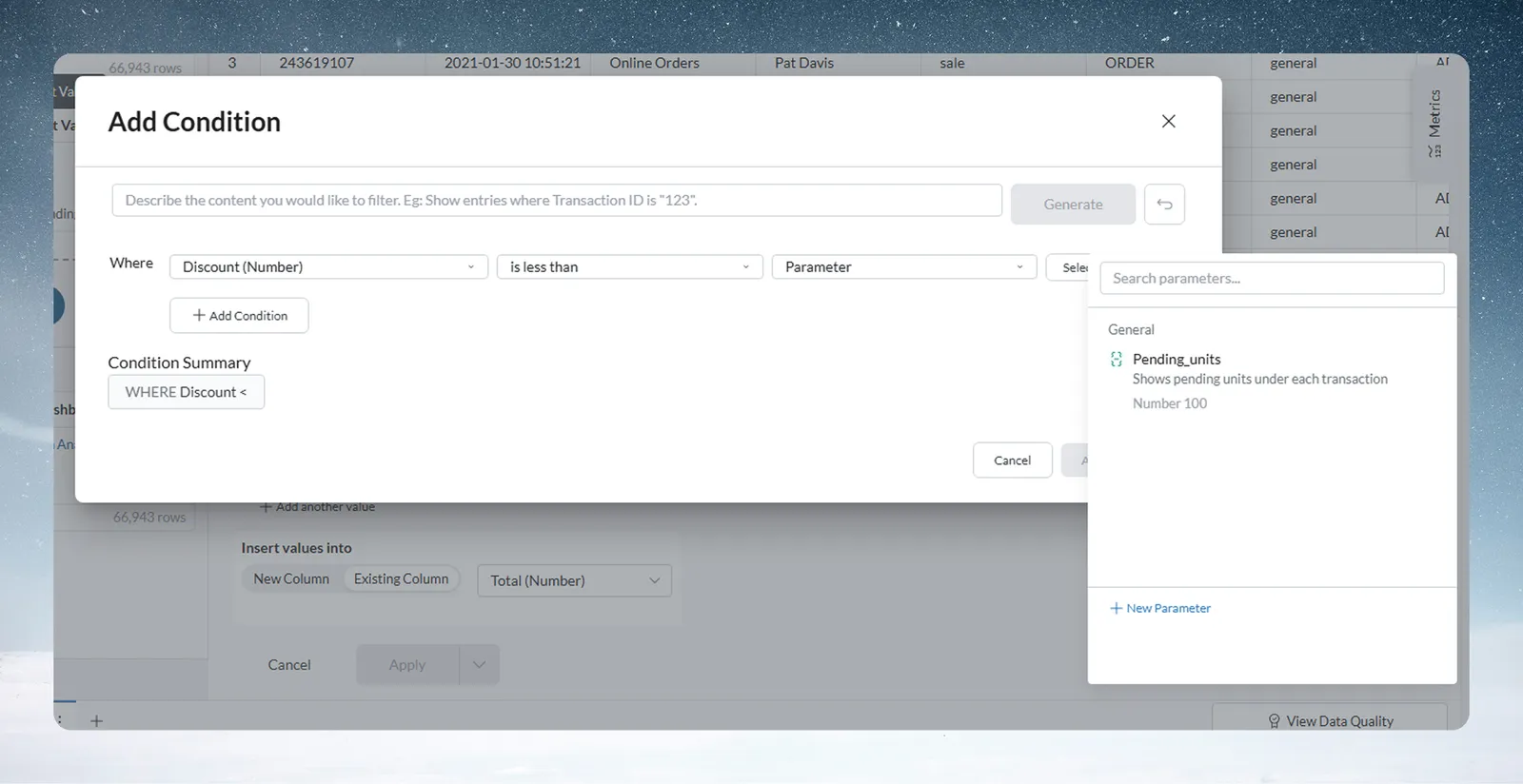
You need a parameter that already exists. When you add a condition to a filter in Builder mode, the small chip in front of the value reads Val by default.
- Open a pipeline and add or edit a filter condition.
- Click the Val chip in front of the value and select Parameter ("Bind to a project parameter"). The chip changes to #.
- In the picker, search for and select the parameter. The picker shows the parameters whose type matches the column. To create one without leaving the condition, use the New Parameter link in the picker.
- Save the condition. To unbind the parameter later, click the X on its token.
The filter uses the parameter's current value each time the pipeline runs. Parameters can also be used as inputs in Data check. See Filter rows.
A Conditional Filter in SQL mode does not read parameters, and {Max_Units} text in it stays plain text. Use Builder mode for a parameter-driven filter.
Where you can use a Parameter
| Step | How to add the parameter | Parameter types offered |
|---|---|---|
| Conditional Filter, and any Add Condition built in Builder mode | Val chip > Parameter | The column's type |
| Label & Insert Values (Enter a value) | Val chip > Parameter | The result column's type |
| Find & Replace (Find value, Replace with) | Val chip > Parameter | Text |
| Show Top/Bottom Rows (row count) | Val chip > Parameter | Number |
| Obtain Large or Small Values (Add a custom value to compare) | Val chip > Parameter | Number |
| Math Function, Formula mode | Insert Parameter above the formula, or the autocomplete list | Number |
| Math Function, SQL mode | Insert Parameter above the SQL Expression editor | All. Text and Date parameters go in as '{name}' so they read as SQL strings. |
In Math Function, the parameter is written into the expression as {name}. Two errors can appear:
- "Parameter ... not found": the formula names a parameter that doesn't exist.
- "Only numeric parameters allowed, ... is not one": a Text or Date parameter is in a formula.
For the full formula syntax, see Calculate with formulas.
Use a Snippet in a SQL rule
In a SQL rule, click Insert Snippet and pick the snippet. Choose how to insert it:
| Option | What it inserts |
|---|---|
| Reference | {{name}}, which stays linked to the snippet. Later edits to the snippet reach the task. |
| Paste value | The snippet's current code as plain text, with no link to the snippet. |
SELECT customer_id, SUM(amount)
FROM transactions
WHERE {{standard_date_filter}}
GROUP BY 1
At run time, Mammoth substitutes the snippet's code in place of {{standard_date_filter}}. When the snippet code changes, its detail panel flags the pipelines that use it as stale. Use Rerun to apply the change.
Rerun stale pipelines after a change
Saving a new value doesn't change any data straight away. Every pipeline that uses the item, in any of the steps above, is marked stale: its output may no longer reflect the current value. Mammoth does not rerun stale pipelines on its own; you start the rerun.
- Stale parameters are highlighted in the library, and the banner at the top offers Rerun stale pipelines.
- The detail panel shows a count such as Stale in 3 pipelines with a Rerun button.
- The SQL rule, Apply Filter and Data check panels show their own stale banner with Rerun.
A rerun reads the current value again and starts from the first task that uses the changed parameter, not from the beginning. Unchanged upstream tasks are not rerun.
Group Parameters into categories
Parameters and snippets can be grouped into categories. By default, all items go into General.
- Category headings in the library have inline rename and delete icons.
- To add or manage categories, click + Manage next to the category pills under More options when you create or edit an item.
- The Manage categories dialog lets you name categories and give them colours.
Deleting a category moves its items back to General. It does not delete the parameters or snippets.
Duplicate a Parameter or Snippet
- Open the detail panel (or hover over a row) and click the duplicate icon next to Edit.
- The Duplicate Parameter or Duplicate Snippet dialog opens with
_copyadded to the name (for example,Max_Units_copy). - Change the name or value if you like.
- Click Create Duplicate. Nothing is created until you click it.
If the _copy name is already taken, you get "Name already in use", so choose another name.
Delete a Parameter or Snippet
Deleting a parameter or snippet is immediate and permanent. It has no Trash entry and no restore.
- Open the detail panel and click the trash icon at the right of the header.
- If no pipeline references the item, Delete parameter (or Delete snippet) asks "Are you sure you want to delete" followed by the name, for example
Max_Units, and warns that this can't be undone. - Click Delete to confirm.
If a pipeline references the item, Cannot delete parameter (or Cannot delete snippet) says it "is used by pipelines and cannot be deleted". It lists each View with its task count and offers only Close. Remove the references first, then delete.
Project and workspace scope
| Project scope | Workspace scope | |
|---|---|---|
| Visible in | This project only | All projects in the workspace |
| Reference syntax | {name} / {{name}} | Same syntax |
| Name uniqueness | Unique within this project | Unique across the workspace |
| Best for | Dataset-specific thresholds, View-specific logic | Shared standards, such as fiscal year start or company-wide thresholds |
The New Parameter dialog always creates a Project-scoped item; there is no Scope selector. Workspace-scoped parameters and snippets can exist in your workspace (for example, created through the API). Once they exist, you see and reference them like any other. A project-scoped Threshold and a workspace-scoped Threshold can coexist.
Scope can't be changed after an item is created.
See the history of a Parameter
Every parameter and snippet keeps a history of changes in its detail panel. Each entry shows how long ago the change happened, with the old value struck through, followed by the new value. Use it to trace why a downstream dataset changed back to a specific edit.
Limits
| Limit | Value |
|---|---|
| Name | Up to 100 characters; starts with a letter or underscore; letters, numbers and underscores only |
| Types | Number, Text, Date (parameters); SQL (snippets) |
| Snippets in snippets | Not allowed |
Troubleshooting
| Symptom | Cause | Fix |
|---|---|---|
| New Parameter is disabled: "Your role doesn't have permission to perform this action" | You are a Project Viewer. | Ask a Project Admin for the Editor role, or to make the change. |
| Cannot delete parameter | Pipelines still use it. | Remove the references in the listed Views, then delete. |
| "Snippets cannot reference other snippets" | The snippet code has another {{...}} reference. | Paste the other snippet's code instead, or use a parameter. |
| "Name already in use" | The duplicate's name exists. | Choose another name. |
{Max_Units} stays as text in a filter | The Conditional Filter is in SQL mode. | Switch to Builder mode and bind the value with Val > Parameter. |
| "Only numeric parameters allowed, ... is not one" | A Text or Date parameter is in a Formula-mode Math Function. | Use a Number parameter, or switch to SQL mode. |
| Data didn't change after you edited a value | Mammoth doesn't rerun stale pipelines on its own. | Click Rerun or Rerun stale pipelines. |
Related
- Filter rows: build the conditions parameters plug into.
- Calculate with formulas: Math Function and formula syntax.
- Write SQL with AI: SQL rules where snippets go.
- Find your way around the Data Library: the tab bar that holds Parameters.
- Get things back from Trash: what Trash covers, and why parameters aren't in it.
Something wrong? support@mammoth.io