Automate data refreshes, file imports and reports
An automation is a recurring data job that Mammoth runs for you: it refreshes connected datasets, collects and combines incoming files, runs exports on a schedule or emails a view. You create and manage automations on the Automations tab of the Data Library in any project, or from the Automations section of a dataset's side panel. Your project role needs the Create/manage orchestration flows permission, and four of the five types are plan features.
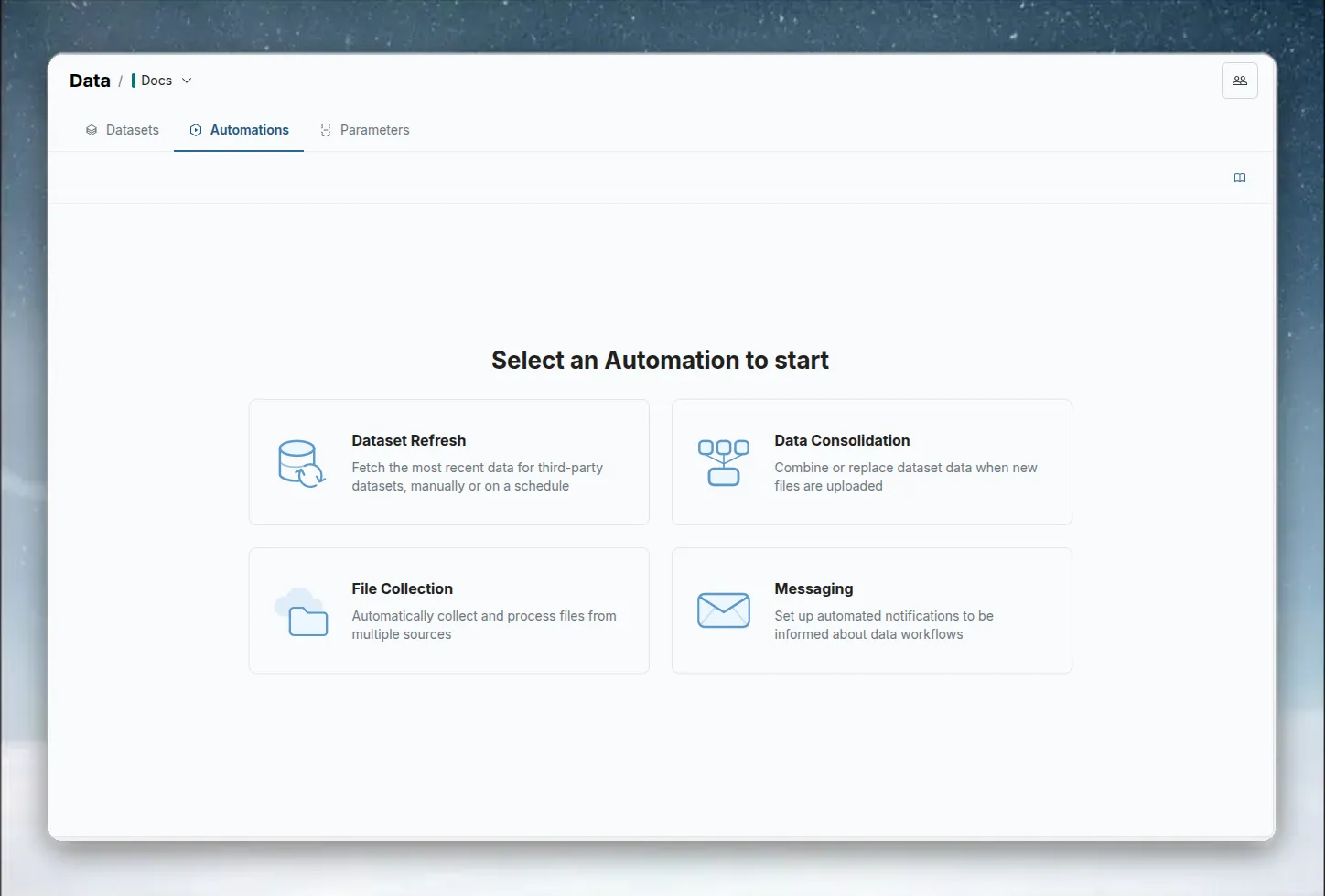
Which page do I need?
| I want to... | Go to |
|---|---|
| Set up any automation, step by step | Create an automation |
| Choose how often an automation runs, or start one from another system | Schedules and triggers |
| Keep a database or cloud app dataset up to date | Refresh a dataset |
| Bring files from Dropbox, Google Drive, SFTP and others into a Mammoth folder | Collect files from cloud folders |
| Add every file dropped in a folder to one dataset | Combine incoming data |
| Fix a file a watched folder didn't add (Not added, Kept separate, Duplicate) | Fix files a watched folder didn't add |
| Run a View's export steps at fixed times | Export on a schedule |
| Email a View as a CSV on a schedule | Send messages |
| Pause, run, edit or delete an automation, or read its status | Manage automations |
| See what is running, failing or paused right now | Monitor running and failing work |
| See alerts about my own exports, downloads and files | Notifications |
| Find who changed what, or export an audit trail | Activity log |
The five automation types
The New automation window groups the types by what they do with data. It also notes: Reading a spreadsheet or PDF? Start from Add data, and the automation comes with it.
| Group | Type | What it does (as the window describes it) | Trigger |
|---|---|---|---|
| Bring data in | Dataset Refresh | "Fetch the latest data for connected and linked datasets": datasets from an API or database connector, and datasets that follow the link they came from (From URL) | Schedule (Day, Week, Month or Year) or manual |
| Bring data in | File Collection | "Collect files from cloud folders into Mammoth" | Schedule or manual |
| Bring data in | Data Consolidation | "Combine or replace a dataset's data when new files arrive" in a source folder | New file in the folder |
| Send data out | Scheduled Export | "Send exports on a clock, whether or not the data changed" | Schedule |
| Send data out | Messaging | "Email people a view on a schedule", as a CSV attachment | Schedule |
Compare the types side by side
| Dataset Refresh | File Collection | Data Consolidation | Scheduled Export | Messaging | |
|---|---|---|---|---|---|
| What it automates | Pulling fresh data for connected and linked datasets | Collecting files from cloud folders | Merging new files into a dataset | Running export steps | Sending email reports |
| Trigger | Schedule or manual | Schedule or manual | New file in the folder | Schedule | Schedule |
| Source | Dataset from an API or database connector, or From URL | Folders in a cloud platform | Folder in your Data Library | Export steps on Views in the project | Dataset Views |
| Destination | Updates the same dataset | Folder in Mammoth | Appends to or replaces a target dataset | Each export's own destination | Email recipients |
| Schedule options | Day, Week, Month, Year, or Manual only | Day, Week, Month, Year, or Manual only | No schedule | Day, Week, Month, Year | Day, Week, Month, Year |
| Plan | Plan feature | Plan feature | Plan feature | No plan feature of its own | Plan sets how many you can have |
Datasets saved from a file connector (Dropbox, Google Drive, Google Cloud Storage, SFTP, SharePoint, OneDrive, Email (IMAP)) can't be refreshed by Dataset Refresh. Use File Collection to bring in new files from those sources, then Data Consolidation to add them to a dataset.
Pick the right automation for your task
| Scenario | Use |
|---|---|
| My dataset connects to Salesforce, a database or Google Sheets and needs daily updates | Dataset Refresh |
| My team uploads CSV exports to a folder each morning and I want one master dataset | Data Consolidation |
| Partners drop files into cloud storage and I want them in a Mammoth folder | File Collection |
| A database, SFTP or Google Sheets export must run at 6:00 every day, even if the data didn't change | Scheduled Export |
| Finance needs a Monday morning report emailed to them | Messaging |
| I want to pull data and also email a report | Create one of each. They're independent |
Automations, Auto-sync and pipeline governance
Mammoth automates at three levels. You can combine them.
| Lever | What it automates | Where it lives | Trigger |
|---|---|---|---|
| Automations | Recurring data operations: refresh, consolidate, collect files, scheduled exports, scheduled email | Automations tab in the Data Library | Schedule, manual run or file event |
| Auto-sync | Re-running pipeline steps and exports when upstream data changes | Per-View and per-export settings | Data change |
| Pipeline governance | Data quality gates and human approvals inside a pipeline | Pipeline task settings | Manual approval or data condition |
Automations are project-level scheduling. Auto-sync is View-level and export-level reactivity. Pipeline governance is step-level control.
Re-run Views and exports when data changes with Auto-sync
Each pipeline View has an Auto-sync toggle. When it is on, the View re-processes whenever its source data changes: a new file lands, a refresh runs or a manual edit is saved. When it is off, the View "freezes": changes flow up to that point and stop. This helps when you want to review data before it moves downstream.
Each export (a connection from a View to a destination such as a database, SFTP or a live link) has its own Auto-sync toggle too. When it is on, the export fires whenever its View produces new output. When it is off, you control when data leaves Mammoth, which suits staging, approval workflows and rate-limited destinations.
Steps and exports with Auto-sync off are listed on the Paused tab of Monitor, where you can turn Auto-sync back on. For the full guide, see Control when Views update with Auto-sync.
Gate data with Data Checks and Checkpoints
A Data Check task tests the data at a pipeline step against conditions you set, such as row counts, column values, null thresholds or custom expressions. If the check fails, it can halt the pipeline at that step and flag the run. See Remove duplicate rows and add data quality checks.
A Checkpoint task pauses the pipeline at a step until a designated person approves it. Use it for compliance, staged rollouts, or any sign-off before data moves on. See Pause a pipeline for approval with a Checkpoint.
Both appear in the Needs Attention tab of Monitor when they need action.
Which lever to use
| I want to... | Use |
|---|---|
| See what's running right now across my workspace | Monitor in the left sidebar |
| Keep a database, cloud app or From URL source current | Automation: Dataset Refresh |
| Run an export on a fixed schedule, even when the data hasn't changed | Automation: Scheduled Export |
| Process files my team uploads | Automation: Data Consolidation |
| Collect files from external cloud storage into Mammoth | Automation: File Collection |
| Send a scheduled email report with data attached | Automation: Messaging |
| Re-run pipeline steps when data changes | View Auto-sync on each pipeline step |
| Fire exports when a View updates | Export Auto-sync on each export |
| Validate data quality before it moves downstream | Pipeline governance: Data Check task |
| Have a person approve data before it moves on | Pipeline governance: Checkpoint task |
Common workflow patterns
Keep cloud datasets fresh and update everything downstream
- Set up a Dataset Refresh automation for each connected dataset.
- Turn on View Auto-sync on every downstream pipeline View.
- Turn on Export Auto-sync on exports to external destinations.
- Watch health in Monitor > Running.
Process files as they arrive and notify stakeholders
- Set up a Data Consolidation automation to append files as they're uploaded.
- Turn on View Auto-sync on the Views that transform the combined data.
- Set up a Messaging automation to send a daily summary email.
- Add a Data Check task before the final export to catch schema problems.
Add human review before data ships
- Build the pipeline with View Auto-sync on for each step.
- Add a Data Check task where data must meet quality thresholds.
- Add a Checkpoint task that needs approval before the final export.
- Turn on Export Auto-sync. The export fires only after the Checkpoint is approved.
- Reviewers see pending Checkpoints in Monitor > Needs Attention.
Who can create automations
- Your project role needs the Create/manage orchestration flows permission to create and manage automations.
- Without Monitor orchestration status, the Automations list is not shown to you.
- Dataset Refresh, File Collection, Data Consolidation and Messaging are plan features. If your plan doesn't include one, its card in the New automation window shows the name of a plan that does.
What each plan decides
| Type | What your plan decides |
|---|---|
| Dataset Refresh | Whether you can create one (it needs the File Collection plan feature), and how often it runs |
| File Collection | Whether you can create one, and how often it runs |
| Data Consolidation | Whether you can create one |
| Messaging | How many Messaging automations the workspace can have |
| Scheduled Export | Nothing: it has no plan feature. Each export it runs needs its destination to be on your plan |
Your plan can also limit which schedule units the scheduler offers. See Plan limits on how often an automation runs.
If saving a Dataset Refresh fails with "This feature is not included in your current plan." even though the card shows no plan pill, contact Mammoth support.
What you see when your plan doesn't include a type
In the New automation window, a type your plan doesn't include shows a pill with the name of a plan that includes it. Hover over the pill to see "Included in" followed by the plans that have it. During a trial, a type that the trial includes but the cheapest plan doesn't shows a Trial pill instead.
When you click a type your plan doesn't include:
- If you can change the workspace's plan, Mammoth opens the window to upgrade the plan (or to contact sales, if your plan is not a self-serve plan).
- If you can't, you see "Contact Owner to Upgrade" with "Contact the Workspace owner to explore plan upgrade options, granting you access to File Collection." (the type's name appears there). On a plan that isn't self-serve, the message reads "File Collection isn't part of your current plan. Please request a workspace owner to enable it."
Automations of a type your plan no longer includes show the same pill in the Automations list. A plan change can suspend them. A suspended automation doesn't run until you resume it.
For Messaging, the card shows how many you have against the cap, for example 3/3 used. Once the cap is reached, clicking the card opens the upgrade path instead of the wizard.
Automations and Trash
- Deleting an automation moves it to Trash.
- You can't move a dataset or View to Trash while an active automation uses it. Remove it from the automation, or suspend the automation, first.
- If you resume a suspended automation whose datasets or Views are in Trash, an Items in Trash window lists them. Click Restore items and resume to bring them back and resume the automation.
Something wrong? support@mammoth.io