Combine or replace data when new files arrive in a folder
A Data Consolidation automation adds each new file in its folder to a destination dataset, using that dataset's own settings. Open them from the pencil next to Update method in the wizard's Select destination step (tooltip Combine / Replace Settings for Sales, with your dataset's name), or set them beforehand on the dataset itself.
Change the destination's update, type and mapping settings
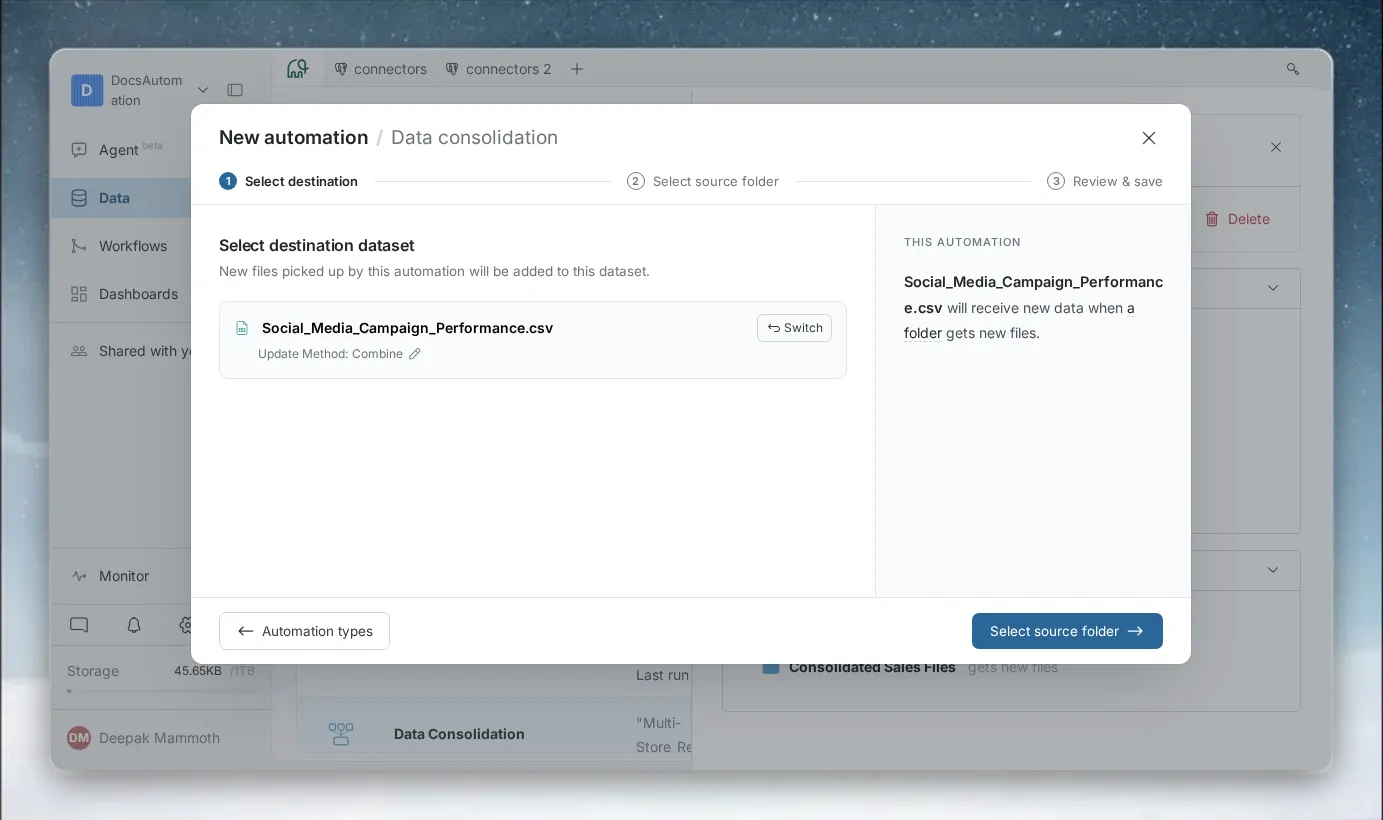
The settings note "These changes will be applied to the Dataset settings": they change the dataset itself, not only this automation.
| Setting | Options | What it does |
|---|---|---|
| Update method | Replace all data, Add to existing data | A note says the source data is deleted after combining or replacing |
| If column type doesn't match | Convert destination column to text, Convert incompatible values to null, Do not update the dataset | What happens when a file column's type differs from the destination's. Shown once the dataset has had data added |
| Column Mapping | Map with existing columns, Create new column mapping | Map by matching column names, or set your own mapping |
With Create new column mapping, each destination column lists the file column names it accepts. Click + to add another name (Add New Column), turn a column off with its toggle, and tick All destination columns must be mapped to take new data only when the column count matches. See Add or replace data in a dataset.
Choose Combine or Replace
| Mode (Update method) | Behaviour | Best for |
|---|---|---|
| Combine (Add to existing data) | Keeps the existing rows and adds each new file's rows. Data builds up over time | Incremental data: daily transactions, event logs |
| Replace (Replace all data) | Swaps the dataset's data for the new file's contents. Previous data is removed | Full snapshots: weekly inventory exports |
What happens when a file's columns don't match
Before a file goes in, Mammoth checks its columns against the destination, separately from the name pattern: a file can match your pattern and still not fit.
- Column names must match, by display name or by the names in your column mapping.
- Data types must be compatible. Otherwise Mammoth converts the column to text, converts incompatible values to null, or doesn't update the dataset, as If column type doesn't match says.
A file with new or missing columns stays in the folder with a reason such as "Has a new column for Sales: Region" or "Its columns don't match Sales". If people upload files with slightly different column names, add those names to the column mapping, or agree on a standard template.
Related
- Combine files dropped in a folder into one dataset: set up the automation.
- Fix files a watched folder didn't add: map the columns of a file that didn't go in.
- Add or replace data in a dataset: the update and mapping settings in detail.
Something wrong? support@mammoth.io