Connect a database, app or cloud drive to Mammoth
Connectors bring data from databases, warehouses, cloud apps, drives and APIs into Mammoth. In the Data Library, click New dataset and choose Connectors (or go to Data → Connections and click New Connection), pick a source, connect it, choose tables and columns in the connector workspace, and click Save as dataset. Only Project Admins create connections; Project Editors can start datasets from the project's existing connections.
Before you start
- Role: you need to be a Project Admin to create a connection. A Project Editor can use connections the project already has (see If you can't add connections).
- Plan: the launcher shows the connectors your plan includes.
- Firewall: if your database or server sits behind a firewall, allow Mammoth's IP address first. See Allow Mammoth through your firewall.
Open the Connectors launcher
- Go to the Data Library and click New dataset.
- In Where do you want to add data from?, choose Connectors.
You can also go to Data → Connections and click New Connection, which opens the same launcher on its own.
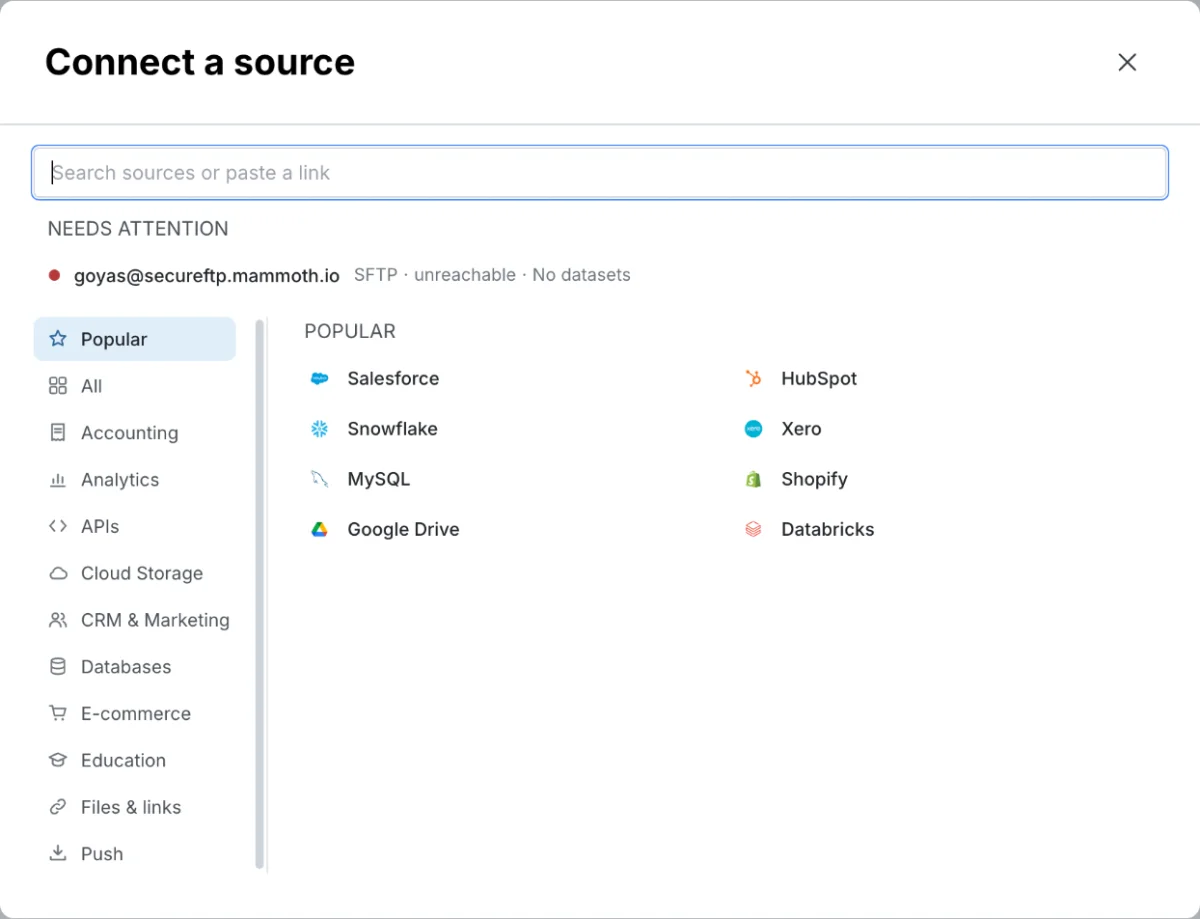
The launcher has a search box (Search sources or paste a link) and sources grouped in a left-hand menu:
| Menu entry | What it lists |
|---|---|
| Popular | Your existing connections (Your connections) and the most-used sources |
| All | Every connector on your plan, then the API sources Mammoth already knows |
| A category | One entry per category, such as Databases, Cloud Storage, CRM & Marketing, Analytics, E-commerce, Accounting, APIs and Education |
| Files & links | A file at a URL (see Import from a URL) |
| Push | A webhook that other systems send data to (see Receive data by webhook) |
Search the launcher by name, sentence or link
The search box reads what you type in one of three ways. The first result is what Enter does.
| You type | The launcher offers |
|---|---|
A name of one or two words, such as hubspot | Matching drafts, your matching connections and matching sources, then Build hubspot with the agent |
A sentence, such as hubspot deals with owner and amount | Start: hubspot deals with owner and amount, which opens a draft on the source the sentence names and hands the rest to the chat. If the sentence names no source, the chat asks which one. Your drafts and connections for that source follow. |
A link starting with http:// or https:// | Fetch this file, which reads a CSV, Excel or JSON file at that address, or It's an API: build it with the agent |
Known API sources
Besides its built-in connectors, the launcher lists several hundred API sources Mammoth already knows (for example payment, payroll, school or marketing systems). They appear under the matching category, or under APIs when none fits. Clicking one opens the connector workspace, where the agent reads the vendor's API documentation and builds the connector with your key. See REST API.
Connectors not on your plan
The launcher shows only the connectors your plan includes. If you search for one that isn't, it still appears, greyed out, with Not on your plan · See plans. Clicking it opens the plan picker. A connector your plan has retired stays available only while your project still has connections to it.
Connect the source
What happens when you click a source depends on its type:
- Databases and warehouses (PostgreSQL, MySQL, SQL Server, Oracle Database, Amazon Redshift, Snowflake, Google BigQuery, Databricks, Apache Hadoop, SAP HANA, MongoDB): the connection form opens first. Fill in the fields listed on the connector's page and click Connect. Once Mammoth has connected, the connector workspace opens on your tables.
- Every other source (cloud apps, drives, file servers): the connector workspace opens straight away with the Chat open. The chat starts by connecting the source and shows a card that asks for the connection details, or a button to sign in to the service. Fill it in or sign in.
- An existing connection under Your connections: the workspace opens on that connection, with nothing to re-enter.
Paste connection details into a database form
On a database connection form, click Paste connection details to fill the fields from what you copied: a connection string (such as postgresql://user@host/db), a JDBC URL, .env lines, or Host: and Port: lines from a note. SSH tunnel details fill in too.
- Mammoth shows "Filled 4 fields from your clipboard" and highlights the fields it filled. Click Undo to put back what was there.
- The text is read in your browser and is not sent anywhere. Nothing connects until you click Connect.
- If your browser blocks clipboard access, click the Host field and paste: Mammoth splits the details across the fields.
- If it finds nothing it recognises: "Your clipboard has no connection details we recognise."
If you can't add connections
Only Project Admins create connections. A Project Editor sees New sources are added by this project's admins. and can click Copy a request to copy a note for an admin, or Upload an export instead. Editors can still start a dataset from a connection the project already has. See Manage saved connections.
Work in the connector workspace
The connector workspace is a page in the Data Library (Data → Connections) with three parts. On a narrow screen they appear as the tabs Tables, Your table and Chat. On a wide screen they sit side by side.
Tables: what the connection can read
The list of tables, objects, endpoints or files the connection can read. Use Filter tables to narrow it.
- Database: click a table to open its rows with the query that read them above. See Query a database and choose how it refreshes.
- Cloud app (CRM, marketing, accounting, analytics): click a table to see its columns and sample rows, then tick the columns you want. Ticked columns gather in Your table.
- Drive or file server: browse the folders and open a file. A spreadsheet opens to its tabs. If a file can't open in the panel yet, ask the agent in the chat to import it.
Each table shows its status:
| Status | What it means |
|---|---|
| Returned rows | The table was read and returned rows |
| Read, and it has no rows yet (empty) | The table was read but is empty |
| 403: this key can’t read it | The route exists, but your key has no access. An admin of the source can grant it. |
| 404: not found | The vendor may not offer it, or it has another name |
| Needs your account ID to read it (names the input it needs) | The table needs an input, such as an ID: tell the agent, or answer its question |
| per record | "Read once for each row of its parent table", for example the line items of each invoice |
| Not tried yet | Not read yet. Tables listed from the vendor's guide show a line such as From the HubSpot guide · not read yet. |
| Failed when tried (Error) | Reading it failed |
Find a missing table with Refresh list
If a table you expect is missing:
- Click Refresh list.
- In Refresh the list of HubSpot tables, optionally type the tables you want under Tables to look for (for example,
invoices). - Click Refresh.
The agent looks in the source's documentation for more tables, then reads each one with your key. You can keep working meanwhile. New tables appear under Just found. If nothing new turns up: "Nothing new found. The chat says why." You can also click Ask the agent to find them or Copy a note for your admin.
Your table: the dataset you are building
Your table has one column for each column you ticked. Each column header shows which table it comes from. Click a column's name to rename it. Click Preview 100 rows to see sample rows before you save.
Join columns from a second table
When you tick columns from a second table, Mammoth joins it to the main table on a shared key. A line under Your table says which table is joined and on which key, such as Owners joined on Owner ID, and how many rows match, for example 812 of 830 rows matched.
- If only part of the table has been read, the line says the save joins every row.
- Click Change to pick another key. Each option shows how many rows it would match.
- If no column links the tables, you see, for example, "Owners isn’t joined to the main source yet".
Start from a sample table
If Your table is empty, click Use a sample table, or drop a CSV, TSV or Excel file with a header row that is shaped like the table you want. Mammoth looks for each of its columns in the source, by name and by matching values, and shows how many it found, such as 12 of 14 columns of HubSpot found. Columns it can't find are marked not found.
When a column can't be found
If a column you want can't be read, a card explains why, such as Amount: not found., or that your key can't reach that part of the source. Your options:
| Option | What it does |
|---|---|
| Find it in HubSpot | Asks the agent to look for the column in another part of the source |
| Fill from a report export | Drop a CSV or Excel export that has the column and a column to match rows on. Mammoth shows "Matched 812 of 830 rows on Deal ID." |
| Copy a note for the HubSpot admin | Copies a request asking the source's admin to give your key access |
| Save 5 columns now | Saves the dataset without the missing column |
Columns filled from a file stay as uploaded; the other columns refresh from the source.
Chat: ask the agent for tables and columns
This connector's chat answers questions about what a source returns and can pick tables and columns for you. Ask it what you want in the table. Clicks you make in Tables show up in the chat. On a database, the chat starts closed: click Ask AI to open it.
Save the data as a dataset
- Click Save as dataset.
- Enter a Dataset name and pick the folder under Save in.
- Choose how the dataset stays current under Keep it up to date (see the table below).
- Click Save. For a database query, the button in the dialog is Save as dataset.
| Source | Keep it up to date options |
|---|---|
| Cloud app or Google Sheets | Daily or Manual |
| Database query | Daily at 06:00 or Only when I ask, plus what happens On each refresh (see Choose what happens on each refresh) |
| File from a drive or file server | Saved once: Mammoth shows Saved once. Scheduled refresh for files is coming. To bring in new files on a schedule, use a File Collection automation (see What you can automate). |
Mammoth reads the source in full, which can take a few minutes for a large table. You can leave the page while it saves. When it finishes, click Open dataset.
For a database query, choosing Daily at 06:00 creates a Dataset Refresh automation named after the dataset, such as Daily refresh · Orders, whose first run is the next morning. You can change its schedule later under Data → Automation.
Pick up a connector you didn't finish
A connector you open but don't save stays as a draft. The launcher lists drafts under In progress with their state:
- Not connected yet
- Pick a table
- 5 columns picked · not saved yet
- 2 columns still to find
Click a draft to reopen it. Up to two drafts show; the rest, and drafts older than 14 days, sit behind a "more drafts" line. Drafts also appear on the Connections page, where a Project Admin can Discard one. Discarding removes the draft and its chat; nothing in your data changes.
Connections that need attention, such as an expired key, appear under Needs attention with a reason (key expired or unreachable). Click one to open the connection on the Data → Connections page. Only Project Admins see this list.
Start another dataset from a saved connection
- Click the connection under Your connections in the launcher, or
- go to Data → Connections, click the connection, and click Create dataset.
A new draft opens on that connection with nothing to re-enter. If a draft can't be started, Mammoth opens the connection's own page instead, listing its Tables and endpoints; click New dataset from this there.
Connectors you can use, by category
Each connector has its own reference page with the fields to fill in and anything specific to that source.
Databases and warehouses
These connectors use direct credentials (hostname, port, username, password) and most need network access from Mammoth's servers.
| Connector | Auth method | Default port | Needs firewall rule | AI query | Schemas |
|---|---|---|---|---|---|
| PostgreSQL | Credentials | 5432 | Yes | Yes | Yes |
| MySQL | Credentials | 3306 | Yes | Yes | No |
| SQL Server | Credentials | 1433 | Yes | Yes | Yes |
| MongoDB | Credentials | 27017 | Yes | No | No |
| Snowflake | Credentials | n/a | Yes | No | Yes |
| Google BigQuery | Service account JSON | n/a | No | No | Yes |
| Apache Hadoop | Credentials | 10000 | Yes | No | Yes |
| Databricks | Credentials (personal access token) | 443 | Yes | No | Yes |
| SAP HANA | Credentials | 443 | Yes | Yes | Yes |
| Parquet (Azure) | Azure access key | n/a | No | No | Yes |
| Oracle Database | Credentials | 1521 | Yes | No | Yes |
| Amazon Redshift | Credentials | 5439 | Yes | No | No |
Cloud storage, file servers and email
Supported file types vary by connector. A file you save from these sources (except Google Sheets and Azure Blob Storage) is saved once. To bring in new files on a schedule, use a File Collection automation.
| Connector | Auth method | File types | Notes |
|---|---|---|---|
| Google Drive | OAuth (Google) | CSV, TSV, Excel (incl. .xlsm), XML, JSON, JSONL, NDJSON, text, compressed archives | |
| Google Sheets | OAuth (Google) | Spreadsheets | |
| Google Cloud Storage | Service account JSON | CSV, TSV, Excel (incl. .xlsm), text, Parquet, JSON, compressed archives | Schemas/profiles supported |
| Dropbox | OAuth | CSV, TSV, Excel (incl. .xlsm), XML, JSON, JSONL, NDJSON, text, compressed archives | |
| SFTP | Password or SSH key | CSV, TSV, Excel (incl. .xlsm), XML, JSON, JSONL, NDJSON, text, compressed archives | Needs a firewall rule |
| SharePoint | App credentials | CSV, TSV, Excel (incl. .xlsm), XML, JSON, JSONL, NDJSON, text, compressed archives | |
| OneDrive | App credentials | CSV, TSV, Excel (incl. .xlsm), XML, JSON, JSONL, NDJSON, text, compressed archives | |
| Azure Blob Storage | App credentials | CSV, TSV, Excel (incl. .xlsm), XML, JSON, JSONL, NDJSON, text, compressed archives | |
| Email (IMAP) | Email and password | Email attachments | A self-hosted mail server needs a firewall rule; hosted services such as Gmail don't |
CRM and marketing
| Connector | Auth method | AI query | Notes |
|---|---|---|---|
| Salesforce | OAuth (instance URL) | No | |
| HubSpot | OAuth | Yes | |
| Mailchimp | OAuth | No | |
| SendGrid | API key | No | Needs a firewall rule if your account restricts API access by IP |
| Microsoft Dynamics | App credentials | No | |
| Monday.com | API token | No |
Analytics, advertising and streaming
| Connector | Auth method | Notes |
|---|---|---|
| Facebook Ads Manager | OAuth | |
| Google Ads | OAuth (Google) | Schemas/profiles supported |
| Google Analytics 4 | OAuth (Google) | Schemas/profiles supported |
| Zoom | OAuth | |
| Apache Kafka | Bootstrap servers, optional SASL | Needs a firewall rule |
| MQTT | Broker host, optional username and password | Needs a firewall rule to your broker |
E-commerce, accounting and other sources
| Connector | Category | Auth method | AI query | Notes |
|---|---|---|---|---|
| Shopify | E-commerce | OAuth (shop URL) | No | |
| Xero | Accounting | OAuth | Yes | Schemas/profiles supported |
| Netsuite | Accounting | OAuth (NetSuite sign-in) | No | |
| REST API | Other | Various | Agent | Built with the agent in the connector chat |
| Webhooks | Other (under Push) | Optional secret | No | Other systems send data to a Mammoth URL |
The launcher also lists several hundred known API sources by category (including APIs and Education), each built the same way as the REST API connector.
What the columns mean:
- AI query: writes SQL from a plain-language description (Write SQL in a database's SQL view).
- Schemas (or schemas/profiles): you pick a schema or profile after you sign in.
- Needs firewall rule: you must allow Mammoth's IP address, shown on the connection form, in your firewall. See Allow Mammoth through your firewall.
Troubleshooting connectors
| Symptom | Cause | Fix |
|---|---|---|
| A connector is missing from the launcher | It isn't on your plan | Search for it: it shows greyed out with Not on your plan · See plans |
| You see New sources are added by this project's admins. | You are not a Project Admin | Click Copy a request to send an admin what you need, or Upload an export instead |
| A table shows 403: this key can’t read it | Your key has no access to that route | Ask an admin of the source to grant access, or use Copy a note for the HubSpot admin |
| A table shows 404: not found | The vendor may not offer it, or it has another name | Click Refresh list, or ask the agent in the chat |
| A connection appears under Needs attention | The key expired or the source is unreachable | Click it to repair it on the Connections page (see Fix a connection that needs attention) |
| A database connection fails | Mammoth's IP isn't allowed, or the port is closed | See Allow Mammoth through your firewall and Troubleshooting |
| Refreshes are slow or heavy on your database | The dataset reads more rows than you need | Filter in the query and refresh incrementally. See Speed up pipelines and connectors. |
Related
- Query a database and choose how it refreshes: the SQL view, Write SQL and refresh options.
- Manage saved connections: see, reuse, edit and delete connections, and who can do what.
- Allow Mammoth through your firewall: needed for database and SFTP connectors.
- Refresh a dataset: keep connector datasets up to date.
- Extract tables from PDFs: not a connector, but pulls tables from files already in your Data Library.
- Speed up pipelines and connectors: incremental refresh, query filtering and scheduling.
Something wrong? support@mammoth.io