Set column mapping and type rules for new data
Column mapping rules tell Mammoth how to fit every new file into a dataset: what to do when a column's type doesn't match, and which other names a column can arrive under. Open the dataset's Add data dialog in the Data Library and select the Column mapping row below the file drop zone. You need Edit-level access to the dataset (see Add rows to a dataset or replace its data).
Open the Combine / Replace Settings dialog
The Column mapping line shows whether the dataset's incoming-data rules are Default or Custom:
- Default: Mammoth maps columns by matching names and converts mismatched column types to text.
- Custom: the dataset has saved, non-default mapping rules.

Select the row (a pencil icon appears when you hover) to open the Combine / Replace Settings dialog.
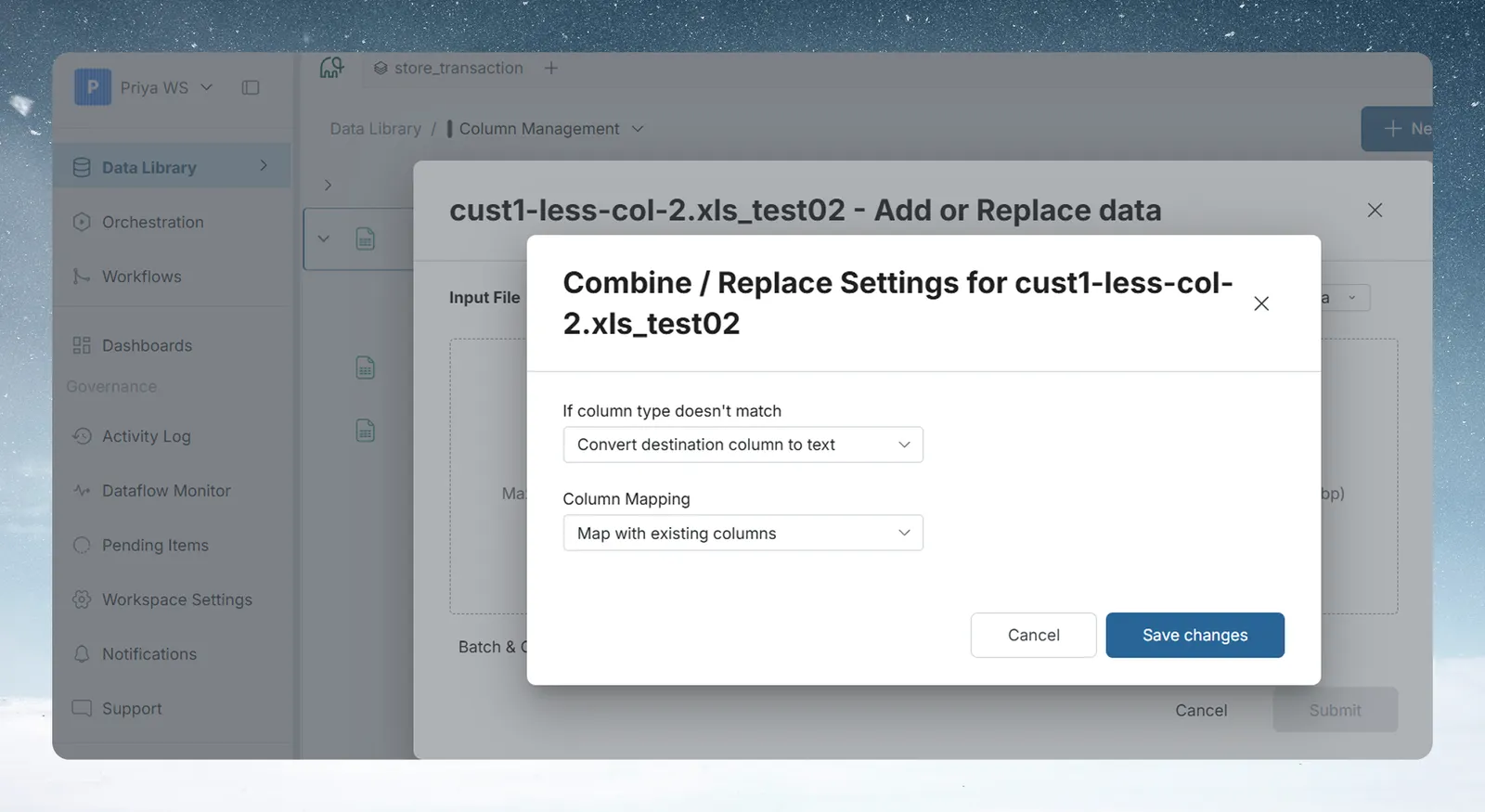
If column type doesn't match
| Option | What it does |
|---|---|
| Convert destination column to text (default) | Changes the destination column's type to Text so all incoming values fit. Broadest compatibility, with no data lost. |
| Convert incompatible values to null | Keeps the destination column's type. Incoming values that can't be cast to it are stored as null. |
| Do not update the dataset | Stops the operation if any column type mismatch is found. Use it when strict type integrity matters. |
Match columns with different names using aliases
| Option | What it does |
|---|---|
| Map with existing columns (default) | Matches incoming columns to destination columns by exact display name. No manual mapping needed. |
| Create new column mapping | You define one or more name aliases per destination column. Mammoth uses them to find the right incoming column even when the name differs between files. |
Use aliases when the same column has different headers in different files, for example Cust_ID, CustomerID or Customer id. With Create new column mapping selected, a table lists every destination column with its aliases:
| Element | What it does |
|---|---|
Alias pills (for example, Customer id ×) | The names Mammoth looks for in incoming data. Click a pill to edit its name; click × to remove it. Several aliases are joined with "or", so any match works. |
| + button | Adds a new alias for this column |
| Toggle | Turns mapping on or off for this destination column |
| Type icon and column name (right side) | The destination column's data type and name |
Tick All destination columns must be mapped to add new data only when its number of columns matches the existing dataset.
Click Save changes. The Column mapping line now shows Custom, and future loads use your saved rules.
Related
- Add rows to a dataset or replace its data: the Add data dialog.
- Fix a pending batch: map the columns of one file that didn't fit.
- Add another dataset's rows to a dataset: map columns between two datasets.
Something wrong? support@mammoth.io