Rename and retype dataset columns with the Column Manager
The Column Manager renames, retypes, reorders, hides, removes and adds columns, in one View or across the whole dataset. It needs edit access, and is unavailable in View-only workspaces. Open it in either of two places:
- From a View: open the Column Browser at the left edge of the data grid and click Column Manager. It is unavailable in edit mode, preview mode and when the pipeline is in error.
- From the dataset: open the dataset's panel under Data, click Settings & history, then the edit icon on the Columns row ("Edit columns: rename them, change their types or add new ones"). The row appears for datasets built from files once their columns are known. Changes made here apply at the source, so every View built on the dataset sees them.
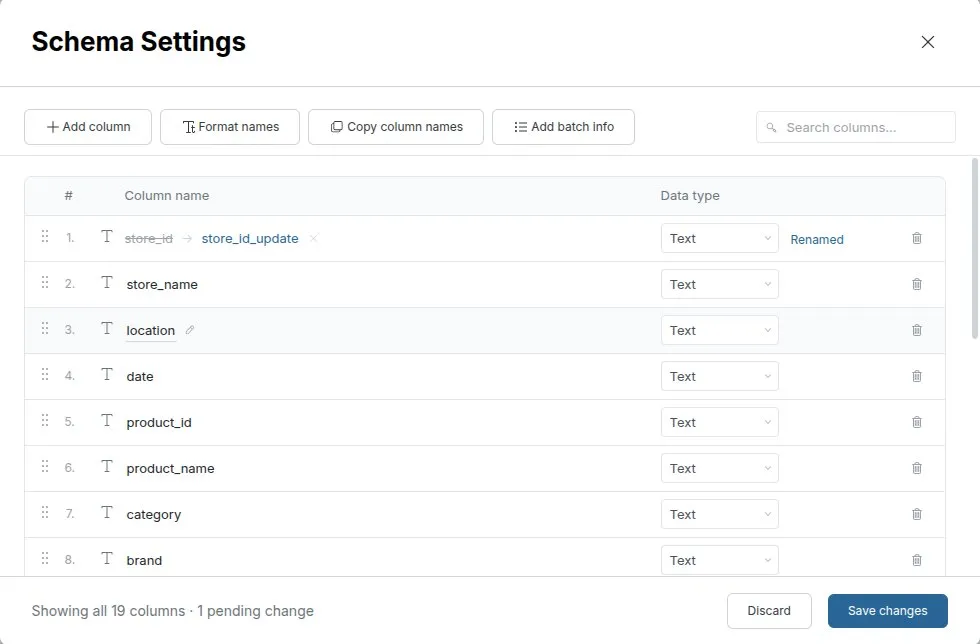
Edit columns in the Column Manager
The Column Manager (titled Schema Settings) is a table of your columns with position, type icon, name, data type, source and a Visible toggle, under a toolbar with Add column, Format names, Copy column names, Add batch info and Search columns. Your edits collect as pending changes; the footer counts them ("3 pending changes"). Nothing is saved until you click Save changes. Discard changes throws them away.
| To do this | Do this |
|---|---|
| Rename a column | Click the name or the edit icon and type. The row shows old name → new name, with Undo rename. Empty or duplicate names block saving |
| Change a column's type | Use the Data type dropdown on the row: Text, Number or Date, for example when a numeric ID should be Text |
| Reorder columns | Drag a row by its handle (Drag to reorder) |
| Hide or show | Use the row's Visible toggle |
| Remove a column | Click the row's remove button. The row is struck through and shows Removed; Restore column brings it back before you save. If the column is used in tasks, a warning explains the risk, and you can choose Delete anyway |
| Add a column | Click Add column, then name and type the new row |
| Copy names | Copy column names copies them to your clipboard |
| Find a column | Search columns filters the list by name |
Each row shows a label for its pending change: New, Removed, Renamed, Reordered or Type changed.
Change several columns at once
Tick several rows. A floating bar shows "4 selected" with actions to hide, show, show only these, remove, change type, format the names, or clear the selection. The arrow beside the select-all checkbox (Select by filter) selects Text, Numeric or Date columns, visible or hidden columns, or uses Invert selection.
Save Column Manager changes
- Click Save changes.
- If you structurally changed a column that comes from the source data, choose under Apply changes to…:
- This view only: "Affects only" the current View; the dataset and other Views stay unchanged. Renames, reordering and visibility apply directly as View display settings. Structural changes (adding, removing or retyping columns) open the Functions panel with the matching task so you can review it.
- Entire dataset: "Modifies the dataset schema for all views."
- If other tasks, Views or metrics still use a column you are retyping or removing, Mammoth warns you. Confirm or cancel.
Reordering, hiding and showing, new columns and columns created by pipeline tasks apply to this View only, without the question.
Rename all columns to snake_case or camelCase
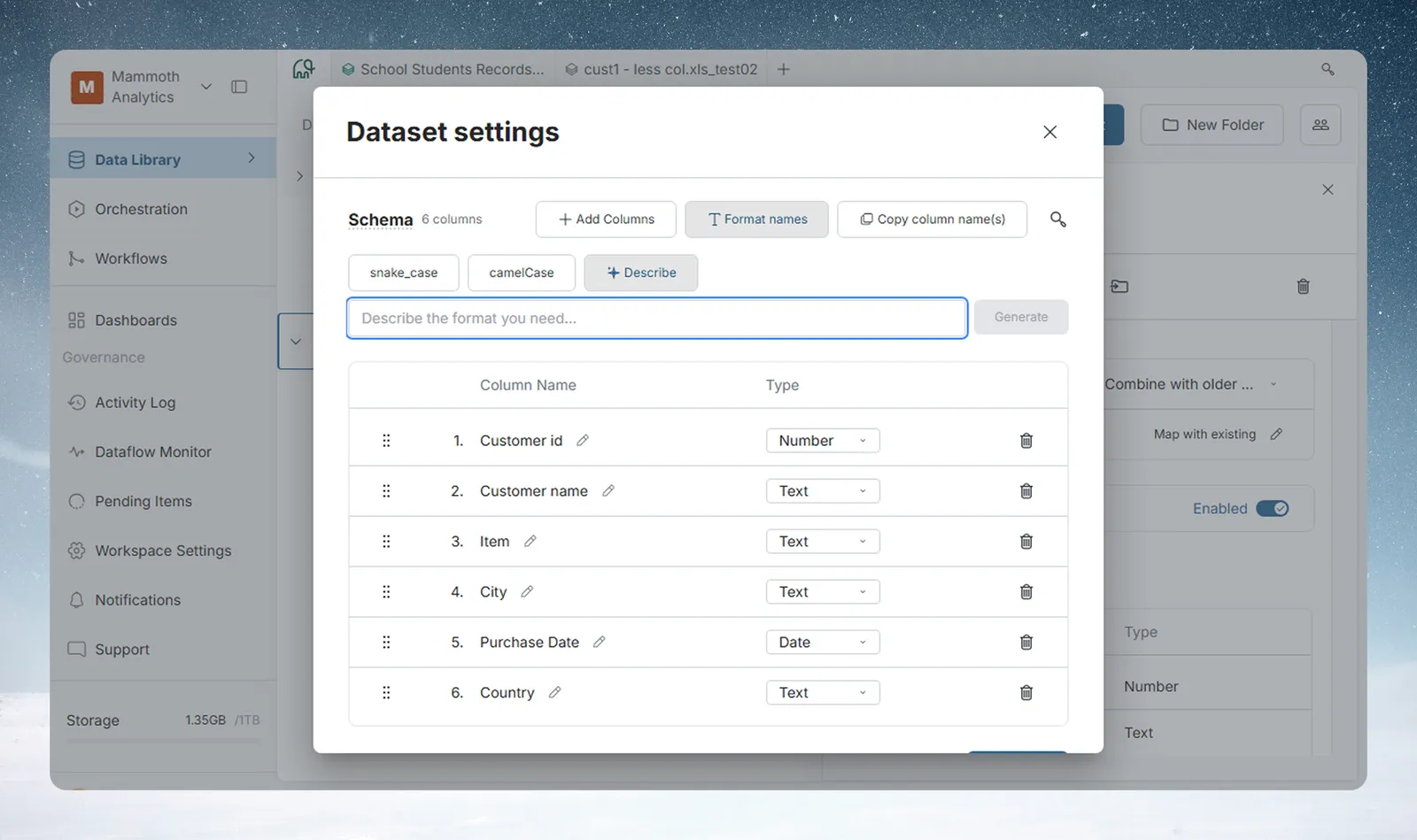
Click Format names:
| Option | Example |
|---|---|
| snake_case | Purchase Date → purchase_date |
| camelCase | Purchase Date → purchaseDate |
| Title Case | Converts all names to Title Case |
| Describe | Type what you want in Describe the format you need... (for example, "Make all names lowercase and remove spaces") and click Generate. Mammoth uses AI to apply it across all columns. |
Add batch info columns to a dataset
Batch info columns add details of the batch each row came in with. They apply to the whole dataset and flow into every View of it, so you can trace which rows came from which upload or filter by batch date in a pipeline.
- In the toolbar, click Add batch info. A dropdown titled Add Batch Info to Dataset opens, with the note "All views of this Dataset will be affected."
- Tick the columns you want. Untick one added earlier to remove it.
- Submit.
| Column | Type | What it contains |
|---|---|---|
| Batch ID | Number | Internal identifier for the batch |
| Date | Date | When the batch was created |
| Source (JSON) | Text | Source details for the batch, as JSON |
| Name | Text | Source file name or connector identifier |
| Row Count | Number | Number of rows in that batch |
New columns are named with a batch_ prefix: batch_ID, batch_Date, batch_Source, batch_Name and batch_RowCount. They are managed for the whole dataset and can't be renamed or retyped. Remove one with its delete button in the Column Manager, or with Add batch info.
Troubleshooting
| Symptom | Cause | Fix |
|---|---|---|
| Column Manager is greyed out | The grid is in edit or preview mode, a pipeline task is in error, or the workspace is View-only | Exit the mode, fix the failing step, or ask for edit access |
| A rename asks where to apply it | The column comes from the source data | Choose This view only or Entire dataset |
| Failed to change type | Some values could not convert. The message lists the columns that kept their type | Clean the values, or keep the column as Text |
| Save changes is blocked | A column name is empty or duplicated | Give each column a unique name |
Related
- Hide and show columns: the Column Browser, and which changes affect only this View.
- Column types, IDs, currency and percentages: what each data type means; Convert a column's type changes a type in one View's pipeline instead.
- Add, split, copy and delete columns: column tasks in the pipeline.
- Batches: see and fix what arrived: what the batch info columns describe.
Something wrong? support@mammoth.io