Connect Salesforce to Mammoth and import CRM data
The Salesforce connector imports CRM data from your Salesforce org into Mammoth as a dataset. You sign in to Salesforce at your org's login URL, so production orgs, sandboxes and custom domains all work. Open it from Data Library > New dataset > Connectors and search for Salesforce. Project Admins create the connection; Project Editors can start datasets from a connection the project already has. Which connectors you can add depends on your plan.
What you can bring in from Salesforce
- The objects (tables) the signed-in user can see, and the fields (columns) you tick.
- Data you describe in the chat, for example "which table has invoice due dates?"
The dataset can refresh daily or only when you ask.
Before you connect Salesforce
You need:
- A Salesforce account with API access turned on for your user.
- Your Salesforce login URL:
https://login.salesforce.comfor production, or your sandbox URL, such ashttps://test.salesforce.com. Check with your Salesforce admin if you're not sure.
Connect Salesforce to Mammoth
These steps follow the shared flow in Connect a database or app.
- Go to the Data Library and click New dataset.
- Choose Connectors.
- Search for Salesforce and click its tile. The connector workspace opens with the Chat showing.
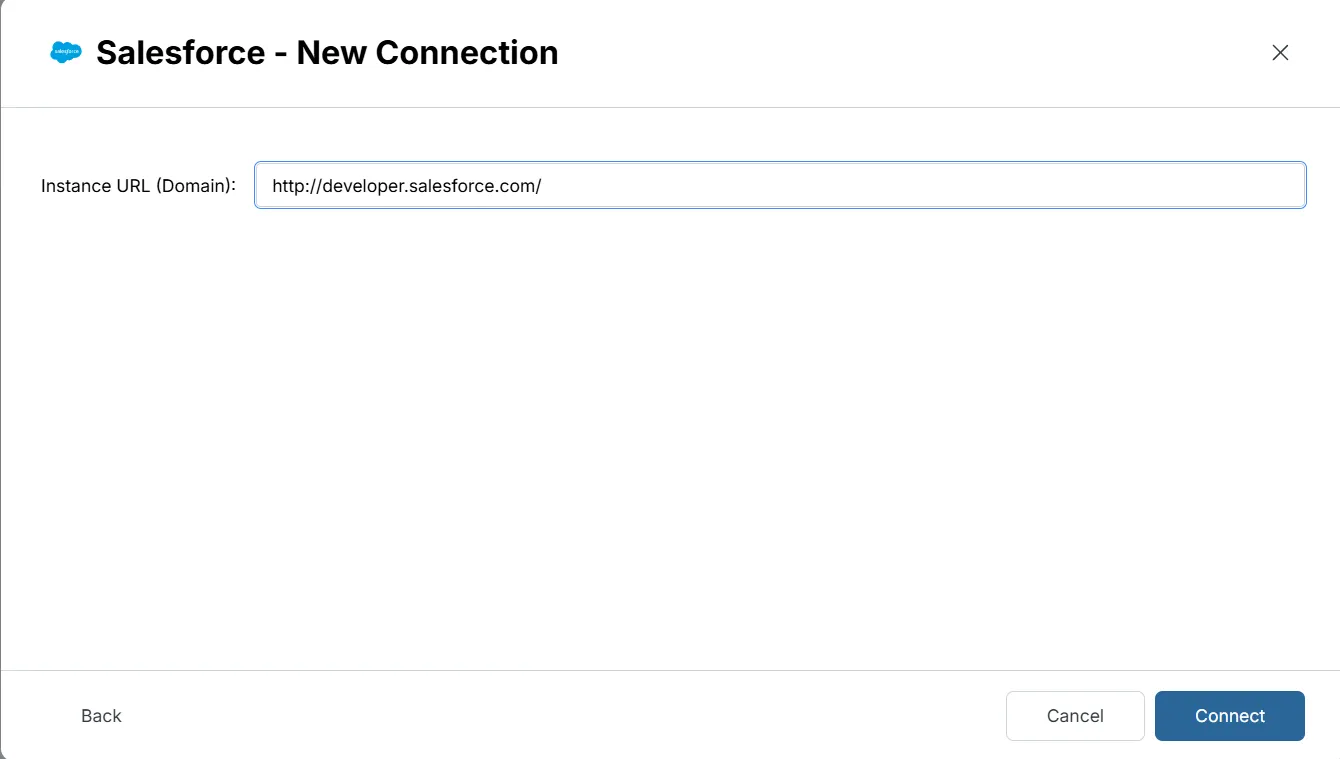
- In the Chat, Mammoth shows a card for connecting Salesforce. In Instance URL (Domain), enter your Salesforce login URL. It's pre-filled with
https://login.salesforce.com. - Click Connect. Mammoth sends you to your Salesforce login page.
- Sign in with your Salesforce credentials and click Allow to authorize Mammoth.
- You return to Mammoth with the connection active.
| Org type | Instance URL (Domain) |
|---|---|
| Production | https://login.salesforce.com (default) |
| Sandbox | https://test.salesforce.com |
| Custom domain | https://mycompany.my.salesforce.com |
For a sandbox, change the instance URL to https://test.salesforce.com before you click Connect.
Pick Salesforce tables and columns
- In Tables, click a table to see its columns and sample rows.
- Tick the columns you want. They gather in Your table.
- Click Preview 100 rows to check the result.
If you're not sure which table holds what you need, ask in the Chat.
Save Salesforce data as a dataset
- Click Save as dataset.
- Enter a Dataset name and choose a folder under Save in.
- Choose Daily to refresh the dataset every day, or Manual to refresh it only when you ask.
- Click Save. When the dataset is ready, click Open dataset.
Refresh Salesforce data and choose an update method
Choosing Daily creates a Dataset Refresh automation for the dataset. To run it on another schedule, edit that automation. For a dataset saved with Manual, create a Dataset Refresh automation yourself.
After you save, the dataset's Update method setting offers these options:
| Update method | What it does |
|---|---|
| Replace all data | Rebuilds the dataset from the source on every refresh |
| Add new rows only | Keeps your rows and adds rows above the last value of a Key column |
| Keep only the newest rows | Empties the dataset, then brings in rows since the last refresh (needs a Key column) |
A key column is a numeric or date column whose values only go up, such as an ID or a date.
Troubleshoot Salesforce connections
| Symptom | Likely cause | Fix |
|---|---|---|
| Sign-in doesn't complete | You closed the tab or denied access | Start the connection again |
| Sign-in doesn't complete | The Instance URL (Domain) doesn't match your org | Use the production or sandbox URL of the org you sign in to |
| Sign-in doesn't complete | API access is off for your user | Ask your Salesforce admin to turn on API access |
| A table isn't in the list | The list is stale, or the user can't see the object | Click Refresh list in Tables, or ask in the chat. Ask your Salesforce admin to check the user's object and field permissions. |
Related
- Connect a database or app: the shared connector workspace steps.
- Manage saved connections: reuse, edit or delete this connection.
- Refresh a dataset: change when the dataset refreshes.
- HubSpot: import CRM data from HubSpot.
- Connector reference: every source Mammoth connects to.
Something wrong? support@mammoth.io