Live links: a CSV URL for Power BI, Excel and scripts
A Live Link is a fixed URL that serves a View's latest data as CSV. Each time the pipeline runs, the URL serves the new output, so BI tools, spreadsheets and scripts pointing at it always get current data. Create one from Export → Mammoth Managed → Live link in the View toolbar; Live links are included on the Team and Pro plans.
How live links work
When you create a Live Link, Mammoth:
- Generates a unique, persistent URL of the View
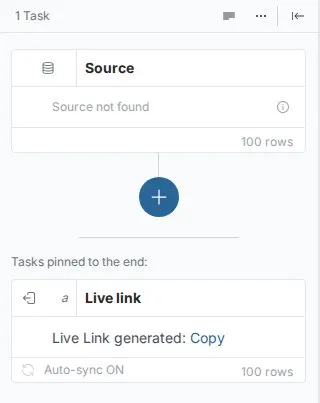
- Adds a Live link task pinned to the end of your pipeline
- After each pipeline execution, uploads the current View output to that URL
- Serves the updated CSV at the URL straight away
The URL stays the same unless you rotate it. It is a Mammoth address, not a raw file. Its last part is random and generated by Mammoth, so the URL isn't predictable or user-chosen.
Each fetch is checked before the data is sent: the link is turned on, hasn't ended, and carries the right key if it needs one. Mammoth records each fetch, so you can see when the link was last used and by which tool.
The file contains the View as it is shown: hidden columns are not included.
Live links created before Mammoth addresses existed are still a public file. The settings say "This link is still a public file. Adding a key or rotating gives it a Mammoth address."
Before you start
Live links are included on the Team and Pro plans. If your plan doesn't include them, the Live link card in the Export menu shows a Trial pill. Hover it to see which plans include Live Link.
Only one Live Link can exist per View.
Create a live link
- Open the View you want to share.
- Click Export in the toolbar.
- On the Mammoth Managed tab, select Live link.
- The Live link form opens in the pipeline panel. It has no fields, only an information callout and the note "After you apply, you can add a key or an end date here, and see who fetches the link." Click Apply.
- Click Copy on the task to copy the URL to your clipboard.
Mammoth creates the Live Link and pins it as a task at the end of your pipeline. The export runs when you apply it.
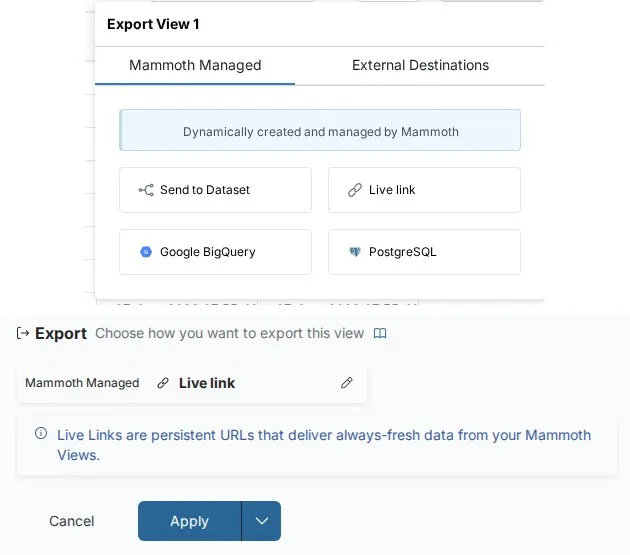
If the Live link option appears disabled in the Export menu, a Live Link already exists for this View. Find it in the pipeline panel under "Tasks pinned to the end."
Change a live link's settings
To change a Live Link, open its task with Edit in the pipeline panel. The form then shows the link's settings. Changes take effect at once.
| Section | What it shows or does |
|---|---|
| Link | The URL, with Copy |
| Who can open it | Anyone with the link or Link + key |
| Stops working | Never or On a date |
| Use | When the link was last fetched, by which tool, and how many fetches in the last 7 days |
| Manage | Rotate link and Turn off (or Turn on) |
Protect a live link with a key
A new Live Link starts as Anyone with the link.
| Option | What it does |
|---|---|
| Anyone with the link | Anyone who has the URL can fetch the data. "Works in Power BI, Excel, Google Sheets, browsers." |
| Link + key | A fetch must also send the key. "Works in Power BI, Excel, scripts. Not Google Sheets: it can't send a key." |
With Link + key selected, the Key line shows the start and last 4 characters of the key, with three buttons:
- Copy copies the full key ("Key copied").
- New key makes a new key. The dialog warns: "The current key stops working at once. Anything using it needs the new key."
- Copy link with key copies a URL with the key inside it, "For Mammoth's From URL import and scripts".
The full key is shown only to people who can edit the View.
Send the key from a script
A script sends the key as the password of Basic authentication, or in an X-Mammoth-Key header:
curl -L -H "X-Mammoth-Key: $LIVE_LINK_KEY" "<live_link_url>" -o latest.csv
A successful fetch answers with a redirect to a short-lived address of the file, so tell your tool to follow redirects (-L for curl).
Add a key to an old public-file link
If the link is still an old public file, choosing Link + key opens Add a key to this link?.
- Under how long the old address keeps working, choose Stop now, 24 hours or 7 days (7 days is selected).
- Click Add key.
Adding a key gives the link a new Mammoth address. The old file address keeps working, without a key, for the time you picked.
Set an end date on a live link
| Option | What it does |
|---|---|
| Never | The link works until you turn it off. This is the default |
| On a date | Pick a date from today onwards. The link works through the end of that day, in your own time zone, then refuses every fetch |
After the end date, the settings say "This link has ended. Every fetch is refused." Choose Never to make it work again.
See who fetched a live link
The Use line shows, for example, "Last fetched 2 hours ago by Power BI · 37 fetches in 7 days · 3 refused". Before the first fetch it says "Not fetched yet".
Mammoth names the tool from the request: Power BI, Power Query, Google Sheets, Script (curl or Python requests), Browser or Other. A refused fetch is one sent with the wrong key or no key, after the end date, while the link is off, or before the link has any data.
Rotate a live link to a new URL
Rotate link gives the link a new URL, and a new key for a key link. Anything using the old URL has to be updated.
- Click Rotate link. The Rotate this link? dialog opens.
- Under Old link keeps working for, choose Stop now, 24 hours (selected) or 7 days.
- Click Rotate link.
If the link has been fetched, the dialog reminds you, for example: "Last fetched 2 hours ago by Power BI. Update that report before the old link stops." While the old URL still works, the settings show when it stops.
Turn a live link off and on
Turn off makes the URL refuse every fetch. The dialog says the settings and key are kept, so you can turn it back on later and the same URL works again. While it is off, the settings say "Turned off. Every fetch is refused until you turn it back on." Click Turn on to let fetches through again.
Hold live link updates with Auto-sync
The Live Link task has an Auto-sync setting. The task card shows Auto-sync ON or Auto-sync OFF, and you change it from the task's options menu in the pipeline panel.
- Auto-sync ON (default): the URL is refreshed every time the pipeline executes. Anyone fetching the URL gets the new data.
- Auto-sync OFF: the pipeline runs but the URL is not updated. The URL keeps serving the data it last received until you turn Auto-sync back on. The task is listed on the Monitor's Paused tab, where Turn Auto-sync ON turns it back on.
Turn Auto-sync OFF when you need to review pipeline output before people fetching the Live Link see it, for example before a scheduled stakeholder report window. Each export destination is controlled independently. You can keep Auto-sync ON for a Live Link while it's OFF on a database destination from the same View. See Control when Views update with Auto-sync.
Connect a live link to Power BI, Excel or Google Sheets
Live Links deliver a CSV file over HTTPS. Tools that can read a CSV from a web address can use the URL directly.
| Tool | How to connect |
|---|---|
| Power BI | Use Get Data → Web and enter the Live Link URL. Power BI fetches the CSV and loads it as a table. For a key link, choose Get data → Web → Basic, enter anything as the user name and the key as the password. Publish to the Power BI Service and configure a scheduled refresh |
| Excel | Use Data → From Web and enter the Live Link URL. Excel fetches the latest CSV each time you refresh the connection |
| Google Sheets | Works with Anyone with the link only, because Google Sheets can't send a key |
| Tableau | To keep a Tableau data source up to date, use the Tableau Server/Cloud export instead (see Send to files, apps and APIs) |
| Mammoth | Use Copy link with key with the From URL import (see Import from a URL) |
For large datasets, schedule BI tool refreshes rather than using live connections. This avoids timeouts on very large Views.
Share the live link URL
The Live Link URL is an HTTPS address that returns a CSV file. You can:
- Paste it into a BI tool's data source configuration
- Use it in a script with a standard HTTP request
- Share it directly with someone who needs to download the latest data
For data that only some people should fetch, switch the link to Link + key and share the key separately. Add an end date for a link that is only needed for a while.
Manage a live link over the API
Everything in the settings is also an API route. Reading the settings and the fetch history needs access to the View. Changing the settings, reading the full key or rotating it needs permission to set up the View's exports. Each takes an API token as Authorization: Bearer mm_.... The routes hang off the Live link task's export:
/api/v2/workspaces/<workspace_id>/projects/<project_id>/datasets/<dataset_id>/dataviews/<dataview_id>/pipeline/exports/<export_id>/live-link
| Route | What it does |
|---|---|
GET .../live-link | The settings: url, access (open or key), key_hint, expires_at, ended, enabled, the address before the last rotate and when it stops, the last fetch, and fetches_7d / refused_7d |
PATCH .../live-link | Change access, expires_at (UTC) or clear_expiry, enabled, or new_key: true (the old key stops at once) |
GET .../live-link/key | The full key and url_with_key. Not found for a link without a key |
POST .../live-link/rotate | A new address (and a new key for a key link). keep_old_for is none (the default), day or week |
GET .../live-link/fetches | Up to the 200 most recent fetches in the last 30 days, newest first: fetched_at, tool, country (when known), result (sent, wrong_key, ended, off or not_ready) and via_previous (fetched through the address before a rotate) |
For example, to turn a link off:
curl -X PATCH -H "Authorization: Bearer $MAMMOTH_API_TOKEN" -H "Content-Type: application/json" \
  -d '{"enabled": false}' \
  "https://app.mammoth.io/api/v2/workspaces/<workspace_id>/projects/<project_id>/datasets/<dataset_id>/dataviews/<dataview_id>/pipeline/exports/<export_id>/live-link"
On an old public-file link, a PATCH or a rotate first gives it a Mammoth address. Its public file keeps working for keep_old_for.
Limits
| Item | Limit |
|---|---|
| Live links per View | 1 |
| Format | CSV only |
| Old address after a rotate or key change | Stop now, 24 hours or 7 days |
| Fetch history over the API | The 200 most recent fetches in the last 30 days |
Troubleshooting live links
The Live link option is greyed out in the Export menu
Cause: A Live Link already exists for this View. Only one Live Link is allowed per View.
Fix: Find the existing Live Link in the pipeline panel under "Tasks pinned to the end."
The live link URL returns old data
Cause: The pipeline has not run recently, or Auto-sync is OFF for the Live Link task.
Fix: Check that the pipeline has executed recently and that Auto-sync is ON for the Live Link task. Open the pipeline panel and verify the task shows the current row count.
A fetch is refused
A Mammoth address sends one of these plain-text messages instead of the data. BI tools show it as the error.
| Message | Status | Cause | Fix |
|---|---|---|---|
| "Wrong or missing key for this live link." | 401 | The link needs a key and the request sent none, or an old one | Copy the key again, or use Copy link with key. After New key, update every tool that uses the link |
| "This live link has ended." | 410 | The end date has passed | Choose Never under Stops working, or pick a later date |
| "This live link is turned off. Ask the person who shared it to turn it back on." | 410 | Someone clicked Turn off | Click Turn on |
| "This live link has no data yet. It fills the next time its view runs." | 409 | The Live link task hasn't finished its first run | Wait for the task to finish, or run the pipeline |
| "No live link at this address." | 404 | The address is mistyped, or it was rotated and its old address has stopped | Copy the current link from the settings |
If none of these appears, check the Monitor's Needs Attention tab for an error on the Live link task.
The live link settings don't open
Cause: The settings could not be loaded ("The link settings could not be loaded.") or a change failed ("The link could not be changed. Try again.").
Fix: Close the form, open the Live link task with Edit again and retry.
Related
- Send data to destinations: the Export menu, Auto-sync and the Monitor panel.
- Download a View: a one-time file instead of a live URL.
- Send to files, apps and APIs: Tableau, Google Sheets and REST API exports.
- Control when Views update with Auto-sync: hold and release data.
- Import from a URL: read a key link back into Mammoth.
Something wrong? support@mammoth.io