Import Parquet files from Azure Data Lake Storage
The Parquet (Azure) connector reads Parquet files stored in Azure Data Lake Storage and imports them into Mammoth as a dataset that can refresh. Open it from Data Library > New dataset > Connectors and search for Parquet. Project Admins create the connection; Project Editors can start datasets from a connection the project already has. Which connectors you can add depends on your plan.
What you can bring in from Parquet on Azure
- Parquet files in one Azure storage container. The container's folders (directory paths) group the files in Tables.
- Only the columns you tick.
This connector is for Parquet files on Azure. For Parquet files on Google Cloud Storage, use the Google Cloud Storage connector.
Before you connect Parquet on Azure
You need:
- An Azure storage account that holds Parquet files.
- The storage account's Access Key, from Azure Portal → Storage Account → Security + networking → Access keys.
- The Account name and the Container (File System) name where the files are stored.
Find your Azure storage access key
- Open Azure Portal and go to your storage account.
- Under Security + networking, select Access keys.
- Copy key1 (or key2).
Connect Parquet on Azure to Mammoth
These steps follow the shared flow in Connect a database or app.
- Go to the Data Library and click New dataset.
- Choose Connectors.
- Search for Parquet and click its tile. The connector workspace opens with the Chat showing.
- In the Chat, Mammoth shows a card titled "Azure Data Lake Storage Credentials". Fill in the fields below.
- Click Connect. Mammoth checks the details and saves the connection. If the check fails, the card shows the error.
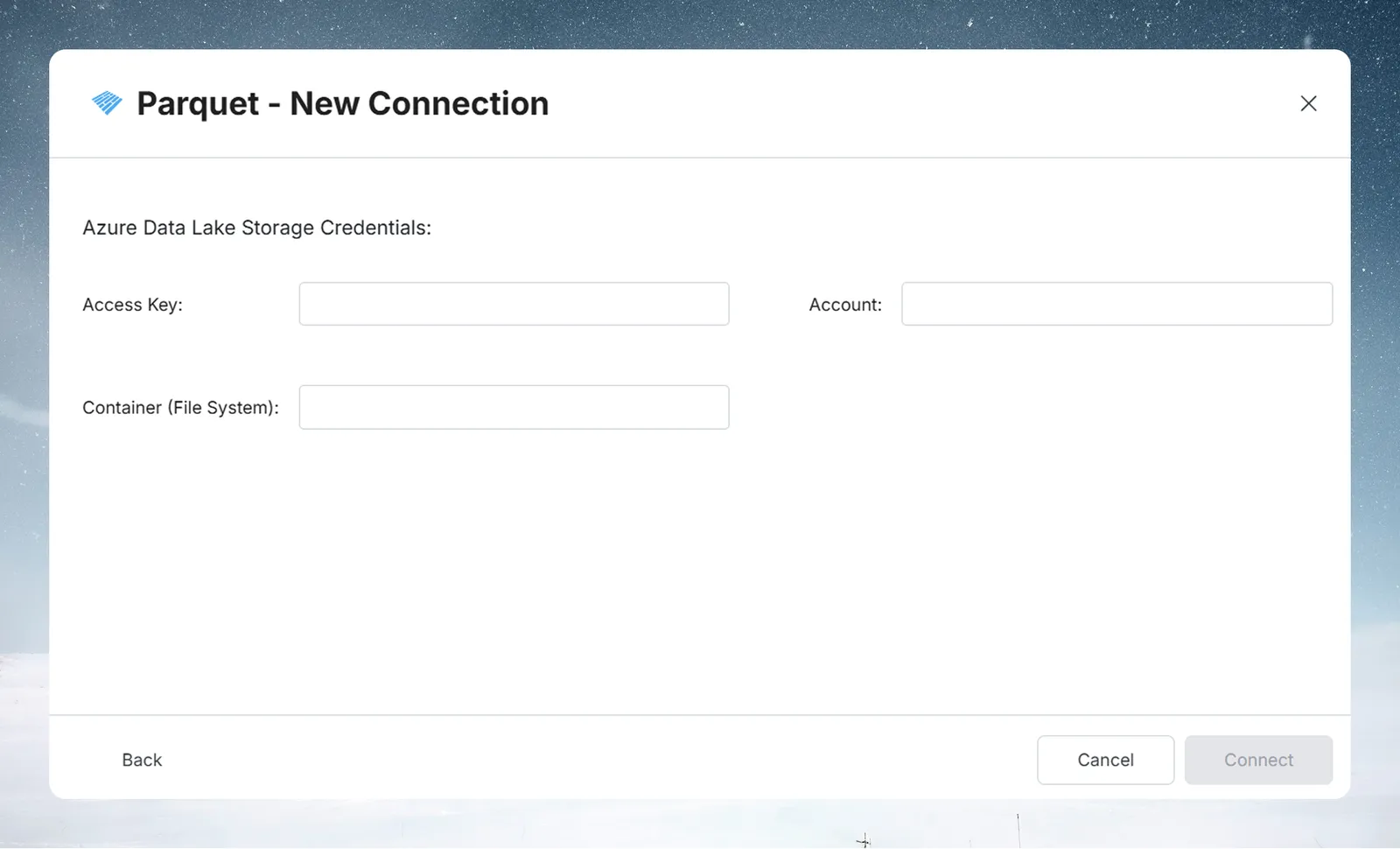
| Field | What to enter | Example |
|---|---|---|
| Access Key | Azure Storage account access key (Key 1 or Key 2) | abc123... (a long string) |
| Account | Azure storage account name | mydatalake |
| Container (File System) | Blob container name where your Parquet files are stored | analytics-data |
Pick Parquet tables and columns
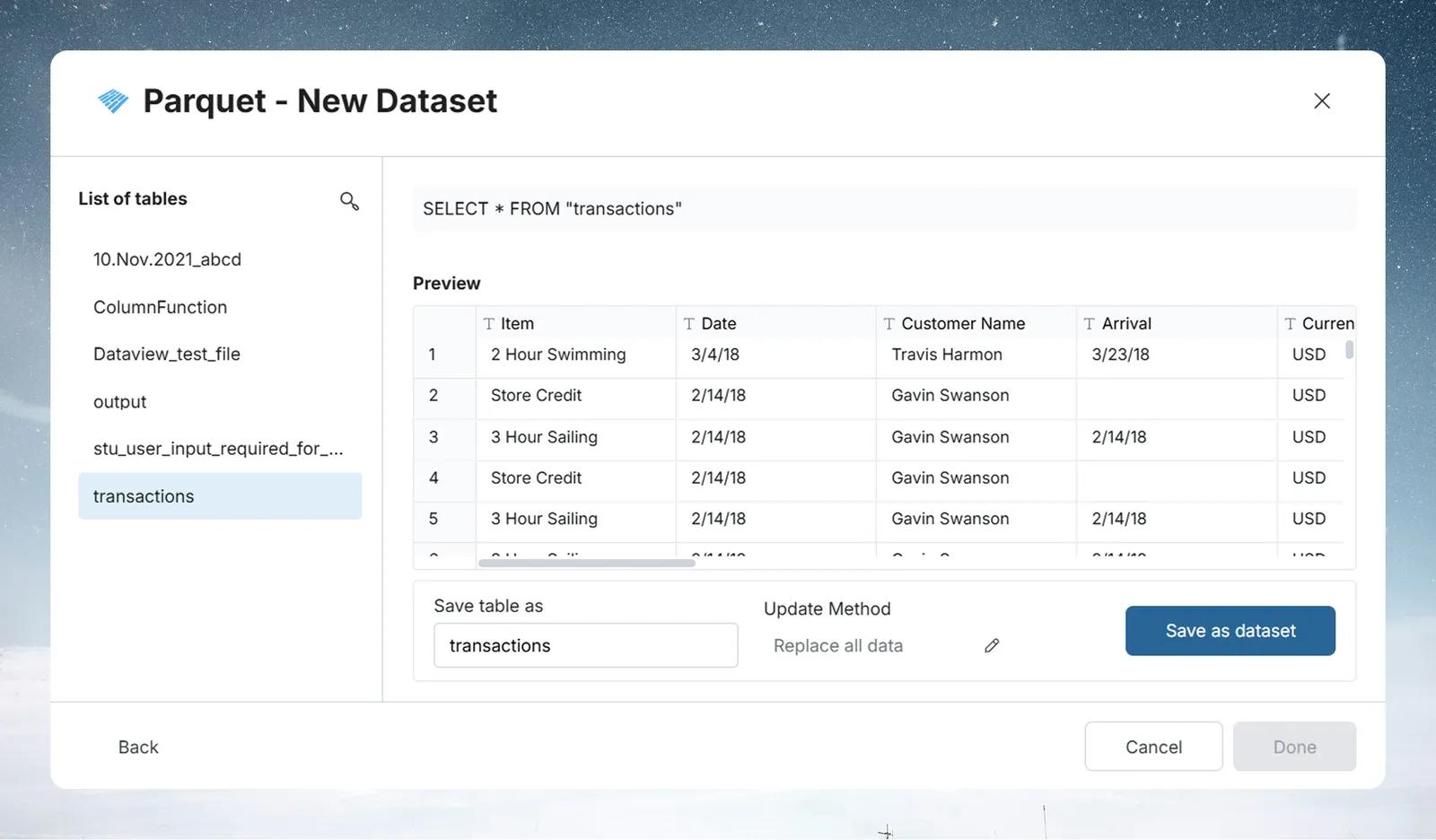
- In Tables, click a table to see its columns and sample rows.
- Tick the columns you want. They gather in Your table.
- Click Preview 100 rows to check the result.
If you're not sure which file holds what you need, ask in the Chat.
Save Parquet data as a dataset
- Click Save as dataset.
- Enter a Dataset name and choose a folder under Save in.
- Click Save. When the dataset is ready, click Open dataset.
The connector workspace treats Parquet as a file source, so it saves the data once and shows Saved once. Scheduled refresh for files is coming. There's no Daily or Manual choice when you save.
Refresh Parquet data and choose an update method
To refresh the dataset, create a Dataset Refresh automation for it.
After you save, the dataset's Update method setting offers these options:
| Update method | What it does |
|---|---|
| Replace all data | Rebuilds the dataset from the source on every refresh |
| Add new rows only | Keeps your rows and adds rows above the last value of a Key column |
| Keep only the newest rows | Empties the dataset, then brings in rows since the last refresh (needs a Key column) |
A key column is a numeric or date column whose values only go up, such as an ID or a date.
Troubleshoot Parquet on Azure
| Symptom | Likely cause | Fix |
|---|---|---|
| Authentication fails | The access key has a typo | Copy the key again. It's a long base64 string, and a single wrong character fails. |
| Authentication fails | The account name doesn't match | Enter the account name exactly; it's case-sensitive |
| Container not found | The container name doesn't match | Container names are case-sensitive in Azure. Confirm the container exists in Azure Portal under Containers. |
Related
- Connect a database or app: the shared connector workspace steps.
- Azure Blob Storage: import CSV, Excel and other files from Azure with app credentials.
- Google Cloud Storage: import Parquet files from a GCS bucket.
- Manage saved connections: edit, reuse or delete this connection.
- Refresh a dataset: change when the dataset refreshes.
Something wrong? support@mammoth.io