Connect Mailchimp to Mammoth and import audiences
The Mailchimp connector imports email marketing data, such as audiences and campaigns, from your Mailchimp account into Mammoth as a dataset. You sign in to Mailchimp, so there are no API keys to manage. Open it from Data Library > New dataset > Connectors and search for Mailchimp. Project Admins create the connection; Project Editors can start datasets from a connection the project already has. Which connectors you can add depends on your plan.
What you can bring in from Mailchimp
- The audience and campaign tables the signed-in account can see, and the columns you tick.
- Data you ask for in the Chat. The agent picks tables and columns for you.
The dataset can refresh daily or only when you ask.
Before you connect Mailchimp
You need a Mailchimp account with access to the audiences and campaigns you want to import.
Connect Mailchimp to Mammoth
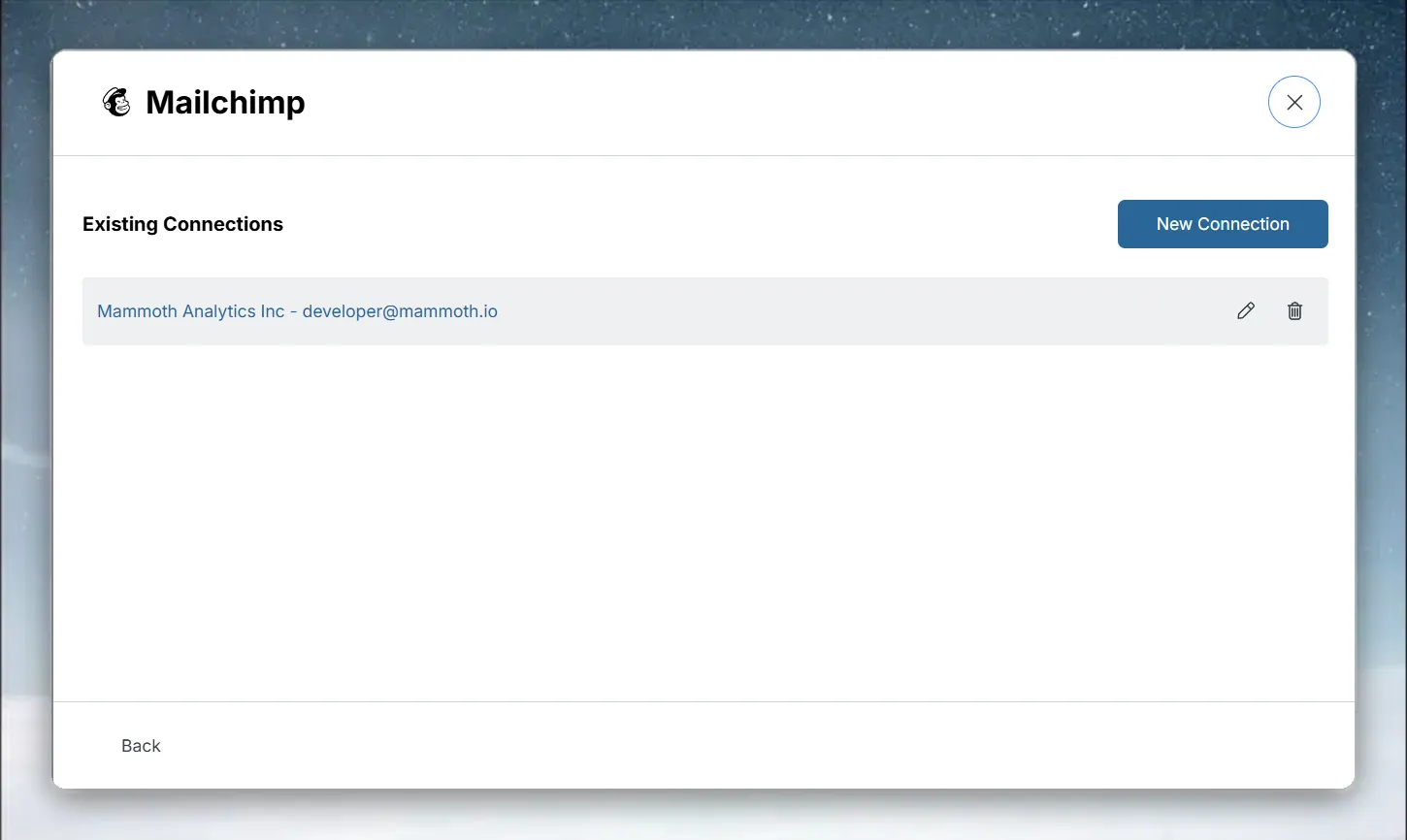
- Go to the Data Library, click New dataset, and choose Connectors.
- Search for Mailchimp and click its tile. The connector workspace opens with the Chat connecting Mailchimp.
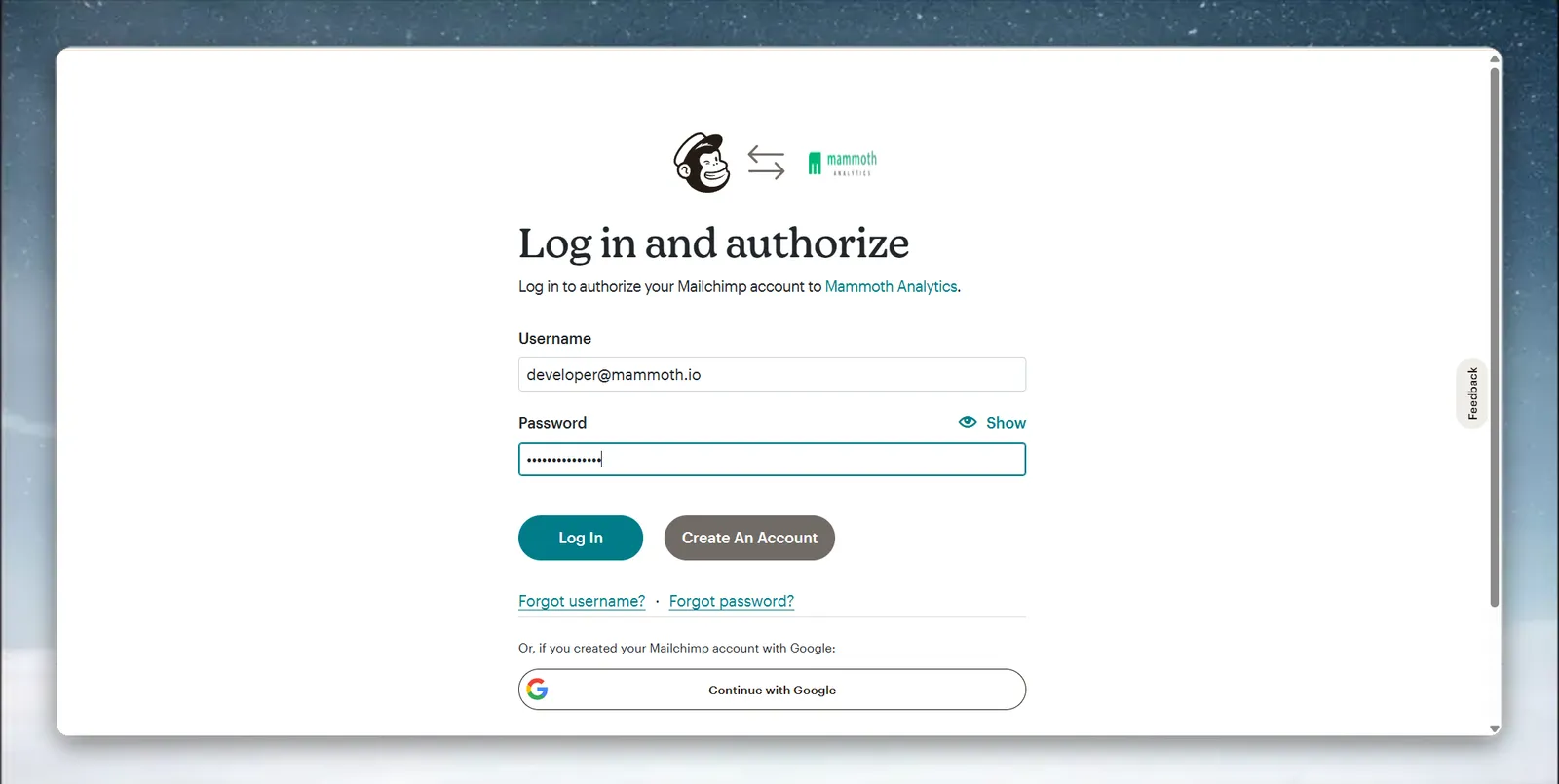
- In the chat's card, click the button to sign in to Mailchimp. Mammoth sends you to Mailchimp's authorization page in the same browser tab.
- Sign in and click Allow. You're returned to Mammoth.
If you already have a Mailchimp connection, pick it under Your connections in the launcher instead. See Connect a database or app for the shared steps.
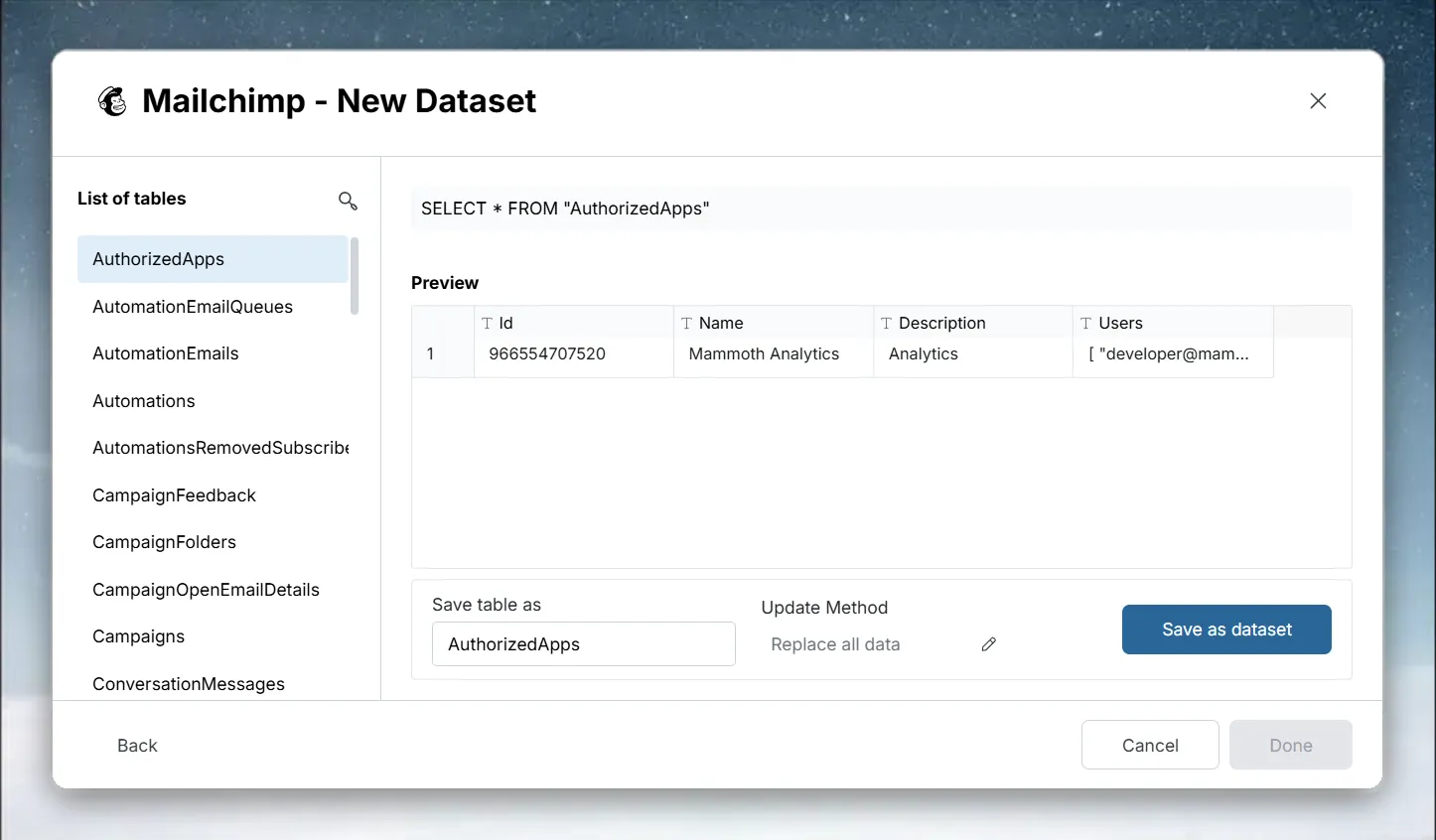
Pick Mailchimp tables and columns
- In Tables, click a table to see its columns and sample rows.
- Tick the columns you want. They gather in Your table.
- Click Preview 100 rows to check the result.
Save Mailchimp data as a dataset
- Click Save as dataset.
- Enter a Dataset name, for example "Mailchimp Subscribers", and pick the folder under Save in.
- Under Keep it up to date, choose Daily or Manual.
- Click Save.
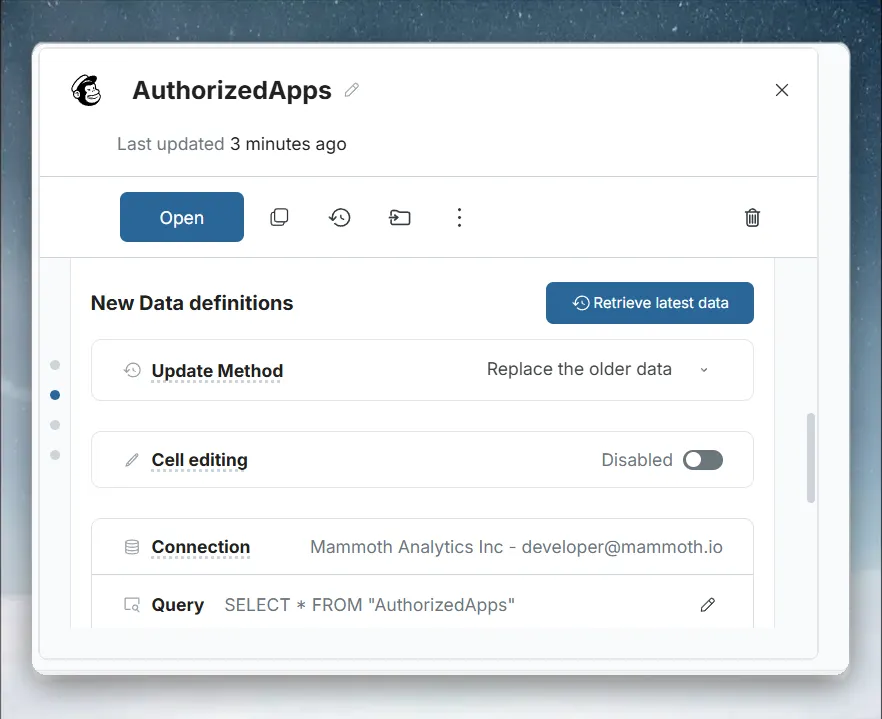
Refresh Mailchimp data and choose an update method
Choosing Daily creates a Dataset Refresh automation that you can reschedule later.
After the dataset is saved, its Update method offers these options:
| Update method | What it does |
|---|---|
| Replace all data | Rebuilds the dataset from the source on every refresh |
| Add new rows only | Keeps your rows and adds rows above the last value of a Key column |
| Keep only the newest rows | Empties the dataset, then brings in rows since the last refresh (needs a Key column) |
Troubleshoot Mailchimp connections
| Symptom | Likely cause | Fix |
|---|---|---|
| No audiences visible | The authorized account can't see the audience | Confirm the Mailchimp account has access to the audience |
| Authorization fails | You closed the tab or denied access | Start the connection again; Mammoth returns you after sign-in |
Related
- Connect a database or app: the shared connector workspace steps.
- Manage saved connections: reuse, edit or delete this connection.
- Refresh a dataset: change when the dataset refreshes.
- SendGrid: import email delivery data.
- HubSpot: import CRM data to blend with campaigns.
Something wrong? support@mammoth.io