Download a View as CSV, Excel, JSON or Parquet
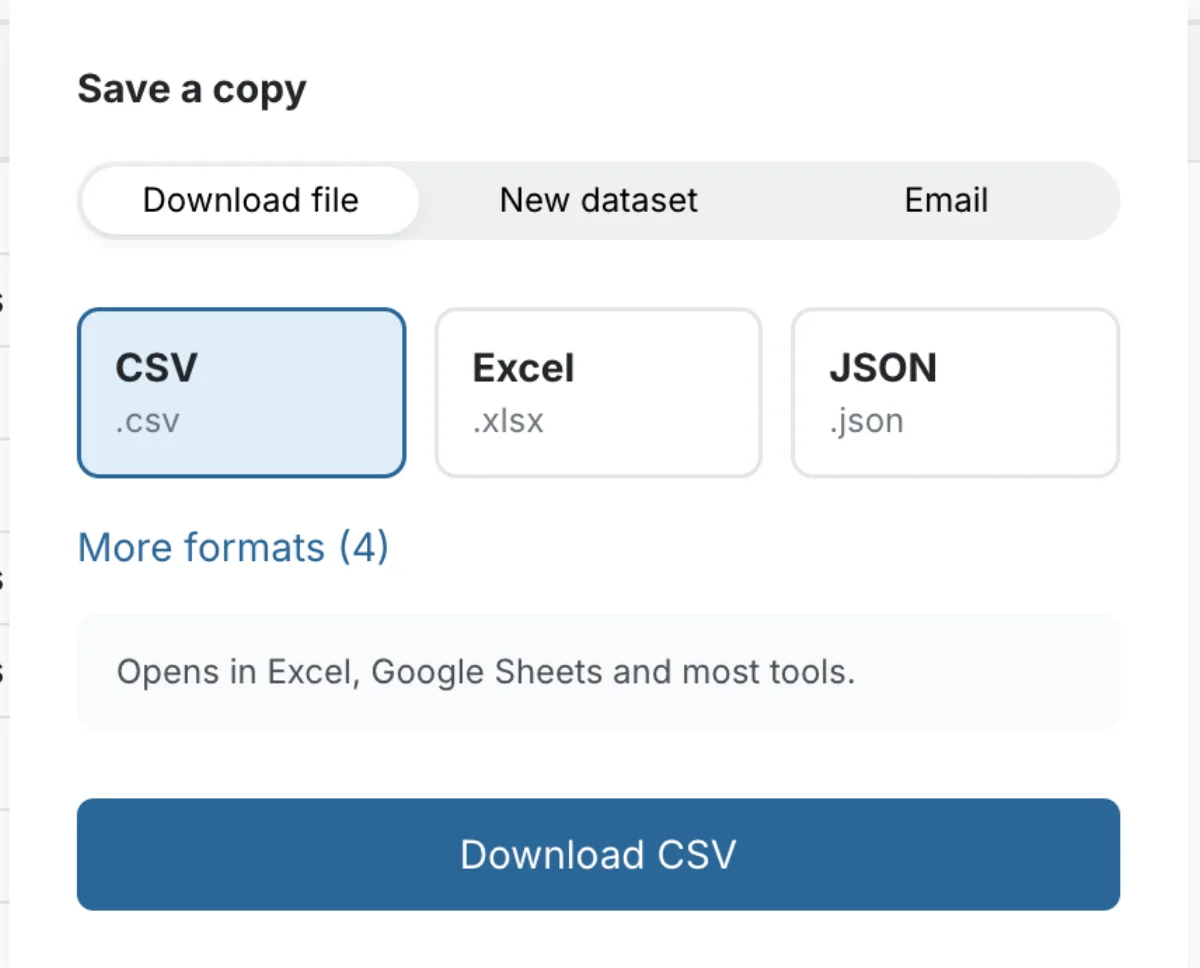
Save a copy saves a one-time snapshot of a View: as a file on your computer, as a new dataset in the same project, or as an email to people in your workspace. Open it from the download icon (⬇) in the View toolbar. CSV and Excel downloads are included on every plan, Free included; the other formats and New dataset aren't tied to a plan.
A copy doesn't change when your data does. For data that is delivered again after every pipeline run, use Export instead (see Send data to destinations).
Before you start
The download icon is disabled while the grid is in edit mode and in a view-only workspace. If your project role can't download data, it is disabled with the tooltip "Your role doesn't have permission to perform this action".
Download a View as a file
- In the View toolbar, click the download icon (⬇). The Save a copy popover opens.
- Keep Download file selected.
- Choose a format: CSV, Excel or JSON. Click More formats to also see NDJSON, XML, YAML and Parquet. The button shows how many extra formats your workspace offers, for example More formats (4), or 3 when Parquet isn't available. Click Fewer formats to hide them again.
- Click the button that names your format, for example Download CSV or Download Excel.
How Mammoth names the downloaded file
Mammoth names the file for you. It joins the first 10 characters of the dataset name, the first 10 of the View name and a 16-character random suffix, in lower case with spaces turned into underscores. There is no file-name field, so rename the file after it downloads.
When the file is ready
Mammoth prepares the file in the background, then your browser saves it.
- While it is being prepared, a toast says, for example, "Preparing Sales report as CSV…".
- When it is ready, the toast says "Sales report.csv is ready" with a Download button.
- The notice stays in the notifications bell, with Download, so you can save the same file again later.
The toast and the bell name the file after the dataset, and add the View's name when you gave the View one, for example "Sales report · EMEA.csv is ready". The file your browser saves keeps the automatic file name described above.
A one-off download is kept for 7 days, then Mammoth deletes it, so the bell's Download no longer works. Download again from the View to get a fresh copy.
Choose a download format
| I need to... | Use |
|---|---|
| Import into a database or run a script | CSV |
| Open in Excel for analysis or reporting | Excel |
| Save more than 50,000 rows | CSV, JSON, NDJSON or Parquet |
| Feed an app or API | JSON |
| Load into a data tool one record at a time | NDJSON |
| Load into a data warehouse or Python | Parquet |
| Import into a system that reads XML | XML |
| Use the data in a config file or script | YAML |
| Keep working on the rows inside Mammoth | Not a file: choose New dataset in Save a copy |
| Format | What it is | Best for |
|---|---|---|
| CSV | Plain text, one row per line, values separated by commas. No row limit, small file size. Dates and numbers are stored as plain text, with no type information or formatting | Opens in Excel, Google Sheets and most tools; imports and scripts |
| Excel | An .xlsx workbook, up to 50,000 rows ("An Excel workbook, up to 50,000 rows."). Dates stay as Excel dates and numbers stay as numbers. Larger than the same data as CSV | People who work in Microsoft Excel |
| JSON | One JSON document ("For developers, apps and APIs.") | Developers, apps and APIs |
| NDJSON | "One JSON record per line, for loading into data tools." | Loading into data tools |
| XML | XML document ("For systems that import XML.") | Systems that import XML |
| YAML | "Readable text, for config files and scripts." | Config files and scripts |
| Parquet | "Compact and typed, for data warehouses and Python." | Data warehouses and Python |
NDJSON, XML, YAML and Parquet sit behind More formats and are offered for Download file only. Parquet appears only when your workspace's data engine supports it.
Which formats each Save a copy mode offers
| Mode in Save a copy | Formats |
|---|---|
| Download file | All 7 (NDJSON, XML, YAML and Parquet behind More formats) |
| CSV, Excel, JSON. For other formats, use Export → Email | |
| New dataset | No file. Saves the rows as a dataset in this project |
What a downloaded copy contains
- Hidden columns are left out. The popover shows a note such as "2 hidden columns excluded".
- Column order, renames, sort order and formats from the View are applied.
- Filtered rows only, unless you choose otherwise. If the grid is filtered, the popover shows, for example, "Filtered: 120 of 4,500 rows" and saves only those rows. Tick the Save all box (for example Save all 4,500) to include every row. The note then reads "All 4,500 rows". The box is cleared each time you open the popover.
Save a View as a new dataset
- Click the download icon (⬇) and choose New dataset.
- Enter a Dataset name. Create dataset stays disabled until you do.
- Click Create dataset.
This "Saves these rows as a new dataset in this project, ready to clean, join or chart." It is a one-time save: it creates no pipeline task, so the new dataset does not refresh when the pipeline runs. For a dataset that updates after every run, use Export → Send to Dataset (see Send data to a database or warehouse).
Email a copy to workspace members
- Click the download icon (⬇) and choose Email.
- In To, add people from this workspace. You are added by default. Only workspace members can receive it.
- Choose CSV, Excel or JSON.
- Click the button that names your format, for example Email CSV.
The popover says "Only people in this workspace. Sends once, now." When it is sent, a toast says, for example, "Sent to 3 people". To send another format, or to send on a schedule, use Export → Email instead ("Need another format, or to send on a schedule? Use Export, then Email."). See Send to files, apps and APIs.
Large files in an email
Mammoth doesn't attach a file bigger than 10 MB, because many company mail servers refuse larger messages.
| File size | What the email carries |
|---|---|
| Up to 10 MB | The file, attached |
| Over 10 MB, but 10 MB or less once zipped | The file in a .zip, attached. Excel files are never zipped, because they are already compressed |
| Over 10 MB even zipped | A download link instead of an attachment. The link works for 7 days |
Download datasets and folders from the Data Library
You can also download without opening a View:
- One dataset or View: choose Download from its menu or the dataset panel. You get a CSV file or an Excel workbook. On a dataset with several Views, the dialog says which View it downloads: the one you were last in.
- Several datasets: tick them in the list and click Download in the selection bar. Choose CSV files (.zip) (one file per dataset) or Excel workbook (one sheet per dataset). When some of them have the same columns, you can tick Stack the ones with the same columns into one file.
- A folder: choose Download folder to get every dataset inside it.
The Data Library offers these two formats only. One download holds at most 200 datasets and 1 GB. While it is prepared, the dialog shows progress, for example "3 of 12 ready. The file saves on its own when it's done." For the details, see The dataset panel and Folders.
The dataset panel's Export and publish also offers A file ("CSV or Excel, as it stands today") under A copy, as it is now.
Download or live link: which to use
Downloads are static: they capture the data at the moment you click. If your data changes, download again and re-share the file. If people need data that updates without re-downloading, use Export → Live link. The URL stays the same and always returns the latest pipeline output.
| Download | Live link | |
|---|---|---|
| Data freshness | Snapshot at download time | Always current |
| How it's shared | File | URL |
| Updates automatically | No | Yes |
| Works offline | Yes | No |
See Live links.
Limits
| Item | Limit |
|---|---|
| Excel download | 50,000 rows |
| CSV, JSON, NDJSON, Parquet | No row limit |
| Email attachment | 10 MB (larger files are zipped or sent as a link) |
| Email download link and one-off download in the bell | 7 days |
| Data Library download | 200 datasets and 1 GB |
See Limits and quotas.
Troubleshooting downloads
| Symptom or message | Cause | Fix |
|---|---|---|
| The download doesn't start | The browser is blocking downloads from this site | Allow downloads from this site in your browser settings, or try a different browser |
| The Excel file won't open | The Excel version is older than Excel 2007 and can't read the .xlsx format | Use Microsoft Excel 2007 or later, or download as CSV |
| "XLSX download is not available for views over 50,000 rows. Try Download CSV option for large data" | The rows being saved exceed the Excel limit. The download fails rather than producing a truncated file | Download as CSV or another format without a row limit. Filtering the grid first can bring it under the limit |
| "Parquet download isn't available for this workspace's data. Try CSV or JSON" | Parquet can only be made from some workspaces' data. Mammoth hides the Parquet tile when it knows; this appears when the server refuses it anyway | Choose another format, such as CSV or JSON |
| The Download link in the bell doesn't work | One-off downloads are deleted after 7 days | Download the View again |
| Create dataset is greyed out | The Dataset name field is empty | Enter a name |
Related
- Live links: a URL that always serves the latest CSV.
- Send data to destinations: deliver data after every pipeline run.
- Send to files, apps and APIs: the Email export for any format or a schedule.
- Export on a schedule: send exports at fixed times.
- Limits and quotas: every size and row limit in one place.
Something wrong? support@mammoth.io