Export to Google Sheets, email, SFTP, Tableau or an API
Mammoth can deliver a View after every pipeline run to a file store (SFTP, SharePoint, Azure Blob Storage, OneDrive), an app (Google Sheets, Email, Tableau Server/Cloud) or an API. Click Export in the View toolbar and pick a card on the External Destinations tab. Google Sheets and Email are on every plan; file exports need a paid plan, Tableau and REST API need Team or Pro, and Somewhere else… is available on Enterprise plans (see Export destinations by plan).
What every export shares (when it runs, send only new rows, run history, Auto-sync) is on Export data after every pipeline run.
Supported file, app and API destinations
| Destination | Credential type | Typical use |
|---|---|---|
| SFTP | Port 22 | Scheduled file delivery to external servers |
| SharePoint | (OAuth app) | Microsoft 365 file integration |
| Azure Blob Storage | (Azure AD app) | Cloud file storage |
| OneDrive | (Azure AD app) | Microsoft 365 file integration |
| Tableau Server/Cloud | (Personal Access Token) | Publish directly as a Tableau data source |
| REST API | (per endpoint) | Push data to any HTTP endpoint |
| Google Sheets | (Google account) | Shared spreadsheets |
| (workspace members) | A file in people's inbox after each update |
File stores, Tableau and Elasticsearch are replaced on every run, so they can't send only new rows. Email and REST API can; Google Sheets can with Append.
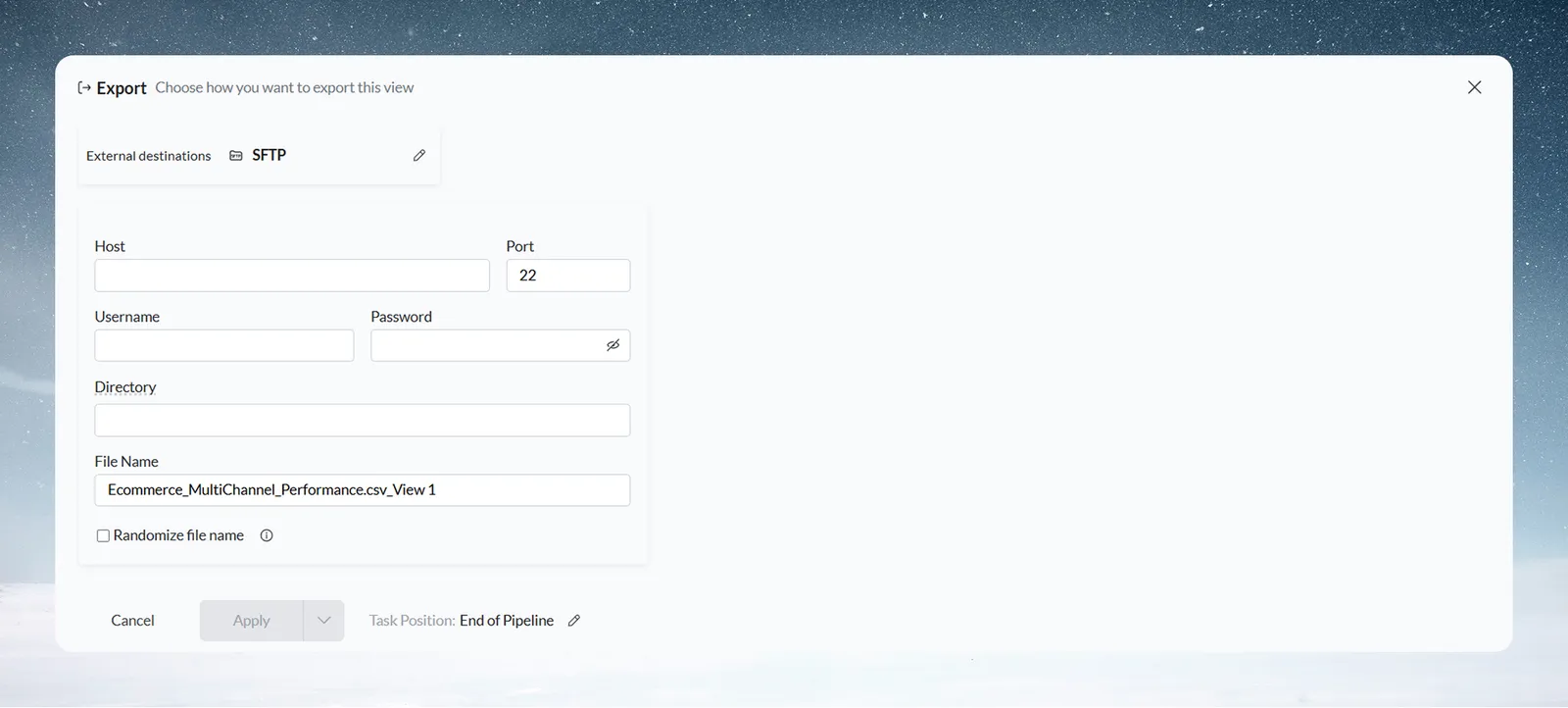
Export a file to an SFTP server
| Field | What to enter |
|---|---|
| Host | SFTP server hostname |
| Port | Default 22 |
| Username | SFTP login |
| Password | SFTP password |
| Directory (optional) | Destination folder on the server; defaults to the home directory |
| File Name | Name for the delivered file; auto-filled from the Dataset and View names |
| File type | The format of the delivered file (see Choose the file type) |
| Randomize file name | Appends a random suffix to the filename to avoid overwriting previous deliveries |
The SFTP form has no hidden-columns option and no Validate Connection button; hidden columns are not delivered. SFTP exports remember your connection details in a Connection dropdown, the same way as database exports (see Reuse a saved database connection).
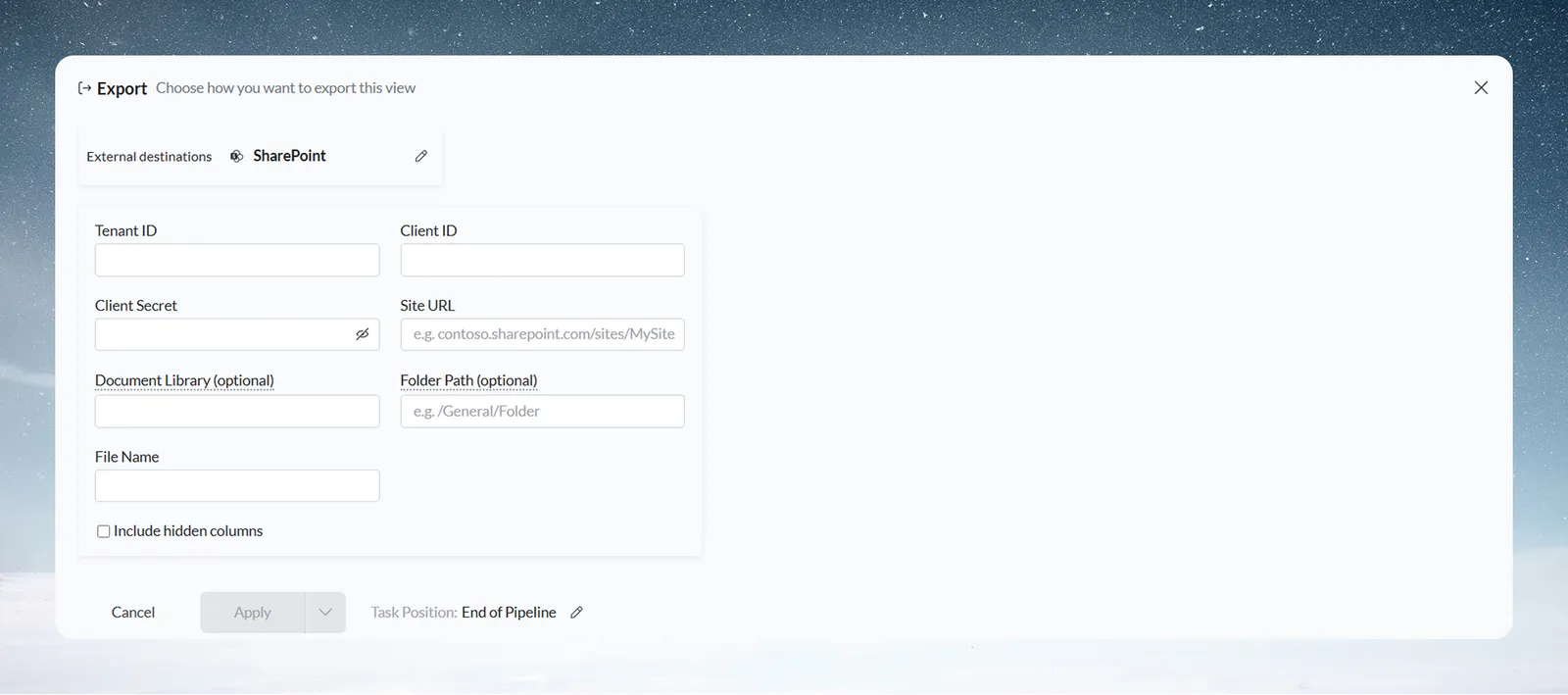
Export a file to SharePoint
| Field | What to enter |
|---|---|
| Tenant ID | Your Microsoft Azure tenant ID |
| Client ID | The app registration client ID |
| Client Secret | The app registration client secret |
| Site URL | Your SharePoint site URL (for example contoso.sharepoint.com/sites/MySite) |
| Document Library (optional) | The document library to place the file in |
| Folder Path (optional) | Subfolder path (for example /General/Folder) |
| File Name | Name for the delivered file |
Include hidden columns: this checkbox always appears on the SharePoint form, whether or not the View has any hidden columns.
Export a file to Azure Blob Storage
Azure Blob Storage authenticates via an Azure AD app registration, the same way as SharePoint and OneDrive.
| Field | What to enter |
|---|---|
| Tenant ID | Your Microsoft Azure tenant ID |
| Client ID | The app registration client ID |
| Client Secret | The app registration client secret |
| Storage Account Name | For example mystorageaccount |
| Container Name | For example my-container |
| Folder Path (optional) | For example exports/data; defaults to the root of the container |
| File Name | Name for the delivered file |
Include hidden columns: this checkbox always appears on the form, whether or not the View has any hidden columns.
Export a file to OneDrive
OneDrive authenticates via an Azure AD app registration, the same way as SharePoint and Azure Blob Storage.
| Field | What to enter |
|---|---|
| Tenant ID | Your Microsoft Azure tenant ID |
| Client ID | The app registration client ID |
| Client Secret | The app registration client secret |
| User ID | The OneDrive account to deliver to, for example user@contoso.com |
| Folder Path (optional) | For example /Documents/Exports; defaults to the root of the user's OneDrive |
| File Name | Name for the delivered file |
Include hidden columns: this checkbox always appears on the form, whether or not the View has any hidden columns.
Choose the file type for a file destination
SFTP, SharePoint, Azure Blob Storage and OneDrive each have a File type dropdown with CSV (the default), JSON, NDJSON, XML and YAML. The delivered file takes that extension, for example Sales_Q3.ndjson.
Excel and Parquet aren't offered for file destinations. To send Excel, use an Email export or a download.
Export to Google Sheets
- Click Export → Google Sheets. The form is titled Export to Google Sheets.
- Under Google account, pick an account or click Connect Google account. Mammoth can only open spreadsheets it creates or that you pick here.
- Choose New spreadsheet and enter a Spreadsheet name, or choose Existing spreadsheet and click Pick a spreadsheet.
- Enter the Tab name (up to 100 characters).
- Choose the Write mode (below).
- Click Apply.
| Write mode | What it does |
|---|---|
| Replace | Clears the tab, then writes the header and all rows |
| Append | Adds the rows under the data already in the tab. The header is written only into an empty tab |
A spreadsheet holds at most 10,000,000 cells and 50,000 characters per cell. Larger Views fail: export to CSV or use a Live link instead.
Email a View as a file after every update
The Email export sends the View as a file to people in your workspace each time the export runs.
- Click Export → Email.
- In To, add people from this workspace, up to 50. Only workspace members can get it, and each person gets their own email.
- Enter a Subject and, optionally, a Message.
- Pick the File type. CSV is the default.
- Optionally tick Don't send when there are no rows, and use Send a test to me to check it.
- Click Apply.
By default the email sends whenever the data updates. To limit how often it sends, or to put it on a schedule, see Limit how often an email export sends. For a one-off email, use Email in the Save a copy popover instead (see Download a View).
Large files and the Excel row limit
Files are attached up to 10 MB. A bigger file is zipped, or sent as a download link only that person can open, for 7 days. Excel and Parquet files aren't zipped, so a big one goes as a link.
Excel holds up to 50,000 rows. On a bigger View the form says "Excel holds up to 50,000 rows, and this view has more."
Put the View name, row count and date in the subject
Under Subject, Fill in: has three buttons that insert a fill-in Mammoth replaces when it sends. The buttons show the fill-in itself, in curly brackets:
| Button | Replaced with |
|---|---|
{view} | The View's name |
{rows} | The number of rows sent |
{date} | The send date, such as 4 Nov 2026 |
The default subject uses all three, so an email reads like "Overdue invoices · 1,204 rows · 4 Nov 2026". The subject holds up to 200 characters and the message up to 2,000.
Preview and test the email export
The Preview box shows the subject as it will read today, who it comes from (your name, via Mammoth, to each person on the list), your message and the file. The email itself also shows the first 5 rows (up to 6 columns).
Click Send a test to me to get a copy in your own inbox ("Test sent to" your address). If it fails: "The test email couldn't be sent. Try again."
If you type an address that isn't a workspace member, the form warns that they can't get it. More than 50 people gives "An email export can go to at most 50 people."
People who stopped these emails
Every email has a link to stop getting it. After someone uses it, the form lists them under To, for example "Sam stopped these emails on 3 Nov 2026". Click Add back to put a workspace member back on the list. The person who stopped them sees "You won't get these emails any more. Whoever set them up can add you back."
Download links for large files
When the file is too big to attach, each person gets their own link. Opening it while signed in shows Your file is downloading and starts the download. If it doesn't start, use the download button.
The page says until when the link works (7 days from sending). After that it shows This link has expired. A link that isn't valid shows This file can't be opened ("This link isn't valid.").
Publish a View to Tableau Server or Tableau Cloud
The Tableau export publishes the View's output directly as a Tableau data source, using a Personal Access Token rather than a username and password.
| Field | What to enter |
|---|---|
| Server URL | For example https://prod-apnortheast-a.online.tableau.com |
| Site Name (optional) | Leave empty for the default site |
| Token Name | The Personal Access Token's name |
| Token Secret | The Personal Access Token's secret value |
| Project Name | The Tableau project to publish into (defaults to default) |
| Datasource Name | Auto-filled from the Dataset and View names |
This form has no "Include hidden columns" checkbox: hidden columns are never included in a Tableau publish.
Push data to a REST API
The REST API Export pushes each pipeline run's data to any HTTP endpoint you specify, as a POST, PUT, or PATCH request.
| Field | What to enter |
|---|---|
| Base URL | For example https://api.example.com/v1 |
| Authentication | None; API Key (Key Name, the header name such as X-API-Key, and Key Value); Bearer (Bearer Token); Basic (Username and Password); or OAuth 2.0 (Client ID, Client Secret, Authorization URL and Token URL) |
| Endpoint path | For example /v1/records |
| HTTP method | POST, PUT, or PATCH |
| Wrap path (optional) | Wraps the row data under this key in the request body; pre-filled with records |
| Batch size | Rows sent per request (default: 1,000, maximum 10,000) |
| Advanced Settings | Timeout (sec) (default: 30) and Verify SSL Certificate (on by default; turn off only for endpoints with self-signed certificates) |
How Mammoth sends:
- It refuses to send to a URL that resolves to a private or reserved IP address, so the endpoint must be publicly reachable.
- If the endpoint answers with a 5xx error, Mammoth retries up to 3 times. For a 429 (rate limited) response it retries up to 5 times.
- OAuth 2.0 uses the authorization-code flow.
Fill the REST API form from the API's docs
The top of the REST API Export form has a Fill from API docs box. Mammoth reads an API's documentation and fills the form for you. It never fills in keys or passwords: you add those.
- Paste a link in Link to the API docs, such as
https://developer.example.com/api. - Optionally describe what you're sending in What are you sending? (optional), for example "orders, one per row".
- Click Fill the form. Reading the docs can take a minute.
- Check the result. It says how many fields it filled and from which site, lists the fields, what You'll need (such as a key) and anything to Check before you apply, and links the pages it Read:.
- Add your credentials, then click Apply. Click Undo to put the form back as it was.
If the docs can't be read, you see "Couldn't read those docs. Check the link, or fill the form in." If the API needs something a fixed REST export can't do (for example, something different per record), Mammoth says "The REST API export can't send to this API:" with the reason. You can then click Fill the form anyway or Try another link. On Enterprise plans you can also click Set it up with Somewhere else… to hand it to the AI Agent (below).
Send data anywhere with the AI Agent (Somewhere else…)
Available on Enterprise plans. The last card on the External Destinations tab, Somewhere else… ("Describe it, and the agent sets it up"), opens the AI Agent in the export panel under the title Send this view anywhere. Use it for an API Mammoth has no built-in destination for.
- Describe where the View should go, or paste a link to the API's docs. Suggestions such as "Post rows to a webhook as NDJSON" help you start.
- The Agent reads the docs and shows exactly what it will send.
- Approve it. It saves an export step on the View: "Saved as an export step on this view. It runs now and whenever the view updates."
The task card shows the destination's name, format and URL, and the last run, for example "Last run: 12,480 delivered" or "Stopped at batch 2 of 25: 500 delivered, 20 rejected, 480 not sent". To fix or change a saved one, open it and describe the change under Fix or change this export.
The card hides while the workspace has agents turned off, or has blocked sending data out of Mammoth. See AI Agent access.
Limit which hosts custom destinations can reach
A workspace can limit where Somewhere else… custom destinations send its data. Other export types aren't affected.
Workspace Owners can change it, or anyone whose workspace role includes the Modify name, logo, etc. permission. The section is hidden for everyone else.
- Open Settings, then Workspace.
- In the Export destinations section, turn on Only allow approved hosts.
- Type a hostname such as
api.example.comand click Add. Repeat for each host. - Click Save.
| Setting | What it does |
|---|---|
| Only allow approved hosts off (default) | A custom destination can send to any host the person approves on the Agent's card |
| Only allow approved hosts on | A custom destination that reaches any other host can't be saved, and a saved one stops at its next run |
Rules for the list:
- Exact hostnames only: no wildcards, ports or paths. Hostnames are stored in lowercase.
- Up to 100 hosts.
- With the switch on and no hosts, the page warns "With no approved hosts, every custom destination in this workspace stops sending at its next run."
- If saved exports already send to a host missing from the list, the page names those hosts and warns that they stop at their next run.
Limits
| Item | Limit |
|---|---|
| Email recipients | 50 workspace members |
| Email attachment | 10 MB (larger files are zipped or sent as a 7-day link) |
| Email subject / message | 200 / 2,000 characters |
| Excel in an email | 50,000 rows |
| Google Sheets | 10,000,000 cells per spreadsheet, 50,000 characters per cell, tab name up to 100 characters |
| REST API batch size | 1,000 rows by default, 10,000 maximum |
| REST API retries | 3 for a 5xx error, 5 for a 429 |
| Approved hosts | 100 |
Troubleshooting file, app and API exports
| Symptom or message | Cause | Fix |
|---|---|---|
| Google Sheets export fails on a big View | The spreadsheet would pass 10,000,000 cells or 50,000 characters in a cell | Export to CSV or use a Live link |
| "Excel holds up to 50,000 rows, and this view has more." | The email's file type is Excel and the View is bigger | Pick CSV or another file type |
| "An email export can go to at most 50 people." | More than 50 people in To | Remove some people, or set up a second export |
| "The test email couldn't be sent. Try again." | The test send failed | Try again |
| "Couldn't read those docs. Check the link, or fill the form in." | Mammoth couldn't read the API docs link | Check the link, or fill the form in by hand |
| "The REST API export can't send to this API:" | The API needs something a fixed REST export can't do | Click Fill the form anyway, Try another link, or (Enterprise) Set it up with Somewhere else… |
| A REST API export can't reach the endpoint | The URL resolves to a private or reserved IP address | Use a publicly reachable endpoint |
| A custom destination stopped at its next run | Only allow approved hosts is on and its host isn't on the list | Add the host in Settings → Workspace → Export destinations |
For a destination that doesn't update, see Troubleshooting exports.
Related
- Export data after every pipeline run: plans, when it runs, send only new rows and Auto-sync.
- Send data to a database or warehouse: Snowflake, BigQuery, PostgreSQL and more.
- Live links: a CSV URL for Power BI, Excel and Google Sheets.
- Download a View: a one-off file or email.
- Send messages: automation emails with CSV files.
Something wrong? support@mammoth.io