Activity log: see who changed what
The Activity Log is Mammoth's audit trail: a chronological record of actions people take in your workspace, from creating datasets and editing pipelines to changing automations and managing users. Open it from Monitor > Activity Log. It needs the View Activity Log workspace permission, which Workspace Owners and Workspace Members have; your project role doesn't affect it.
Unlike the rest of Monitor, which shows current pipeline and automation status, the Activity Log is a history. Each entry shows when it happened and who did it.
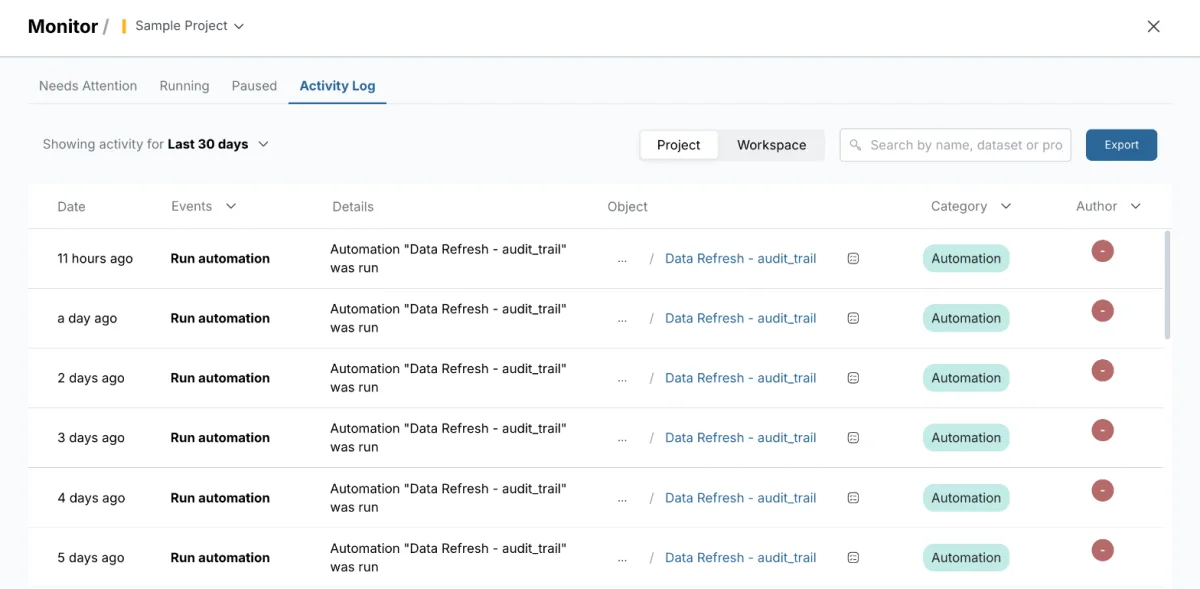
Open the Activity Log
- Click Monitor in the left sidebar.
- Select the Activity Log tab.
If you don't see the tab, contact your Workspace Owner.
You can also reach a workspace-wide Activity Log page from the Data Library: a dataset's History section ends with See everything across the workspace in the Activity Log. That page covers the whole workspace and has no Project/Workspace toggle.
What the Activity Log records
| Category | Events logged |
|---|---|
| Dataset | Create, rename, duplicate, delete, add data, combine, replace, delete batches, suspend and resume batches |
| View | Create, rename, delete, rerun |
| Pipeline | Add, edit, rename, delete, suspend and restore tasks and actions |
| Automation | Create, edit, rename, delete, update |
| Connector | Create, edit and delete connections |
| Project | Create, rename, delete, property updates |
| Folder | Create, rename, delete |
| Workspace | Rename workspace, invite users, remove users, delete invites, two-factor enforcement changes |
| Data Retention | Create, edit, delete and run retention policies; retention approval requests |
| Dashboard | Publish, unpublish, share, update dashboard access, export dashboard |
| Parameter | Create, edit and delete parameters, parameter groups and snippets; rerun stale pipelines after a parameter or snippet changes |
Across categories, the log also records moving items to trash (for example Move dataset to trash or Move view to trash), restoring them (for example Restore dashboard), and archiving. The Details column names the item, for example: Dataset "Sales 2026" was moved to trash. Under Workspace it also records Update two-factor enforcement and adding or removing an identity from imports.
The Activity Log isn't a run history. For the status of each pipeline run, use the other Monitor tabs.
Switch between Project and Workspace scope
Toggle the scope with the Project and Workspace buttons at the top right of the tab, next to Export. The active button is highlighted, and the log reloads straight away.
| Mode | What it shows |
|---|---|
| Project | Events in the current project: datasets, Views, pipelines, automations and other actions in this project |
| Workspace | All project events plus workspace-level events, such as connector create, edit and delete, user management, and actions in other projects |
Use Project scope to investigate a specific dataset or pipeline. Use Workspace scope to audit connector changes or track activity across all projects.
Read the Activity Log table
| Column | What it shows |
|---|---|
| Date | When the action happened, relative (for example "22 minutes ago") |
| Events | The action, such as Create dataset, Edit automation or Add tasks to pipeline |
| Details | A readable description with resource names and outcomes |
| Object | The project path and resource affected, as a link |
| Category | Dataset, Pipeline, View, Automation, Connector, Project, Folder, Workspace, Data Retention, Dashboard, Parameter |
| Author | The workspace member who performed the action |
Click a dataset, View or automation name in Object to go straight to it. This helps when you investigate what changed after an alert or a failed run.
Related events and result pills
Some events are grouped: one action logs a parent row with child events under it. Combining datasets, for example, logs the combine with an add data event under it.
- A row with grouped events shows a link under the event name, such as 1 related event or 3 related events. Click it to open a panel below the row with each child event's Date, Events, Object, Details and Category. Click the link again to close it. The panel loads more events as you scroll. With nothing to show, it reads "No activity to display".
- Most events succeed and show no pill. An event that didn't finish shows a pill under its name:
| Pill | Meaning |
|---|---|
| In progress | The action has started and hasn't finished yet |
| Failed | The action didn't complete |
Filter and search the Activity Log
Use the filter controls in the column headers. Click one to open its dropdown and select one or more values.
| Filter | How to use it |
|---|---|
| Events | Show only some actions, for example Create dataset or Edit automation |
| Category | Show one or more resource types |
| Author | Show one team member's actions |
| Date range | Change the time window. Defaults to Last 30 days |
Date range options: Today, Yesterday, Last 7 days, This week, Last week, Last 30 days, Last 3 months, Last 6 months, This quarter, Last quarter, Year to date (YTD), or Custom.
The search box above the table (Search by name, dataset or project) narrows the log to matching events.
See the history of one dataset, View or automation
Each row has a View activity for this object button. It limits the log to that object's history and shows an Object pill above the table. Remove the pill to see the full log again. When the object is a dataset, an Include views checkbox adds the events of that dataset's Views. Export isn't available while an object is selected.
For one automation, you can also click ⋯ on its row in the Automations list, then View activity. See Manage automations.
Example: find who changed an automation last month
- Click the Category filter and select Automation.
- Click the Events filter and select Edit automation.
- Set the date range to Last 3 months.
- Read the Author and Details columns.
The table lists each edit with its author and time.
Export the Activity Log to CSV, Excel or a dataset
You need to see the Activity Log tab, and your plan must include Activity Log history (the activityLogDays plan feature). If it doesn't, Export prompts you to upgrade or contact support.
- Click Export at the top right.
- Choose a format.
- Click Confirm.
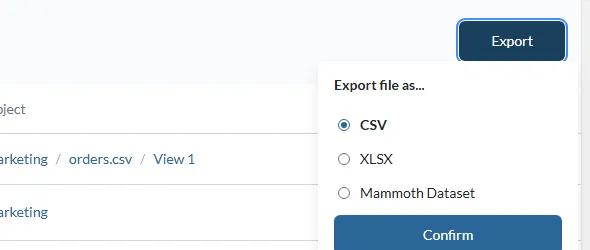
| Option | Output |
|---|---|
| CSV | Downloads the log as a .csv file |
| XLSX | Downloads the log as an Excel .xlsx file |
| Mammoth Dataset | Creates a new dataset from the current log records in the project you choose. Enter a file name and select the project |
The export applies your active filters, search text and scope. Remove filters first if you need the complete log for the date range.
Use the Activity Log for compliance reviews
Every record includes who performed the action and when. Filter to the audit period and the relevant categories, then export to CSV or XLSX for your audit team. The Mammoth Dataset option keeps a historical record you can query with pipelines.
How far back the log reaches depends on your plan. Activity older than your plan allows isn't available, and a banner above the table says so. Without a plan allowance, the tab shows only the latest 50 items. See Security, sign-in and audit logs for the retention table.
Limits
| Item | Limit |
|---|---|
| Default date range | Last 30 days |
| History without a plan allowance | The latest 50 items |
| History with a plan allowance | Set by your plan's activityLogDays |
| Export while one object is selected | Not available |
Troubleshooting
| Symptom | Cause | Fix |
|---|---|---|
| You don't see the Activity Log tab | You don't have the View Activity Log workspace permission | Contact your Workspace Owner |
| You don't see recent activity | The date range or your plan's history limit hides it, or you're in another workspace | Widen the date range, check your plan's limit, and confirm the workspace |
| An action you expected isn't logged | The log records only the actions in the table above. It isn't a run history | Use the other Monitor tabs for run status |
| The export is missing records | Filters, search text or scope were active | Reset all filters before exporting |
| Export asks you to upgrade | Your plan doesn't include Activity Log history | Upgrade the plan or contact support |
Related
- Monitor running, failing and paused pipelines: the other Monitor tabs.
- Manage automations: see one automation's activity.
- Notifications: alerts about your own jobs.
- Security, sign-in and audit logs: audit log retention by plan.
- Members, roles and custom roles: who has the View Activity Log permission.
Something wrong? support@mammoth.io