Create an automation in Mammoth step by step
You create an automation in the New automation window: pick a type, complete its numbered steps, then name it and click Save automation. Open it from the Automations tab of the Data Library with New automation, or from a folder's, dataset's or View's menu. Your project role needs the Create/manage orchestration flows permission, and your plan must include the type.
Before you start
- You need access to the project where you want to create the automation.
- For Dataset Refresh: the datasets must come from an API or database connector, or follow the link they came from (From URL).
- For File Collection: a saved connection to the cloud platform, or the details to connect a new one.
- For Data Consolidation: the source folder and destination dataset must already exist in your Data Library.
- For Scheduled Export: the Views must already have export steps (SFTP, a database, Google Sheets, email and so on).
- For Messaging: the Dataset Views you want to attach must already exist in your project.
- Your role needs the Create/manage orchestration flows permission, and your plan must include the type. See What each plan decides.
Open the New automation window
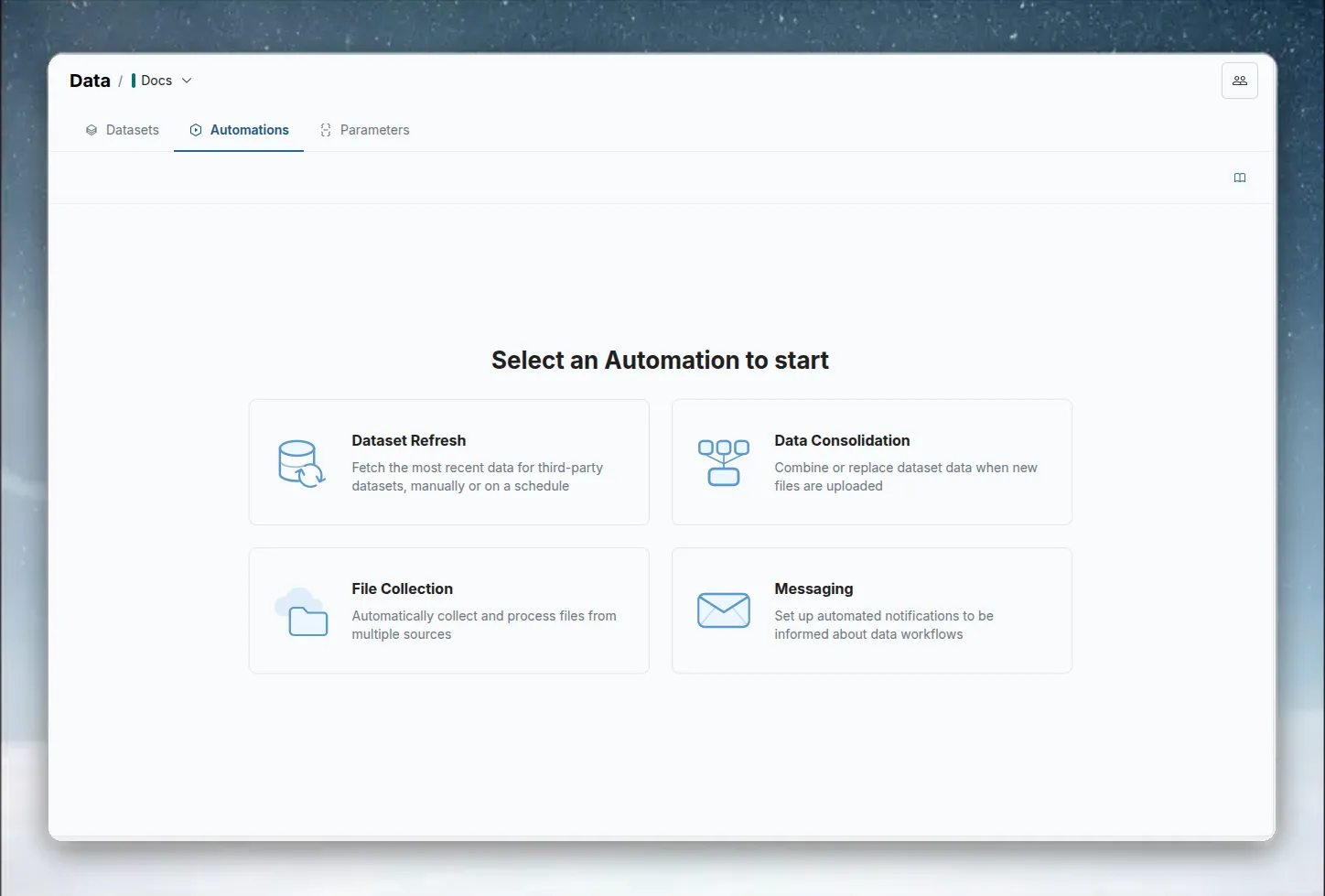
- In the Data Library, click the Automations tab. It lists the automations in the current project. If there are none yet, the page offers to create your first one.
- Click New automation in the top-right corner.
You can also start from an item's menu. For example, choose Set-up auto refresh on a dataset, Collect external files into this folder on a folder, or Send this view by email on a schedule on a View. Other entry points are the Data Library header, a folder's empty state and the dataset panel's Automation section. When you start from an item, the wizard opens on that type with the item already filled in.
The New automation window opens, showing the types under Bring data in and Send data out.
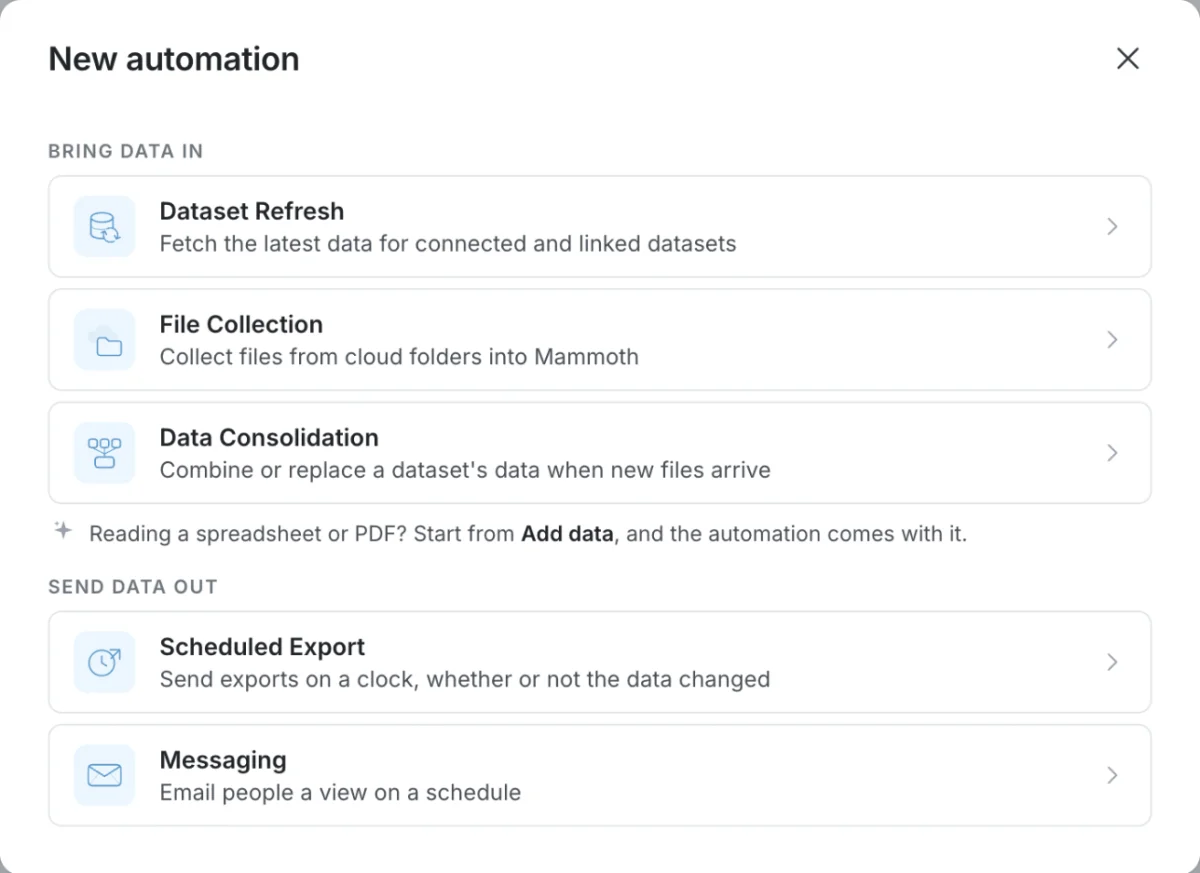
Pick an automation type
Click the type you want:
- Under Bring data in:
- Dataset Refresh: fetch the latest data for connected and linked datasets.
- File Collection: collect files from cloud folders into Mammoth.
- Data Consolidation: combine or replace a dataset's data when new files arrive.
- Under Send data out:
- Scheduled Export: send exports on a clock, whether or not the data changed.
- Messaging: email people a view on a schedule. Your plan can cap how many you have. The card then shows the count, for example 1/3 used.
A type your plan doesn't include shows a plan pill. See What you see when your plan doesn't include a type.
Clicking a type starts its step-by-step flow. Reading a spreadsheet or PDF? Start from Add data instead, and the automation comes with it.
Complete the steps for your automation type
The window title changes to New automation / Dataset Refresh (or the type you picked). A row of numbered steps appears at the top.
| Type | Steps | Guide |
|---|---|---|
| Dataset Refresh | Select datasets, Set Schedule, Review & save | Refresh a dataset |
| File Collection | Select source, Select destination, Set Schedule, Review & save | Collect files from cloud folders |
| Data Consolidation | Select destination, Select source folder, Review & save | Combine incoming data |
| Scheduled Export | Select exports, Set Schedule, Review & save | Export on a schedule |
| Messaging | Write message, Set trigger, Review & save | Send messages |
The button at the bottom right is named after the next step (for example Set Schedule). It stays disabled until the current step is complete. On the schedule step, a hint says what is missing, such as "Pick a first run to continue." or "Pick at least one day to continue."
Read the This automation summary
On the right of every step, This automation sums up what you have built so far in one sentence. For a Dataset Refresh of one dataset set to Manual only, it reads "Sales orders will be refreshed Manually." Parts you haven't chosen yet appear as placeholders such as a dataset or on a schedule. Below the sentence, extra details appear when they don't fit in it, such as the full list of datasets or the file name filter.
Click a part of the sentence that belongs to an earlier step to go back to that step.
Go back a step or change the type
- Click a completed step (marked with a check) in the row at the top to go back to it.
- The button at the bottom left is named after the previous step. On the first step it reads Automation types and takes you back to the type picker, so you can choose a different type.
- Closing the window discards the automation. Nothing is saved until you click Save automation.
Name the automation and save it
The Review & save step reads "Name this automation and review the settings before saving." under Automation details.
| Field | What it does |
|---|---|
| Name | Filled in with the type's name (for example Dataset Refresh, or Dataset Refresh 1 if that name is taken). Replace it with a descriptive name. Required, up to 200 characters |
| Description | Optional, up to 2,000 characters. It appears under the name in the Automations list |
| Summary | Read-only: the Type and the settings for that type, such as the datasets and the schedule |
Names with timing context are easier to scan later, for example Daily Sales Report - 6am rather than Dataset Refresh 1.
For Messaging, a Send test email button also appears on this step. Click Save automation to create the automation.
The automation appears in the list with status Active.
What happens after you save
- Dataset Refresh, File Collection, Scheduled Export and Messaging: the first run happens at the First run time you set. A Dataset Refresh or File Collection set to Manual only runs only when you run it.
- Data Consolidation: the automation starts watching the source folder straight away. The next file uploaded to that folder triggers the first consolidation.
You can edit the automation at any time from its detail panel or the three-dot menu. See Manage automations.
Limits
| Item | Limit |
|---|---|
| Automation name | Required, up to 200 characters |
| Automation description | Up to 2,000 characters |
Related
- What you can automate: compare the five types and what your plan includes.
- Schedules and triggers: every option on the schedule step.
- Manage automations: edit, suspend, run or delete an automation after you save it.
- Refresh a dataset: the most common automation, step by step.
- Combine incoming data: set up a watched folder.
Something wrong? support@mammoth.io