Combine files dropped in a folder into one dataset
A Data Consolidation automation watches a folder in your Data Library and adds each file that lands there to a destination dataset. There is no schedule: the file arriving is the trigger. Create one from Automations > New automation > Data Consolidation. It is a plan feature, and your project role needs the Create/manage orchestration flows permission.
How a watched folder handles a new file
A file is uploaded to, or moved into, the watched folder
        │
        ▼
The folder's rules are checked in order; the first rule the file matches takes it
        │
        ▼
The file is checked against the destination (columns, duplicates, recipe)
        │
        ▼
Added to the destination dataset (the file leaves the folder)
   or kept in the folder with a reason (Not added, Kept separate, Duplicate...)
- Only an Active automation takes files. While it is suspended, new files stay in the folder.
- A file that is added leaves the folder. A file that can't be added stays in the folder, and the folder says why.
- A file goes to one place: the first rule it matches. See Route files from one folder to several datasets.
Before you start
- Source folder: a folder in the current project that your team uploads files to. Create one if it doesn't exist.
- Destination dataset: the dataset that receives the data. It must already exist. Datasets from a connector, and datasets in an error state or still needing an action, can't be picked.
- Matching columns: files should have the same columns as the destination. You choose what happens when they don't in the destination's settings, which you can open from the wizard.
- Plan: if your plan doesn't include Data Consolidation, its card shows a pill with the name of a plan that does, and choosing it opens the upgrade prompt instead of the wizard. During a trial the card shows a Trial pill. See What each plan decides.
Set up a Data Consolidation automation
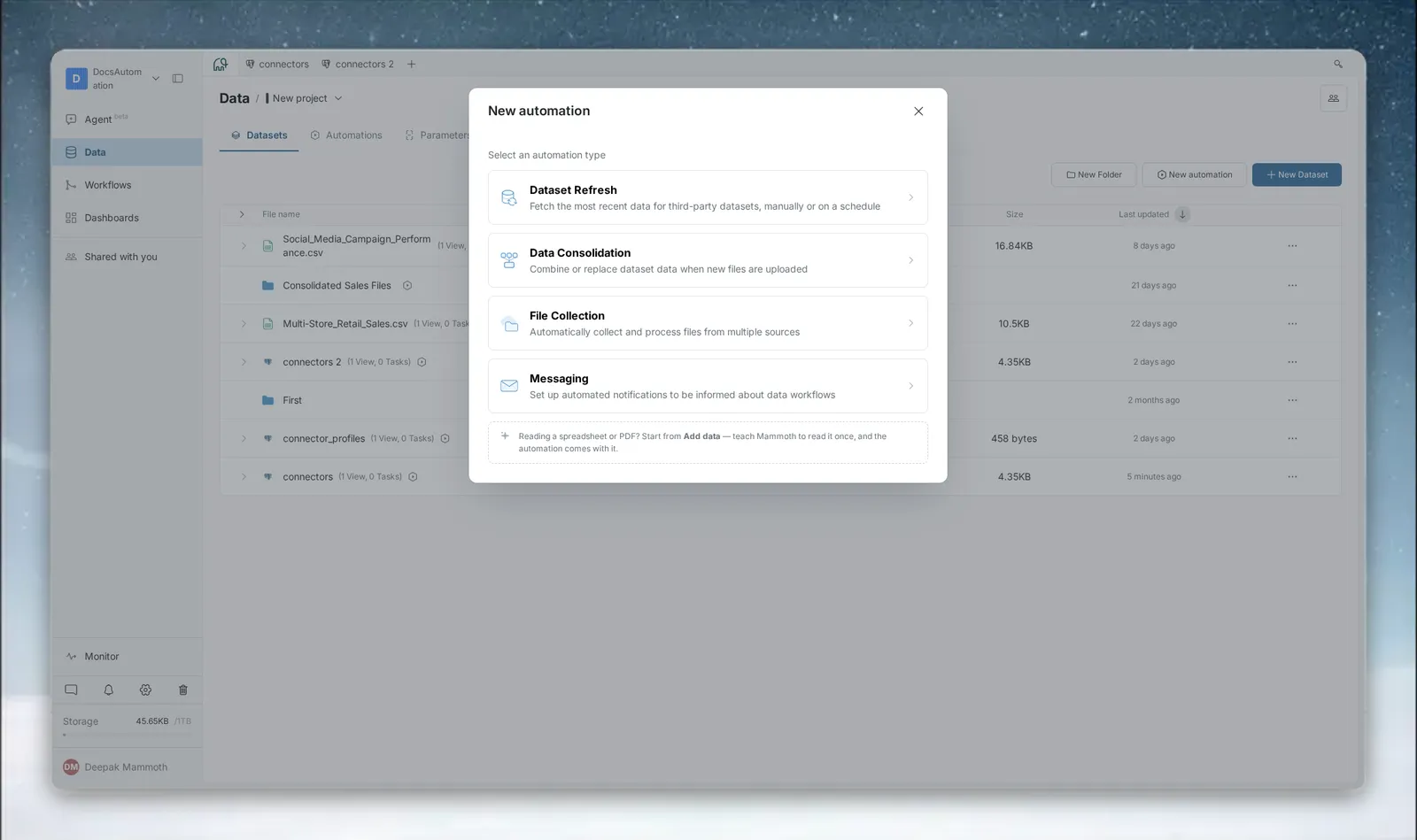
Open New automation from the Data Library header, a folder's empty state or an item's menu, then select Data Consolidation. The wizard's steps are Select destination, Select source folder and Review & save. If you start from a folder, the source folder step is already complete.
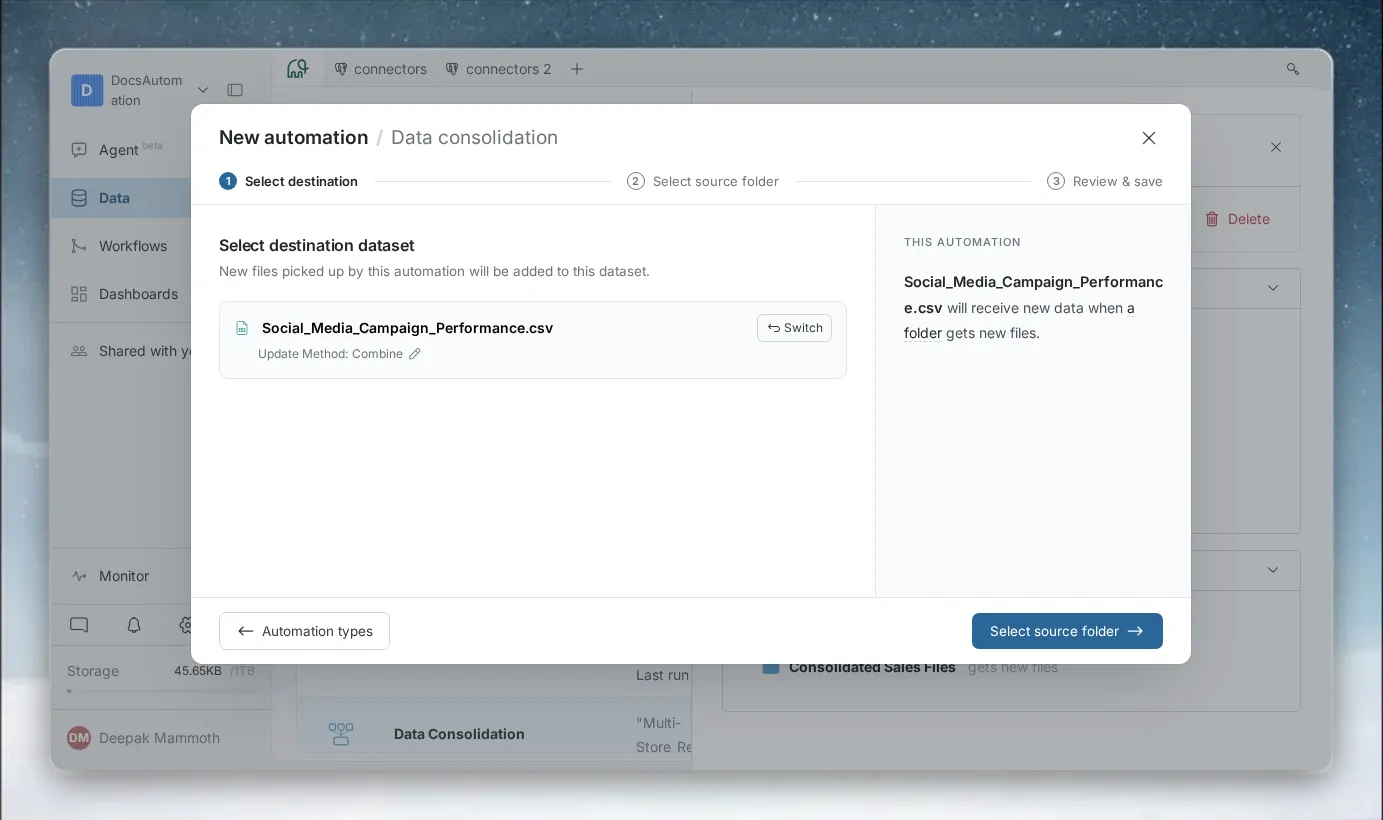
Pick the destination dataset and how files go in
- In the Select destination step, click Select dataset(s) and choose the dataset that receives the data. The step reads: "New files picked up by this automation will be added to this dataset." To pick another, click Switch.
- Under the dataset, check its current Update method.
- To change how new files go in, click the pencil next to it (tooltip Combine / Replace Settings for Sales, with your dataset's name).
The settings note "These changes will be applied to the Dataset settings": they change the destination dataset itself, not only this automation.
| Setting | Options | What it does |
|---|---|---|
| Update method | Replace all data, Add to existing data | Replace swaps the dataset's data for the new file's. Add keeps the existing rows and adds the file's rows. A note under the choice says the source data is deleted after combining or replacing |
| If column type doesn't match | Convert destination column to text, Convert incompatible values to null, Do not update the dataset | What happens when a column in the file has a different type from the destination column. Shown once the dataset has had data added to it |
| Column Mapping | Map with existing columns, Create new column mapping | Map by matching column names, or set your own mapping |
With Create new column mapping, each destination column lists the file column names it accepts. Click + to add another name (Add New Column), turn a column off with its toggle, and tick All destination columns must be mapped if new data should go in only when the number of columns matches the dataset. For more, see Add or replace data in a dataset.
Choose the folder to watch and which files it takes
- In the Select source folder step, click Select folder and choose the folder that receives (or will receive) the files. The step reads "Files added to this folder are picked up automatically." To pick a different folder, click Switch.
- Optional: turn on Include subfolders to also take files added to subfolders.
- Optional: turn on Only process files matching a name pattern, choose a match type and enter the text to match. Turn on Case sensitive to require an exact-case match.
| Match type | Takes a file when its name... |
|---|---|
| Starts with | begins with the text you enter |
| Ends with | ends with the text you enter |
| Contains | includes the text anywhere |
| Matches exactly | is identical to the text (aside from case, unless Case sensitive is on) |
By default, matching is not case sensitive (Invoice and invoice are treated the same). With name-pattern matching off, the automation takes every file, and the summary says "All file names allowed". An automation created before these options existed keeps its original "contains text" filter, shown as a Contains match when you edit it.
If other Data Consolidation automations already watch the folder, the step shows a note such as This folder already has 2 rules, listing each rule's pattern and automation name: "A file goes by the first rule it matches. A new rule goes last; reorder them from the folder." If recent files would match your new rule but an earlier rule takes them, it says so, for example "3 of this folder's recent files also match this rule, and an earlier rule takes them." Narrow your pattern, or reorder the rules after you save.
Review and save the consolidation
On Review & save, name the automation, add an optional description, and review the source folder, destination dataset and filter settings. Click Save automation. The automation starts watching the folder straight away.
Choose Combine or Replace
| Mode (Update method) | Behaviour | Best for |
|---|---|---|
| Combine (Add to existing data) | Adds rows from each new file to the existing dataset. Data builds up over time | Incremental data: daily transactions, event logs |
| Replace (Replace all data) | Replaces the dataset's data with the new file's contents. Previous data is removed | Full snapshots: weekly inventory exports |
You can set the mode in the wizard's destination step, or beforehand on the dataset itself.
What happens when a file's columns don't match
Before a file goes in, Mammoth checks its columns against the destination. This is separate from the name pattern: a file can match your pattern and still not go in because its columns don't fit.
- Column names must match, by display name or by the names in your column mapping.
- Data types must be compatible. When a type doesn't match, Mammoth converts the column to text, converts incompatible values to null, or doesn't update the dataset, depending on If column type doesn't match.
A file with new or missing columns stays in the folder with a reason such as "Has a new column for Sales: Region" or "Its columns don't match Sales". Keep source files consistent: if people upload files with slightly different column names, add those names to the column mapping, or agree on a standard template.
Route files from one folder to several datasets
A folder can have several Data Consolidation automations, each with its own name pattern and destination. A file goes by the first rule it matches, and to that rule's destination only. The order is:
- The folder's own rules, in the order you set (a new rule goes last).
- Rules from parent folders whose automation has Include subfolders on, closest parent first. These show "from" and the parent folder's name in the list.
Reorder a folder's rules
- Open the watched folder and click the list box in the toolbar (for example 2 automations) to open This folder's automations.
- Click Reorder rules.
- Use Move up and Move down on the folder's own rules. Rules from parent folders can't be moved here.
- Click Save order, then confirm in Change the order of this folder's rules?: "From now on, a file matching more than one rule goes by the first of them in this order. Files already added stay where they are."
You see "Rule order saved", or "Couldn't save the order. Nothing changed." if it failed. Reorder rules is not shown to people with view-only access, or when the folder has only one rule of its own.
When a file doesn't go in
A file that can't be added stays in the folder with a chip and a reason, such as Not added, Kept separate or Duplicate. The person who added it and the automation's owner are told, and the automation's status changes to Files not added. To read the chips and fix each file, see Fix files a watched folder didn't add.
Check a consolidation's status and history
Click the automation row to open the detail panel. The Summary shows the source folder, name pattern and destination. The Overview shows the Last run result. History lists each run with how its files arrived and how many went in. Click Files on a run to see each file.
| Status | Meaning |
|---|---|
| Active | Watching the folder |
| Error | The automation has an error, for example its source folder or destination dataset was deleted |
| Files not added | The automation works, but one or more files didn't go in or were kept separate, and are waiting on someone |
| Needs your input | A PDF or image batch couldn't be matched to the destination's recipe |
| Suspended | Paused: files added to the folder are not taken |
Troubleshooting
| Symptom | Cause | Fix |
|---|---|---|
| A file stayed in the folder with no chip | No rule took it: its name matches no pattern, or the automation is suspended | Check the rules in the folder's automations box. Make sure the automation is Active and the file name matches |
| A file went to the wrong dataset | It matched more than one rule, and an earlier rule took it | Narrow the earlier rule's pattern, or reorder the rules. Files already added stay where they are |
| Status shows Error, and the wizard shows the folder or dataset as not found | The source folder or destination dataset was deleted | Edit the automation to point to new items, restore them from Trash, or delete the automation |
| Status shows Files not added | One or more files didn't go in | See Fix files a watched folder didn't add |
Related
- Fix files a watched folder didn't add: read file chips and add waiting files.
- Collect files from cloud folders: feed the watched folder from cloud storage.
- Manage automations: History, statuses, suspend and resume.
- Folders and folder rules: create folders and route incoming files.
- Add or replace data in a dataset: the update and mapping settings in detail.
Something wrong? support@mammoth.io