Delete a dataset, View, folder or dashboard to Trash
Move to trash removes a dataset, View, folder's contents, automation or dashboard and keeps it recoverable for 30 days. Use it from a row's ⋮ menu (or right-click) under Data, the dataset panel, or the selection bar. You need delete permission on the item (edit access for a dashboard); Project Viewers can't delete.
To get something back, see Restore deleted datasets, Views and dashboards from Trash.
What the delete dialog shows before anything moves
Deleting a View, dataset or folder (or a selection) first checks what depends on it, with a spinner while it checks.
Delete one item
Title, for example, Move "Sales 2026" to trash?, with "Goes to trash. You can restore it for 30 days." It can list:
| Section | What it lists |
|---|---|
| "2 things go with it" | The dashboards and exports built on it. A dashboard shows Draft, or Live with its viewers, for example "Live, 4 viewers — link stops working". An export shows its destination, for example PostgreSQL. |
| "1 view reads from it and may stop running" | Other Views that join or look up this one, each marked Join, Lookup or "Dependent view", and "feeds a Live dashboard" when it does. |
A note reads, for example, "All 3 go to trash together and come back together." The button reads Move to trash with 2 items, or Move to trash with nothing attached. Each name opens in a new tab so you can check it first.
Delete several items
The title counts them, for example Move 3 items to trash? (or Move 3 views to trash?), with a subtitle such as "4 other items go to trash with them, including 1 Live dashboard." Going with them lists each item with what goes with it, for example "2 items · 1 Live" or "nothing attached"; click one to expand it, or use Expand all and Collapse all. The footnote reads, for example, "All 7 restorable for 30 days", and the button Move 3 items to trash, plus 4 more.
A raw file that never became a dataset can't go to Trash, so a mixed selection warns "1 item cannot go to Trash and would be deleted for good."
When some selected Views can't be deleted, the rest move. The blocked ones are listed with what blocks each, under a heading:
| Case | Heading |
|---|---|
| One View blocked | "1 view can't be deleted — other items depend on it" |
| Several Views blocked | "2 views can't be deleted — other items depend on them" |
Delete a large selection
Over 25 Views, the dialog skips the list and reads, for example, "This moves 40 views to trash. Dashboards and exports on them will be checked when you confirm." Blockers are still checked when you click Move to trash. If some contents haven't loaded yet, it warns "Some of what's inside hasn't loaded yet, so this list may be incomplete. Anything attached will still be checked when you confirm."
Delete a dataset
-
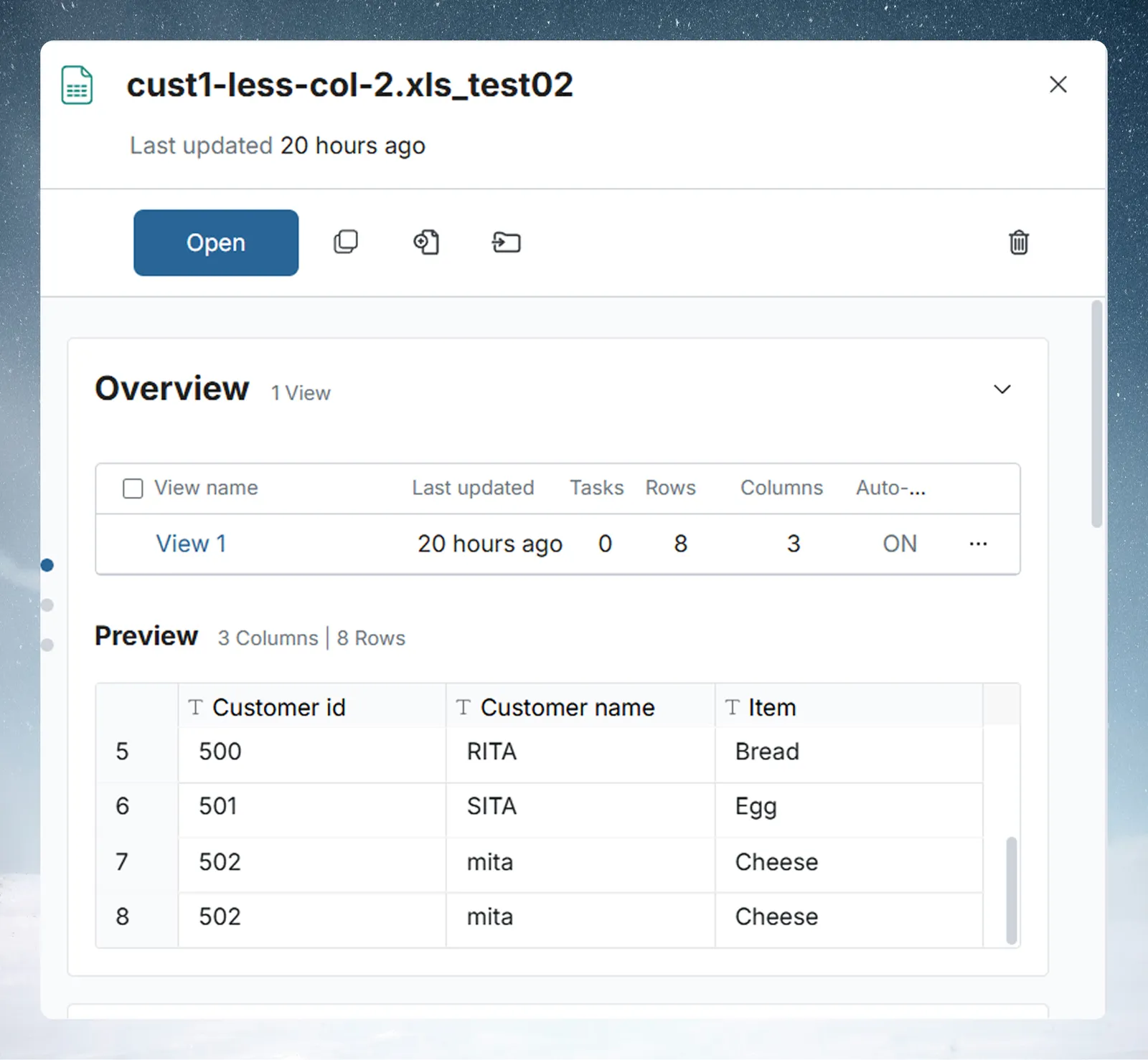
In the Data Library, open the row's ⋮ menu (or right-click it), or use the dataset panel's action row.
-
Click Move to trash.
-
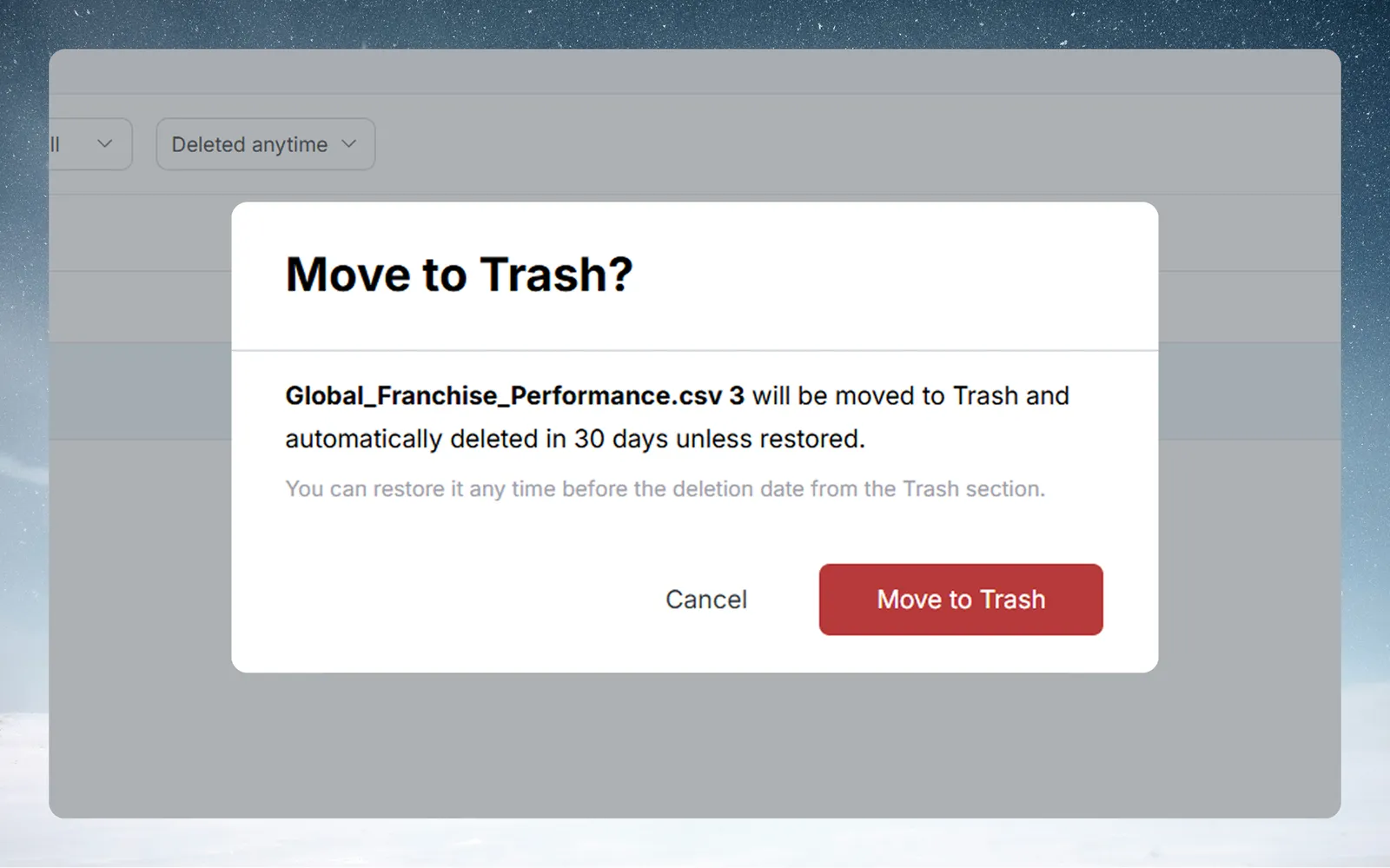
Check the dashboards and exports the confirmation lists.
-
Click Move to trash (or, for example, Move to trash with 2 items).
The dataset moves to the project's Trash at once. An item that can't go to Trash, such as a raw file, says Delete permanently instead.
Delete a file with a data-quality issue
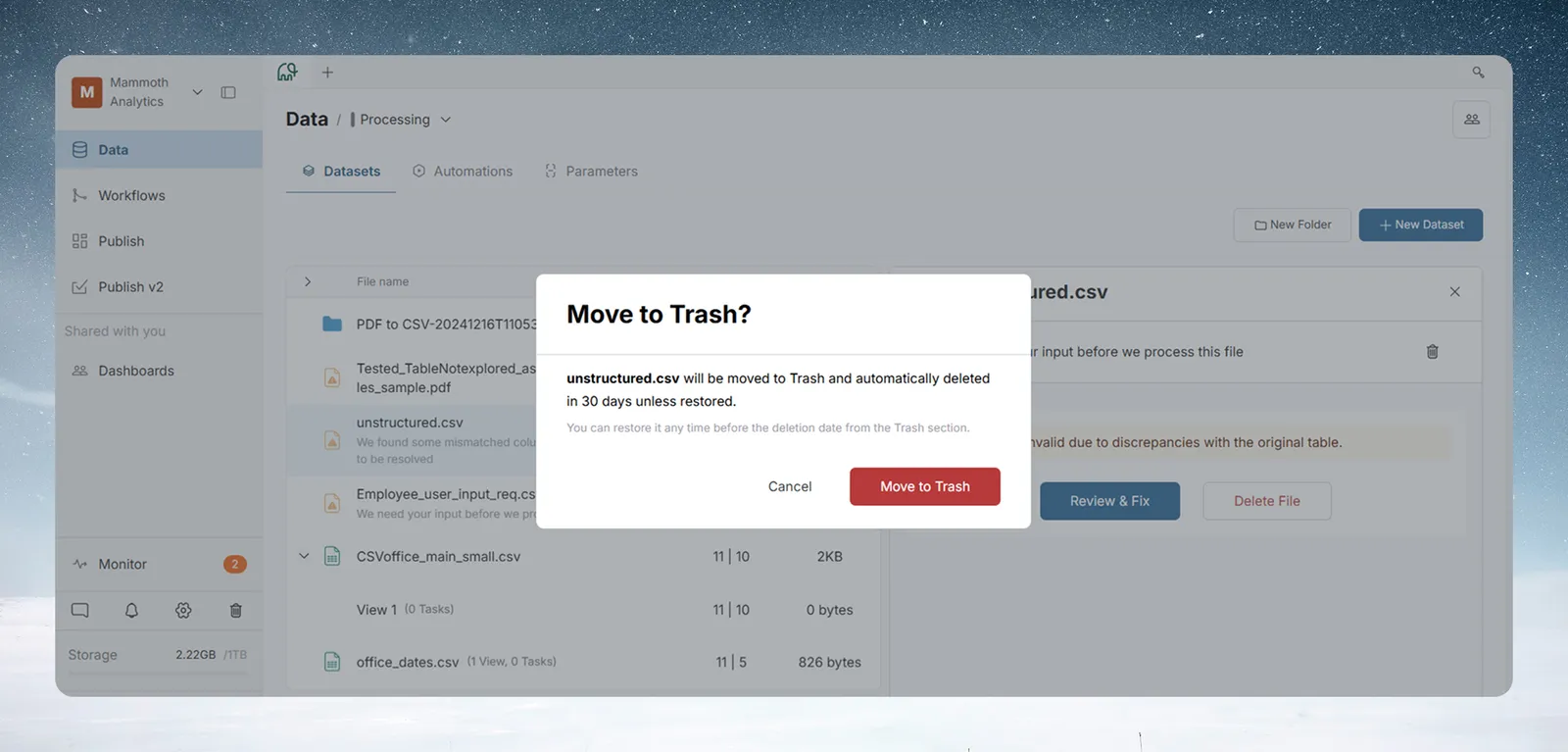
A file with an unresolved issue (for example, mismatched columns) shows a fix button in its panel, such as Choose how to read it or Check the file settings, and Delete File, which opens the same Move to trash confirmation. A file that failed processing is trashed the same way. An unprocessed file blocks its folder from being trashed.
Delete a View
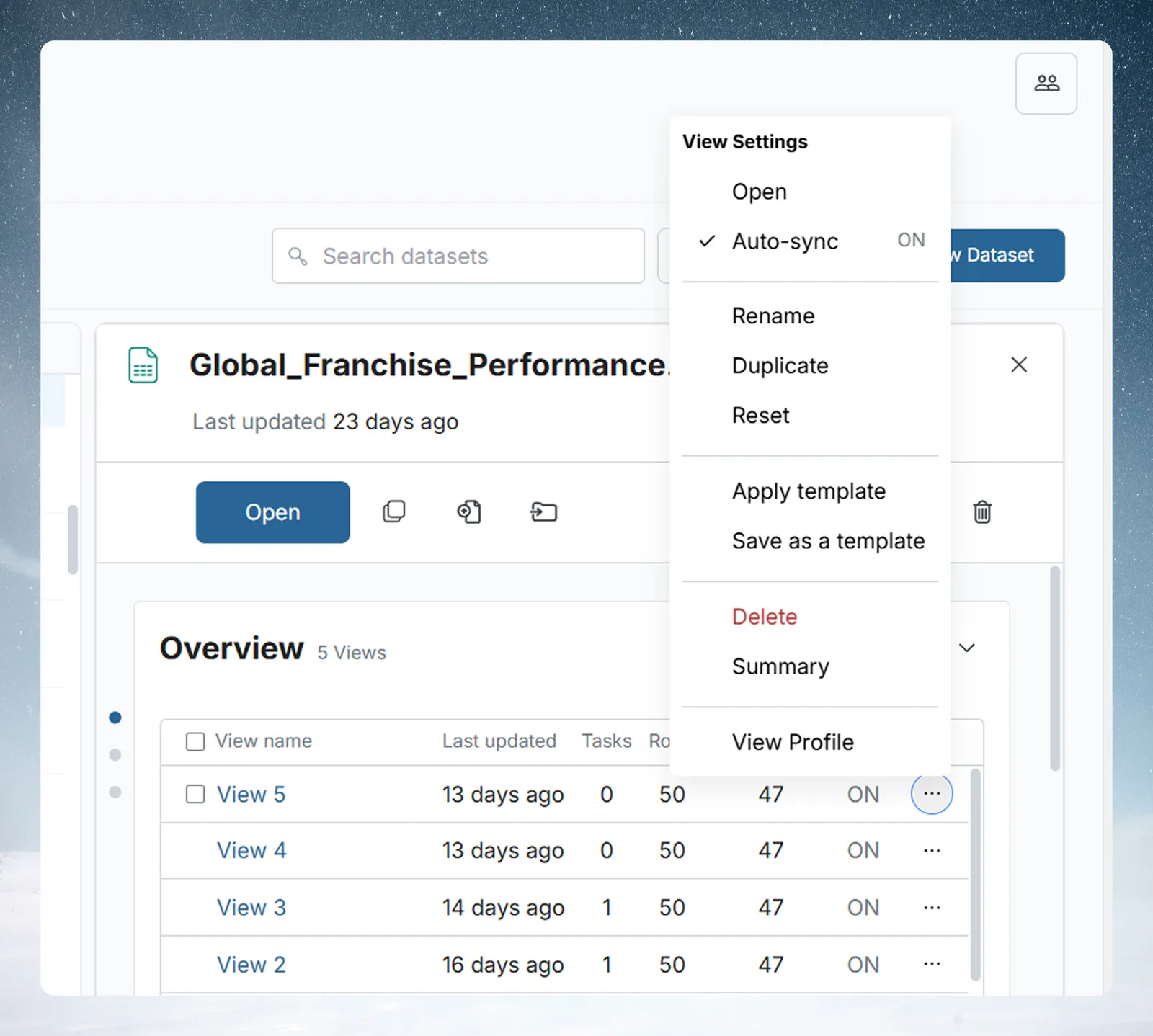
Each place opens the same confirmation, for example Move "View 2" to trash?, listing the dashboards, exports and Views that depend on it:
| Where | How |
|---|---|
| Datasets list | Turn on Show views under List settings, then use the View row's ⋮ menu or right-click, and Move to trash. |
| Dataset panel | Open a View, then its options menu, and Delete. |
| Data editor | Use the View's options menu and Delete, without leaving the editor. |
- Trashing a View also trashes the dashboards built on it.
- Views are their own items in Trash. Views deleted with their dataset are listed with the dataset.
- Delete in the View Settings menu is disabled on a dataset's only View. If the last View does go to Trash, Mammoth trashes the now-empty dataset too.
A pipeline elsewhere that uses "branch out" or "save as a new dataset" into a trashed dataset has that trigger suspended. Restoring the dataset does not turn it back on; do that by hand.
Delete a folder and its contents
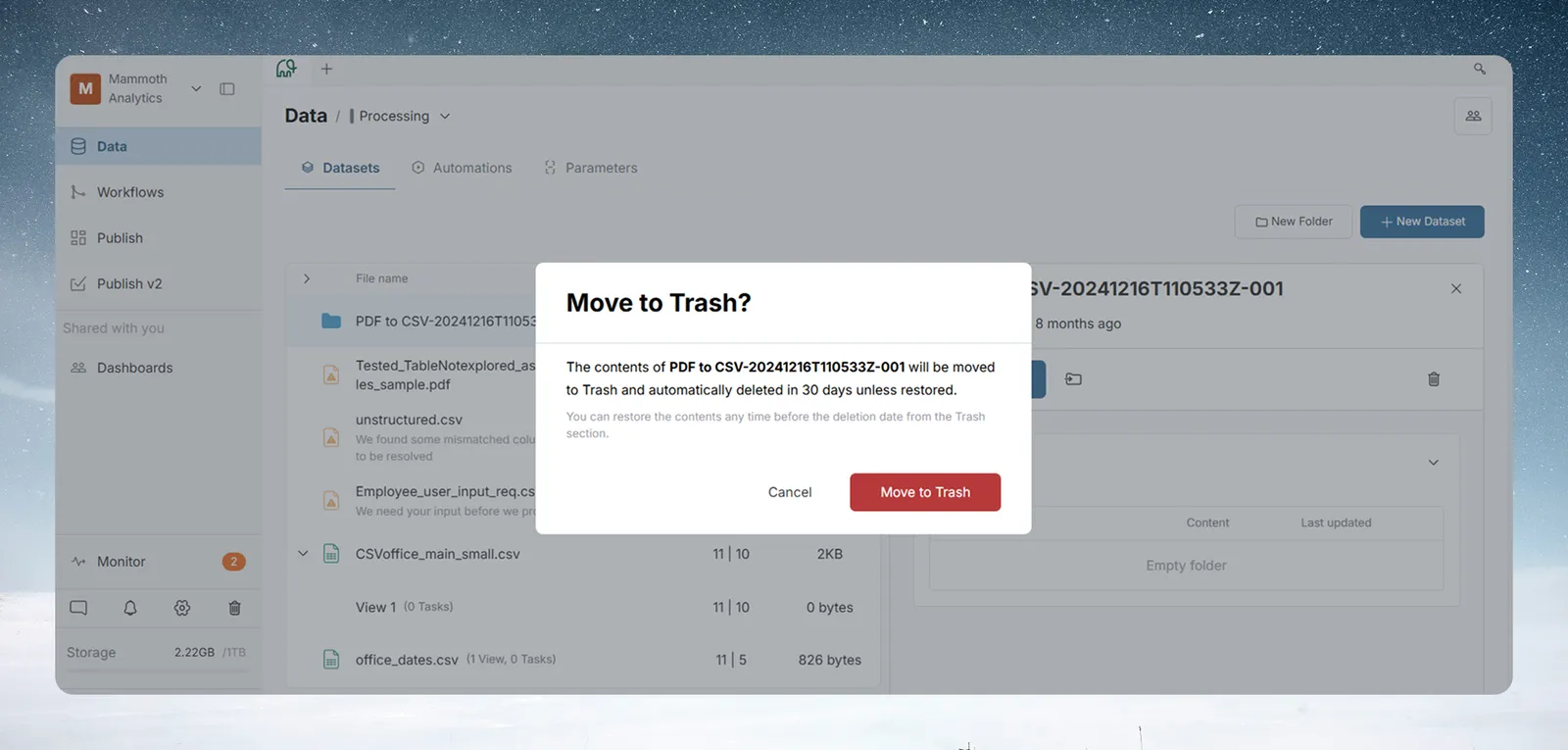
Trashing a folder trashes everything inside, then removes the empty folder. The confirmation, for example Move "PDF to CSV" to trash?, lists the dashboards and exports that go with the datasets inside.
Mammoth keeps the folder if it holds a file still processing, or a dataset that failed to move, and shows, for example, "Some items in PDF to CSV can't be moved to Trash." See Folders and folder rules.
Delete an automation
From the automation's detail panel or its ··· menu, click Delete and confirm. Trash lists automations as "Orchestrations" in its type filter and tooltips. See Manage automations.
Delete a dashboard
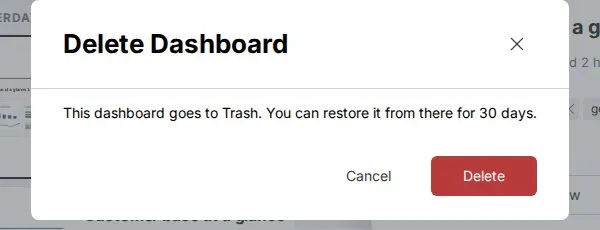
From the Publish Library, open the dashboard's overflow menu and click Delete. The confirmation reads, for example: "“Sales review” goes to Trash. You can restore it from there for 30 days." Trashing unpublishes it, so its link stops serving viewers; a restored dashboard comes back as a Draft. See Manage your dashboards.
Trashing a View or dataset under a dashboard you can't edit is blocked. See Why you can't move something to Trash.
Related
- Restore deleted datasets, Views and dashboards from Trash: get items back, or delete them forever.
- Why you can't move something to Trash: what blocks a delete.
- Views: create, rename and delete: the View Settings menu.
- Manage tasks: deleting a pipeline task that publishes a dashboard.
Something wrong? support@mammoth.io