Parse a JSON column into columns or rows
Extract JSON expands JSON stored in a column into separate columns or rows. Open it from Describe your transformation › Date, Numeric & Text, or from the Extract JSON shortcut at the top of a JSON-looking text column's 3-dot menu. Like other tasks, it re-runs on every refresh.
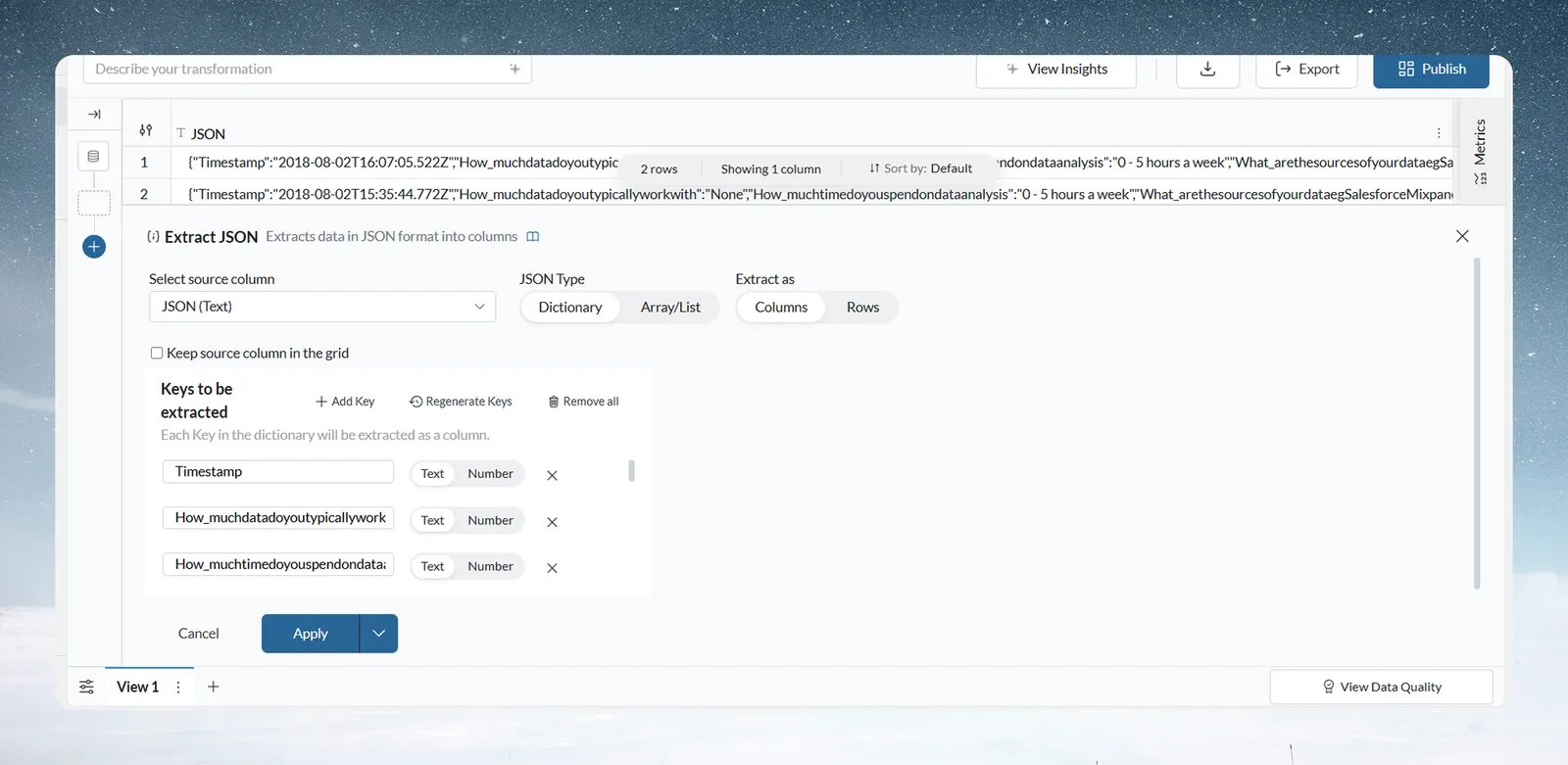
Expand a JSON column
The panel changes with the shape of your JSON and how you want it laid out.
- In Select source column, choose the column that holds the JSON.
- In JSON Type, choose the structure:
- Dictionary: named key-value pairs, for example
{"city": "London", "country": "UK"}. - Array/List: an ordered list, for example
["London", "UK", "Europe"].
- Dictionary: named key-value pairs, for example
- In Extract as, choose Columns (one column per value) or Rows (one row per value).
- Optional: tick Keep source column in the grid to keep the original JSON column.
- Fill in Keys to be extracted, which depends on your choices:
- Dictionary with Columns: click Add Key, type the key name and set its type to Text or Number. Repeat for each key. Regenerate Keys finds the keys in your data. Remove all clears the list.
- Array/List with Columns: enter how many columns to create (up to 20) and one type, Text or Number, for all of them.
- Rows: choose the output type, Text or Number. You set no keys.
- Click Apply.
What each JSON layout produces
| JSON Type | Extract as | Result |
|---|---|---|
| Dictionary | Columns | One column per key you list |
| Dictionary | Rows | Each key-value pair becomes a row, in two new columns: Key (text) and Value (the type you choose). Other columns repeat on each new row. |
| Array/List | Columns | Columns named after the source column, such as tags Item 0, tags Item 1 and so on, one per position |
| Array/List | Rows | One row per list item, in two new columns: Item (the type you choose) and Index (its position, a number) |
Extract a nested JSON key
With Dictionary and Columns, type a path in the key field to reach a value inside another object or a list.
| Path | Reaches |
|---|---|
city | The top-level key city |
company.location.country | country inside location inside company |
company.employees[0].name | name of the first item in the employees list (counting starts at 0) |
"order.id" | A key whose own name contains a dot. Put a key that contains ., [, ] or " in double quotes. |
How the new JSON columns are named
- A new column is named after the last key in the path, so
company.location.countrygivescountry. - If two paths end in the same key, both columns are named by their full path.
- If a column with that name already exists, the source column's name goes in front, then a number if needed.
Example: a shipping_address column holds {"city": "London", "postcode": "EC1A", "country": "UK"}. Choose Dictionary and Columns, add the keys city, postcode and country as Text, and click Apply. Each key becomes its own column that you can filter and group by.
Troubleshooting Extract JSON
| Symptom | Cause | Fix |
|---|---|---|
| "Invalid key path. Separate keys with a dot and write an array index as [0]. Put a key that contains a dot or a bracket in double quotes." | The key path can't be read | Write the path as shown in the nested key table above |
| "Key already exists. Please enter a different key name." | Two keys in the list have the same name | Give each key a unique name |
Related
- Extract text, change case and parse JSON: the other text functions.
- Work with dates and financial years: shift dates, extract parts and measure differences.
- Filter rows: filter on the new columns.
- Add, split, copy and delete columns: tidy up the columns you create.
Something wrong? support@mammoth.io