Create a Mammoth API token for scripts and apps
API tokens let scripts, integrations and CI use Mammoth; external AI keys let you choose the AI provider. Both live in Workspace Settings > API Keys. Workspace Owners and Workspace Members can create tokens; only Workspace Owners add external keys.
Decide whether you need API access
| You want to | Need a token? |
|---|---|
| Run Mammoth from a script, CI job or scheduled job, build custom apps that read or change Mammoth data, or automate workflows from external systems | Yes |
| Use an AI assistant (through the Mammoth MCP server) or the Mammoth CLI (Authentication) | No: they sign in with your Mammoth account. Both work on every plan |
| Feed a BI tool | No: use an export (for example Tableau Server/Cloud), or publish the view to a Mammoth-managed database and use Show credentials (Set up an export) |
| Use only the web app at first | No: skip this step. Workspace Owners and Workspace Members can create tokens later |
Create an API token
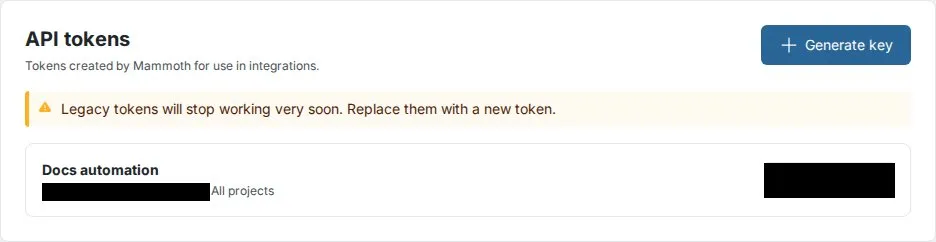
- Open the API Keys section and click Generate key in the API tokens card.
- In the Create API key dialog, enter a Name, such as "Nightly export script" or "Production Automation".
- Optionally tick Project scoped and select a project to limit the key to it.
- Click Create key.
- In API key created, click Copy secret, then Done.
- Store the secret in your password manager or secrets management system.
The secret shows only once: "After this dialog closes, the secret is gone." If you lose it, remove the key and generate a new one. Treat tokens like passwords: never commit them to code, share them over unsecured channels or keep them in plain text, and delete unused ones.
Add an external AI key (optional)
AI features such as Generative AI use a key Mammoth provides. A Workspace Owner can add your own OpenAI, Anthropic, Google or xAI key to choose the provider and model: see Add your own AI provider key.
Troubleshooting an API token
| Symptom | Cause | Fix |
|---|---|---|
| An API token doesn't work | Copy error, removed key, or wrong project | Check the token has no extra spaces or line breaks and wasn't removed in API Keys. If it's Project scoped, check the request is for that project. Send it as Authorization: Bearer mm_.... See Authentication |
Related
- Set up your workspace: the other setup steps.
- Authentication: how the CLI and API sign in.
- Mammoth MCP server: connect an AI assistant without a token.
Something wrong? support@mammoth.io