Data Check types: row count, nulls, unique values and ranges
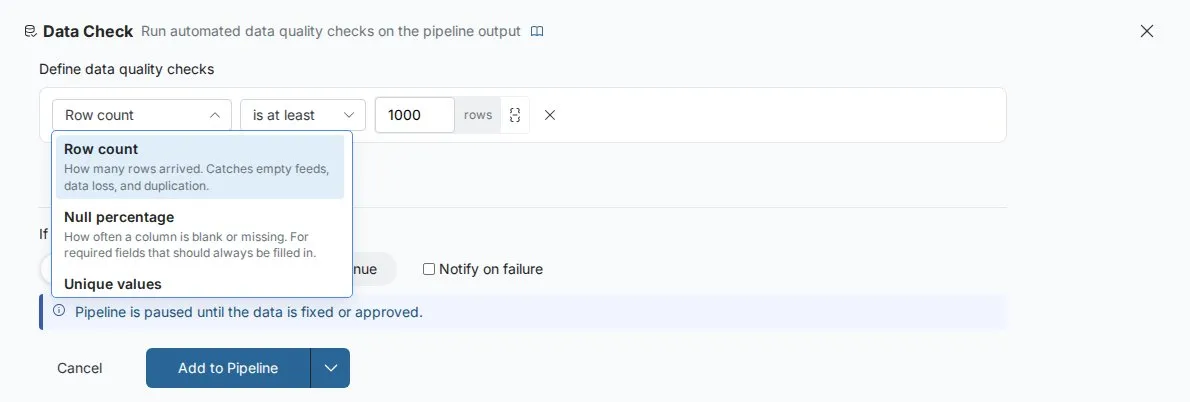
A Data Check in the Controls category tests the output of the task before it. Choose a type from the tiles when you open the form, or from the type dropdown on each check. To add a Data Check, see Remove duplicate rows and add data quality checks.
Check the percentage of empty values (Null percentage)
Tests the share of null or empty values in a column. You set the column and a percentage threshold.
| Condition | Passes when |
|---|---|
| is less than | Null % is below the threshold |
| is greater than | Null % is above the threshold |
| is exactly | Null % equals the threshold |
Example: make sure customer_email has fewer than 1% nulls after a join, to catch a broken join before it drops records.
Check the number of rows (Row count)
Tests the total number of rows in the output. You set one value, or a min and max for "is between".
| Condition | Passes when |
|---|---|
| is at least | Row count ≥ value |
| is at most | Row count ≤ value |
| is exactly | Row count equals value |
| is between | Row count is within the min–max range |
Example: make sure a daily sales feed has at least 1,000 rows, to catch a source failure before it produces empty reports.
Check that values are unique (Unique values)
Tests whether a column's values are unique. Empty values are not counted. You set the column, plus a percentage for the second condition.
| Condition | Passes when |
|---|---|
| 100% unique (no duplicates) | Every value is distinct |
| Uniqueness at least... | At least the percentage you enter is unique |
Example: make sure order_id has no duplicates after a join, to catch fan-out that would inflate totals.
Check that numbers fall within a range (Value range)
Tests whether a number column stays within bounds. You set the column, a value or min and max, and a tolerance.
| Condition | Passes when |
|---|---|
| between | Values are within the min–max range |
| is at least | Values are ≥ value |
| is at most | Values are ≤ value |
| is positive | Values are > 0 |
| is negative | Values are < 0 |
The tolerance options are Fail if any row violates, Fail if > 1% violate, Fail if > 5% violate and Fail if > 10% violate. A 1% tolerance means the check passes if at most 1% of rows break the rule. Use it for real-world data where a few edge cases are fine.
Example: require transaction_amount to be positive with a 1% tolerance, so rare refunds don't fail the whole pipeline.
Write your own rule in plain words (Custom prompt)
Describe a rule and Mammoth writes the SQL for it.
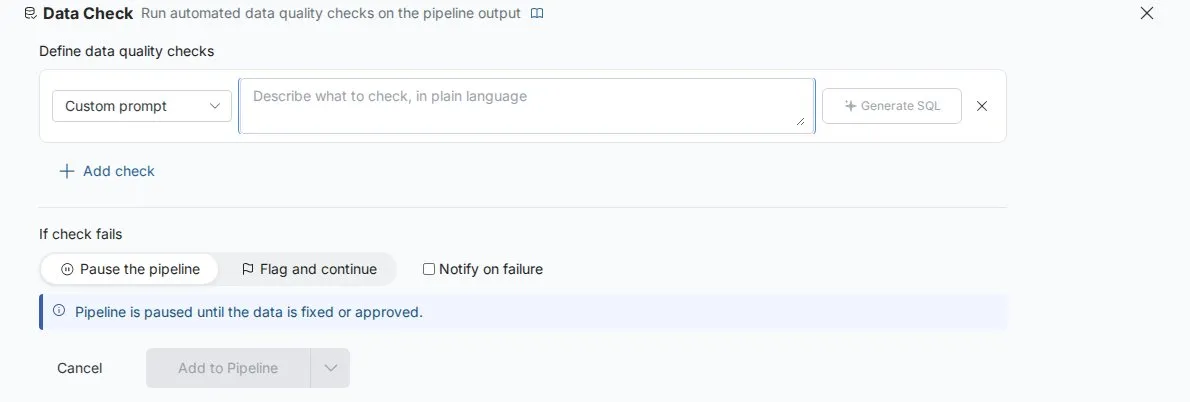
- Select Custom prompt as the check type. The tile reads Write your own rule.
- Type the rule, for example "all prices must be positive" or "revenue should not exceed 10 million".
- Click Generate SQL. Mammoth sends the description to an AI model, which writes a SQL condition.
- Review the Generated SQL under the text box.
- Click Apply.
The SQL runs as a condition against the whole pipeline output. For example, "the discount percentage should never exceed 100" becomes discount_pct <= 100.
Use a parameter as a check threshold
Bind a check's number to a parameter instead of a fixed value, so the same pipeline works with different thresholds in different runs.
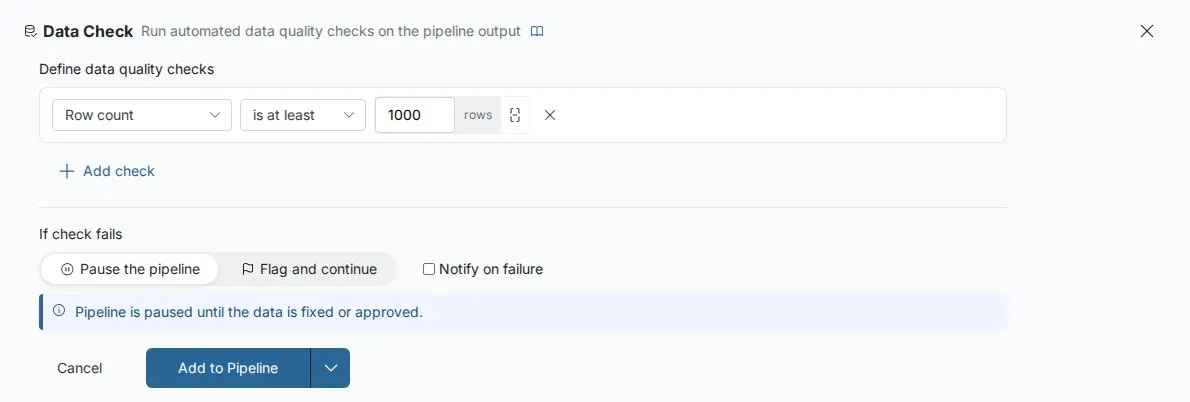
Example: a pipeline runs on small test data in development and full data in production.
- Create a Number parameter
min_rows. - In the Data Check, click the parameter icon next to the row count value.
- Select
min_rows. - Set
min_rows = 10for development runs andmin_rows = 50000for production runs.
See Parameters and snippets to create a parameter.
Related
- What happens when a Data Check fails: Any or All, pause or flag, results.
- Use a project parameter as a value in a task: binding values in other tasks.
- Column types, IDs, currency and percentages: types that get suggested checks.
Something wrong? support@mammoth.io