Every function in Mammoth's Transform menu
The Transform menu groups more than 30 functions into seven categories, in this order. To find one by keyword, type in the search bar at the top of the menu. Its placeholder reads "Describe your transformation", and matching functions from all categories are listed.
AI Powered functions
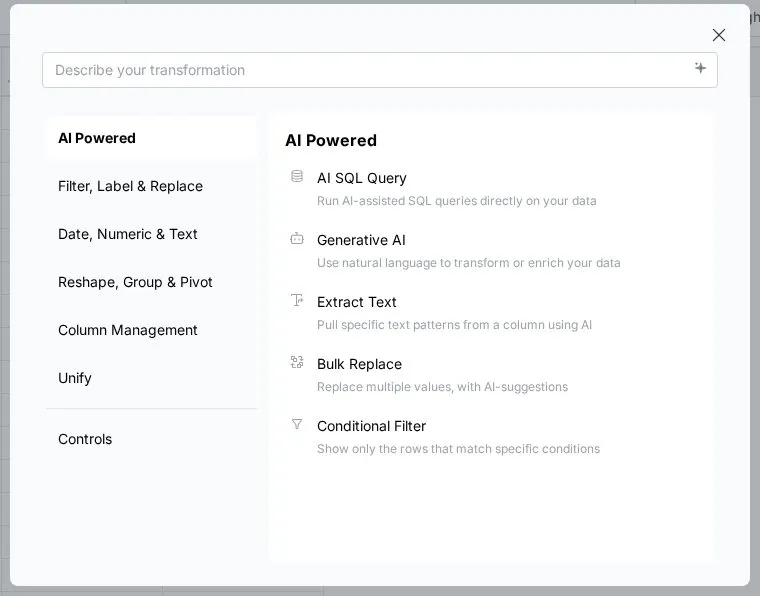
The menu opens on AI Powered, which shows five shortcuts. Ask in plain words and Generative AI live only here. Extract Text, Bulk Replace and Conditional Filter also sit in their own categories.
| Function | What it does | Page |
|---|---|---|
| Ask in plain words | Turns a plain-language request, such as "total revenue by region for orders placed this year", into a SQL query and runs it on your data. Use it for multi-column aggregations or logic that is easier to describe than to build step by step. | Write SQL with AI |
| Generative AI | Uses a large language model to write new column values for every row: classification, category assignment from free text, sentiment, translation or summaries. Use it when the output depends on meaning rather than a fixed rule. | Use AI on your columns |
| Extract Text | Shortcut to the Text Tools function | Work with text and JSON |
| Bulk Replace | Shortcut to the Replace function | Find and replace values |
| Conditional Filter | Shortcut to the Filter function | Filter rows |
Filter, Label & Replace functions
Eight functions in three groups: Filter, Label & Edit and Replace.
| Function | What it does | Page |
|---|---|---|
| Conditional Filter | Show only the rows that match specific conditions | Filter rows |
| Remove Duplicate Rows | Delete rows with duplicate values (customizable by column) | Remove duplicates and check data |
| Show Top/Bottom Rows | Display a fixed number of top or bottom rows in your data | Filter rows |
| Edit Cells | Modify cells directly in the table | Label rows, edit cells and fill blanks |
| Label & Insert Values | Assign new labels to cells based on a custom condition | Label rows, edit cells and fill blanks |
| Fill Missing Values | Fill empty cells using nearby or computed values | Label rows, edit cells and fill blanks |
| Bulk Replace | Replace multiple values with AI-suggestions | Find and replace values |
| Find & Replace | Search and replace specific values in selected columns | Find and replace values |
Date, Numeric & Text functions
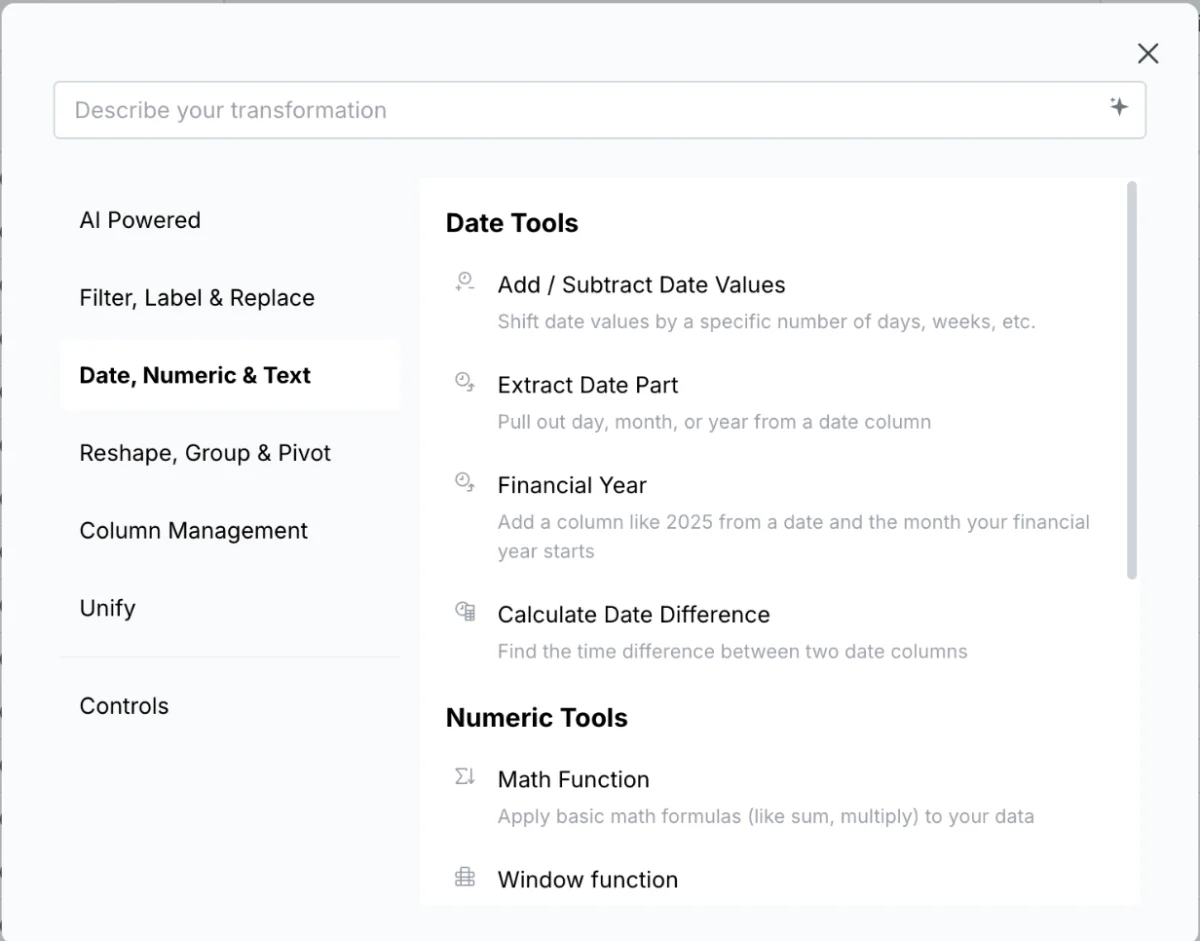
Ten functions in three groups: Date Tools, Numeric Tools and Text Tools.
| Function | What it does | Page |
|---|---|---|
| Add / Subtract Date Values | Shift date values by a specific number of days, weeks and so on | Work with dates |
| Extract Date Part | Pull out day, month, or year from a date column | Work with dates |
| Financial Year | Add a column like 2025 from a date and the month your financial year starts | Work with dates |
| Calculate Date Difference | Find the time difference between two date columns | Work with dates |
| Math Function | Apply basic math formulas (like sum, multiply) to your data | Calculate with formulas |
| Window function | Run numerical functions across groups of data | Calculate with formulas |
| Obtain Large or Small Values | Find the Nth highest or lowest value by comparing numbers across columns | Calculate with formulas |
| Extract Text | Pull specific text patterns from a column using AI | Work with text and JSON |
| Text Formatting | Tidy up text by changing case or removing extra spaces | Work with text and JSON |
| Extract JSON | Extract data in JSON format into separate columns | Work with text and JSON |
Reshape, Group & Pivot functions
| Function | What it does | Page |
|---|---|---|
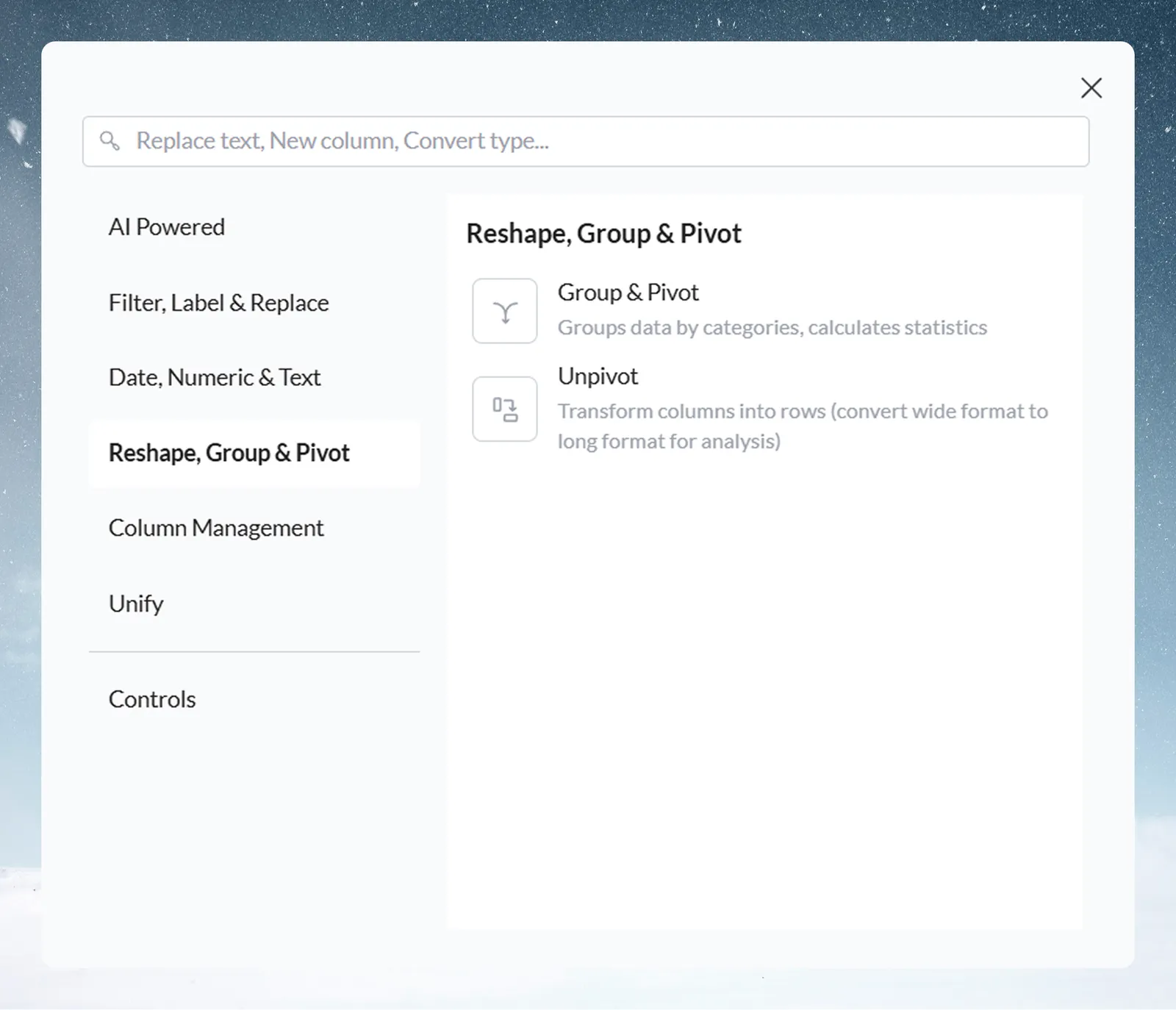
| Group & Pivot | Group data by categories and calculate statistics | Group, pivot and unpivot |
| Unpivot | Transform columns into rows (wide format to long format) | Group, pivot and unpivot |
Column Management functions
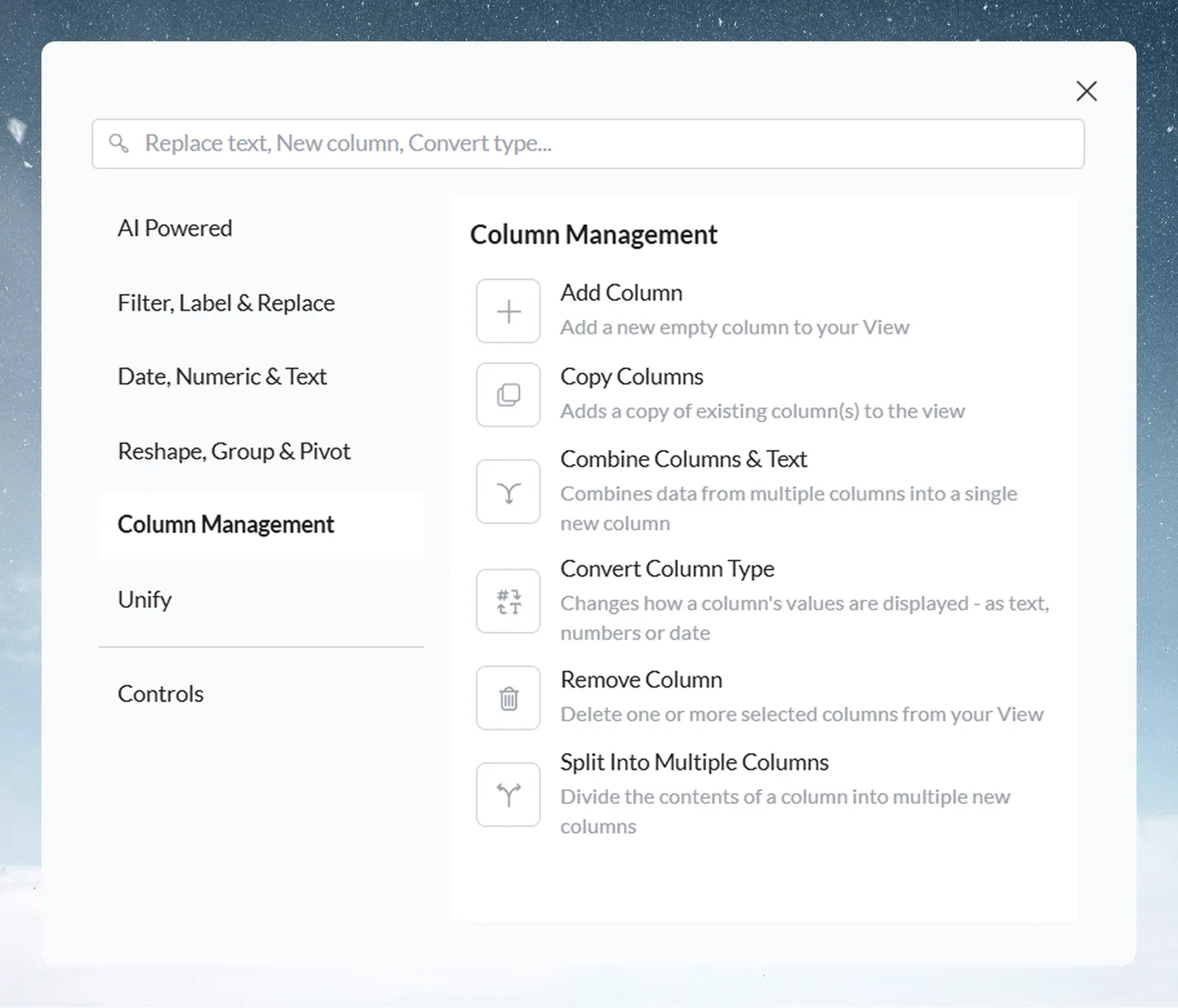
| Function | What it does | Page |
|---|---|---|
| Add Column | Add a new empty column to your View | Add, split, copy and delete columns |
| Copy Columns | Add a copy of existing column(s) to the View | Add, split, copy and delete columns |
| Combine Columns & Text | Combine data from multiple columns into a single new column | Add, split, copy and delete columns |
| Convert Column Type | Change a column's type: text, number, date, ID, currency or percentage | Convert text to dates and numbers |
| Remove Column | Delete one or more selected columns from your View | Add, split, copy and delete columns |
| Split Into Multiple Columns | Divide the contents of a column into multiple new columns | Add, split, copy and delete columns |
Unify functions
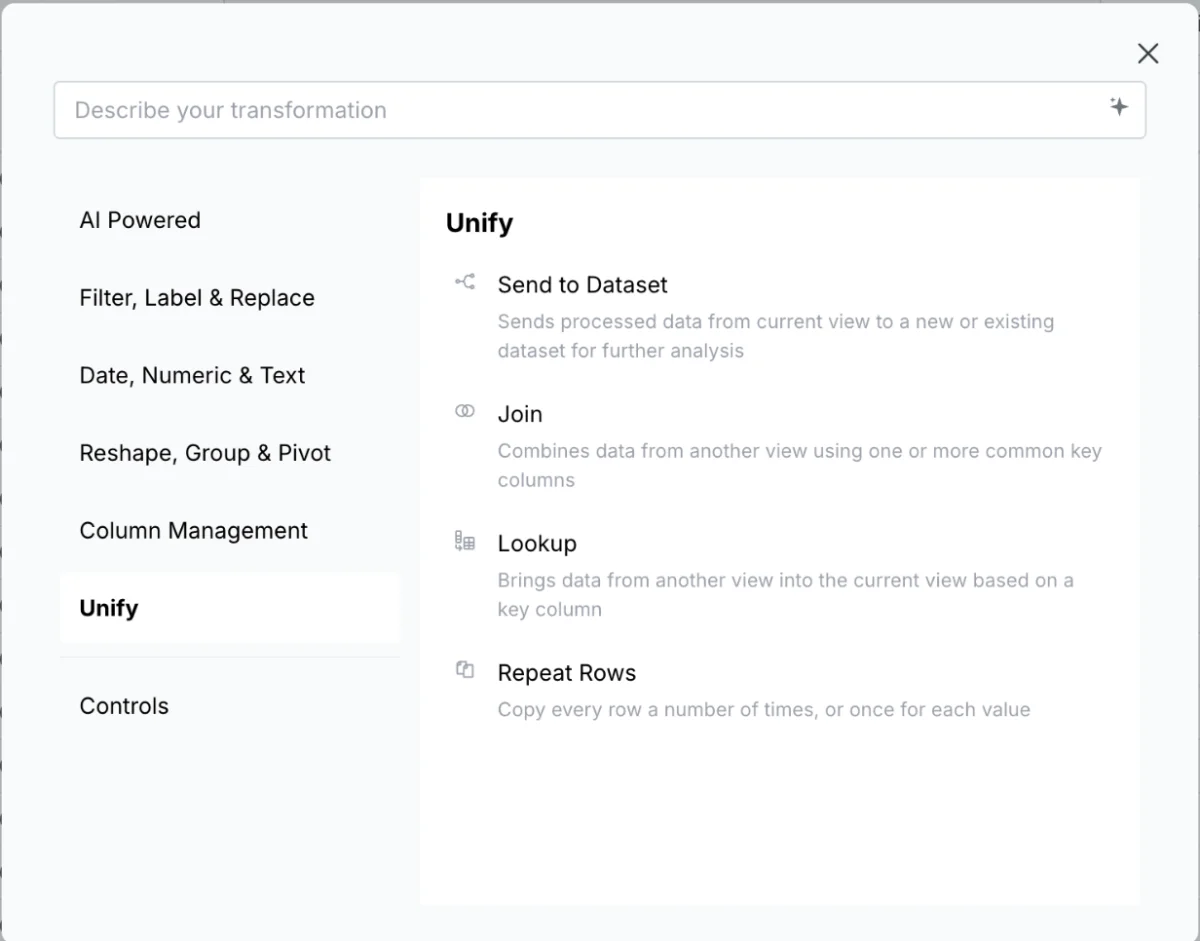
| Function | What it does | Page |
|---|---|---|
| Send to Dataset | Send processed data from the current View to a new or existing dataset | Send to a dataset |
| Join | Combine data from another View using one or more common key columns (inner, left, right, outer) | Join datasets |
| Lookup | Bring data from another View into the current View based on a key column, like VLOOKUP in Excel | Look up a value |
| Repeat Rows | Copy every row a number of times, or once for each value in a list or range | Repeat rows |
Controls functions
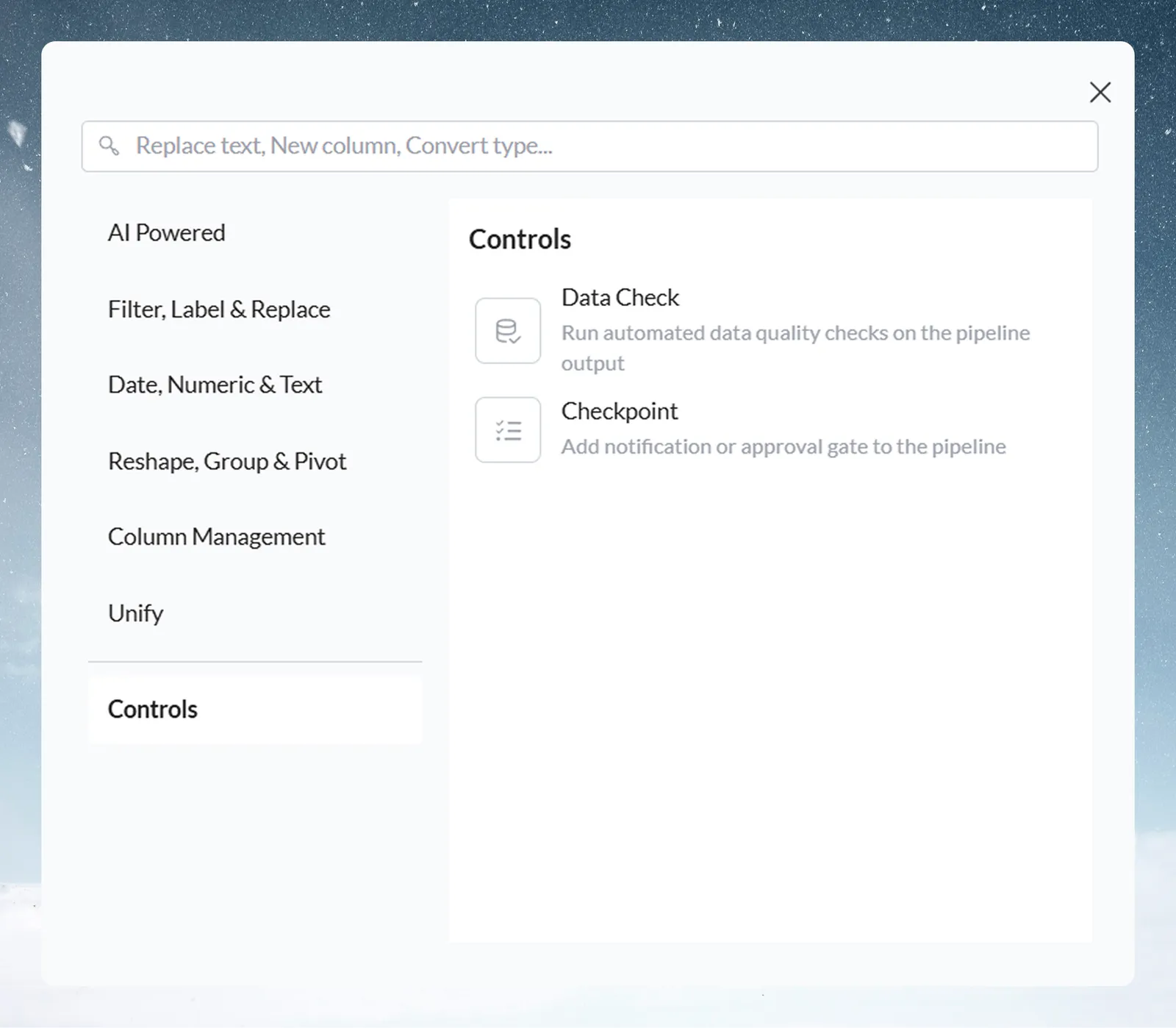
| Function | What it does | Page |
|---|---|---|
| Data Check | Run automated data quality checks on the pipeline output | Remove duplicates and check data |
| Checkpoint Alert | Notify people or systems, with the option to require approval to continue | Pause a pipeline for approval |
Related
- How the pipeline works: add a task and preview it.
- Clean and shape data: find the page for the job you're doing.
- Fix a failing step: when a task shows an error.
Was this page helpful?
Something wrong? support@mammoth.io