Connect Google BigQuery to Mammoth with a service account
The Google BigQuery connector imports a table, or the result of your own SQL query, from BigQuery into Mammoth as a dataset. It signs in with a Google Cloud service account key file, so there is no OAuth sign-in. Open it from Data Library > New dataset > Connectors, search for BigQuery and click Google BigQuery. Project Admins create the connection; Project Editors can start datasets from a connection the project already has.
What you can bring in from BigQuery
- Any table the service account can read. BigQuery groups tables into datasets, which work like schemas, and the Tables list groups tables under their BigQuery dataset.
- The result of your own
SELECTquery.
The Mammoth dataset can refresh daily or only when you ask.
Before you connect BigQuery
You need:
- A Google Cloud project with BigQuery turned on.
- A service account with the BigQuery Data Viewer role (or equivalent) and the BigQuery Job User role.
- The service account's JSON key file, downloaded to your computer.
Create a BigQuery service account and key
- In the Google Cloud Console, go to IAM & Admin → Service Accounts.
- Click Create Service Account.
- Give it a name, for example
mammoth-bigquery. - Grant the roles BigQuery Data Viewer (read access) and BigQuery Job User (to run queries).
- Click Done.
- Open the service account, go to Keys, click Add Key → Create new key, and select JSON.
- Save the downloaded JSON file. You upload it to Mammoth in the next step.
The key file grants access to your BigQuery project. Store it securely and don't share it. To revoke access, delete the key in Google Cloud Console under IAM & Admin → Service Accounts, then your account, then Keys.
Connect Google BigQuery to Mammoth
- Go to the Data Library, click New dataset, and choose Connectors.
- Search for BigQuery and click the Google BigQuery tile. The connection form opens.
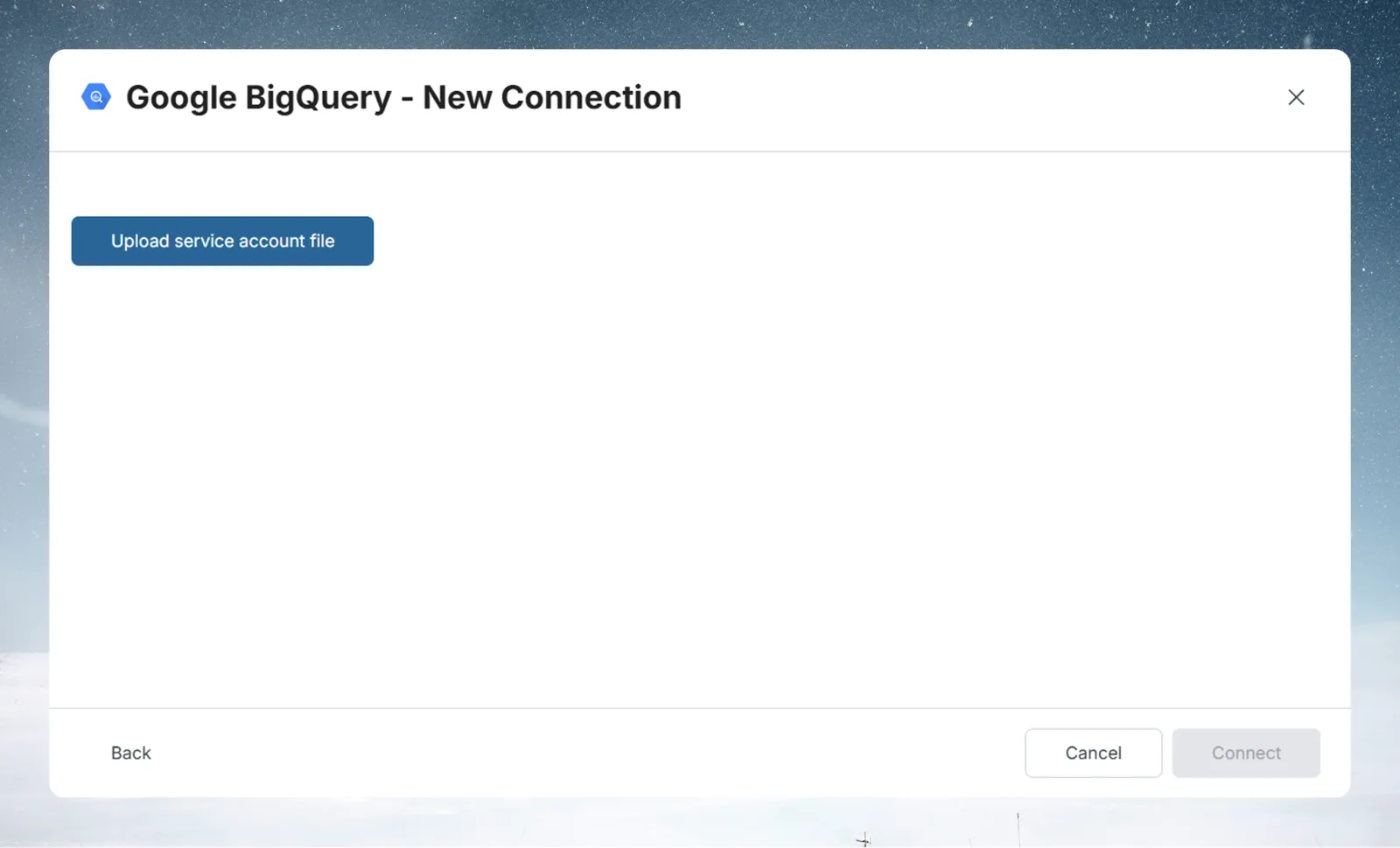
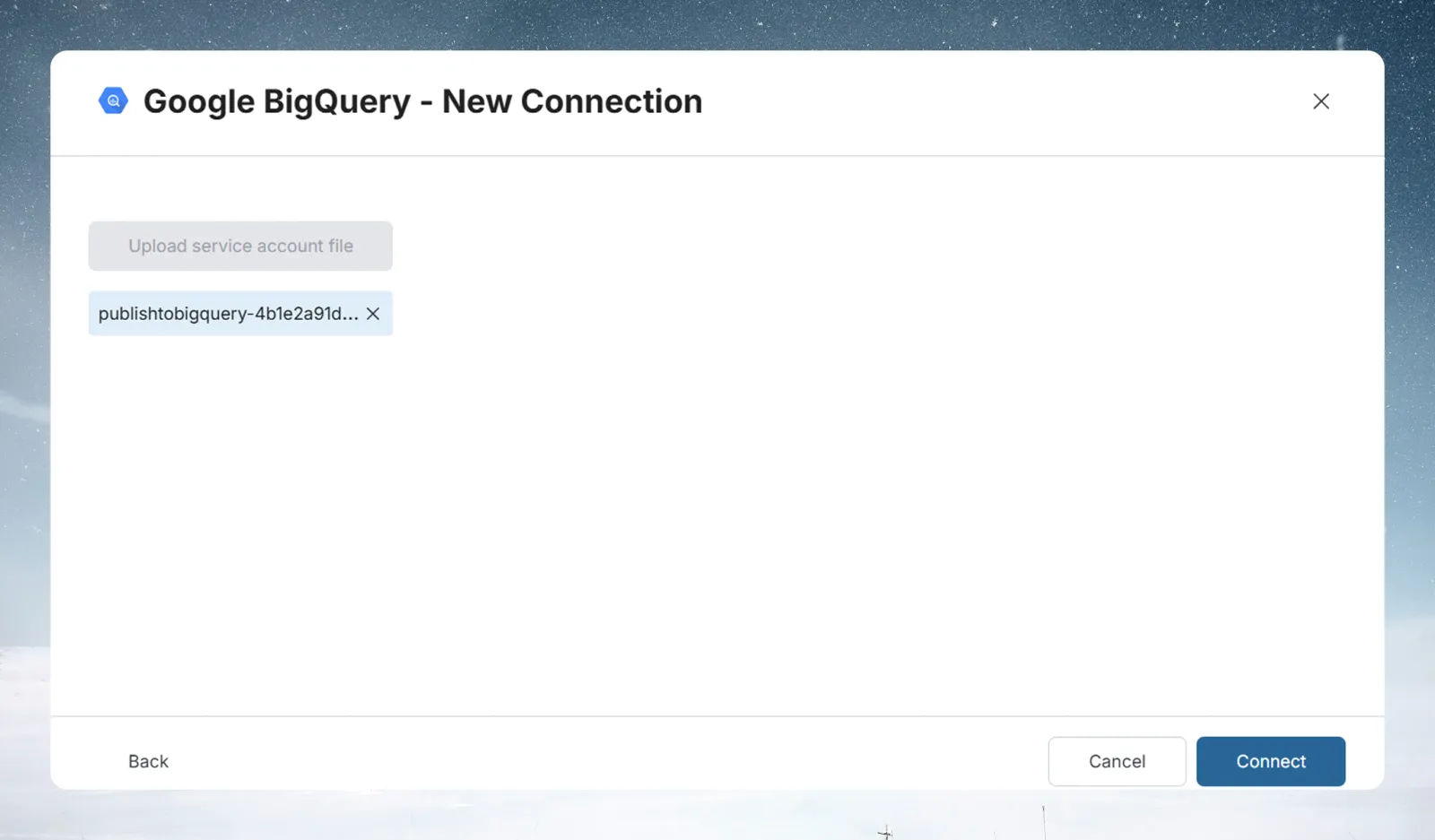
- Click Upload service account file and select the JSON key file.
- Click Connect. Once Mammoth has connected, the connector workspace opens on your tables.
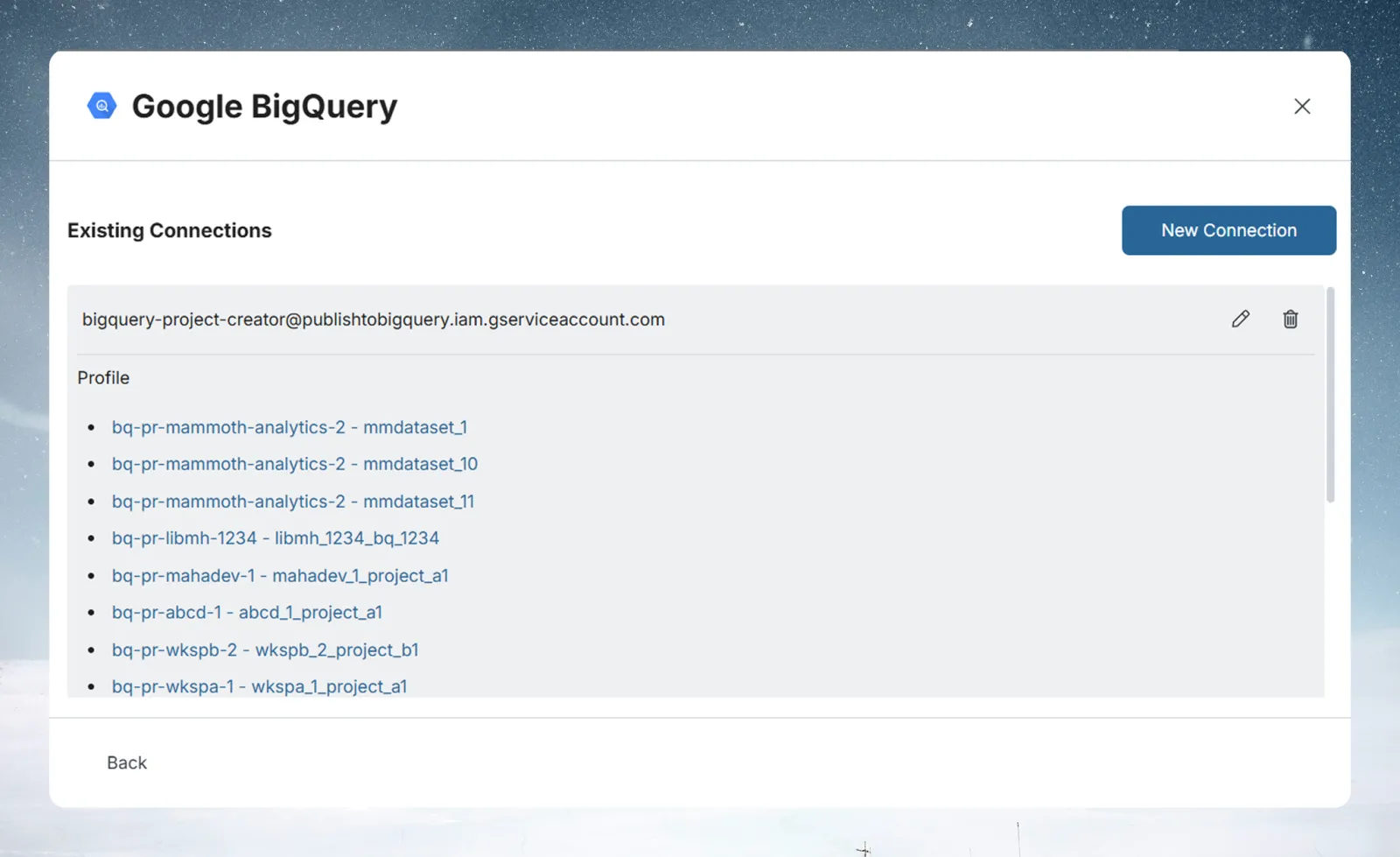
If you already have a BigQuery connection, pick it under Your connections in the launcher instead. See Connect a database or app for the shared steps.
Query a BigQuery table in the SQL view
- In Tables, click a table. Mammoth opens its rows with the
SELECT *query that read them, shown above the rows. - To change the query, click Edit SQL, edit it, and click Run.
BigQuery puts table names in backticks:
SELECT order_id, customer_id, amount, created_at
FROM `my-project.analytics.orders`
WHERE DATE(created_at) >= DATE_SUB(CURRENT_DATE(), INTERVAL 90 DAY)
  AND status = 'completed'
Connect a database or app covers the full SQL view.
Save BigQuery data as a dataset
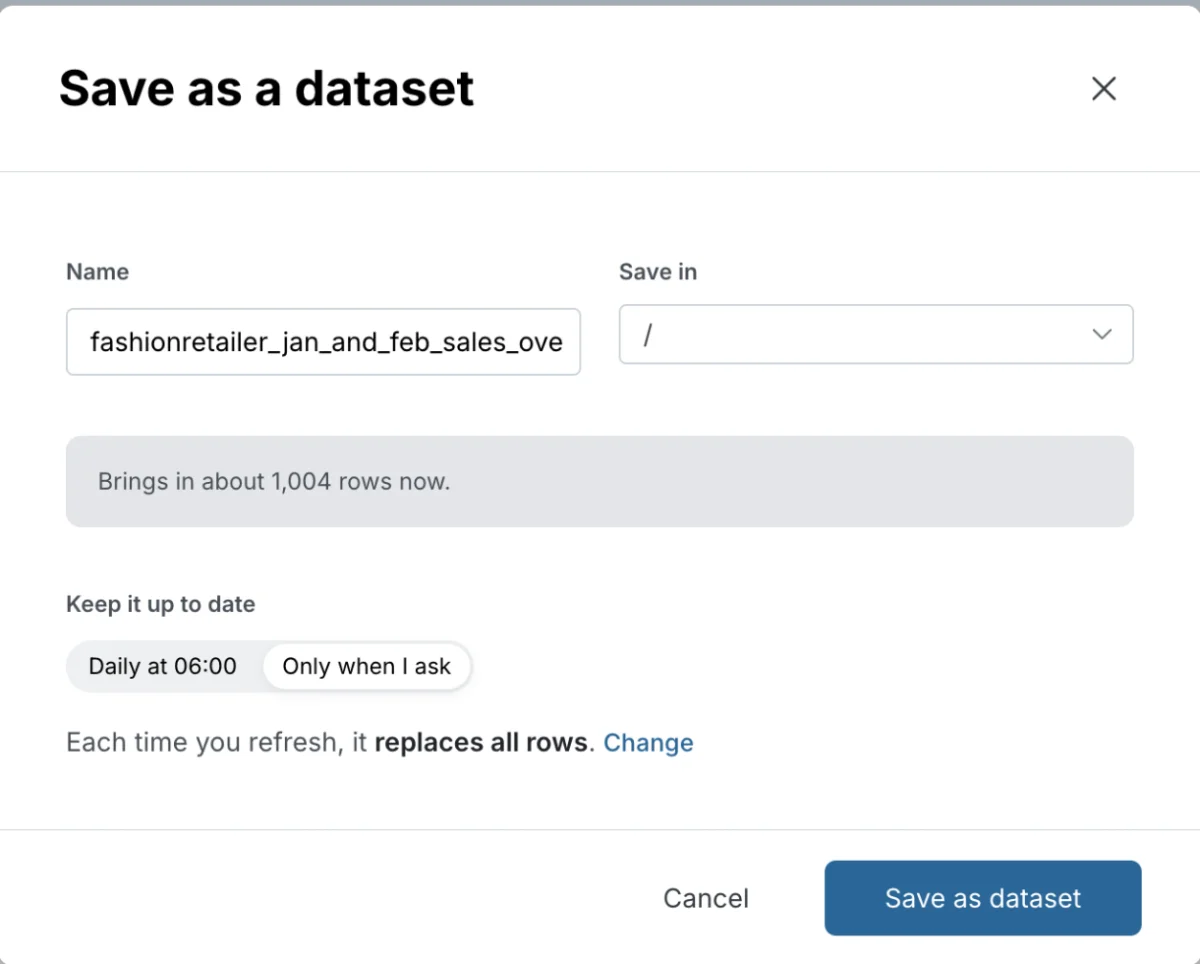
- Click Save as dataset.
- Enter a Name and pick a folder.
- Under Keep it up to date, choose Daily at 06:00 or Only when I ask.
- Next to the sentence that says what each refresh does, click Change and pick an option under On each refresh (see the table below).
- Click Save as dataset.
| On each refresh | What it does |
|---|---|
| Replace all rows | Matches the source after every refresh |
| Add only new rows | Keeps what you have and adds rows above the last value of a Key column |
| Add every row again | Shown instead when the result has no numeric or date column, so each refresh adds a full copy |
| Keep only the newest rows | Empties the dataset, then brings in rows since the last refresh (needs a Key column) |
A key column is a column whose values only ever go up, such as an ID or a date.
Refresh BigQuery data on a schedule
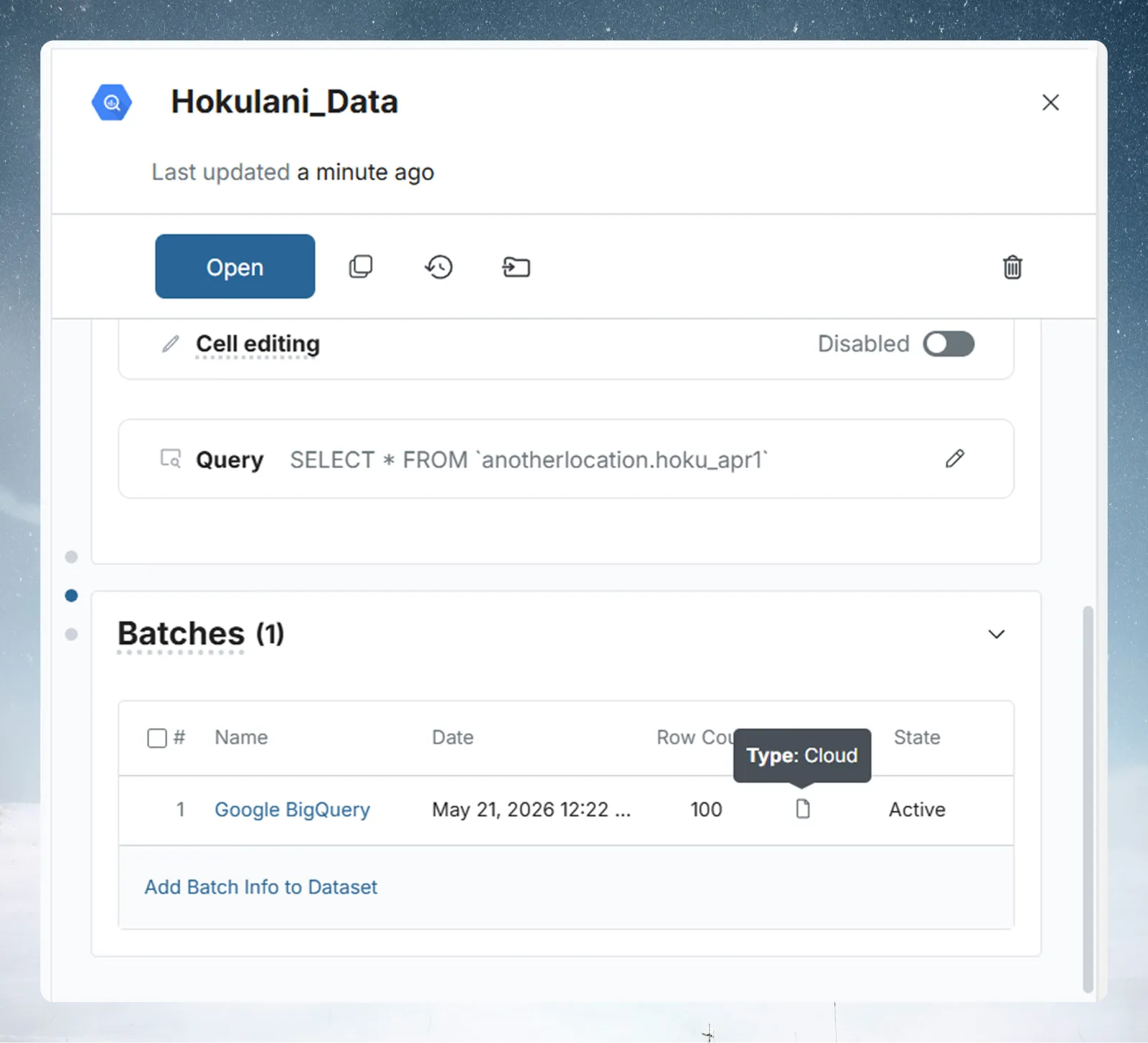
Choosing Daily at 06:00 creates a Dataset Refresh automation that you can reschedule later.
After the dataset is saved, you can change what a refresh does in its Update method: Replace all data, Add new rows only or Keep only the newest rows.
Troubleshoot BigQuery permission errors
| Symptom | Likely cause | Fix |
|---|---|---|
| Permission denied | The service account is missing a role | Give it both BigQuery Data Viewer and BigQuery Job User |
| Permission denied on one dataset | You want table-level access, not project-level | Grant the roles on the BigQuery dataset in BigQuery, then the dataset, then Sharing → Permissions |
| Project not visible | The service account belongs to another project | Use a service account in the same Google Cloud project, or grant it access across projects through IAM |
Related
- Connect a database or app: the shared connector workspace steps and the full SQL view.
- Manage saved connections: edit, reuse or delete this connection.
- Refresh a dataset: change when the dataset refreshes.
- Google Cloud Storage: import files from a bucket with a service account.
- Connector reference: every source Mammoth connects to.
Something wrong? support@mammoth.io