Invite your team to Mammoth and choose their roles
Workspace Owner · Updated 8 Nov 2026
A Workspace Owner invites people from Workspace Settings > User Management > Invite Users, and can add them to projects in the same step. Assigning the right role at the start prevents permission problems later.
Send workspace invitations
You need to be a Workspace Owner.
- In User Management, click Invite Users.
- Enter the email addresses. Separate several with commas, semicolons or spaces, or put each on its own line.
- Optionally tick Assign to Projects and pick the projects the invited users should join.
- Click Invite.
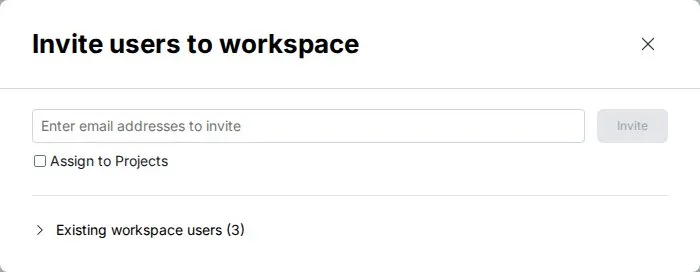
Invited users create their Mammoth accounts from the email invitation.
Which role to give each person
| Role | Give it to |
|---|---|
| Workspace Member | Most team members. The default and safest start: they see data only in projects they're added to |
| Project Admin | Department heads or team leads who manage a project and add people to it |
| Project Editor | Analysts and business users who work with data but don't manage access |
| Project Viewer | People who only look at Data Library items, read-only. To share only dashboards, share the dashboard instead |
| Workspace Owner | The person who created the workspace, plus anyone you promote. A workspace can have several Owners |
Start everyone as Workspace Member and give project roles once projects exist, so nobody sees data before project boundaries are set. To make someone an Owner:
- Click their row in User Management.
- Click their workspace role at the top of the side panel.
- Choose Workspace Owner.
- Confirm with Make owner.
See Members, roles and custom roles.
Troubleshooting invitations
| Symptom | Cause | Fix |
|---|---|---|
| A user didn't receive the invitation email | Spam filtering, a typo, or corporate email filtering | Check their spam folder and the address spelling. Resend with Reinvite in the user table or the Invite users to workspace dialog. Ask IT if corporate filtering blocks external invitations |
| A team member can't open a project | Not invited, not activated, or no project access | Check they were invited to the workspace and clicked the invitation link to activate their account, then check their project access |
Related
- Set up your workspace: the other setup steps.
- Set up projects: create the projects you give people roles in.
- Members, roles and custom roles: every permission in one matrix.
Was this page helpful?
Something wrong? support@mammoth.io