Hold exports for review with Auto-sync and the Monitor
Every export destination, and the Live Link task, has an Auto-sync setting. On (the default), data goes out after each pipeline run; off, it waits in the Monitor panel under Needs Attention → Pending until you release it. The setting shows as ON or OFF on the task card and is switched from the step's options menu.
Hold exports for review with Auto-sync
- ON (the default): the destination receives updated data automatically after each pipeline execution.
- OFF: data is held until you release it from the Monitor panel, a review gate before delivery.
Turn Auto-sync off when:
- You need to review output before it reaches a downstream system
- A compliance process requires human sign-off before data delivery
- You're testing pipeline changes and don't want production destinations updated yet
Each destination is paused independently. For example, keep Auto-sync ON for a Live Link while a database export is held for review. See Control when Views update with Auto-sync.
For regulated workflows, combine Auto-sync OFF on critical destinations with a Data Check task earlier in the pipeline. The Data Check runs quality validation (null checks, row count thresholds, value ranges) and halts the pipeline if data fails, so only validated data reaches review. See Remove duplicates and check data.
Release held exports from the Monitor panel
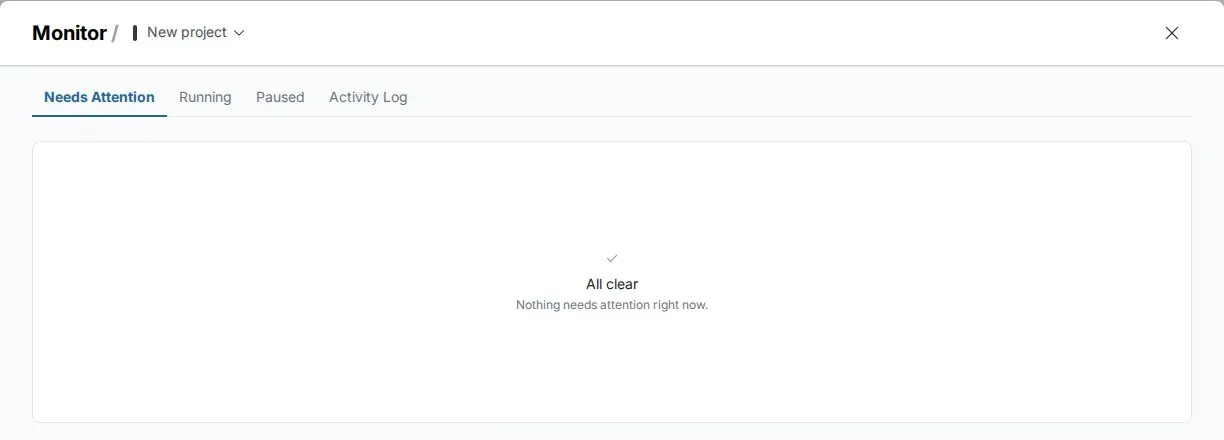
The Monitor panel (its icon is in the left sidebar) tracks exports and pipeline health across up to four tabs. A badge on the icon counts items needing attention.
| Tab | What it lists |
|---|---|
| Needs Attention | Everything waiting on you, with an orange badge count: Errors; Pending; Automations (files an automation's rule sent to a dataset that didn't go in); Governance (checkpoint approvals and failed Data Checks); Pending Retentions |
| Running | Pipeline and export tasks executing across the workspace, with long-running tasks flagged as stuck |
| Paused | Every data source (View, Dataset) and export destination with Auto-sync turned off, whether or not it has pending data, with a shortcut to turn Auto-sync back on. Use it to audit which tasks need manual approval |
| Activity Log | A history of workspace activity, if you have permission to view it. See Activity log |
Pending holds items with new data waiting to be released, including destinations with Auto-sync OFF. Click Update to release a pending destination update straight away, without turning Auto-sync back on, or Process for a batch held by an incoming link.
Troubleshooting exports
| Symptom | Cause | Fix |
|---|---|---|
| The destination doesn't update after the pipeline runs | Auto-sync is OFF for the destination, or the View's own Auto-sync is OFF so the pipeline never re-executes | Turn Auto-sync ON for the destination and the View. Check Monitor → Needs Attention → Pending for exports waiting to be released |
| The export shows SUCCESS but the destination didn't update | View Auto-sync is OFF, or the destination's Auto-sync is OFF and delivery is held pending | Open Monitor → Needs Attention → Pending and release them |
| The export never runs | When it runs reads Only when someone changes this data, or "Nothing sends this export on its own now." | Click Refresh it on a schedule, Send it on a schedule or Run after each data update (see See when an export runs) |
For database errors (Validate Connection, schema conflicts, Merge), see Send data to a database or warehouse.
Related
- Set up an export: set up an export.
- Control when Views update with Auto-sync: hold and release a View's own data.
- Live links: Auto-sync on a Live Link.
- Remove duplicates and check data: Data Check before review.
Something wrong? support@mammoth.io