Fix a failing step in a Mammoth pipeline
A pipeline step fails when a task can't process the data it receives, usually because a column was renamed or removed, or has the wrong type. The failing task card turns red with Fix error and Delete buttons, and a This pipeline has errors banner appears at the top of the Pipeline panel. Start with the first failing task: later tasks often fail only because an earlier one did.
How a failing step looks
When a task fails, its card shows the problem:
- the card border turns red;
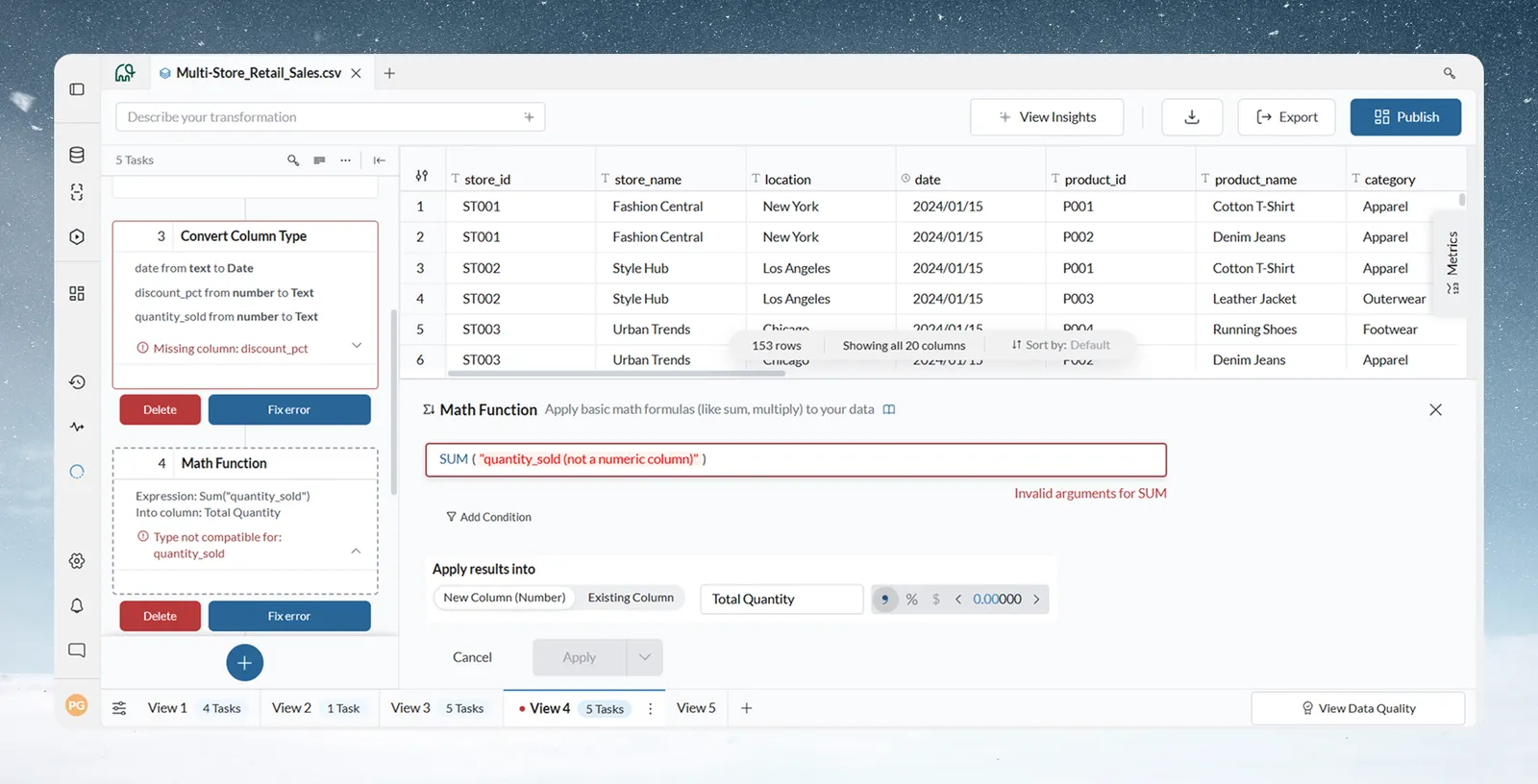
- a red warning icon and a message name the failure, for example "Missing column: discount_pct" or "Type not compatible for: quantity_sold";
- a chevron on the card expands the full error;
- Delete and Fix error buttons appear at the bottom of the card.
Tasks below the failing one don't run until it is fixed.
The banner reads This pipeline has errors with Fix the failing tasks to continue. When you add or edit a task and the pipeline ends up with errors, Mammoth also says Added task, but pipeline has errors or Edited task, but pipeline has errors. The View tab at the bottom of the screen shows a red dot next to the View name until every error is fixed and the pipeline runs successfully. Use the red dots to spot which Views need attention without opening each one.
Find the cause of a pipeline error
- Find the first failing task in the pipeline.
- Open it and note the column or setting it uses.
- Compare that with the columns available at that point in the pipeline.
The usual causes:
- A broken column reference. The task uses a column that an earlier task removed or renamed.
- A type mismatch. The task needs a type that an earlier task changed. If Convert Column Type turns
quantity_soldfrom Number to Text, a later Math Function that does arithmetic on it fails.
These often cascade. When one task removes or changes a column, every later task that uses it fails at once. Each shows its own message and needs its own fix.
Fix the failing task
- Click Fix error on the card. The task's panel reopens with the problem marked in red, such as the missing or wrong-type column in the column selector.
- Pick a replacement column or correct the expression. Or remove the bad input and set the task up again with valid inputs.
- Click Apply. The task runs again.
Apply stays off until the problem is fixed. For example, a Math Function using a non-numeric column shows "Invalid arguments for SUM", and Apply stays off until you choose a number column or change the expression.
Click Cancel to close the panel without changes. The task stays in its error state.
Delete a failing task
- Click Delete on the card. A dialog says the task will be removed from the pipeline for good.
- Click Delete to remove it, or Cancel to keep it.
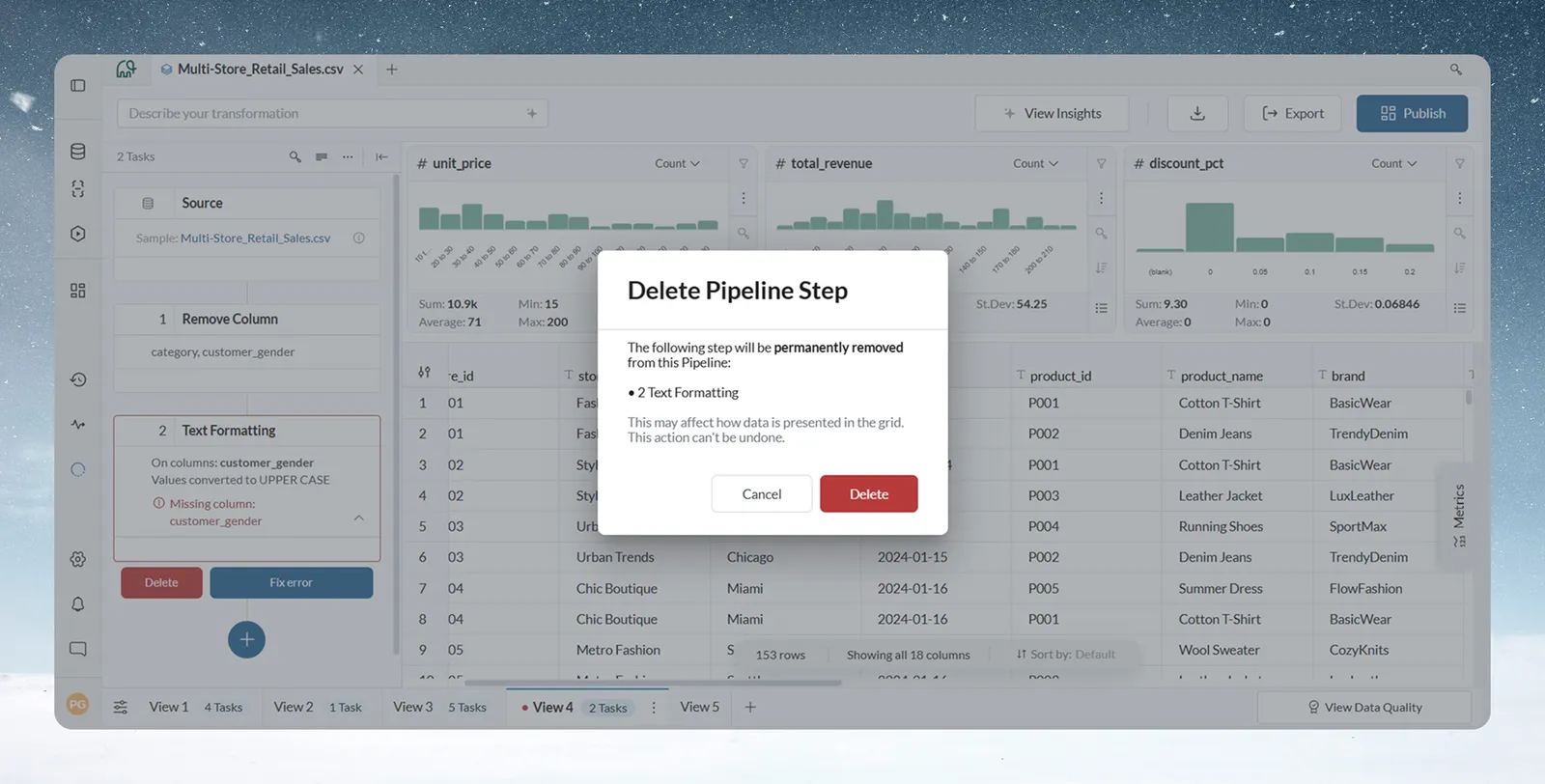
The tasks below then try to run again. Those with no remaining problem run normally.
Respond to the Dependencies detected warning
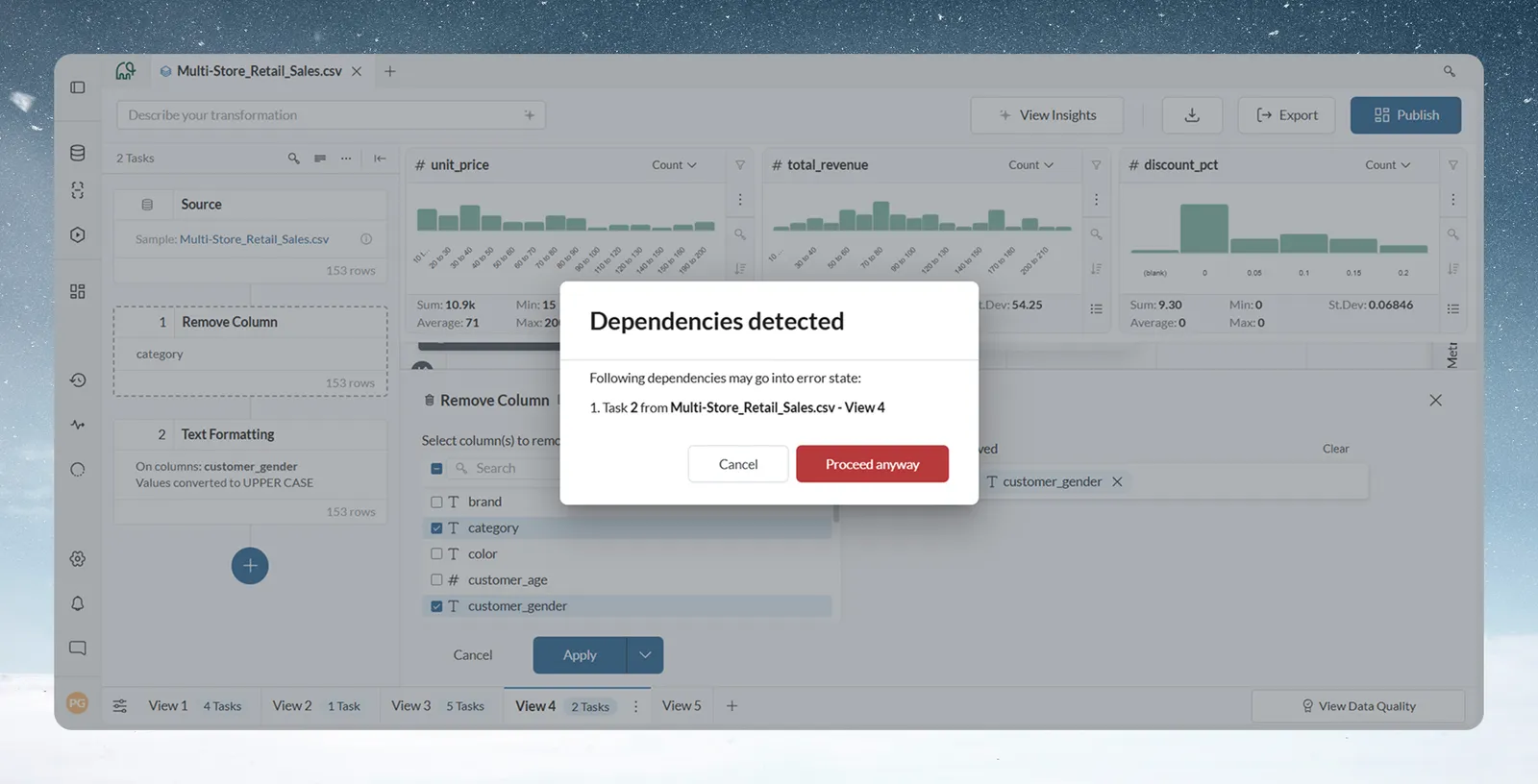
Mammoth warns you before a change is likely to break later tasks. When you apply a task that removes or changes a column other tasks use, a Dependencies detected dialog lists each affected task by number, name and View.
| Button | What it does | Use it when |
|---|---|---|
| Cancel | Returns you to the panel to change your settings | You want to keep the dependency |
| Proceed anyway | Applies the change and lets later tasks fail | You are restructuring on purpose and will fix or remove those tasks next |
What you can and can't do while the pipeline has errors
You can keep adding tasks: the + button and Transform menu still work. Failing cards have no insert button, so use the + below the last card or on a healthy card. New tasks don't run until the errors above them are fixed. Then all queued and new tasks run in order.
Until every failing task is fixed or deleted, these are unavailable:
| Where | Unavailable |
|---|---|
| Pipeline panel header | The Draft mode toggle |
| Pending updates bar | Apply now |
| Task cards | Copy and the insert (+) button on failing cards, and Preview Data at this Task on every card |
| Task More options on an export or action step | Run now |
| View tab More options | Rename, Duplicate and Save as a template |
| Column menu | Rename Column, Hide Column and Revert to original column name |
| Multi-column menu | Hide, Hide only these and Show only these |
Fix a task that references a missing column
The task uses a column that no longer exists at that point. Common causes: an earlier step renamed it, a Remove Column task removed it, or a refreshed source renamed or dropped it.
- Open the failing task and note the column it uses.
- Look back through the pipeline for where that column was last present.
- If it was renamed, update the task to the new name.
- If it was removed by mistake, delete or change the Remove Column task.
Fix column type problems
The task got a type it can't handle, such as arithmetic on a text column, or a date step on a column that holds text. Common causes: dates imported as text, so sorting, filtering and totals go wrong; a number column with text such as N/A; or a calculation on a column not yet converted to a number.
- Check the column's type in the failing task.
- Add a Convert Column Type task before it.
- Convert the column to the type the task needs. Clean text columns first (remove symbols, deal with non-numeric values), then convert.
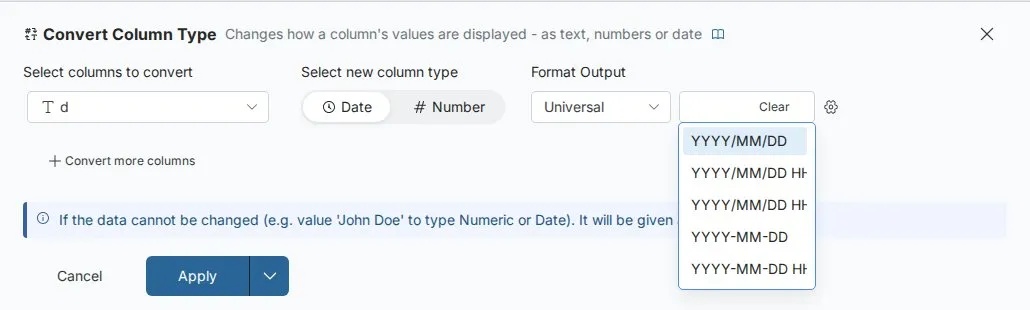
Dates in mixed formats are a common case: dates arrive from different systems, are treated as text, sort wrongly, and include invalid values such as 2024-13-01 or Feb 30 2024. Check the column type and the Data Quality report, look at the mix of formats with Explore cards, then add Convert Column Type with Format Output (Universal, UK, US or Custom) set to the format that matches. Test it with Draft mode or Preview Data at this Task. Better still, standardise the format at the source or check it at the start of the pipeline. See Convert text to dates and numbers.
Fix Math Function expression errors
The expression editor says what is wrong:
| Message | What to check |
|---|---|
| "Column Revenue is missing" | The expression names a column that doesn't exist at this step. Check spelling, and columns renamed or removed earlier. |
| "not a numeric column" or "Only numeric columns allowed" | A column is text or a date. Convert it with Convert Column Type first. |
| "Empty expression" | Enter an expression |
| "Syntax error: unmatched brackets" | Close every opening bracket |
| "Expected an operator +, -, *, / before Discount" | Two values or columns sit side by side with no operator |
| "Expression can not begin with * or /" or "Expression can not end with any of +, -, *, /" | Add the missing value at the start or end |
| "Invalid arguments for SUM" or "Function SUM takes exactly 1 argument" | Give the function one column name in double quotes, for example SUM("Revenue"). See Calculate with formulas. |
Division by zero depends on your data. If a divisor can be zero, filter those rows out first with a Conditional Filter, or handle them in a separate flow.
Fix a join that returns zero rows
No matches almost always means the key values differ between the two datasets:
- different wording, such as
USandUnited States; - trailing spaces:
New Yorkdoesn't matchNew York; - different case:
APPLEandapplemay not match; - different types, such as text joined to a number.
To diagnose, check the Join type first. An Inner join drops current View rows with no match, while a Left join keeps them with empty joined columns. Then use Preview Data at this Task to compare a sample of keys on both sides.
| Problem | Fix, on both sides before the join |
|---|---|
| Spaces | Text Formatting with Normalize whitespace |
| Case | Text Formatting with Change text case |
| Different wording | Find & Replace to standardise values |
| Different types | Convert Column Type |
Empty join keys also lose rows: the join completes, the row count drops and joined columns are empty. Rows with no Customer_ID can't match. The Data Quality report shows a high share of empty keys. Split the flow: add a Conditional Filter to separate empty keys, create a View for records that need attention, and set up a Messaging automation to alert your data quality team. Check key completeness before you build complex pipelines.
Fix a join that returns too many rows
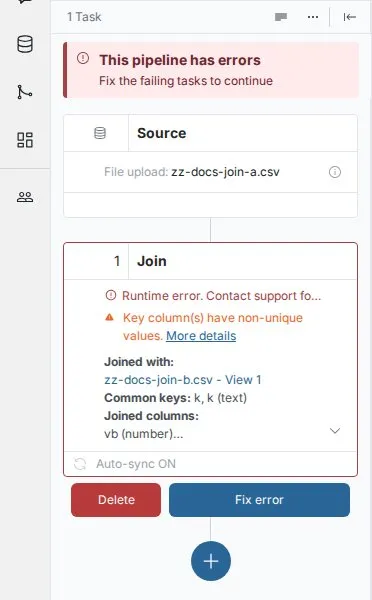
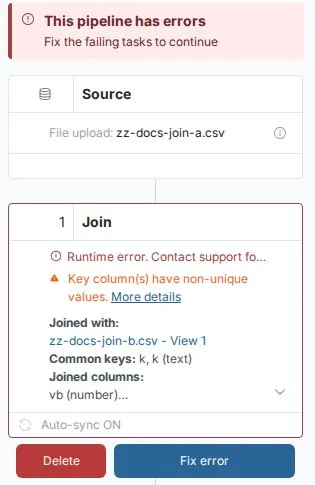
Mammoth warns Key column(s) have non-unique values when a joined View's keys repeat, because each row then matches several rows. A Join that would produce more than 100,000 rows and more than five times the larger input is rejected. The task shows Runtime error. Contact support for help., and the full message says the row count would rise to a very large value.
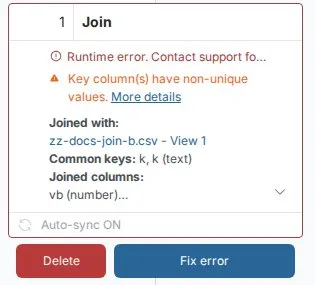
- Switch to Lookup if you need one value per row.
- Remove duplicates from the other dataset first, with Remove Duplicate Rows on the key column.
- Summarise the other dataset with Group & Pivot before joining.
See Join two datasets on a shared column.
Fix Group & Pivot and Conditional Filter surprises
| Symptom | Cause | Fix |
|---|---|---|
| Sum or Average won't work on a column | It holds numbers as text | Add Convert Column Type before Group & Pivot |
| Group & Pivot shows an empty group | The grouping column has empty values | Filter those rows out first if they don't matter, or handle the group later |
| Conditional Filter keeps rows you expected to remove | The conditions need all to be true, or only one | Check the And/Or logic |
| A filter on numbers behaves oddly | The numbers are stored as text | Convert the column type first |
status = "active" also drops empty rows | A condition excludes empty values too | Add a condition for empty values if you want to keep them |
Find the step behind wrong output when nothing errors
- Step through the pipeline. Use Preview Data at this Task on each task and compare it with what you expect.
- Check the task order. Tasks run in sequence. A Conditional Filter after a Join filters the joined output, not each dataset before the join. Reorder if needed.
- Check your expressions. Work out the result by hand for a few rows and compare.
If an AI task (an Ask in plain words task, a Generative AI task, or a rule written in a function's AI bar) runs without error but the results miss your intent, read its prompt, check the output on a few rows and make the prompt more specific. Compare it with a manual task and keep whichever matches your logic. Note prompts that work so you can reuse them. Start simple and add detail step by step.
Fix a pipeline that broke after a data refresh
If a pipeline that worked starts failing after a scheduled refresh, the source's columns probably changed: one was renamed or dropped in the source system.
- Open the pipeline and find the failing tasks. Each uses a column that no longer exists under that name.
- Update the column references to the new names.
- If the change was not intended, ask the data source owner to restore the old columns.
If the refresh itself failed, for example because a connection's sign-in expired, the automation shows Error in the Data Library and dashboards show old data. Open it in the Data Library Automations tab, read Last run result, re-authenticate the connection, then use Run now to confirm it works. Check the status after the next scheduled run, and re-authenticate connections before their credentials expire. See Refresh a dataset.
Prevent pipeline errors
- Filter early to reduce size and complexity.
- Check data types before calculations.
- Handle empty values on purpose. Don't assume there are none.
- Use conditions to route problem rows into a separate flow.
- Test each task on small, known data with edge cases (empty values, duplicates, extremes), and check it with Preview Data at this Task.
- Test the whole pipeline on realistic volumes and source variations. Use Draft mode to queue tasks and review them before they take effect.
- Add a Data Check between major stages as a quality gate. It can halt the pipeline and block later tasks, or warn and continue, and notify the people you choose. When a check fails, its result shows how many checks failed: fix the data and run again, or change the check threshold. See Remove duplicate rows and add data quality checks.
- Compare row counts at key stages, and review the Data Quality report after changes. See Validation for patterns.
Still stuck? Contact support
If your error doesn't match any of these, email support@mammoth.io with:
- your workspace name and project name;
- the pipeline name and the failing step;
- a screenshot of the failing task;
- what the pipeline was doing before the error started.
Related
- Edit, reorder and copy pipeline tasks: preview data at a task and reorder steps.
- How the pipeline works: Draft mode and how tasks run.
- Data quality report: find nulls, duplicates and type problems before they break a step.
- Error messages: every error message in one place.
- Speed up pipelines and connectors: fix slow transformations.
- Activity log and Monitor: where pipeline and automation problems surface.
Something wrong? support@mammoth.io