What to do after your first Mammoth pipeline
A pipeline you built in Build your first pipeline is already saved and runs again on new data. Next, put it to work: feed it new data, build a dashboard or export the results, then learn the other core tasks.
Save and reuse the pipeline
There is no save button: every task is saved to the view straight away, stays when you close the browser, and is the same for everyone with access to the project. Earlier versions are in Pipeline Version history (in the More Pipeline options (...) menu); how many you can see depends on your plan.
| Goal | How |
|---|---|
| Run it on new data | Add next month's file to this dataset and the pipeline runs on it. See Add or replace data. |
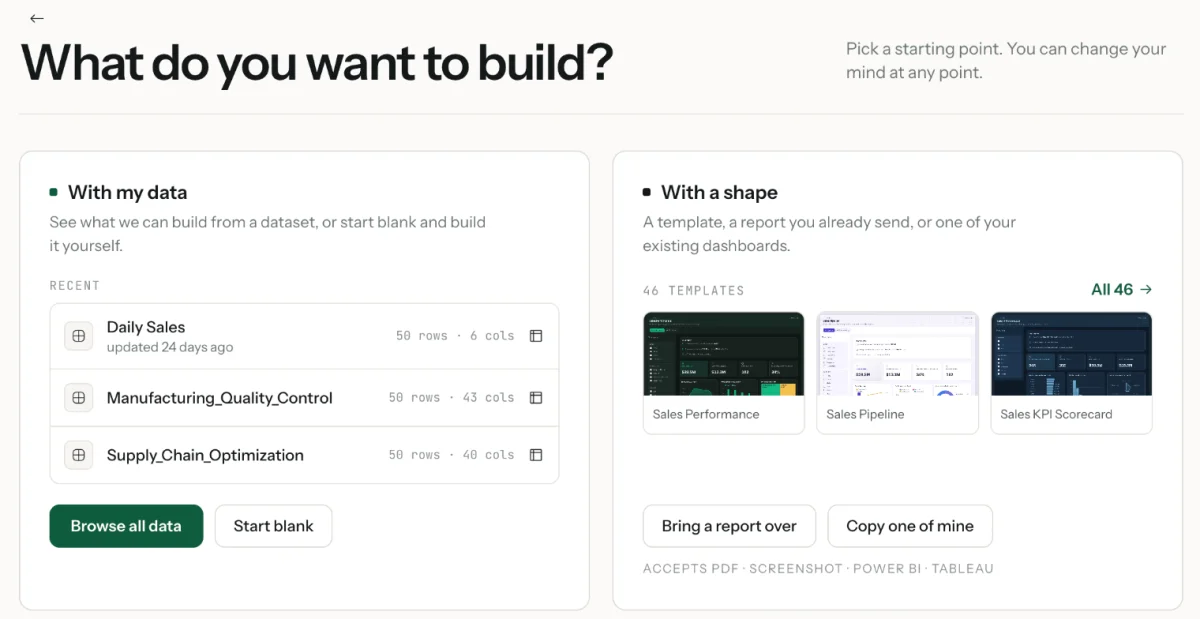
| Build a dashboard | Click Dashboards in the left sidebar, then Create. On What do you want to build?, choose your view under With my data, pick a format, then build a suggested idea or describe what you want. See Create a dashboard. |
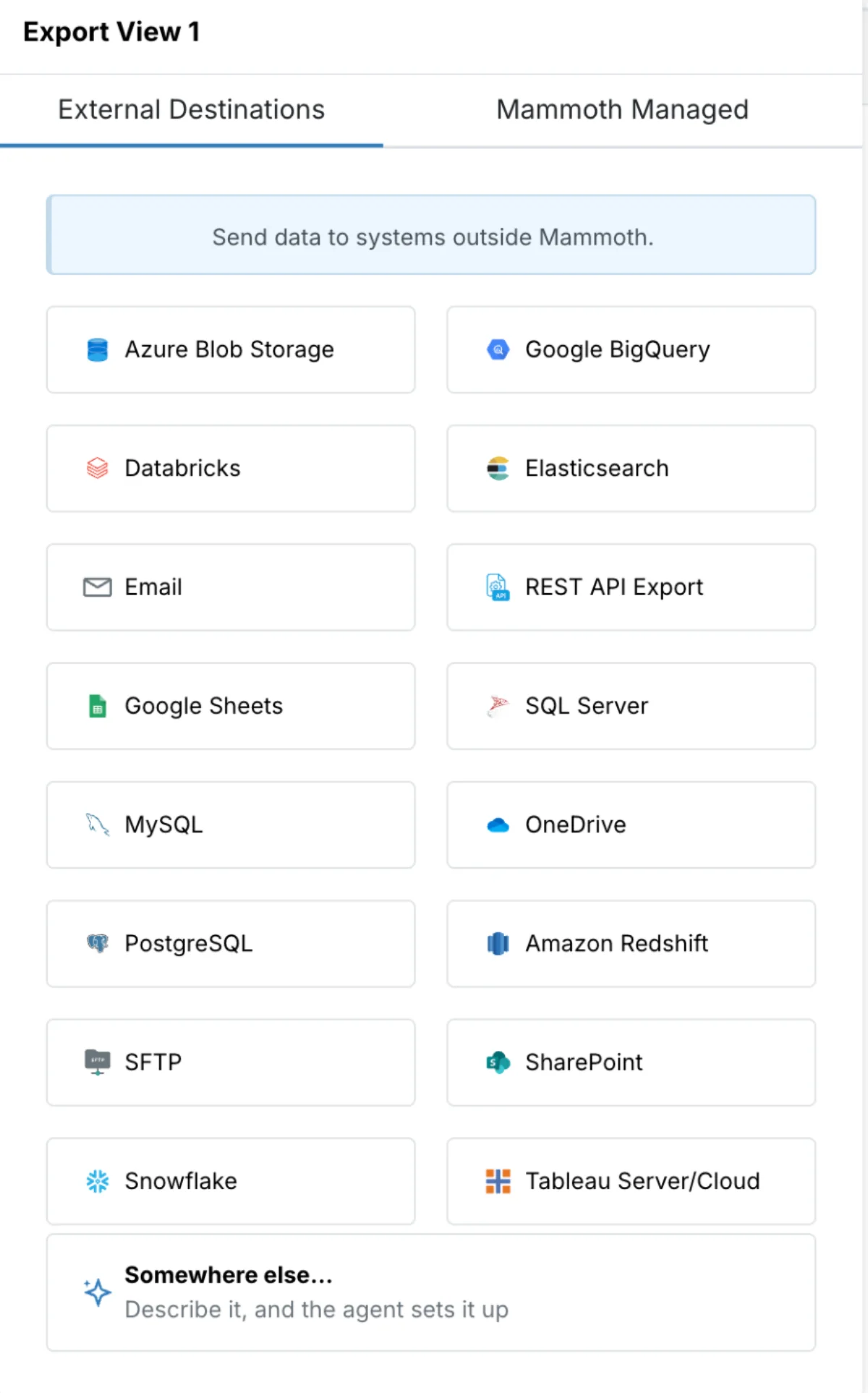
| Export after every run | Click Export in the action bar and choose a destination on External Destinations (a database, warehouse, file store or app) or Mammoth Managed (Send to Dataset, Live link on Team and Pro, or a managed database). See Send data to a database or BI tool. |
| Save a one-time file | Use the download icon beside Export (CSV, Excel, JSON and more). See Download data. |
| Refresh on a schedule | For connector data, a Dataset Refresh automation fetches new data on a schedule and the pipeline runs on each refresh. See Refresh a dataset. |
To let AI write a task, use the Describe what you want to generate bar in Conditional Filter or Math Function, or Ask in plain words for a whole query (Write SQL with AI).
The five transformations to learn first
| Task | Use it to |
|---|---|
| Conditional Filter | Keep or remove rows that match a rule |
| Bulk Replace | Standardise text values that have variations |
| Convert Column Type | Fix data types (text to number, text to date) |
| Remove Duplicate Rows | Remove repeated records |
| Math Function | Calculate new values from existing columns |
Pipeline best practices for beginners
- Start with filters. Smaller data makes later tasks faster.
- Use Draft mode for longer builds. For five or more tasks, or a large dataset, turn on Draft mode, build, then run every task at once with Apply now.
- Add notes to tasks. Use Add note for business logic, formulas or decisions; turn on Display notes in Cards Density to show them on the cards.
- Test with small data first. Build on a small sample file, then apply the pipeline to the full dataset.
For what to learn next in your role, see Pick your path.
Related
- What you can automate: refreshes, exports and emails on a schedule.
- Fix your first pipeline: suspend, reorder and undo tasks.
- Core ideas: datasets, batches, views, pipelines and tasks in one picture.
Something wrong? support@mammoth.io