Turn columns into rows with Unpivot
Unpivot turns a wide table into a long one: column headers become row values. Use it when you have one column per period or category, such as Jan_Sales, Feb_Sales and Mar_Sales, and need one Month column and one Sales column. Most grouping, joining and analysis works best on the long layout.
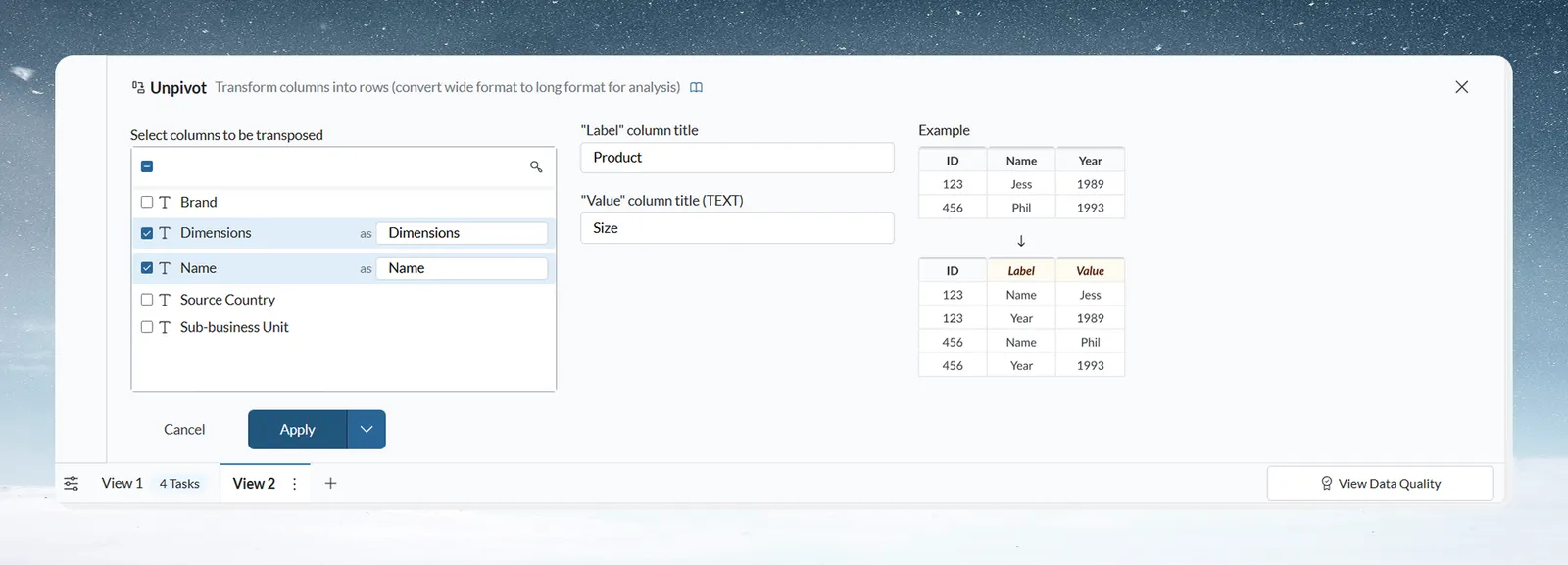
Unpivot columns into rows
- In your View, click Describe your transformation, then Reshape, Group & Pivot › Unpivot.
- In Select columns to be transposed, pick the columns to turn into rows. Once you pick one, only columns of the same type are offered.
- In "Label" column title, name the new column that will hold the old column headers.
- In "Value" column title, name the new column that will hold the old cell values.
- If the columns are numbers or dates, set Format. For numbers, set the number format of the value column. For dates, click Choose date format and pick one.
- Click Apply.
All other columns are kept and repeated on each new row. The two new names must differ from each other and from existing columns.
Example: a View has store, Jan_Sales, Feb_Sales and Mar_Sales. Select the three sales columns, name the label column Month and the value column Sales, and click Apply. Each store now has three rows, one per month.
Troubleshooting Unpivot
| Symptom | Cause | Fix |
|---|---|---|
| "A column with same name already exists. Try another value" (Unpivot) | A new column name is already used | Choose a different label or value column title |
| "The new value column does not carry over the meaning of the columns you stack (an ID, a currency or a percentage). It starts as a plain column." (Unpivot) | The stacked columns were marked as an ID, currency or percentage | Add a Convert Column Type step after the Unpivot to restore the meaning |
Related
- Group, pivot and unpivot data: summarise the long table.
- Column types, IDs, currency and percentages: how a column gets its meaning.
- Convert text to dates and numbers: restore a type after unpivoting.
- Combine datasets: other ways to bring data together.
Was this page helpful?
Something wrong? support@mammoth.io