Create, join or delete a Mammoth workspace
You get a Mammoth workspace by signing up, which makes you its Workspace Owner, or by accepting an invite to someone else's. Only a Workspace Owner can delete a workspace, from Workspace Settings → Plan & Storage. On a paid plan, deletion is scheduled for the end of the billing period, and you can reactivate before then.
A workspace keeps its users, data and settings apart from every other workspace you own or belong to.
Ways to get a workspace
| Way | What you get |
|---|---|
| Sign up | A new workspace of your own, with you as Workspace Owner |
| Accept an invite | Access to someone else's workspace, with the role they gave you |
| Create New Workspace | Offered only when the workspace you open is suspended, deleted or not found and you have no other active workspace to use |
The workspace switcher in the left sidebar lists your workspaces but has no option to create one. If you need another workspace, contact Support.
Sign up for Mammoth
- Follow a sign-up link on mammoth.io, a template page or a free tool.
- Complete Mammoth's sign-up form, and confirm your email address if asked.
- Mammoth creates your workspace and signs you in.
The new workspace is named after your first name, for example Sam's Workspace. You can rename it later in Workspace Settings → General (see Workspace settings).
If you were already signed in, the sign-up link takes you straight into the app instead.
Self-serve sign-up isn't offered in every country. In those countries, the sign-up link opens a page to book a demo with Mammoth instead.
Join a workspace from an invite
When a Workspace Owner invites you, you get an email with a link.
- If you're new to Mammoth, the link opens Set your details. Enter your first and last name, then type a password twice. A strength checker under the fields shows when the password qualifies.
- If you already have an account, the link shows "Accepting invitation..." and then "You have successfully joined the workspace". It takes you into the workspace, asking you to sign in first if you aren't.
If you're signed in as a different account from the one invited, the page shows This invite is for another account and "Sign out, then open the link again." Click Sign out, open the link from the email again, and sign in with the invited address. The invite stays unused until you do.
For how Owners send invites, see Invite and manage workspace members.
Create a new workspace from an unavailable screen
The Create new workspace link appears on the Workspace suspended, This workspace has been deleted and Workspace not found screens. It shows only when every other workspace you belong to is also suspended, or you have no other workspace. See Workspace unavailable screens.
- Click Create new workspace. The Create New Workspace dialog opens.
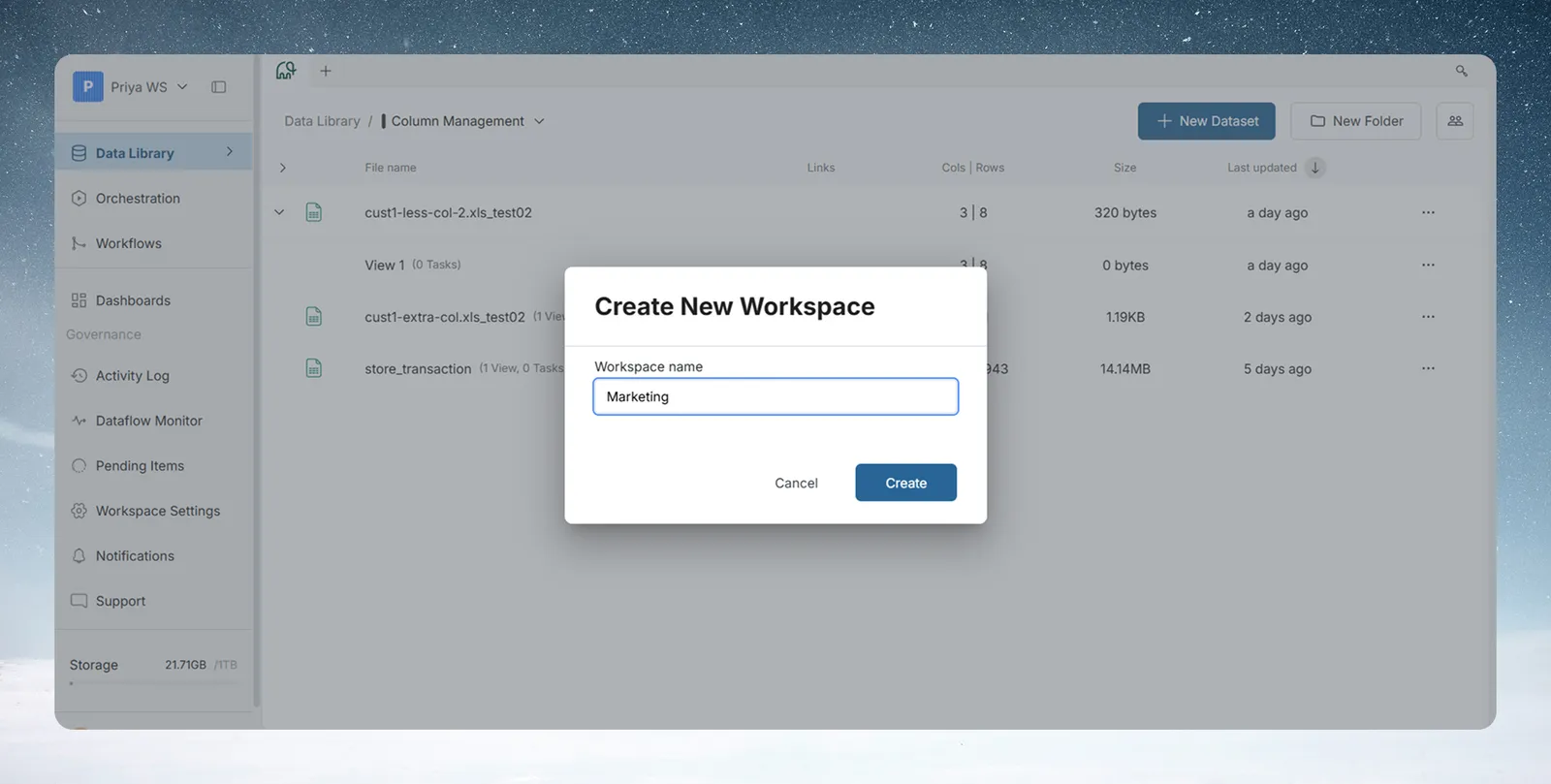
- Enter a Workspace name. Create stays off until the name has at least one character other than spaces.
- Click Create.
Mammoth creates the workspace and switches you to it. The dialog has no plan picker: if the workspace needs a plan, the plan-selection screen comes next.
Pick a clear workspace name
Choose a name that says what the workspace is for, such as "Marketing Analytics" or "Customer Insights - Product Team". Avoid names like "Workspace 1", "Test" or "My Data", which are hard to tell apart in the switcher.
Choose a plan for a new workspace
If a workspace doesn't have a plan yet, Mammoth opens a plan-selection screen. It shows the self-serve plans with a Monthly / Annually toggle. Each plan card has a button such as Start with Pro trial or Select Team.
At the bottom of the screen:
| Link | What it does |
|---|---|
| Not in the right account? Log out | Signs you out so you can switch accounts |
| Delete workspace | Deletes the workspace you're choosing a plan for. Shows only when you belong to more than one workspace |
For plan names, trials and upgrades, see Billing and plans.
What a new workspace contains
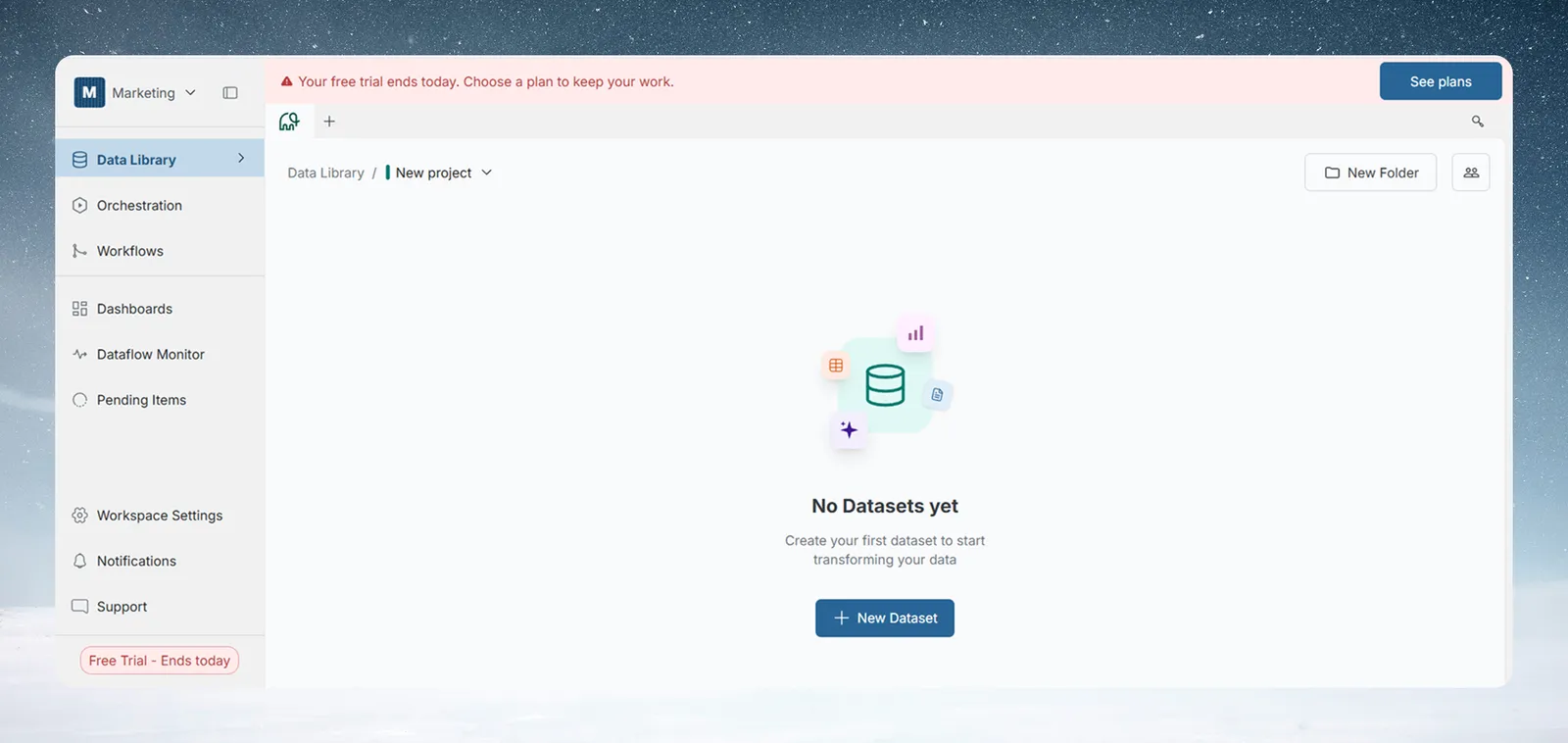
- You as Workspace Owner, with full permissions.
- A default project named New project, with you as its Project Admin.
- An empty Data Library, ready for your first dataset.
- The left sidebar, with the workspace switcher at the top and Workspace Settings, the notifications bell and your account menu at the bottom.
- A trial banner, if the workspace is on a trial.
You can upload data straight away, or create more projects from the project selector in the top breadcrumb.
First things to set up
| Task | Where to start |
|---|---|
| Invite team members | Workspace Settings → User Management → Invite Users |
| Upload your first dataset | Data Library |
| Change your plan | Workspace Settings → Plan & Storage |
| Set up API access | Workspace Settings → API Keys |
| Create projects | Project selector in the top breadcrumb → New Project |
For a step-by-step walkthrough, see Set up your workspace.
Delete a workspace
Only a Workspace Owner can delete a workspace. Deleting cancels the subscription and deletes all data, projects and team access.
- Go to Workspace Settings → Plan & Storage.
- On a trial or the Free plan, click Delete workspace. On a paid self-serve plan, click Billing & Invoices, then Cancel Subscription & Delete Workspace.
- A dialog named after the workspace opens, for example Cancel Subscription & Delete "Marketing"?
The first step sums up what you're deleting under This workspace contains:: projects, datasets and their size, team members, and days of work once there are seven or more. If you belong to other workspaces, it says "You'll continue to have access to your other workspaces." Under If you proceed, it says what happens next:
| Workspace | What happens |
|---|---|
| On a trial | "Free Trial cancelled immediately", and the workspace and all its data are deleted immediately |
| On a paid plan | "Subscription cancelled immediately". You keep full access until the end of the current billing period, and the workspace is deleted automatically on that date |
You can also start deletion from the Delete workspace link on the plan-selection screen.
Delete a small workspace in one step
A workspace with under 100 MB of data, no other members and less than seven days of work needs one step. The first step ends with "This will permanently delete your data" and a checkbox: I understand this will cancel my subscription and delete my workspace. Tick it and click the delete button.
Delete a larger workspace in two steps
For any other workspace, click Proceed for a second step:
- Read the warning: PERMANENT DELETION for a trial, or DELETION SCHEDULED with the date your access ends for a paid plan.
- Under Confirm completion of required actions:, tick I have downloaded all datasets and I have notified all team members.
- Type
DELETEin the box. - Click Cancel Subscription & Delete Workspace (trial) or Schedule Deletion (paid plan).
A trial workspace is deleted, and Mammoth switches you to another workspace, or signs you out if you have none. A paid workspace shows "Workspace scheduled for deletion successfully" and stays usable until its access-until date.
Reactivate a workspace scheduled for deletion
While a paid workspace is scheduled for deletion, the delete button under Plan & Storage → Billing & Invoices reads Reactivate Subscription.
- Click Reactivate Subscription.
- Read the dialog. It says "Your subscription is already cancelled", with "Cancelled on" and the date, and "Access until:" with the date deletion happens.
- Click Reactivate Subscription to keep the workspace, or Keep cancelled to leave the deletion in place.
Mammoth shows "Subscription successfully reactivated". Your data and projects stay.
Reactivate before the access-until date. After that date, the workspace is deleted.
Common questions about workspaces
Can I change the workspace name after creating it?
Yes, if you're a Workspace Owner. Go to Workspace Settings → General and click the pencil icon next to the workspace name.
Can I belong to more than one workspace?
Yes. Every workspace you belong to is listed in the workspace switcher at the top of the left sidebar, and each has its own plan.
What if I forget my workspace name?
Click the workspace switcher at the top of the left sidebar. All Workspaces lists every workspace you belong to.
Why don't I see a way to create a workspace?
The workspace switcher doesn't offer one. Signing up creates your first workspace. Contact Support if you need another.
Related
- Switch workspaces and find your way around: the switcher, sidebar and unavailable screens.
- Workspace settings: General and Email groups: rename the workspace and see its projects.
- Billing and plans: plans, trials and changing plan.
- Invite and manage workspace members: bring your team in.
- Create and manage projects: organise data into projects.
Something wrong? support@mammoth.io