Restore deleted datasets, Views and dashboards from Trash
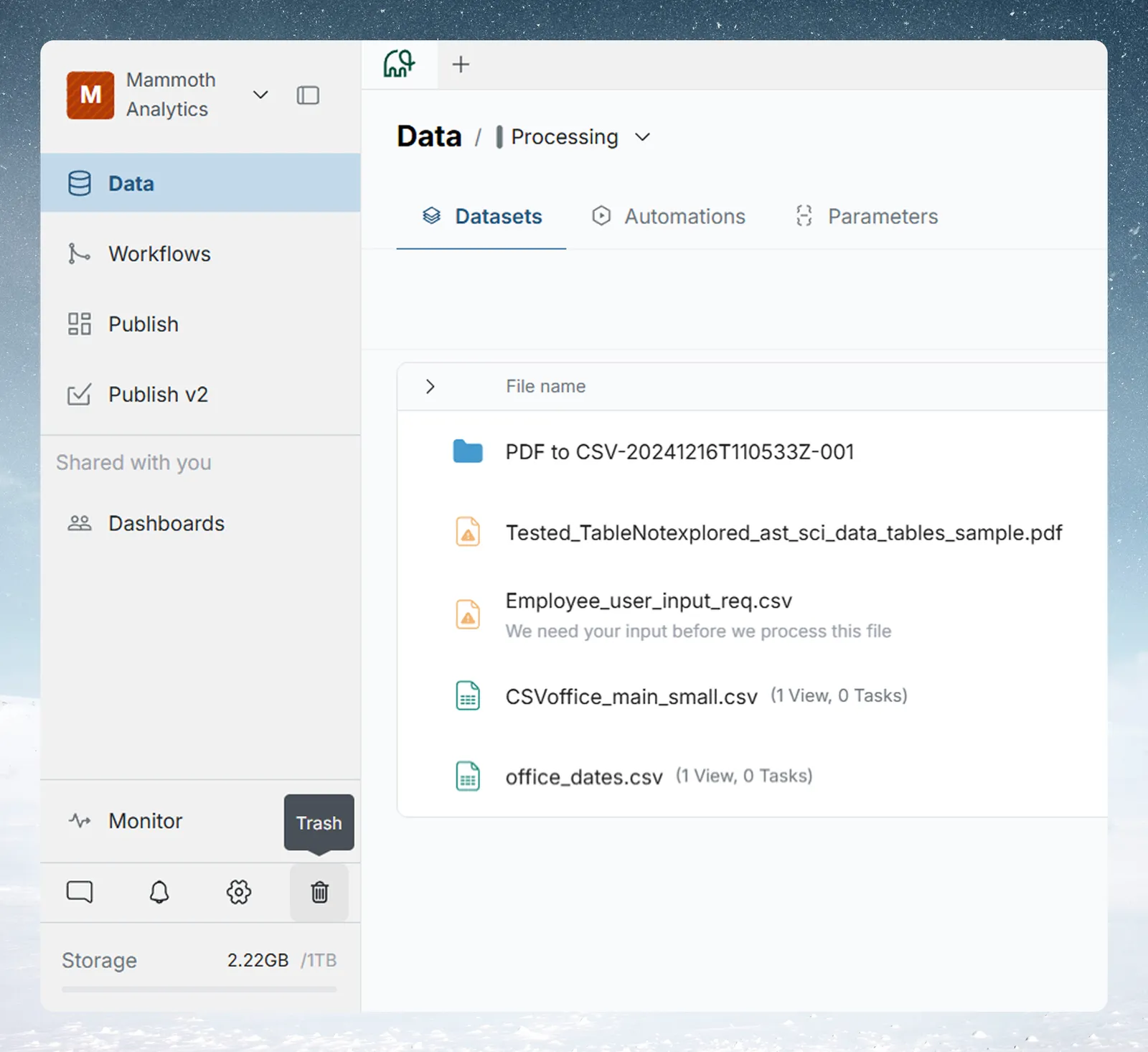
When you delete a dataset, View, automation or dashboard in Mammoth, it moves to Trash and stays recoverable for 30 days before it is removed for good. Open Trash with the Trash (bin) icon at the bottom of the left navigation rail, next to Settings. Restoring needs update permission on the item (edit access for a dashboard).
Trash doesn't cover every kind of item. Some are deleted at once and for good, so check the table below before you delete.
What you can get back from Trash
| Item | Goes to Trash? | What happens instead |
|---|---|---|
| Datasets | Yes | Recoverable for 30 days |
| Views | Yes | Recoverable for 30 days |
| Automations | Yes | Recoverable for 30 days |
| Dashboards | Yes | Recoverable for 30 days. See Delete a dashboard |
| Folders | Partly | The folder's contents go to Trash; the empty folder is then removed |
| Parameters and Snippets | No | Deleted at once and for good. See Parameters and snippets |
| Projects | No | Deleted at once and for good. See Projects |
| Connections | No | Deleted at once and for good. Datasets and exports that used it are kept and become unconfigured. See Manage saved connections |
If an item is not in this table, treat its deletion as permanent. Parameters sit in the Data Library but don't behave like datasets: a deleted parameter has no Trash entry and no restore.
Items stay in Trash for 30 days. The delete dialogs, the Trash subtitle and each item's countdown all show the period, and you can't change it from the app.
What the delete dialog shows before anything moves
When you delete a View, dataset or folder (or a selection of them), Mammoth first checks what depends on it. A spinner shows while it checks, then the dialog shows the result.
Delete one item
The dialog is titled, for example, Move "Sales 2026" to trash? with "Goes to trash. You can restore it for 30 days." Below that it can list:
| Section | What it lists |
|---|---|
| "2 things go with it" | The dashboards and exports built on it. Each dashboard shows Draft, or Live with its viewers, for example "Live, 4 viewers — link stops working". Each export shows its destination, for example PostgreSQL. |
| "1 view reads from it and may stop running" | Other Views that join or look up this one. Each shows Join, Lookup or "Dependent view", and "feeds a Live dashboard" when it does. |
When things go with it, a note reads, for example, "All 3 go to trash together and come back together." The button reads Move to trash with 2 items. With nothing attached, the button is Move to trash.
Names in the list are links. Click a View, dataset or dashboard to open it in a new tab and check it before you confirm.
Delete several items
The title counts them, for example Move 3 items to trash? (or Move 3 views to trash?). The subtitle reads, for example, "4 other items go to trash with them, including 1 Live dashboard."
- A Going with them box lists each selected item with what goes with it, for example "2 items · 1 Live" or "nothing attached".
- Click an item to expand it, or use Expand all and Collapse all.
- The footnote reads, for example, "All 7 restorable for 30 days", and the button Move 3 items to trash, plus 4 more.
When you select Views and some can't be deleted, the dialog moves the rest. It lists the others under a heading, each with what blocks it:
| Case | Heading |
|---|---|
| One View blocked | "1 view can't be deleted — other items depend on it" |
| Several Views blocked | "2 views can't be deleted — other items depend on them" |
Delete a large selection
When a selection covers more than 25 Views, Mammoth skips the item-by-item list. The dialog reads, for example, "This moves 40 views to trash. Dashboards and exports on them will be checked when you confirm." Anything that would block the delete is still checked when you click Move to trash.
If some contents haven't loaded yet, a warning reads "Some of what's inside hasn't loaded yet, so this list may be incomplete. Anything attached will still be checked when you confirm."
Delete a pipeline task that publishes a dashboard or feeds an export
Deleting a task in a View's pipeline is not a Trash action, but it can change what the View sends out. The delete dialog lists the steps it removes, then:
| Case | What the dialog says | Options |
|---|---|---|
| The task publishes a dashboard | "“Sales review” is published from here — removing the task removes the dashboard." The dashboard moves to Trash with it. | Delete task and dashboard. A note suggests turning off auto-sync instead, to keep the dashboard but stop it updating. |
| Exports or dashboards downstream | "This changes the data 2 things downstream send out. Are you sure?" with the list | Tick Turn off auto-sync for all 2 to keep their destinations and stop them updating. Then Delete task. |
| Other Views read from this View | "These stop working — there's no auto-sync to turn off" with the Views | Delete task anyway |
When no other View reads from it and the pipeline's version history can bring the task back, the footnote reads "Undo from Pipeline Version history". If you ticked the auto-sync option and the delete then fails, Mammoth turns auto-sync back on and says "The task was not deleted, so auto-sync was turned back on." In Draft mode, the auto-sync option isn't offered. See How the pipeline works.
Delete a dataset
You need delete permission on the dataset.
-
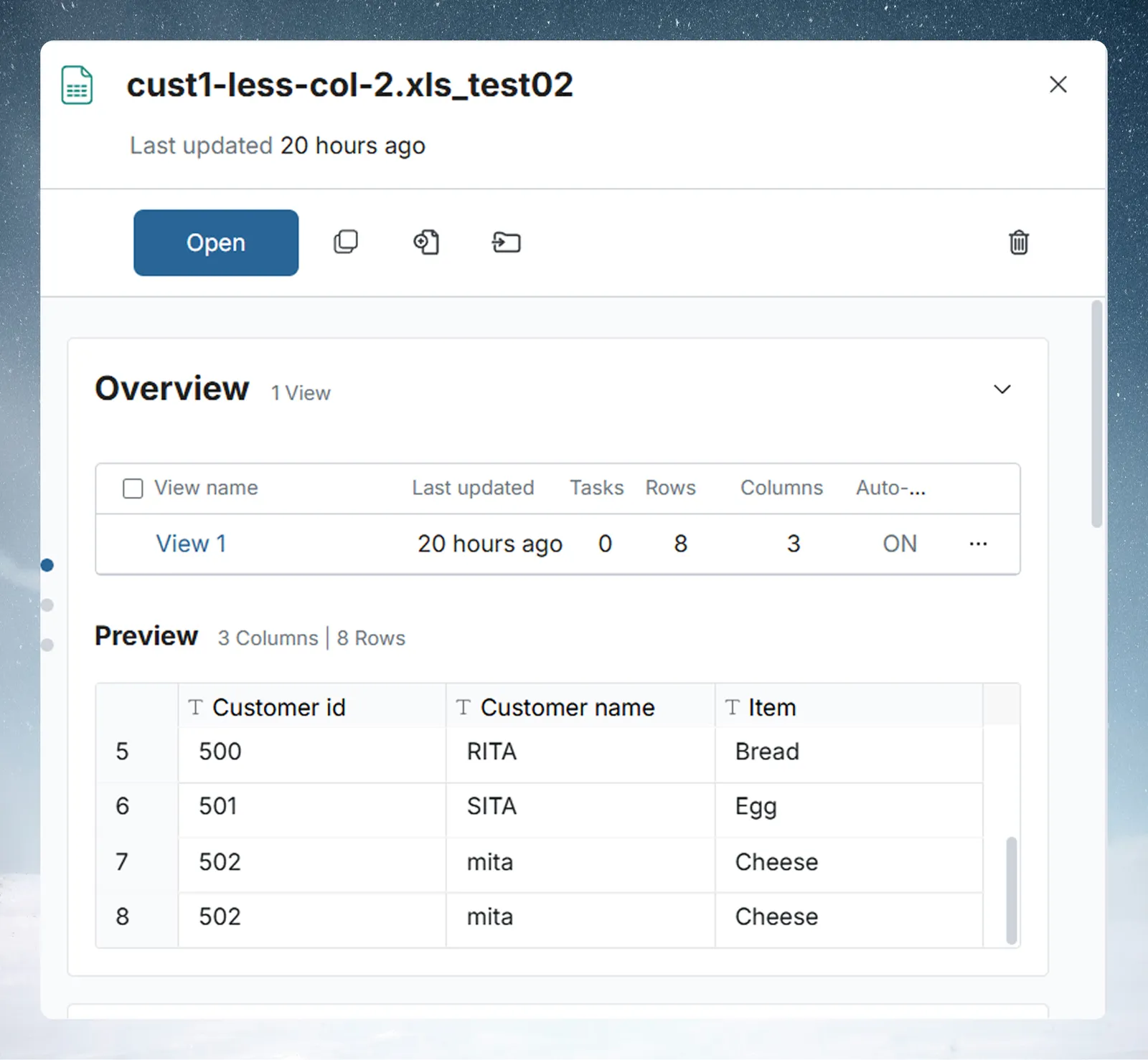
In the Data Library, open the row's ⋮ menu or right-click the row, or open the dataset's panel and use its action row.
-
Click Move to trash.
-
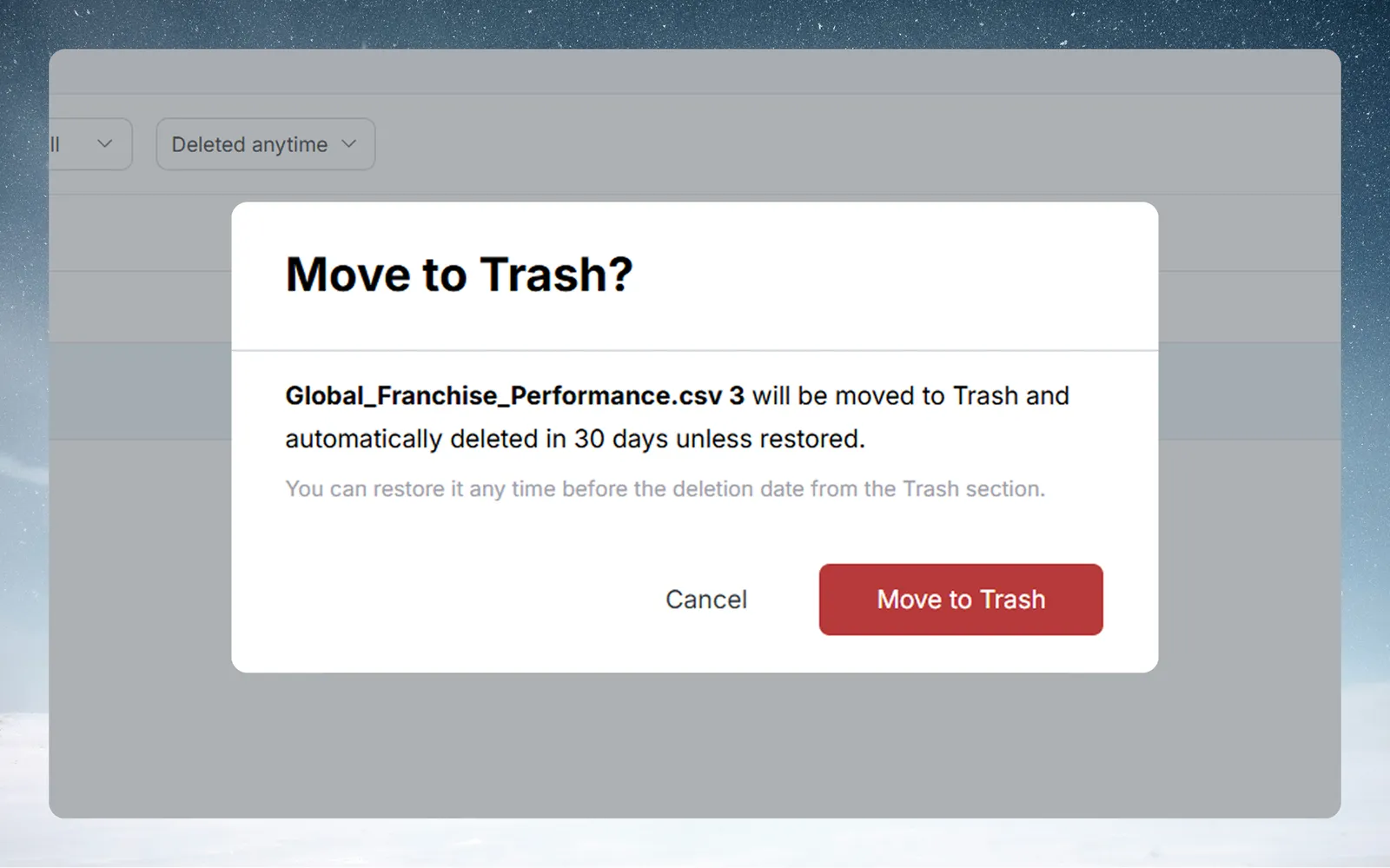
A confirmation opens, titled, for example, Move "Sales 2026" to trash?, with "Goes to trash. You can restore it for 30 days." It lists any dashboards and exports that go with it.
-
Click Move to trash (or, when other items go with it, for example Move to trash with 2 items).
The dataset leaves the Data Library at once and appears in the project's Trash.
The menu says Move to trash for anything that can be restored. An item that can't go to Trash, such as a raw file, says Delete permanently instead.
Delete a file with a data-quality issue
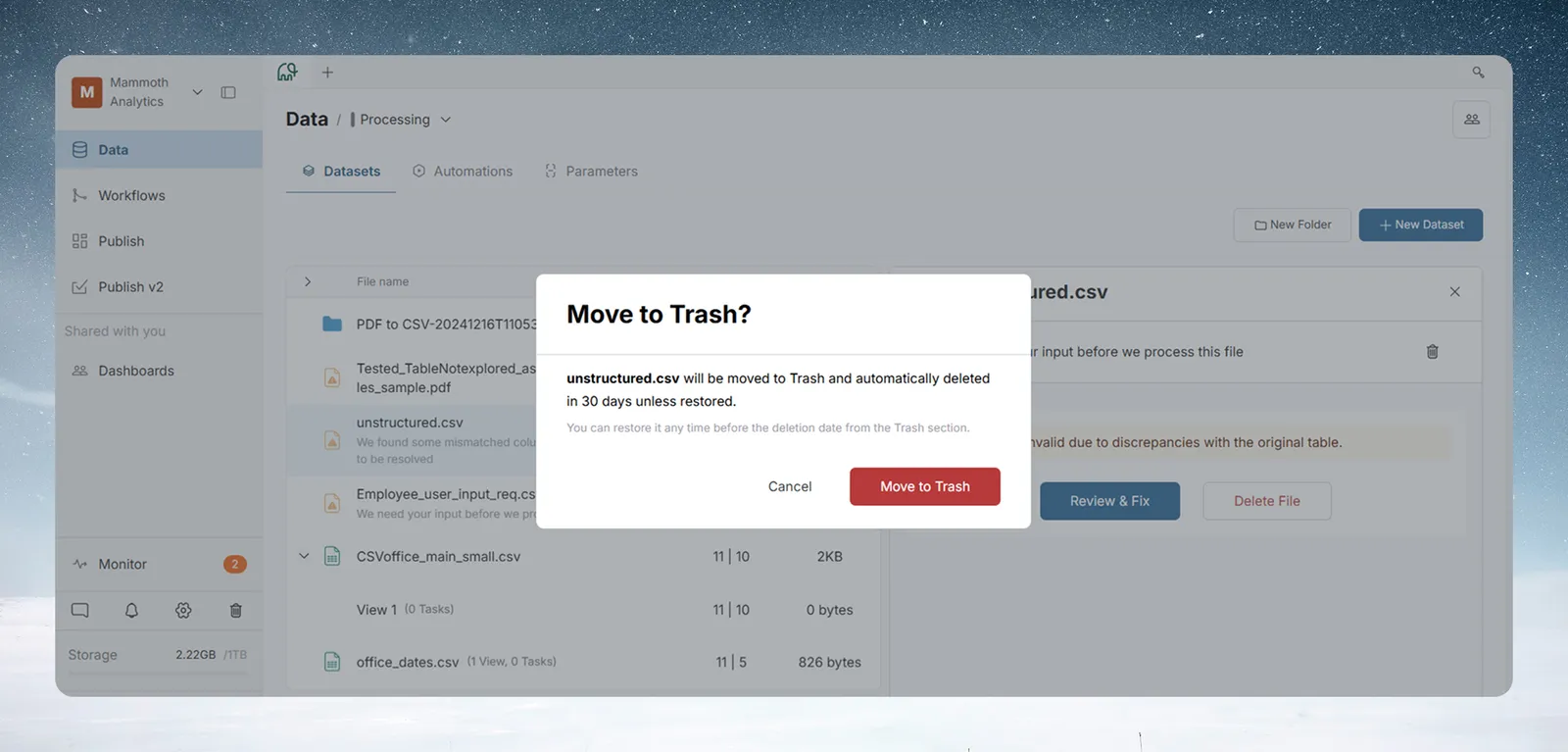
A file flagged with an unresolved issue (for example, mismatched columns) shows a button for the fix in its panel, such as Choose how to read it or Check the file settings, and a Delete File button. Delete File opens the same Move to trash confirmation. A file that failed processing is trashed the same way as a clean one.
An unprocessed file blocks its folder from being trashed. See Delete a folder and its contents.
Delete a View
A View has three places to delete it, and all three open the same confirmation:
| Where | How to get there |
|---|---|
| Data Library, Datasets list | Turn on Show views under List settings, so a dataset with more than one View lists its Views. Use the View row's ⋮ menu or right-click it, then Move to trash. |
| Data Library, dataset panel | Open a View, then use its options menu and choose Delete. |
| Data editor | While editing the View, use the View's options menu and choose Delete. You don't need to leave the editor. |
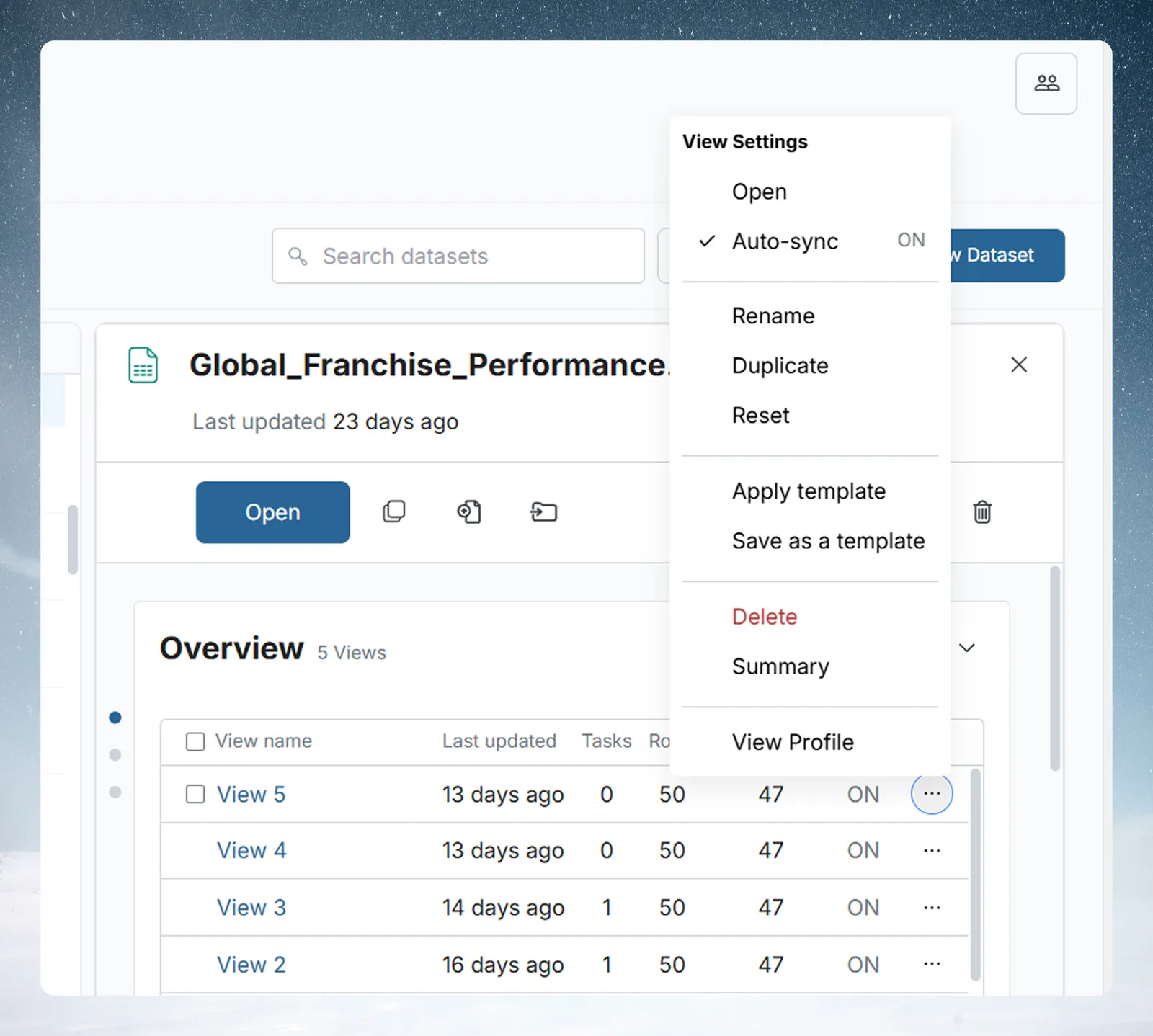
The confirmation names the View, for example Move "View 2" to trash?, with "Goes to trash. You can restore it for 30 days." It lists the dashboards and exports that go with the View, and any Views that read from it.
- Trashing a View also trashes the dashboards built on it.
- Views count as their own items in Trash. When you delete a dataset together with its Views, the Views are listed with the dataset.
- The View Settings menu's Delete is disabled on a dataset's only View. If the last View on a dataset does go to Trash, Mammoth trashes the now-empty dataset too. When you restore, the confirmation lists what comes back with the item.
Watch for triggers that point at a trashed dataset. If a pipeline elsewhere uses "branch out" or "save as a new dataset" targeting a dataset that gets trashed, that trigger is suspended and stops running. Restoring the dataset does not turn the trigger back on; you need to do it by hand. If a downstream pipeline stopped updating, check whether its target dataset was trashed and restored.
Delete a folder and its contents
Folders can't be trashed on their own. Trashing a folder trashes everything inside it, and the now-empty folder is then removed.
The confirmation is titled with the folder's name, for example Move "PDF to CSV" to trash?. It lists the dashboards and exports that go with the datasets inside.
Mammoth keeps the folder if it holds a file that hasn't finished processing, or a dataset that failed to move to Trash. It shows, for example, "Some items in PDF to CSV can't be moved to Trash."
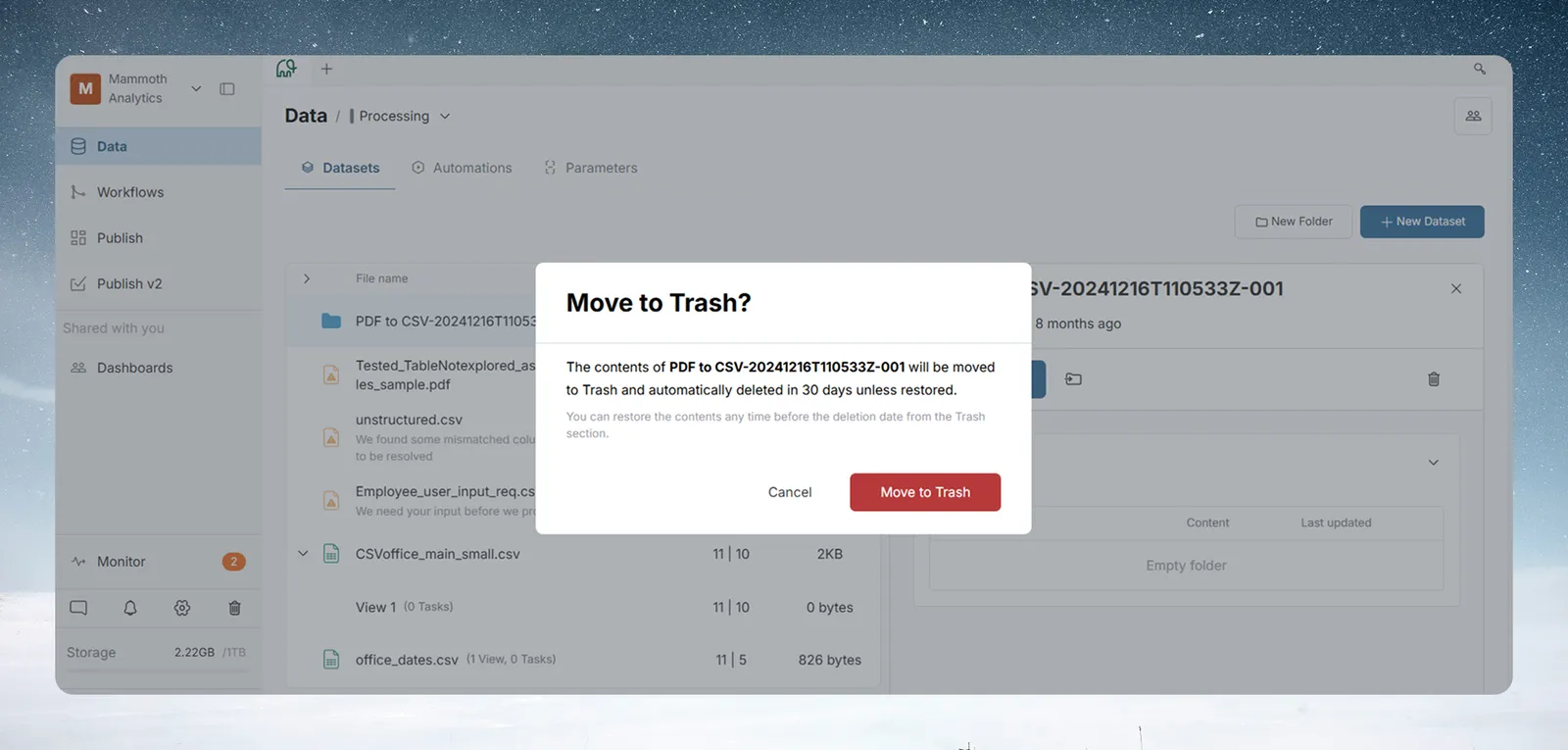
In Trash afterwards, you see the folder's datasets and Views listed one by one, not a single folder row. See Folders and folder rules.
Delete an automation
From the automation's detail panel or its ··· menu, click Delete. The same Move to trash confirmation appears, and the automation is recoverable for 30 days. Trash lists automations as "Orchestrations" in its type filter and tooltips. See Manage automations.
Delete a dashboard
From the Publish Library, open the dashboard's overflow menu and click Delete. The confirmation reads, for example: "“Sales review” goes to Trash. You can restore it from there for 30 days."
Trashing a dashboard unpublishes it, so its published link stops serving viewers. A restored dashboard comes back as a Draft. See Manage your dashboards.
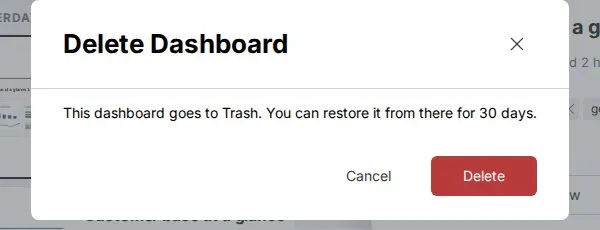
If you can't edit a dashboard built on a View or dataset you're trashing, Mammoth blocks the action. See Why you can't move something to Trash.
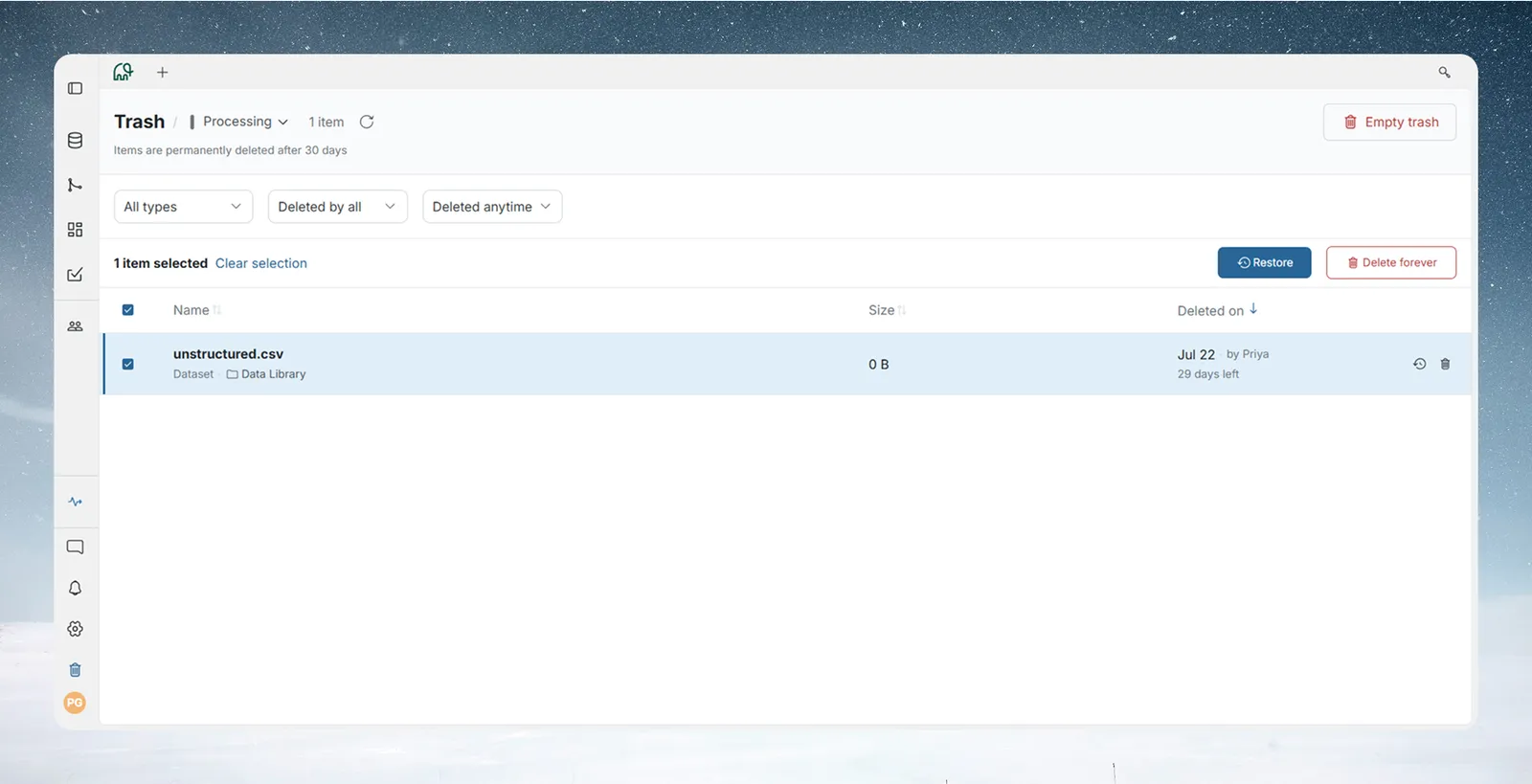
Open Trash and find a deleted item
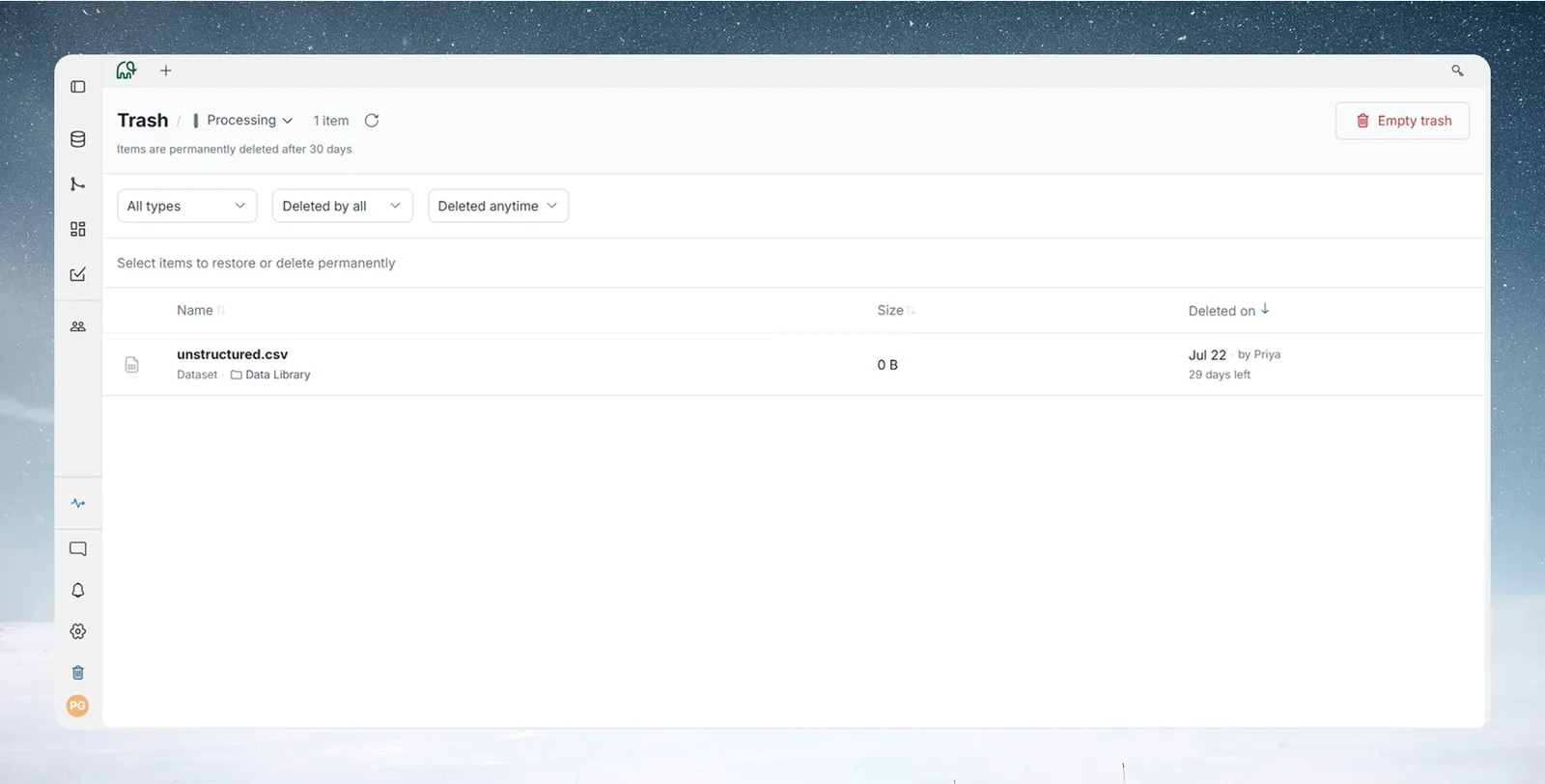
Trash is project-scoped: each project has its own Trash, showing only items trashed from that project. The subtitle reads, for example, "Items are permanently deleted after 30 days".
- Click the Trash (bin) icon at the bottom of the left navigation rail, next to Settings.
- Pick the project with the project selector next to the title.
The listing shows every trashed item for the current project, of every type, side by side:
- Name, Type and Location (folder or parent dataset);
- Size;
- Deleted on and Deleted by;
- a countdown, such as "29 days left" (or "Deletes today");
- a search box (Search deleted items) and filters: All types, Deleted by, and a date filter (Deleted anytime, Deleted today, Deleted this week or Deleted older);
- a deleting-soon toggle (for example, "3 deleting soon") to surface items closest to removal, and a banner (for example, "3 items are deleted for good in the next 7 days") with a Review link.
The listing updates live. If a teammate trashes, restores or deletes something while you have Trash open, your page refreshes on its own. A bulk selection can restore or delete across types in one action.
When nothing has been deleted yet, the page shows Trash is empty for this project and "Deleted datasets, views, dashboards, orchestrations, and folders show up here and are kept for 30 days before they are permanently removed."
Restore an item from Trash
- One item: hover over the row and click the restore icon (Restore item) at the end of the row.
- Several items: tick their checkboxes, then click Restore selected in the selection bar. A message confirms, for example, "3 items restored from Trash".
Mammoth asks for confirmation only when restoring brings back, or leaves behind, related items (for example, a dashboard and the View it reads from). The confirmation lists what comes back with the item, and which items stay in Trash because they were deleted separately. A dashboard deleted together with its source View can't be restored on its own.
| Restored item | Where it comes back |
|---|---|
| Dataset | Its original folder (Mammoth remembers where it was) |
| View | Attached to its parent dataset |
| Automation | The Automations list, in its normal state |
| Dashboard | As a Draft, ready to go Live again |
Delete an item forever
To remove a trashed item now instead of waiting 30 days:
- Tick one or more items in the Trash listing, or hover over a row and use its delete icon (Delete forever).
- Click Delete forever.
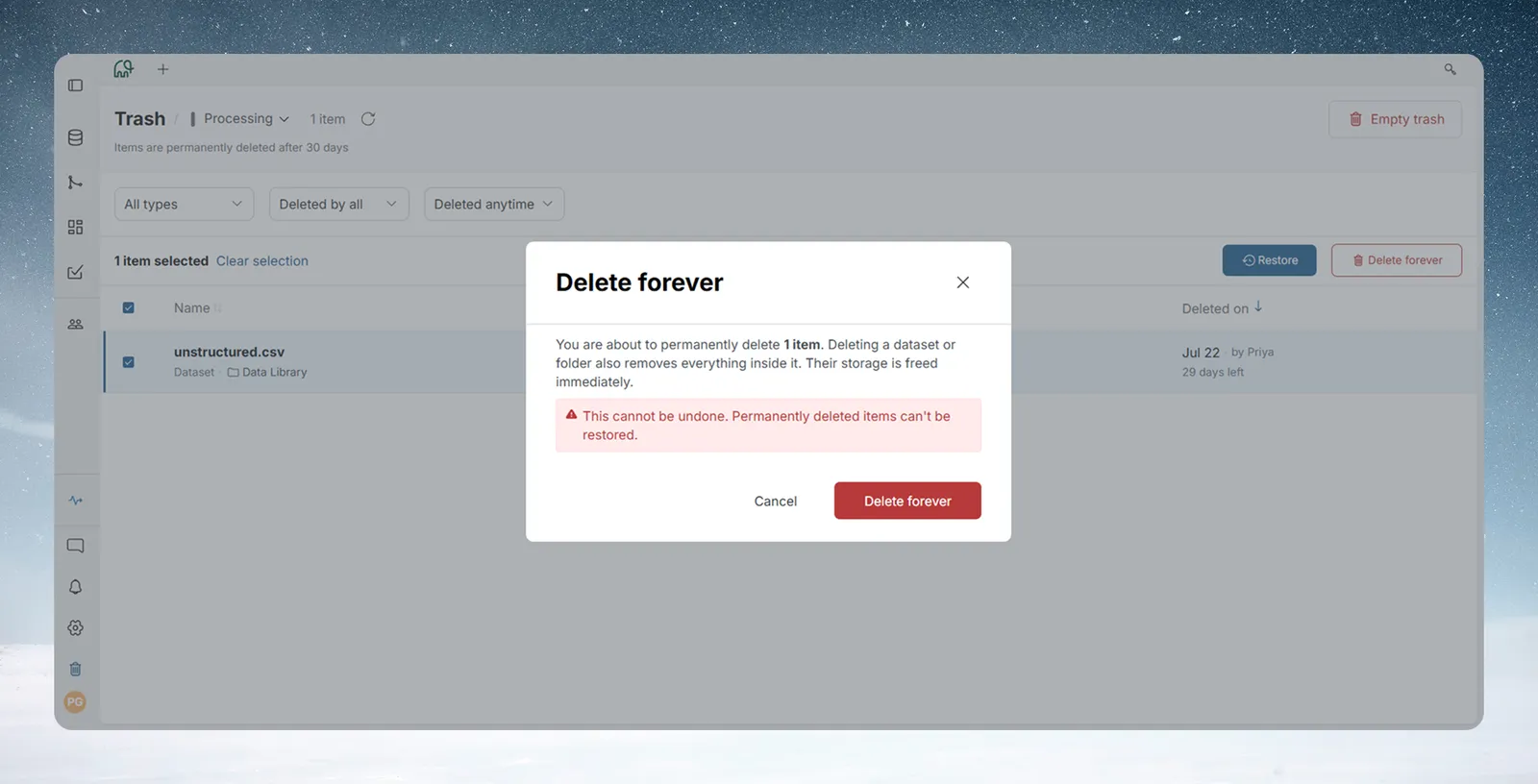
- The Delete forever dialog says, for example, "You are about to permanently delete 3 items. Deleting a dataset or folder also removes everything inside it. Their storage is freed immediately." It warns "This cannot be undone. Permanently deleted items can't be restored."
- Click Delete forever.
The item is removed for good. There's no undo.
Empty the whole Trash for a project
Empty trash permanently deletes everything in the project's Trash, not only what your filters show.
- Click Empty trash at the top of the Trash listing.
- The dialog warns that this deletes everything in Trash for this project, and counts the items and the storage that will be freed.
- Type EMPTY into the confirmation field. The red Empty trash button stays disabled until you type it exactly.
- Click Empty trash.
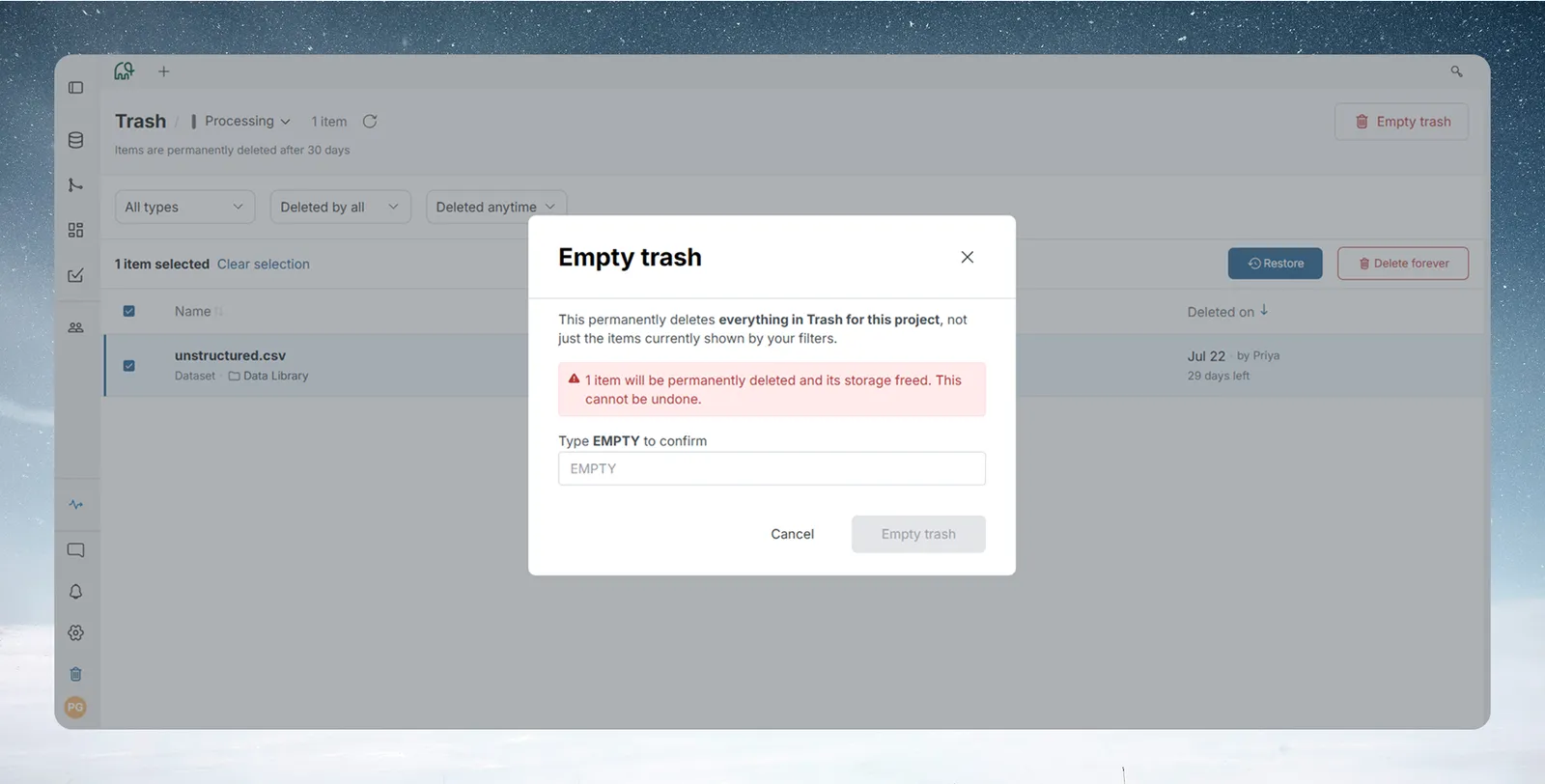
Empty trash ignores your filters. If you've filtered the listing to datasets only or "Deleted by me", it still deletes every type and every user's items. Filters change what you see, not what Empty trash deletes.
How items are removed after 30 days
Every trashed item has its own countdown from the moment it was trashed. When the countdown reaches zero, Mammoth removes the item for good. You don't need to do anything, and you can't prevent or extend it from the app.
- The removal runs on a recurring schedule in the background, so an item can stay listed briefly after its countdown ends.
- No notification is sent; the item leaves the Trash listing.
- Once an item is removed (on schedule, or through Delete forever or Empty trash), it can't be recovered.
Why you can't move something to Trash
If other active items depend on what you're deleting, Mammoth doesn't move it. A dialog opens instead, titled, for example, Can't delete "Sales 2026" yet, with a Blocking this delete list and a Close button. It has no delete button.
| Blocker | Shown as | Subtitle |
|---|---|---|
| A View that reads from it (a join or lookup) | The View, with Join or Lookup | "1 other item depends on it. Remove it, or its link, then try again." |
| An automation that uses the dataset (for example, as a refresh target or a Data Consolidation source or destination) | The automation, marked "automation" | Same as above |
| A dashboard built on it that you can't edit | The dashboard, marked "you can't edit it" (or "a dashboard you can't edit" when you can't see its name) | "You can't edit 1 dashboard built on it. Ask an editor to remove or reassign it." |
When you select several Views and none can be deleted, the title reads, for example, Can't delete these 3 views yet, and each blocker says which View it blocks ("blocks View 2").
Click a blocking View's name to open it in a new tab. If the delete dialog has already closed when Mammoth refuses, a Cannot move to Trash. message lists the blockers instead.
To clear a block, remove the join or lookup, edit or delete the automations, ask an editor to remove or reassign the dashboards you can't edit, or keep the item.
Permissions for Trash
Mammoth checks each item separately. In a mixed selection, the items you have permission for go through, and the rest are listed as failed ("You don't have permission to modify this item.").
| Action | Permission needed |
|---|---|
| Move a dataset, View or automation to Trash | Delete permission on the item (for an automation, on its project) |
| Move a dashboard to Trash | Edit access to the dashboard |
| Restore a dataset, View or automation | Update permission on the item (for an automation, on its project) |
| Restore a dashboard | Edit access to the dashboard. When its source View comes back with it, update permission on that View too |
| Delete forever or Empty trash | Delete permission on each item (edit access for a dashboard) |
Project Admins and Project Editors can create, edit and delete datasets, Views and pipelines; Project Viewers can't. If you can't see a Delete option on something, you likely can't trash it either. See Members, roles and custom roles.
Limits
| Limit | Details |
|---|---|
| Retention | 30 days, counted from the trash date. Not changeable from the app. |
| Covered items | Only datasets, Views, automations, dashboards and folders (contents only) go to Trash |
| Folders | Not a Trash row type. Trashing a folder trashes its contents; the folder is removed once empty. |
| Empty trash | Always clears the whole project Trash, ignoring filters |
| Scope | Project-scoped. There's no cross-project or workspace-wide Trash view. |
| Large selections | Over 25 Views: no item-by-item list in the dialog |
Troubleshooting
| Symptom | Cause | Fix |
|---|---|---|
| Can't delete "Sales 2026" yet | A join, lookup, automation or dashboard you can't edit depends on it. | Remove the blocker shown under Blocking this delete, then try again. |
| "Cannot move to Trash while the item's pipeline has active work. Try again once it finishes." | The item's pipeline is still running. | Wait for the run to end, then try again. |
| "Some items in PDF to CSV can't be moved to Trash." | The folder holds a file still processing, or a dataset that failed to move. | Wait for processing to finish, or delete that file first. |
| "You don't have permission to modify this item." | You lack the permission in the table above. | Ask a Project Admin. |
| A downstream pipeline stopped updating | Its target dataset was trashed, which suspended the trigger. | Restore the dataset, then turn the trigger back on by hand. |
| A dashboard can't be restored on its own | It was deleted together with its source View. | Restore the View; the dashboard comes back with it. |
Related
- The dataset panel: Move to trash in the dataset's actions.
- Copy, move and delete datasets: other ways to reorganise datasets.
- Views: create, rename and delete: delete a View from its menu.
- Parameters and snippets: why their deletion is permanent.
- Manage automations: automation-specific deletion steps.
- Manage your dashboards: the dashboard delete flow.
Something wrong? support@mammoth.io